This guide teaches you how to create hyperlink WordPress in posts, pages, menus, and widgets using the block editor or classic editor. You’ll also learn best practices for SEO and accessibility.
Key Takeaways
- Use the WordPress block editor: The easiest way to add hyperlinks is through the built-in link tool in Gutenberg.
- Keyboard shortcuts speed things up: Press Ctrl+K (or Cmd+K on Mac) to quickly insert a link.
- Always use descriptive anchor text: Avoid “click here”—instead, use meaningful phrases like “learn more about WordPress themes.”
- Open links in new tabs wisely: Use “Open in new tab” only when necessary to avoid confusing users.
- Check links after publishing: Broken links hurt SEO and user experience—always test your links.
- Hyperlinks work in menus and widgets too: You can add custom links to navigation menus and text widgets.
- Internal linking boosts SEO: Linking to other pages on your site helps search engines understand your content structure.
How to Create Hyperlink WordPress: A Complete Guide
If you’re building a website with WordPress, knowing how to create hyperlink WordPress is essential. Whether you’re linking to another page on your site, an external article, or a downloadable file, hyperlinks help users navigate and improve your site’s SEO.
In this guide, you’ll learn how to add hyperlinks in posts, pages, menus, and widgets using both the modern block editor and the classic editor. We’ll also cover best practices, common mistakes, and troubleshooting tips—so you can link like a pro.
Why Hyperlinks Matter in WordPress
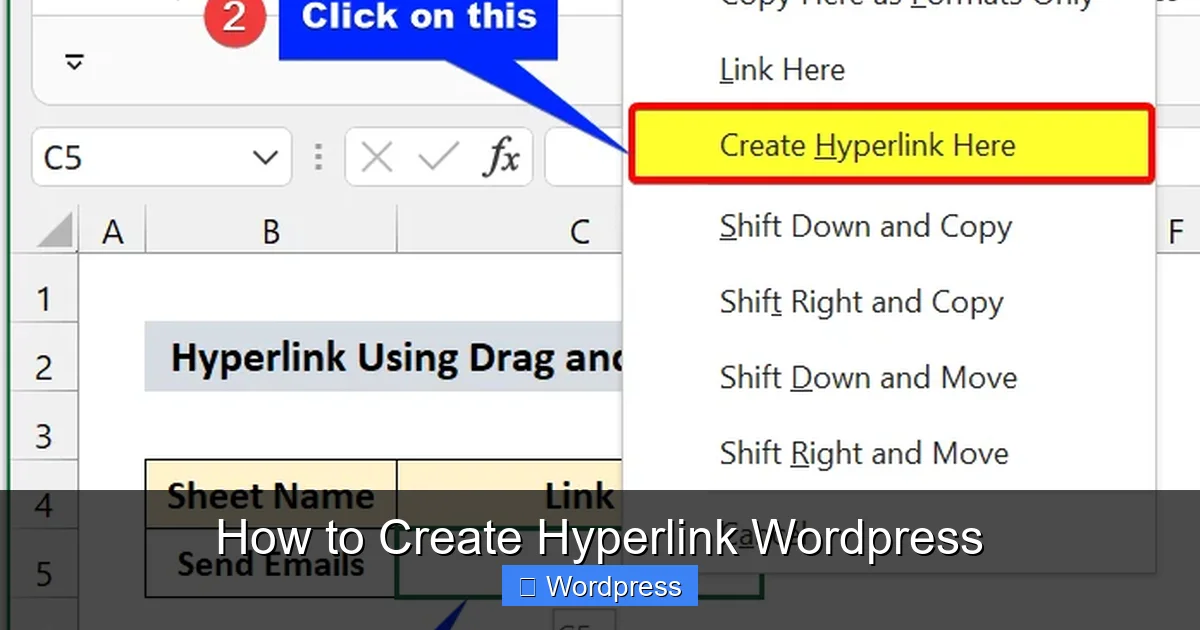
Visual guide about How to Create Hyperlink WordPress
Image source: exceldemy.com
Hyperlinks aren’t just for navigation—they’re a core part of the web. When used correctly, they:
- Improve user experience by guiding visitors to related content
- Boost SEO by helping search engines crawl your site
- Increase engagement by linking to valuable resources
- Support accessibility when anchor text is clear and descriptive
Whether you’re writing a blog post, updating a product page, or customizing your menu, mastering hyperlinks is a must.
How to Add Hyperlinks in WordPress Posts and Pages
Most of your linking will happen in posts and pages. Here’s how to do it in both the block editor (Gutenberg) and the classic editor.
Using the Block Editor (Gutenberg)
The block editor is the default in modern WordPress installations. It makes adding links simple and intuitive.
- Highlight the text you want to turn into a link. For example, select the phrase “best WordPress themes.”
- Click the link icon in the toolbar that appears above the selected text. It looks like a chain link.
- Paste or type the URL in the field that opens. You can paste an external link (like https://example.com) or search for an internal page on your site.
- Optional: Open in new tab – Toggle the “Open in new tab” switch if you want the link to open in a new window.
- Press Enter or click the arrow to apply the link.
Pro Tip: Use the keyboard shortcut Ctrl+K (Windows) or Cmd+K (Mac) to quickly open the link tool without clicking.
Using the Classic Editor
If you’re using the classic editor (via the Classic Editor plugin), the process is similar but uses a different interface.
- Highlight the text you want to link.
- Click the “Insert/edit link” button in the toolbar (it looks like a globe with a chain).
- Enter the URL in the dialog box. You can also choose to open the link in a new tab.
- Click “Add Link” to apply it.
You can also press Ctrl+K in the classic editor for the same quick-link function.
Adding Hyperlinks in WordPress Menus
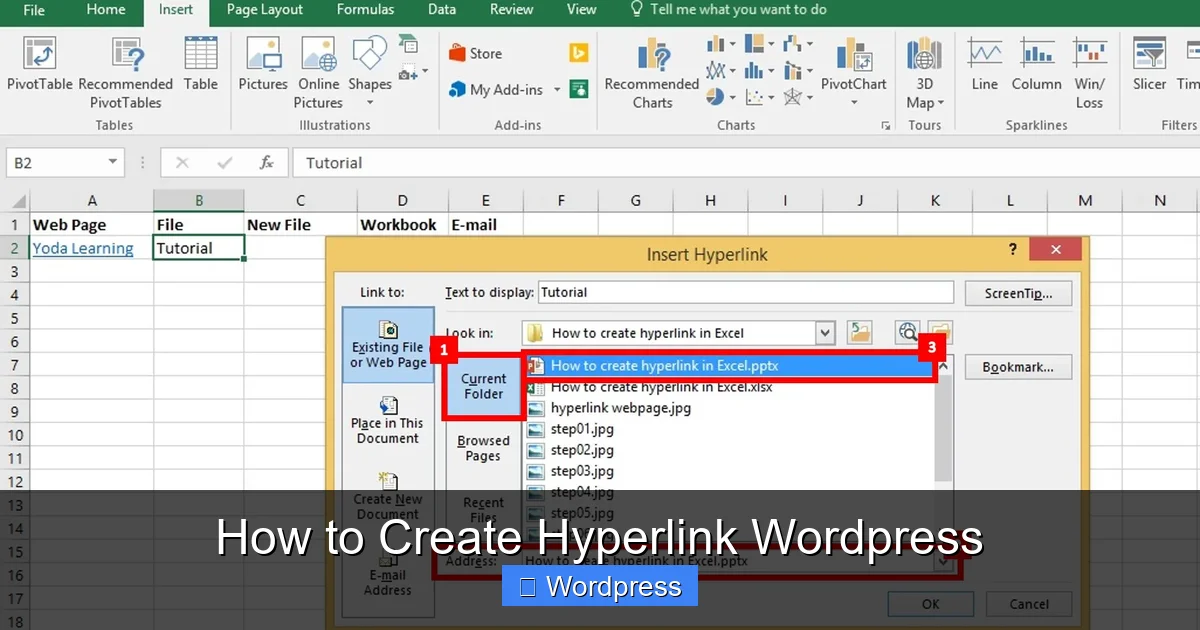
Visual guide about How to Create Hyperlink WordPress
Image source: yodalearning.com
Navigation menus are a great place to add custom links—like to your social media profiles or external resources.
Step-by-Step: Add a Custom Link to a Menu
- Go to Appearance > Menus in your WordPress dashboard.
- Select the menu you want to edit (or create a new one).
- In the left column, find the Custom Links section.
- Enter the URL (e.g., https://twitter.com/yourhandle) and the Link Text (e.g., “Follow us on Twitter”).
- Click Add to Menu.
- Drag and drop the new item to position it where you want in the menu.
- Click Save Menu to apply changes.
Tip: You can link to pages on your own site by selecting them from the “Pages” or “Posts” sections instead of using Custom Links.
Adding Hyperlinks in Widgets
Widgets appear in sidebars, footers, and other widget-ready areas. You can add hyperlinks in text widgets.
How to Link in a Text Widget
- Go to Appearance > Widgets.
- Find the Text widget (or “Custom HTML” if you prefer code).
- Drag it to your desired widget area (like “Footer” or “Sidebar”).
- In the content area, type your text and highlight the part you want to link.
- Click the link icon in the toolbar (if using the visual editor) or manually add HTML:
<a href="https://example.com" target="_blank">Visit Example</a>
href= the URLtarget="_blank"= opens in new tab (optional)
Note: If your theme uses the block-based widget editor (common in newer WordPress versions), you’ll use the Paragraph or HTML block instead.
Best Practices for Creating Hyperlinks in WordPress
To make your links effective and user-friendly, follow these guidelines:
Use Descriptive Anchor Text
Avoid generic phrases like “click here” or “read more.” Instead, use meaningful text that tells users what they’ll find.
✅ Good: “Learn how to create a WordPress theme with Elementor”
❌ Bad: “Click here to learn about themes”
Descriptive anchor text helps both users and search engines understand the linked content.
Open External Links in New Tabs (When Appropriate)
Use target="_blank" for external links so users don’t leave your site. However, don’t overuse it—too many new tabs can frustrate users.
Best practice: Use new tabs for external resources, but keep internal links opening in the same tab.
Check for Broken Links
Broken links hurt your credibility and SEO. After publishing, always click your links to make sure they work.
You can also use plugins like “Broken Link Checker” to scan your site automatically.
Use Internal Links to Boost SEO
Linking to other pages on your site (internal linking) helps search engines discover and rank your content.
For example, if you write a blog post about WordPress speed, link to your guide on best WordPress themes for SEO and speed.
Make Links Accessible
Ensure your links are easy to identify:
- Use underlines or bold text (don’t rely only on color)
- Avoid long URLs as anchor text (e.g., “https://verylongurl.com/page”)
- Add
titleattributes for extra context (optional but helpful)
Troubleshooting Common Hyperlink Issues
Even experienced users run into problems. Here’s how to fix the most common issues.
Links Not Working After Publishing
If a link works in the editor but not on the live site:
- Check for typos in the URL
- Make sure the page or post you’re linking to is published (not draft or private)
- Clear your cache (browser and plugin cache)
Can’t See the Link Tool in the Editor
If the link icon is missing:
- Make sure you’ve highlighted text—the tool only appears when text is selected
- Switch to the “Visual” tab if you’re in “Text” mode
- Update WordPress and your browser
Links Look Like Plain Text
If your links aren’t styled (no underline or color):
- Your theme’s CSS might be overriding link styles
- Use a plugin or custom CSS to fix it—check out our guide on the best way to add CSS in WordPress
Accidentally Removed a Link
To remove a link:
- Highlight the linked text
- Click the link icon again
- Click the “Unlink” button (or press Ctrl+Shift+K)
Conclusion
Knowing how to create hyperlink WordPress is a fundamental skill for any website owner. Whether you’re linking within a blog post, adding social media icons to your menu, or embedding resources in a widget, hyperlinks connect your content and improve user experience.
By following the steps in this guide, you can add links quickly and correctly—using the block editor, classic editor, menus, or widgets. Remember to use descriptive anchor text, test your links, and prioritize accessibility.
With these tips, your WordPress site will be more engaging, SEO-friendly, and professional. Start linking smarter today!