This guide walks you through how to delete a theme in WordPress using the dashboard or FTP. You’ll learn when it’s safe to remove themes, how to avoid breaking your site, and best practices for keeping your WordPress installation clean and secure.
Key Takeaways
- Never delete your active theme: Always switch to a default theme like Twenty Twenty-Four before removing the current one.
- Use the WordPress dashboard for most users: The easiest and safest method for deleting themes without technical skills.
- FTP is an alternative for advanced users: Useful if you can’t access the dashboard or need to remove corrupted themes.
- Keep at least one default theme: WordPress requires a fallback theme in case of errors or updates.
- Child themes require extra care: Deleting a parent theme will break its child theme—always reassign or remove child themes first.
- Clean up unused themes regularly: Reduces security risks and keeps your site running smoothly.
- Backup your site first: Always create a full backup before making changes to themes or files.
Introduction
WordPress makes it easy to install and switch between themes, but what happens when you no longer need a theme? Whether you’ve switched to a new design, installed a theme for testing, or simply want to clean up your site, knowing how to delete a theme in WordPress is an essential skill for any website owner.
In this guide, we’ll show you two reliable methods: using the WordPress admin dashboard and using FTP (File Transfer Protocol). We’ll also cover important safety tips, common mistakes to avoid, and troubleshooting steps if something goes wrong. By the end, you’ll be able to remove unwanted themes confidently—without risking your site’s functionality.
Why Delete Unused Themes?
You might wonder, “If a theme isn’t active, why delete it?” The truth is, even inactive themes can pose risks. Here’s why cleaning them up matters:
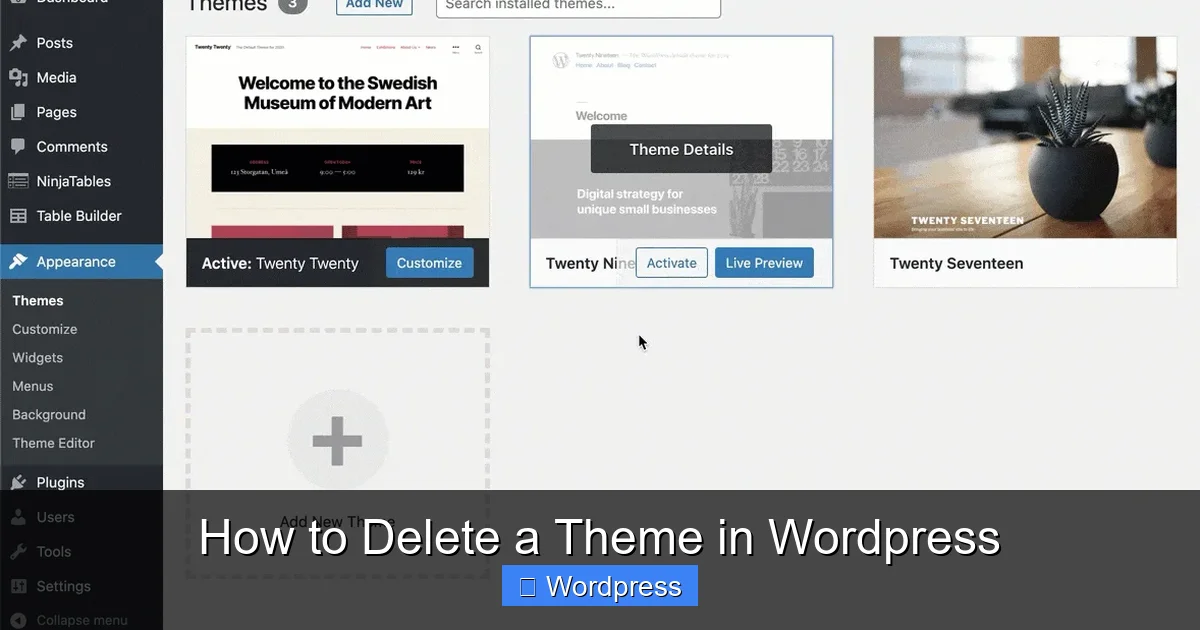
Visual guide about How to Delete a Theme in WordPress
Image source: ultimateblocks.com
- Security: Outdated or poorly coded themes can contain vulnerabilities that hackers exploit—even if they’re not in use.
- Performance: Fewer files mean faster backups, updates, and overall site performance.
- Clutter: A tidy dashboard is easier to manage. Removing unused themes reduces confusion when selecting or updating themes.
- Compliance: Some hosting providers or security plugins flag sites with excessive unused themes as potential risks.
So, while it might seem harmless to leave old themes sitting around, taking a few minutes to delete them can save you headaches down the road.
Important Precautions Before Deleting a Theme
Before you click “Delete,” follow these critical steps to protect your website:
1. Ensure the Theme Is Not Active
You cannot delete the theme currently powering your site. If you try, WordPress will block the action and show an error message. To check:
- Go to Appearance > Themes in your WordPress dashboard.
- Look for the “Active” label under one of the themes.
- If the theme you want to delete is active, switch to another theme first (we’ll cover this below).
2. Switch to a Default Theme (If Needed)
If your active theme is the one you want to remove, you must activate a different theme. WordPress includes free default themes like Twenty Twenty-Four, Twenty Twenty-Three, and Twenty Twenty-Two—these are perfect fallbacks.
To switch:
- Navigate to Appearance > Themes.
- Click on a default theme (e.g., Twenty Twenty-Four).
- Click Activate.
Now your site is using the new theme, and you can safely delete the old one. For more details on switching themes, check out our guide on how to apply a WordPress theme.
3. Backup Your Website
Even though deleting a theme is generally safe, accidents happen. Always create a full backup of your site before making changes. Use a plugin like UpdraftPlus or your hosting provider’s backup tool. This ensures you can restore your site if anything goes wrong.
4. Handle Child Themes Carefully
If you’re using a child theme, deleting its parent theme will break your site. Always deactivate and delete the child theme first, then remove the parent. Alternatively, switch to a different parent theme if you still want to use child functionality.
Method 1: Delete a Theme via WordPress Dashboard
This is the easiest and recommended method for most users. It requires no technical knowledge and takes less than a minute.
Step 1: Log into Your WordPress Admin
Go to yoursite.com/wp-admin and log in with your username and password.
Step 2: Navigate to the Themes Section
In the left-hand menu, click Appearance, then select Themes. You’ll see a grid of all installed themes.
Step 3: Locate the Theme to Delete
Find the theme you want to remove. Make sure it’s not active (no “Active” label). Hover over the theme thumbnail—you’ll see a “Theme Details” button.
Step 4: Delete the Theme
- Click Theme Details.
- In the popup window, click the red Delete button at the bottom right.
- Confirm the action when prompted.
The theme will be permanently removed from your site. Repeat these steps for any other unused themes.
Tip: You can also delete multiple themes at once by checking the boxes below each theme and selecting “Delete” from the bulk actions dropdown.
Method 2: Delete a Theme via FTP (Advanced)
If you can’t access your WordPress dashboard—perhaps due to a white screen or plugin conflict—you can delete themes directly from your server using FTP.
Step 1: Connect to Your Site via FTP
Use an FTP client like FileZilla. Enter your FTP credentials (usually provided by your hosting provider):
- Host: Your domain or server IP
- Username: Your FTP username
- Password: Your FTP password
- Port: Usually 21
Step 2: Navigate to the Themes Folder
Once connected, go to:
wp-content/themes/
This folder contains all your installed themes—each in its own subfolder.
Step 3: Identify and Delete the Theme Folder
Look for the folder named after the theme you want to delete (e.g., “astra,” “oceanwp”). Right-click the folder and select Delete.
Warning: Only delete folders for themes you’re sure are inactive. Deleting the wrong folder can break your site.
Step 4: Verify the Deletion
Log back into your WordPress dashboard and go to Appearance > Themes. The deleted theme should no longer appear in the list.
For more on manual theme management, see our guide on how to install WP themes manually.
Troubleshooting Common Issues
Sometimes, things don’t go as planned. Here’s how to handle common problems:
“You Are Not Allowed to Delete This Theme”
This error appears if you’re trying to delete the active theme. Double-check which theme is active under Appearance > Themes. Switch to a default theme first, then retry.
Theme Still Appears After Deletion
If a theme shows up even after deletion, clear your browser cache or try accessing your site in incognito mode. If it persists, check the wp-content/themes/ folder via FTP to confirm the folder was fully removed.
White Screen After Deleting a Theme
This usually means you accidentally deleted your active theme. Restore it via FTP by uploading the theme folder again, or activate a default theme via your hosting control panel (many hosts offer a “rescue mode” for this).
Can’t Access Dashboard After Theme Deletion
If your site crashes, use FTP to upload a fresh copy of a default theme (like Twenty Twenty-Four) into the themes folder. Then log in and reactivate it.
Best Practices for Theme Management
To keep your WordPress site secure and efficient, follow these habits:
- Keep only necessary themes: Install only what you need. Test new themes on a staging site first.
- Update regularly: Outdated themes are security risks. Learn how to update a theme on WordPress safely.
- Use child themes for customization: Avoid editing parent themes directly. Use a child theme to preserve changes during updates.
- Monitor theme performance: Use tools like GTmetrix to check if a theme slows down your site. Consider switching to a faster option—like one from our list of the best WordPress themes for SEO and speed.
Conclusion
Deleting a theme in WordPress is a simple but important task for maintaining a clean, secure, and high-performing website. Whether you use the dashboard or FTP, always ensure the theme isn’t active, back up your site, and handle child themes with care.
By regularly removing unused themes, you reduce security risks, improve site speed, and make your WordPress admin easier to navigate. Now that you know how to do it safely, take a few minutes to audit your installed themes and delete any that are no longer needed.
Remember: a tidy site is a happy site. Keep your WordPress installation lean, updated, and optimized—and your visitors (and search engines) will thank you.