
Breadcrumbs errors in WordPress can hurt user experience and SEO. This guide shows you how to diagnose and fix common breadcrumbs issues using themes, plugins, or custom code—no coding skills required.
Key Takeaways
- Check your theme compatibility: Many modern WordPress themes include built-in breadcrumb support. If yours doesn’t, you may need a plugin or custom code.
- Use reliable breadcrumb plugins: Plugins like Yoast SEO, Rank Math, or Breadcrumb NavXT offer easy setup and automatic integration.
- Verify template file placement: Breadcrumbs must be correctly placed in your theme’s template files (e.g., header.php or single.php) to display properly.
- Clear cache after changes: Caching plugins or server-side caching can hide updates—always clear your cache after making breadcrumb adjustments.
- Test on multiple pages: Ensure breadcrumbs appear and function correctly on posts, pages, categories, and custom post types.
- Update or switch themes if needed: Outdated or poorly coded themes may break breadcrumb functionality—consider updating or using a child theme.
- Use structured data for SEO: Properly implemented breadcrumbs include schema markup, which helps search engines understand your site structure.
What Are Breadcrumbs and Why Do They Matter?
Breadcrumbs are a secondary navigation aid that shows users their current location within your website’s hierarchy. For example: Home > Blog > How to Fix Breadcrumbs Error in WordPress. They improve user experience by making it easy to backtrack and help search engines understand your site structure.
When breadcrumbs display incorrectly—or not at all—it’s often due to theme limitations, plugin conflicts, or missing code. Fixing these errors ensures better navigation, lower bounce rates, and stronger SEO performance.
In this guide, you’ll learn how to fix breadcrumbs error in WordPress using practical, beginner-friendly methods. Whether you’re using a theme with built-in support, a plugin, or custom code, we’ve got you covered.
Step 1: Check If Your Theme Supports Breadcrumbs
Many modern WordPress themes come with built-in breadcrumb functionality. Before installing a plugin or adding code, check if your theme already supports it.
How to Check Theme Compatibility
- Go to Appearance > Theme File Editor in your WordPress dashboard.
- Look for files like
header.php,single.php, orpage.php. - Search for terms like
breadcrumb,yoast_breadcrumb, orrank_math_breadcrumb.
If you find breadcrumb-related code, your theme likely supports it—but it might be disabled or misplaced. If not, proceed to the next step.
Tip: Use a Child Theme
Before editing theme files directly, always use a child theme. This prevents your changes from being overwritten during theme updates. If you’re not using one yet, now is the perfect time to set it up.
Step 2: Install a Breadcrumb Plugin
If your theme doesn’t support breadcrumbs, a plugin is the easiest fix. Here are three trusted options:
Option 1: Yoast SEO
Yoast SEO is one of the most popular SEO plugins and includes built-in breadcrumb support.
- Go to Plugins > Add New.
- Search for “Yoast SEO” and install it.
- Activate the plugin and go to SEO > Search Appearance > Breadcrumbs.
- Toggle “Enable breadcrumbs” to ON.
- Click “Save Changes.”
Option 2: Rank Math
Rank Math is another powerful SEO plugin with excellent breadcrumb features.
- Install and activate Rank Math from the plugin directory.
- Go to Rank Math > General Settings > Breadcrumbs.
- Enable breadcrumbs and customize the separator (e.g., > or /).
- Save settings.
Option 3: Breadcrumb NavXT
This lightweight plugin focuses solely on breadcrumbs and offers advanced customization.
- Install Breadcrumb NavXT from the plugin repository.
- Activate it and go to Settings > Breadcrumb NavXT.
- Configure the format for posts, pages, and categories.
- Use the shortcode
[bcn_display]or PHP function<?php bcn_display(); ?>to place breadcrumbs.
Step 3: Add Breadcrumbs Manually (Without a Plugin)
If you prefer not to use a plugin, you can add breadcrumbs with custom code. This method gives you full control but requires basic PHP knowledge.
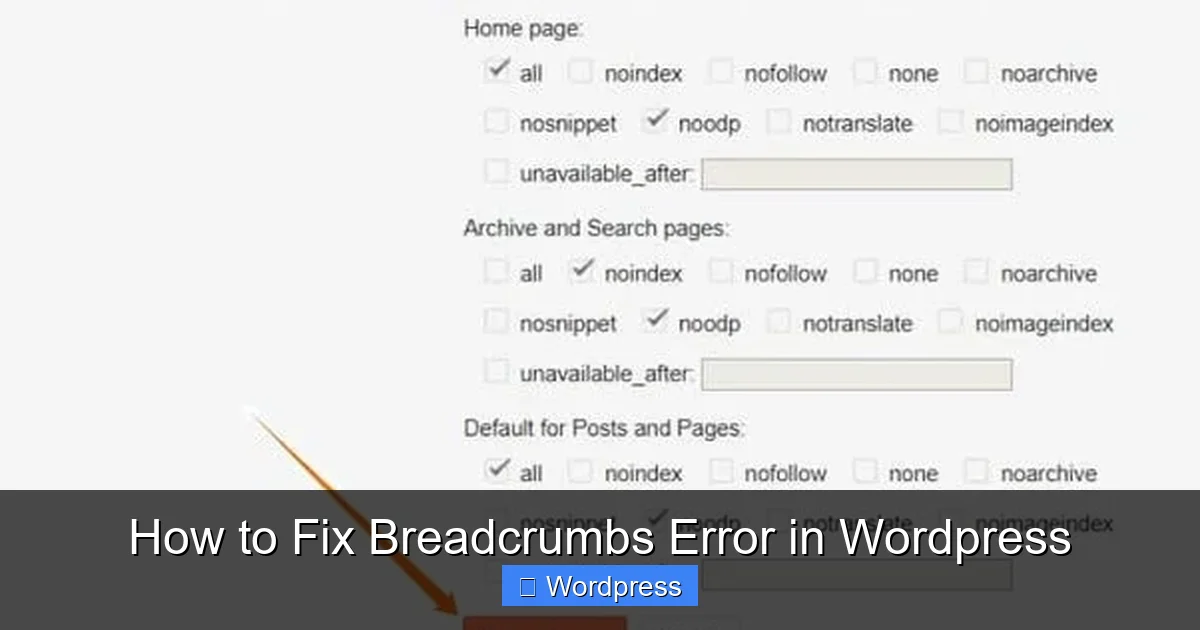
Visual guide about How to Fix Breadcrumbs Error in WordPress
Image source: miro.medium.com
Add Breadcrumbs via functions.php
Paste the following code into your child theme’s functions.php file:
function custom_breadcrumbs() {
    $separator = ' > ';
    $home = 'Home';
    $before = '<span class="current">';
    $after = '</span>';

    if (!is_home()) {
        echo '<div class="breadcrumbs">';
        echo '<a href="' . home_url() . '">' . $home . '</a>' . $separator;

        if (is_category()) {
            $category = get_category(get_query_var('cat'));
            echo get_category_parents($category, TRUE, $separator);
            echo $before . single_cat_title('', FALSE) . $after;
        } elseif (is_single()) {
            $category = get_the_category();
            if ($category) {
                echo get_category_parents($category[0], TRUE, $separator);
            }
            echo $before . get_the_title() . $after;
        } elseif (is_page()) {
            global $post;
            if ($post->post_parent) {
                $ancestors = array_reverse(get_post_ancestors($post->ID));
                foreach ($ancestors as $ancestor) {
                    echo '<a href="' . get_permalink($ancestor) . '">' . get_the_title($ancestor) . '</a>' . $separator;
                }
            }
            echo $before . get_the_title() . $after;
        } elseif (is_search()) {
            echo $before . 'Search results for "' . get_search_query() . '"' . $after;
        }
        echo '</div>';
    }
}
Display Breadcrumbs in Your Theme
To show the breadcrumbs, add this line where you want them to appear (e.g., in header.php or single.php):
<?php custom_breadcrumbs(); ?>
Place it just below the opening <body> tag or inside your main content wrapper for best results.
Step 4: Fix Common Breadcrumb Errors
Even with the right setup, breadcrumbs can still break. Here’s how to troubleshoot common issues.
Breadcrumbs Not Showing
- Check placement: Ensure the breadcrumb function or shortcode is in the correct template file.
- Clear cache: If you use a caching plugin (like WP Super Cache or W3 Total Cache), clear it after making changes.
- Disable conflicting plugins: Temporarily deactivate other SEO or navigation plugins to test for conflicts.
Incorrect or Missing Links
- Verify category assignments: Posts must be assigned to categories for breadcrumbs to display parent links.
- Update permalinks: Go to Settings > Permalinks and click “Save Changes” to refresh URL structures.
- Check custom post types: If using custom post types, ensure they’re included in your breadcrumb logic or plugin settings.
Styling Issues
Breadcrumbs may look plain or misaligned. Fix this with CSS.
Add Custom CSS
Go to Appearance > Customize > Additional CSS and add:
.breadcrumbs {
    font-size: 14px;
    color: #666;
    margin: 10px 0;
    padding: 8px;
    background: #f9f9f9;
    border-radius: 4px;
}
.breadcrumbs a {
    color: #0073aa;
    text-decoration: none;
}
.breadcrumbs a:hover {
    text-decoration: underline;
}
This gives your breadcrumbs a clean, readable style that matches most WordPress themes.
Step 5: Test and Optimize for SEO
Once breadcrumbs are working, test them thoroughly.
Test on Different Pages
- Visit a blog post—does it show Home > Category > Post Title?
- Check a static page with subpages—are parent pages linked?
- Test category and tag archive pages.
Enable Structured Data
For SEO, breadcrumbs should include schema markup. Most plugins like Yoast and Rank Math add this automatically. To verify:
- Right-click your page and select “View Page Source.”
- Search for
application/ld+json. - Look for a breadcrumb section with
"@type": "BreadcrumbList".
If missing, consider switching to a plugin that supports schema or add it manually using a plugin like Schema & Structured Data for WP.
When to Update or Change Your Theme
If you’ve tried everything and breadcrumbs still don’t work, your theme might be the issue. Outdated or poorly coded themes can break functionality.
Consider These Actions
- Update your theme: Go to Appearance > Themes and check for updates. An outdated theme may lack modern breadcrumb support.
- Switch to a compatible theme: If updates don’t help, consider a theme known for good navigation, like Astra, GeneratePress, or Neve.
- Use a child theme: If you’ve made customizations, migrate them to a child theme before switching.
For safe theme management, learn how to update a WordPress theme without losing your content or design.
Conclusion
Fixing breadcrumbs error in WordPress is essential for both usability and SEO. Whether you use a plugin, custom code, or theme features, the key is consistent placement and testing.
Start by checking your theme’s capabilities, then choose a reliable plugin or add code via your child theme. Always clear your cache, test on multiple pages, and ensure schema markup is present.
With these steps, your breadcrumbs will guide visitors seamlessly—and help search engines crawl your site more effectively. Don’t let a small navigation issue hurt your site’s performance. Fix it today and enjoy the benefits of a well-structured WordPress website.