This guide teaches you how to fix canonical URL in WordPress using plugins, manual code edits, and theme settings. You’ll learn best practices to prevent duplicate content issues and improve your site’s SEO performance.
Key Takeaways
- Canonical URLs prevent duplicate content: They tell search engines which version of a page is the original, improving SEO.
- Use SEO plugins for easy setup: Tools like Yoast SEO and Rank Math automatically generate correct canonical tags.
- Check theme settings: Some WordPress themes include built-in canonical URL options in their customization panels.
- Edit code manually if needed: You can add canonical tags directly to your theme’s header.php or via functions.php.
- Test your changes: Use browser inspection tools or SEO checkers to verify canonical tags are working correctly.
- Avoid conflicting plugins: Multiple SEO tools can create duplicate or incorrect canonical tags—stick to one reliable plugin.
- Update permalinks regularly: Broken or inconsistent URLs can cause canonical issues—always use clean, readable permalinks.
What Is a Canonical URL and Why Does It Matter?
A canonical URL is an HTML tag that tells search engines which version of a webpage is the “master” or preferred version when multiple pages have similar or identical content. This helps prevent duplicate content issues, which can hurt your SEO rankings.
For example, if your blog post appears at both https://yoursite.com/blog/post and https://yoursite.com/blog/post?utm_source=newsletter, search engines might see them as two separate pages. A canonical tag points both to the clean URL, ensuring all ranking power goes to one page.
In WordPress, fixing canonical URLs ensures your site structure is clear, consistent, and optimized for search engines. Whether you’re dealing with pagination, URL parameters, or multiple access points to the same content, proper canonicalization keeps your SEO on track.
How to Fix Canonical URL in WordPress (Step-by-Step)
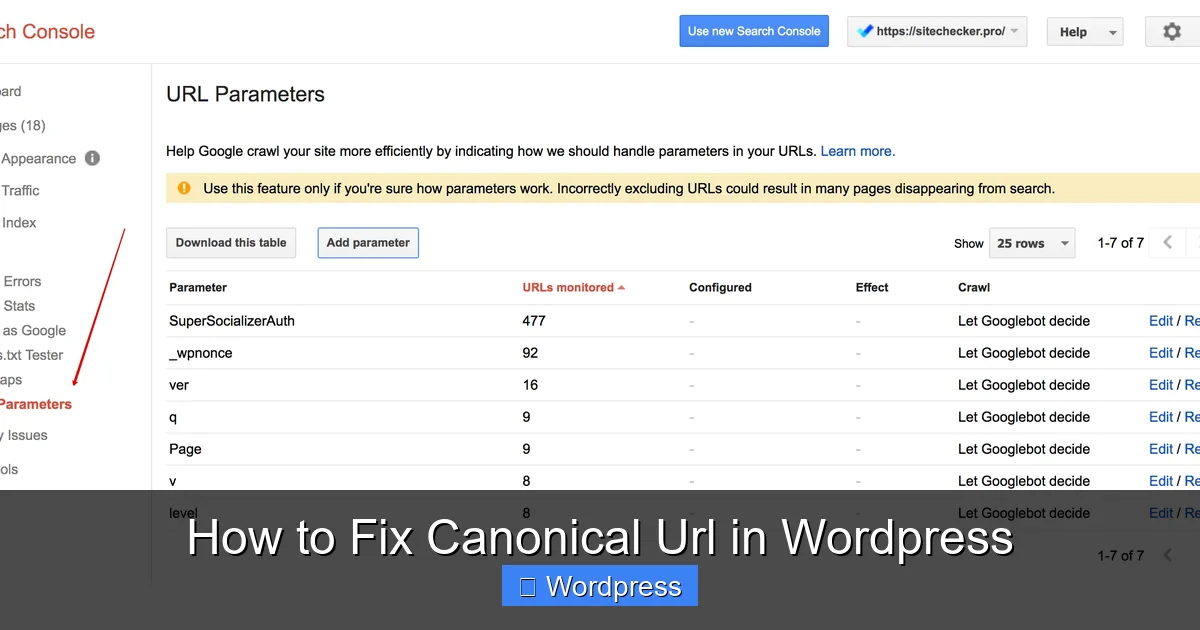
Visual guide about How to Fix Canonical Url in WordPress
Image source: sitechecker.pro
Fixing canonical URLs in WordPress is easier than you think. Below are several proven methods—choose the one that fits your skill level and setup.
Method 1: Use an SEO Plugin (Recommended for Most Users)
The simplest and most reliable way to fix canonical URLs is by using a trusted SEO plugin. These tools automatically generate and insert correct canonical tags for every page and post.
Step 1: Install an SEO Plugin
Go to your WordPress dashboard → Plugins → Add New. Search for either Yoast SEO or Rank Math SEO—both are free and highly effective.
Click “Install” and then “Activate.”
Step 2: Configure Canonical Settings
After activation, go to SEO → General (in Yoast) or Rank Math → General Settings.
In Yoast SEO:
– Navigate to “Search Appearance” → “Content Types.”
– Ensure “Show canonical URL” is enabled for posts, pages, and custom post types.
– Yoast will now auto-generate canonical tags based on your permalink structure.
In Rank Math:
– Go to “Titles & Meta” → “Global Meta.”
– Enable “Canonical URL” under the “Advanced” section.
– Rank Math also allows you to set custom canonical URLs per post if needed.
Step 3: Check Individual Posts
When editing a post or page, scroll down to the SEO meta box (usually below the content editor). You’ll see a field labeled “Canonical URL.” If left blank, the plugin uses the default permalink. You can override it here if necessary—for example, if content is syndicated from another site.
Method 2: Fix Canonical URLs via Theme Settings
Some modern WordPress themes include built-in SEO features that handle canonical tags. Before installing a plugin, check your theme options.
Step 1: Go to Appearance → Customize
Look for sections like “SEO Settings,” “Header Settings,” or “Advanced Options.”
Step 2: Enable Canonical Tags
Themes like Astra, GeneratePress, and OceanWP often have toggles for “Enable Canonical URLs” or “SEO Optimization.” Turn these on if available.
Note: Not all themes support this. If you don’t see the option, proceed with a plugin or manual method.
Method 3: Add Canonical Tags Manually (For Advanced Users)
If you prefer full control or your theme/plugin isn’t working, you can add canonical tags directly to your site’s code.
Step 1: Edit header.php
Go to Appearance → Theme File Editor → header.php (under “Theme Files”).
Add this code just before the closing </head> tag:
<link rel="canonical" href="<?php echo esc_url(get_permalink()); ?>" />
This dynamically inserts the correct canonical URL for each page.
⚠️ Warning: Editing theme files directly can break your site if done incorrectly. Always back up your site first. For safer updates, consider creating a child theme before making changes.
Step 2: Use functions.php (Alternative Method)
Instead of editing header.php, you can add the canonical tag via your theme’s functions.php file:
function add_canonical_tag() {

if (is_singular()) {

echo '<link rel="canonical" href="' . esc_url(get_permalink()) . '" />' . "\n";

}

}

add_action('wp_head', 'add_canonical_tag');
This method is cleaner and survives theme updates if you’re using a child theme.
Method 4: Fix Canonical Issues Caused by Plugins or Themes
Sometimes, conflicting plugins or poorly coded themes generate incorrect or duplicate canonical tags.
Step 1: Identify the Problem
Use your browser’s inspect tool (right-click → Inspect → Elements tab) and search for “canonical” in the <head> section. You should see only one canonical tag per page.
If you see multiple or incorrect URLs, a plugin or theme is likely interfering.
Step 2: Disable Conflicting Plugins
Temporarily deactivate SEO-related plugins one by one (e.g., All in One SEO, SEOPress) and check if the issue resolves. Keep only one active SEO plugin to avoid conflicts.
Step 3: Switch to a Default Theme
If the problem persists, switch to a default WordPress theme like Twenty Twenty-Four. If canonical tags work correctly, your original theme may be the culprit. Consider updating it or contacting the developer.
Best Practices for Canonical URLs in WordPress
To maintain strong SEO health, follow these guidelines:
- Use consistent URLs: Always link to the same version of a page (e.g., always use https, not http).
- Avoid trailing slashes issues: Decide whether your URLs end with a slash (e.g.,
/page/) or not, and stick to it. - Set proper redirects: If you change a URL, use a 301 redirect to point the old URL to the new one. This preserves SEO value.
- Handle pagination correctly: For paginated content (like blog archives), use
rel="next"andrel="prev"or set the first page as canonical. - Monitor with SEO tools: Use Google Search Console or Screaming Frog to scan for canonicalization errors.
Troubleshooting Common Canonical URL Issues
Visual guide about How to Fix Canonical Url in WordPress
Image source: wpthrill.com
Even with the right setup, problems can arise. Here’s how to fix them:
Issue: Missing Canonical Tags
If no canonical tag appears, your SEO plugin may be disabled or misconfigured. Re-check plugin settings or reinstall it.
Issue: Wrong Canonical URL
This happens when a plugin points to an incorrect page (e.g., homepage instead of the actual post). Edit the canonical URL manually in the post’s SEO meta box.
Issue: Duplicate Canonical Tags
Caused by multiple plugins adding tags. Deactivate all SEO plugins except one (preferably Yoast or Rank Math).
Issue: Canonical Tag Points to HTTP Instead of HTTPS
Update your WordPress Address and Site Address in Settings → General to use https://. Also, run a search-and-replace tool (like Better Search Replace) to update old URLs in your database.
Conclusion
Fixing canonical URLs in WordPress is essential for SEO success. Whether you use a plugin, tweak theme settings, or edit code manually, ensuring each page has a single, correct canonical tag prevents duplicate content and boosts your search rankings.
Start with an SEO plugin like Yoast or Rank Math for the easiest solution. If you’re comfortable with code, manual methods offer more control. Always test your changes and monitor your site’s performance in Google Search Console.
By following this guide, you’ll keep your WordPress site clean, consistent, and search-engine friendly. And if you ever need to update your theme safely, don’t forget to use a child theme to preserve your customizations.
For more WordPress tips, check out our guide on how to apply a WordPress theme or learn how to install WP themes manually for greater flexibility.