
Cumulative Layout Shift (CLS) hurts your site’s performance and rankings. This guide shows you how to fix cumulative layout shift WordPress issues step by step. You’ll learn practical fixes for images, fonts, ads, and dynamic content to improve page speed and user experience.
Key Takeaways
- Understand CLS: Cumulative Layout Shift measures unexpected layout changes during page load. A low CLS score improves user experience and SEO.
- Set image dimensions: Always define width and height for images and videos to prevent layout shifts when media loads.
- Reserve space for dynamic content: Use CSS to reserve space for ads, banners, or injected content so the page doesn’t jump.
- Optimize web fonts: Use font-display: swap and preload critical fonts to avoid invisible text and layout shifts.
- Test with real tools: Use Google PageSpeed Insights, Lighthouse, or Web Vitals Chrome extension to measure and monitor CLS.
- Avoid inserting content above existing content: Adding elements like popups or banners at the top can shift content down unexpectedly.
- Choose fast, lightweight themes: Some themes cause layout shifts due to poor coding. Consider switching to a WordPress theme optimized for speed and SEO.
How to Fix Cumulative Layout Shift in WordPress
If your WordPress site feels jumpy when loading—text suddenly shifts, buttons move, or images push content around—you’re likely dealing with cumulative layout shift (CLS). This frustrating issue not only annoys visitors but also hurts your search engine rankings. Google uses CLS as part of its Core Web Vitals, which directly impact SEO.
The good news? You can fix cumulative layout shift in WordPress with a few smart tweaks. In this guide, we’ll walk you through practical, step-by-step solutions to reduce CLS and create a smoother, faster, and more professional user experience.
What Is Cumulative Layout Shift?
Cumulative Layout Shift (CLS) is a Core Web Vital metric that measures how much visible content shifts during page load. A shift happens when an element loads after the page starts rendering and pushes other content around. For example, an image loading without dimensions might push text down, causing a user to click the wrong button.
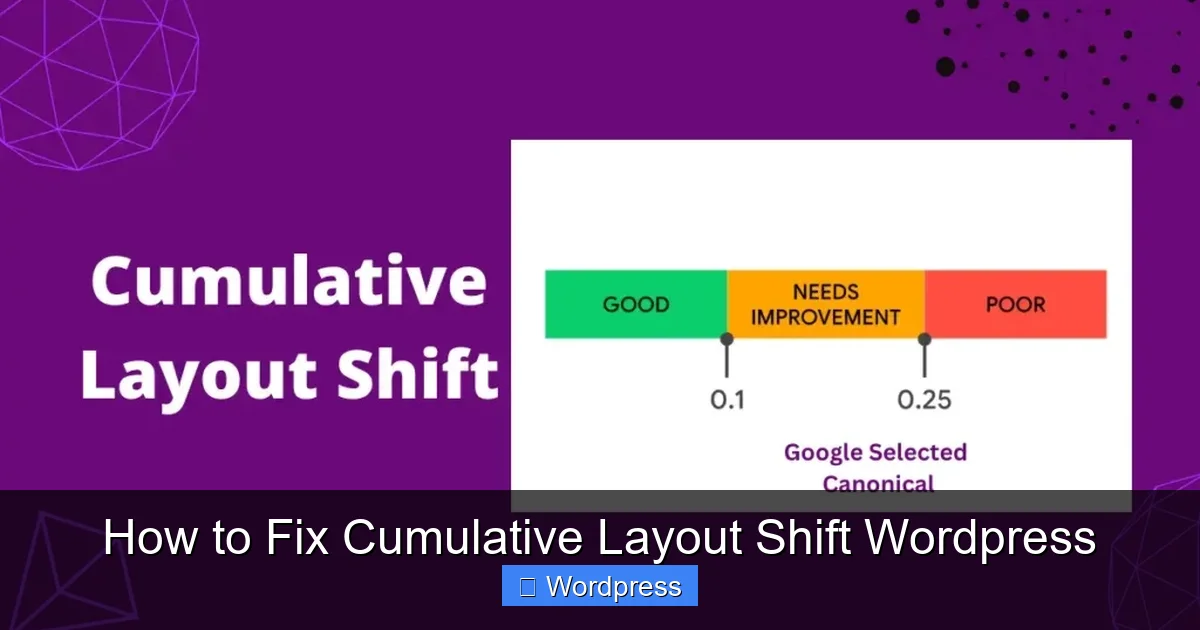
Google considers a CLS score under 0.1 as “good.” Anything above 0.25 needs improvement. High CLS leads to poor user experience, higher bounce rates, and lower SEO performance.
Step 1: Set Dimensions for All Images and Videos
One of the most common causes of layout shift is missing width and height attributes on images and videos. When the browser doesn’t know how much space to reserve, it loads the image and suddenly shifts surrounding content.
How to Fix It
- Use HTML attributes: Always include width and height in your image tags. For example:
<img src="image.jpg" width="600" height="400" alt="Example">. - Use CSS for responsive images: Add this to your theme’s CSS to ensure images scale properly:
img, video { max-width: 100%; height: auto; } - Check your media library: When uploading images in WordPress, make sure the dimensions are set. Avoid inserting images without specifying size.
Pro Tip
Use the aspect-ratio CSS property for modern browsers to maintain proportions without fixed heights:
img {
  aspect-ratio: 16 / 9;
}
Visual guide about How to Fix Cumulative Layout Shift WordPress
Image source: the7eagles.com
Visual guide about How to Fix Cumulative Layout Shift WordPress
Image source: 20i.com
Step 2: Reserve Space for Ads and Dynamic Content
Third-party content like ads, social widgets, or newsletter popups often loads late and causes layout shifts. To prevent this, reserve space in advance.
How to Fix It
- Set fixed dimensions for ad containers: If you use Google AdSense, wrap ads in a div with defined height and width:
.ad-container { width: 300px; height: 250px; background: #f0f0f0; } - Use skeleton loaders: Show a placeholder (like a gray box) until the content loads. This keeps the layout stable.
- Avoid injecting content above the fold: Never add popups, banners, or new elements at the top of the page after load. If you must, use animations that don’t shift content.
Example
If you use a newsletter popup, trigger it with a fade-in effect instead of pushing content down. Use CSS transitions for smooth appearance.
Visual guide about How to Fix Cumulative Layout Shift WordPress
Image source: aljunmajo.com
Step 3: Optimize Web Fonts to Prevent FOIT and FOUT
Fonts can cause layout shifts when they load after the page starts rendering. This is known as Flash of Invisible Text (FOIT) or Flash of Unstyled Text (FOUT). Both can shift text when the final font appears.
How to Fix It
- Use
font-display: swap: This tells the browser to use a fallback font immediately and swap to the custom font once it loads. Add this to your font declaration:@font-face { font-family: 'CustomFont'; src: url('font.woff2') format('woff2'); font-display: swap; } - Preload critical fonts: Add this to your
<head>to load fonts faster:<link rel="preload" href="font.woff2" as="font" type="font/woff2" crossorigin>
- Limit font variations: Each font weight and style adds load time. Use only what you need.
Pro Tip
Use system fonts as fallbacks in your CSS to reduce reliance on custom fonts:
body {
  font-family: 'CustomFont', Arial, sans-serif;
}
Step 4: Avoid Dynamically Injected Content Above Existing Content
Adding content like banners, notifications, or widgets after page load—especially near the top—can push down existing content and cause a layout shift.
How to Fix It
- Insert content below the fold: Place popups, banners, or notifications at the bottom of the page where they won’t affect visible content.
- Use fixed positioning: For top bars or banners, use
position: fixedso they don’t push content:.top-banner { position: fixed; top: 0; width: 100%; z-index: 1000; } - Reserve space in advance: If you must show a banner at the top, add a placeholder div with the same height so the layout doesn’t shift when it appears.
Example
If your theme shows a “Cookie Notice” bar at the top, make sure it’s always present in the DOM—even if hidden—so the space is reserved.
Step 5: Optimize Your WordPress Theme and Plugins
Some themes and plugins are poorly coded and cause layout shifts. Heavy themes with excessive animations, lazy loading issues, or unoptimized scripts can increase CLS.
How to Fix It
- Audit your theme: Use tools like Google PageSpeed Insights to check if your theme causes layout shifts. Look for warnings about “avoid large layout shifts.”
- Switch to a lightweight theme: Consider using a fast, minimal theme. For example, this guide compares the best WordPress themes for SEO and speed.
- Limit plugin usage: Too many plugins can slow down your site and cause layout issues. Learn how many plugins you should actually use and remove unnecessary ones.
- Update regularly: Keep your theme and plugins updated. Outdated code can cause compatibility issues and layout problems. Here’s how to safely update your WordPress theme.
Pro Tip
Use a staging site to test theme changes before applying them to your live site. This prevents unexpected layout shifts for real users.
Step 6: Test and Monitor Your CLS Score
Fixing CLS isn’t a one-time task. You need to monitor your site regularly to ensure improvements stick.
How to Test
- Google PageSpeed Insights: Enter your URL and check the “Cumulative Layout Shift” score under Core Web Vitals.
- Lighthouse in Chrome DevTools: Open DevTools (F12), go to the Lighthouse tab, and run a performance audit.
- Web Vitals Chrome Extension: Install this free tool to see real-time CLS data as you browse your site.
What to Look For
Focus on pages with high traffic or high bounce rates. Homepage, blog posts, and product pages are critical. Aim for a CLS score below 0.1.
Troubleshooting Common CLS Issues
Even after following these steps, you might still see layout shifts. Here’s how to debug:
- Check lazy-loaded images: Some lazy loading plugins don’t set dimensions properly. Disable lazy loading temporarily to see if CLS improves.
- Review third-party scripts: Ads, analytics, or chat widgets can cause shifts. Use browser DevTools to identify which script is triggering the shift.
- Inspect mobile vs. desktop: CLS often appears on mobile due to smaller screens. Test on multiple devices.
- Use the Layout Shift debugger: In Chrome DevTools, go to the “Performance” tab, record a page load, and look for “Layout Shift” events.
Conclusion
Fixing cumulative layout shift in WordPress is essential for a smooth user experience and better SEO. By setting image dimensions, reserving space for dynamic content, optimizing fonts, and choosing the right theme, you can dramatically reduce CLS.
Remember, small layout shifts add up. A score under 0.1 is the goal. Test regularly, monitor changes, and keep your site lean and fast.
With these steps, your WordPress site will load smoothly, rank higher, and keep visitors engaged. Start fixing CLS today—your users (and Google) will thank you.