
Encountering an Elementor Server Error 500 can halt your website editing. This guide walks you through step-by-step solutions—from increasing PHP memory to disabling plugins—so you can get back to building beautiful pages quickly and confidently.
Key Takeaways
- Increase PHP memory limit: A low memory limit is a common cause; raising it to 256M or 512M often resolves the issue.
- Disable conflicting plugins: Deactivate all plugins except Elementor to identify conflicts, then reactivate one by one.
- Switch to a default WordPress theme: Temporarily use Twenty Twenty-Four to rule out theme-related problems.
- Check .htaccess file integrity: Corrupted rewrite rules can trigger 500 errors—restore the default version if needed.
- Update Elementor and WordPress: Outdated software may contain bugs; always keep both current.
- Enable debugging mode: Use WP_DEBUG to reveal hidden error messages that pinpoint the root cause.
- Contact your hosting provider: Server-side issues like timeouts or mod_security rules may require admin support.
Introduction: What Is Elementor Server Error 500?
If you’ve ever tried editing a page with Elementor only to be greeted by a blank screen and a “Server Error 500” message, you’re not alone. This frustrating error means your server encountered an unexpected condition and couldn’t complete the request. While it sounds scary, most 500 errors in Elementor are fixable with systematic troubleshooting.
In this guide, you’ll learn exactly how to diagnose and resolve Elementor Server Error 500—whether it’s caused by a plugin clash, insufficient memory, or a corrupted file. We’ll walk you through safe, reversible steps so you can restore your site without losing content or design work. By the end, you’ll know how to prevent future occurrences too.
Step 1: Increase PHP Memory Limit
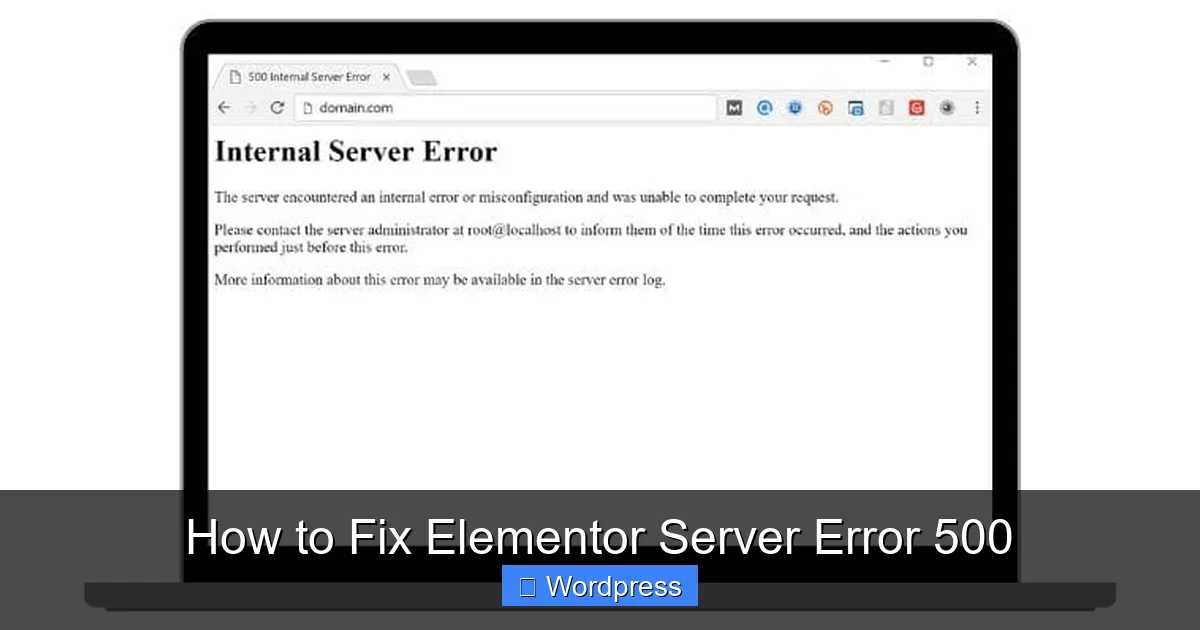
Visual guide about How to Fix Elementor Server Error 500
Image source: wpnewsify.com
One of the most common triggers for Error 500 in Elementor is insufficient PHP memory. Elementor is resource-intensive, especially when working with complex layouts or large media files.
How to Check Your Current Memory Limit
You can check your current PHP memory limit by installing a plugin like “WP Memory Limit” or by adding this line to your `wp-config.php` file:
“`php
echo WP_MEMORY_LIMIT;
“`
How to Raise the Memory Limit
To increase it, edit your `wp-config.php` file (located in your WordPress root directory) and add this line **above** the “That’s all, stop editing!” comment:
“`php
define(‘WP_MEMORY_LIMIT’, ‘512M’);
“`
If that doesn’t work, also add:
“`php
define(‘WP_MAX_MEMORY_LIMIT’, ‘512M’);
“`
Alternatively, you can set it via `.htaccess` (if using Apache):
“`apache
php_value memory_limit 512M
“`
Or through `php.ini`:
“`ini
memory_limit = 512M
“`
> 💡 **Tip**: Always back up your site before editing core files. Most reputable hosts allow memory increases up to 512M—some even support 1G for high-traffic sites.
Step 2: Deactivate All Plugins Except Elementor
Plugin conflicts are another leading cause of 500 errors. A poorly coded or outdated plugin can interfere with Elementor’s functionality.
How to Deactivate Plugins via WordPress Admin
1. Go to **Plugins > Installed Plugins**.
2. Select all plugins *except* Elementor and Elementor Pro.
3. Choose “Deactivate” from the bulk actions dropdown and click “Apply.”
How to Deactivate Plugins via FTP (If You Can’t Access Admin)
1. Connect to your site via FTP or your host’s file manager.
2. Navigate to `/wp-content/plugins/`.
3. Rename the folder of each plugin (except Elementor) by adding “-old” to the end (e.g., `wpforms-old`).
4. Reload your site and try accessing Elementor again.
Once Elementor works, reactivate plugins one at a time and test after each to identify the culprit. Common offenders include caching plugins, security tools, and page builders.
Step 3: Switch to a Default WordPress Theme
Visual guide about How to Fix Elementor Server Error 500
Image source: utimize.net
Your active theme might be incompatible with the current version of Elementor—especially if it hasn’t been updated recently.
How to Change Your Theme Temporarily
1. Go to **Appearance > Themes**.
2. Activate a default WordPress theme like **Twenty Twenty-Four**.
3. Try opening Elementor again.
If the error disappears, the issue lies with your original theme. You can then:
– Update your theme (see our guide on how to update a theme on WordPress).
– Contact the theme developer for support.
– Consider switching to a well-coded, Elementor-compatible theme.
> ⚠️ Note: Your content and Elementor designs remain intact—only the frontend styling changes temporarily.
Step 4: Restore the .htaccess File
A corrupted or misconfigured `.htaccess` file can cause server-wide 500 errors—including in Elementor.
How to Reset .htaccess
1. Access your site via FTP or file manager.
2. Locate the `.htaccess` file in your WordPress root folder.
3. Rename it to `.htaccess-backup`.
4. Go to **Settings > Permalinks** in your WordPress dashboard and click “Save Changes.”
– This regenerates a clean `.htaccess` file with default WordPress rules.
Test Elementor again. If it works, your old `.htaccess` likely had conflicting rewrite rules.
Step 5: Update Elementor and WordPress
Running outdated software increases the risk of compatibility issues and security vulnerabilities.
How to Update Elementor
1. Go to **Plugins > Installed Plugins**.
2. Find Elementor and Elementor Pro.
3. Click “Update Now” if available.
How to Update WordPress Core
1. Go to **Dashboard > Updates**.
2. Click “Update Now” under WordPress version.
> 🔄 **Best Practice**: Always back up your site before major updates. You can also read about creating custom themes with Elementor to ensure long-term compatibility.
Step 6: Enable WordPress Debugging
When all else fails, enabling debug mode reveals the exact error causing the 500 response.
How to Turn On Debug Mode
Edit your `wp-config.php` file and add these lines:
“`php
define(‘WP_DEBUG’, true);
define(‘WP_DEBUG_LOG’, true);
define(‘WP_DEBUG_DISPLAY’, false);
“`
This logs errors to `/wp-content/debug.log` without showing them to visitors.
After reproducing the error, check the log file for specifics like “Fatal error: Allowed memory size exhausted” or “Call to undefined function.” These clues help pinpoint whether the issue is memory, a missing file, or a plugin conflict.
Troubleshooting Advanced Scenarios
Sometimes, the problem isn’t in WordPress—it’s server-side.
Check Server Error Logs
Contact your hosting provider or check your control panel (e.g., cPanel > Error Logs) for recent 500 errors. Look for mentions of “mod_security,” “timeout,” or “PHP fatal.”
Disable mod_security Temporarily
Some hosts block Elementor requests due to overly aggressive security rules. Ask your host to temporarily disable mod_security for your account to test. If Elementor works afterward, request a whitelist for Elementor-related URLs.
Increase PHP Execution Time
Add this to `php.ini` or `.htaccess`:
“`ini
max_execution_time = 300
“`
This gives Elementor more time to process heavy operations.
Conclusion: Prevent Future Elementor 500 Errors
Fixing Elementor Server Error 500 doesn’t have to be overwhelming. By methodically checking memory limits, plugins, themes, and server settings, you can resolve 95% of cases in under 30 minutes.
Remember: Always back up your site before making changes, and keep Elementor, WordPress, and your theme updated. If you’re managing multiple plugins, consider our advice on how many plugins you should actually use to maintain performance and stability.
With these steps, you’ll not only fix the current error but also build a more resilient WordPress site ready for seamless Elementor editing.