Orphan pages in WordPress are pages not linked from any menu or internal link, making them hard to find. This guide shows you how to identify and fix orphan pages to boost SEO and site usability.
Key Takeaways
- Orphan pages hurt SEO: Search engines struggle to index pages with no internal links, lowering your site’s visibility.
- Manual detection works: Use site search, sitemaps, or Google Search Console to find unlinked pages.
- Add pages to menus: Include orphan pages in your navigation menus so users and bots can find them.
- Use internal linking: Link to orphan pages from related blog posts or service pages.
- Update your sitemap: Ensure your XML sitemap includes all important pages for better indexing.
- Check after theme changes: Switching themes or updating plugins can sometimes create orphan pages.
- Prevent future orphans: Regularly audit your site structure and use tools like Yoast SEO to monitor page connections.
What Are Orphan Pages in WordPress?
Orphan pages are web pages on your WordPress site that aren’t linked from any other page—no navigation menu, no internal link, not even a footer link. They exist, but they’re hidden from visitors and search engines. Think of them as digital islands with no bridges.
These pages might be old blog posts, outdated service pages, or content created during a redesign that never got integrated. While they may still be accessible via direct URL, they don’t help your SEO or user experience. In fact, they can hurt both.
In this guide, you’ll learn how to fix orphan pages in WordPress using simple, actionable steps. Whether you’re a beginner or a seasoned site owner, these methods will help clean up your site structure and improve performance.
Why Orphan Pages Are a Problem
You might wonder, “So what if a page isn’t linked? It’s still there.” But orphan pages create real issues:
Visual guide about How to Fix Orphan Pages in WordPress
Image source: nestify.io
- Poor SEO: Search engines like Google rely on internal links to discover and rank pages. Without links, your page may never get indexed—or it might be seen as low-quality.
- Bad user experience: Visitors can’t find these pages unless they have the exact URL. That means missed opportunities for engagement, conversions, or sharing.
- Wasted content: You’ve spent time creating valuable content, but if no one sees it, it’s like shouting into the void.
- Analytics blind spots: Orphan pages often have low or no traffic, making it hard to measure their impact.
Fixing orphan pages isn’t just about tidiness—it’s about making your site work smarter.
How to Find Orphan Pages in WordPress
Before you can fix orphan pages, you need to find them. Here are three reliable methods:
Visual guide about How to Fix Orphan Pages in WordPress
Image source: sessioninteractive.com
1. Use Google Search Console
Google Search Console (GSC) is a free tool that shows how Google sees your site. To find orphan pages:
- Go to Google Search Console and select your property.
- Click Coverage under the Index section.
- Look for pages listed as “Submitted but not indexed” or “Crawled – currently not indexed.”
- Check if these pages have internal links. If not, they’re likely orphans.
Tip: Use the “URL Inspection” tool to see how Google views a specific page.
2. Check Your XML Sitemap
Your XML sitemap lists all pages you want search engines to index. Compare it to your actual site structure:
- Visit
yoursite.com/sitemap.xml(or use your SEO plugin’s sitemap). - Look for pages that seem out of place or unrelated to your main content.
- Manually check if these pages are linked from menus or other pages.
If a page is in the sitemap but not linked internally, it’s an orphan.
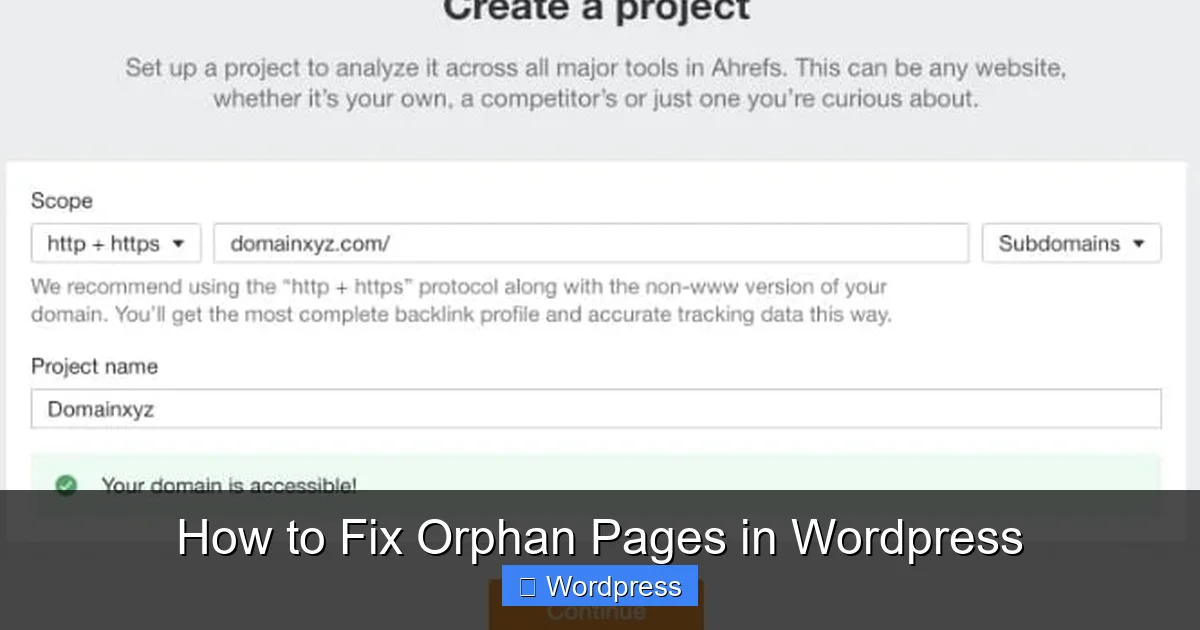
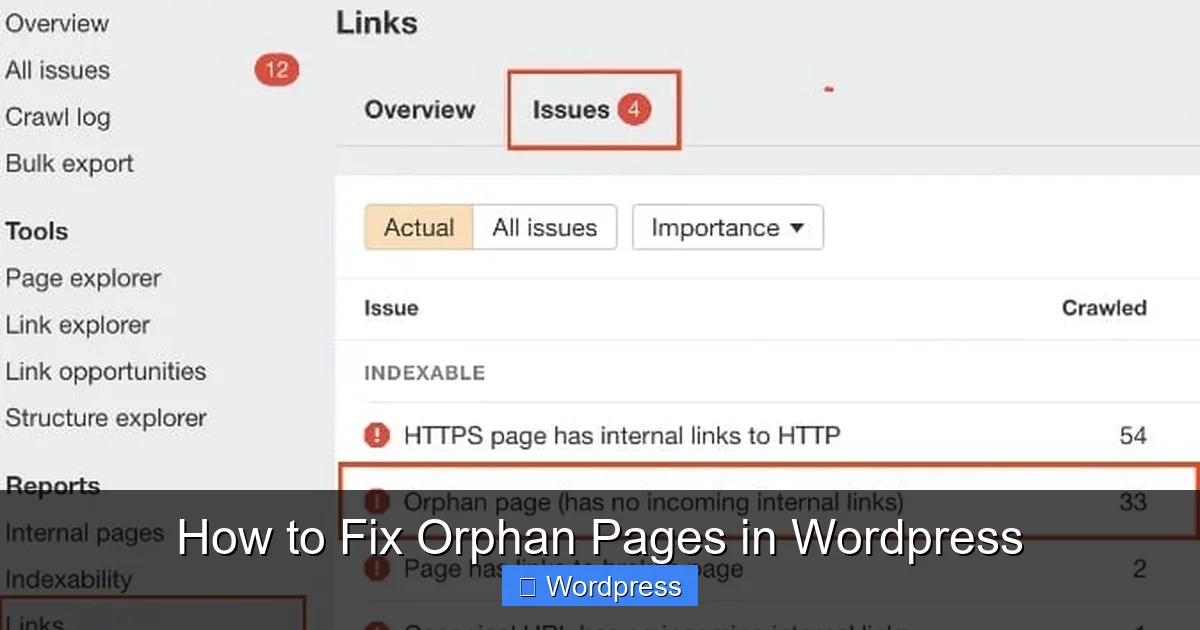
3. Use a Site Crawler Tool
Tools like Screaming Frog, Sitebulb, or even free WordPress plugins can crawl your site and report orphaned pages.
- Install a plugin like Broken Link Checker or SEO SiteCheckup.
- Run a scan to see which pages have no inbound links.
- Export the list and review each page.
These tools save time and give you a clear picture of your site’s link structure.
How to Fix Orphan Pages in WordPress
Once you’ve identified orphan pages, it’s time to fix them. Here’s how:
Visual guide about How to Fix Orphan Pages in WordPress
Image source: sessioninteractive.com
Step 1: Add Pages to Your Navigation Menu
The easiest fix is to include the page in your site’s menu. This makes it visible to users and search engines.
- Go to Appearance > Menus in your WordPress dashboard.
- Select the menu you want to edit (e.g., Primary Menu).
- On the left, find the orphan page under Pages and check its box.
- Click Add to Menu, then drag it to the right position.
- Save the menu.
Now, the page is linked from your header or footer, solving the orphan issue.
Step 2: Create Internal Links
If the page doesn’t belong in a menu, link to it from related content.
- Edit a blog post or page that’s thematically related.
- Highlight a relevant phrase (e.g., “learn more about our services”).
- Click the link icon and paste the orphan page’s URL.
- Update the post.
For example, if you have an orphan page about “WordPress SEO Tips,” link to it from a blog post about improving search rankings.
Step 3: Update Your Sitemap
Ensure your XML sitemap includes the orphan page so search engines can find it.
- If you use Yoast SEO or Rank Math, go to the plugin’s sitemap settings.
- Make sure the page is set to “index” and not excluded.
- Resubmit your sitemap to Google via Search Console.
This helps Google discover and index the page faster.
Step 4: Redirect or Delete Truly Unnecessary Pages
Not all orphan pages are worth saving. Some may be outdated, duplicate, or low-value.
- If the page is obsolete, delete it via Pages > All Pages.
- If it has traffic or backlinks, set up a 301 redirect to a relevant page using a plugin like Redirection.
Deleting or redirecting prevents confusion and keeps your site clean.
Step 5: Prevent Future Orphan Pages
Stop orphan pages from forming in the first place.
- Always link new pages from menus or related content.
- After changing themes or plugins, audit your site structure. For example, if you apply a new WordPress theme, some pages might lose their menu placement.
- Use an SEO plugin to monitor internal linking. Yoast SEO, for instance, flags pages with no internal links.
- Run monthly site audits using tools like Google Search Console or Screaming Frog.
Regular maintenance keeps your site healthy and user-friendly.
Troubleshooting Common Issues
Sometimes, fixing orphan pages isn’t straightforward. Here’s how to handle common problems:
Pages Still Not Indexed After Linking
If you’ve added links but Google hasn’t indexed the page:
- Use Google Search Console’s “URL Inspection” tool to request indexing.
- Ensure the page has quality content and proper meta tags.
- Check for noindex tags in your SEO plugin or theme settings.
It can take a few days to a week for changes to reflect.
Theme Changes Causing Orphan Pages
Switching themes can reset menus and hide pages. To fix this:
- Go to Appearance > Menus and re-add missing pages.
- If your old theme used custom menus, you may need to recreate them.
- Consider using a child theme in WordPress to preserve customizations during updates.
Always back up your site before changing themes.
Broken Links After Fixing Orphans
If you moved or renamed a page, old links might break. Fix them with:
- A redirect plugin to point old URLs to new ones.
- The fix broken links in WordPress without plugin method using the database or .htaccess file.
Broken links hurt SEO, so address them quickly.
Conclusion
Orphan pages might seem harmless, but they can silently damage your site’s SEO and user experience. By identifying and fixing them, you make your content discoverable, improve navigation, and boost your search rankings.
Remember: every page should have a purpose and a path. Whether you add it to a menu, link it from a blog post, or delete it altogether, take action. Regular audits and smart internal linking will keep your WordPress site organized and effective.
Now that you know how to fix orphan pages in WordPress, put these steps into practice. Your visitors—and your search rankings—will thank you.