
Orphaned content in WordPress refers to posts, pages, or media files that exist in the database but aren’t properly linked or displayed on your site. This guide walks you through identifying and fixing orphaned content using built-in tools, plugins, and manual methods to restore your site’s integrity.
Key Takeaways
- Orphaned content is often caused by theme or plugin conflicts: Switching themes or deactivating plugins can leave content disconnected from your site’s structure.
- Check the Trash and Drafts folders first: Many “missing” posts are actually in the trash or saved as drafts and can be easily restored.
- Use database repair tools to fix broken links: WordPress has built-in tools and plugins like WP-DBManager to clean up orphaned data.
- Media files can become orphaned too: Images and videos may remain in the uploads folder even after their posts are deleted, wasting space.
- Always back up your site before making changes: Editing the database or installing plugins can cause issues if done incorrectly.
- Child themes help prevent future orphaned content: Using a child theme protects your customizations during theme updates.
- Regular maintenance reduces orphaned content risk: Clean up unused plugins, themes, and media files to keep your site running smoothly.
What Is Orphaned Content in WordPress?
Orphaned content in WordPress refers to posts, pages, custom post types, or media files that exist in your database or file system but are no longer properly connected to your website. This means they don’t appear in the admin dashboard, aren’t linked in menus or archives, or aren’t displayed on the front end—even though they technically still exist.
This issue commonly occurs after switching themes, deleting plugins, or performing incomplete updates. For example, if a plugin created custom post types and you deactivate it without proper cleanup, those posts may become orphaned. Similarly, switching from one theme to another might hide content that relied on theme-specific templates or shortcodes.
Orphaned content doesn’t just clutter your database—it can also affect site performance, SEO, and user experience. Visitors might encounter broken links or missing pages, while search engines may index outdated or inaccessible content.
How to Identify Orphaned Content
Before fixing orphaned content, you need to find it. Here are the most effective ways to detect missing or disconnected content.
Check the WordPress Admin Dashboard
Start by reviewing your Posts, Pages, and Media sections in the WordPress admin area. Look for:
– Posts or pages marked as “Draft” or “Pending Review”
– Items in the Trash that haven’t been permanently deleted
– Media files not attached to any post
You can filter content by status to quickly spot items that might be orphaned.
Use Database Queries (Advanced)
If you’re comfortable with phpMyAdmin or a similar database tool, you can run SQL queries to find orphaned entries. For example, to find posts not linked to any term (category or tag), use:
SELECT * FROM wp_posts WHERE ID NOT IN (SELECT post_id FROM wp_term_relationships);
This query lists posts that aren’t assigned to any category or tag—common signs of orphaned content.
Scan for Orphaned Media Files
Media files can become orphaned when their parent post is deleted. To find these:
1. Go to **Media > Library** in WordPress.
2. Click “ unattached” under the filter dropdown.
3. Review files not attached to any post.
Alternatively, use a plugin like **Media Cleaner** to scan your uploads folder for unused images and videos.
How to Fix Orphaned Content in WordPress
Once you’ve identified orphaned content, follow these steps to restore or clean it up.
Restore Content from Trash or Drafts
Many orphaned posts are simply in the Trash or saved as drafts. To restore them:
1. Go to **Posts > All Posts** or **Pages > All Pages**.
2. Click on “Trash” or “Drafts” in the status filter.
3. Hover over the item and click “Restore” or “Edit” to bring it back.
This is the easiest fix and should always be your first step.
Reassign Orphaned Posts to Categories or Tags
If posts exist but aren’t showing up in archives, they may lack proper taxonomy assignments.
1. Edit the orphaned post.
2. In the “Categories” or “Tags” box, assign at least one category.
3. Update the post.
Now it should appear in category listings and search results.
Reattach Media Files to Posts
For unattached media:
1. Go to **Media > Library**.
2. Click “ unattached” to view orphaned files.
3. Edit the image or file and use the “Attach” button to link it to a post.
Alternatively, use the **Enable Media Replace** plugin to manage media attachments more efficiently.
Use a Database Cleanup Plugin
Plugins like **WP-Optimize** or **Advanced Database Cleaner** can automatically detect and remove orphaned data, including:
– Orphaned postmeta (metadata not linked to any post)
– Revisions and auto-drafts
– Unused tags and categories
To use WP-Optimize:
1. Install and activate the plugin.
2. Go to **WP-Optimize > Database**.
3. Select “Orphaned postmeta” and other cleanup options.
4. Click “Run optimization.”
This safely removes unnecessary data without affecting your live content.
Repair Broken Theme or Plugin Links
If orphaned content appeared after switching themes or deactivating a plugin:
1. Reactivate the original theme or plugin temporarily.
2. Check if the content reappears.
3. If it does, export the content (Tools > Export), then switch back to your preferred theme.
4. Re-import the content and reassign templates or shortcodes as needed.
For theme-related issues, consider using a default WordPress theme like Twenty Twenty-Four to test compatibility.
Manually Fix Database Issues
In rare cases, database corruption can cause orphaned content. To fix this:
1. Add the following line to your wp-config.php file:
define('WP_ALLOW_REPAIR', true);
2. Visit yourwebsite.com/wp-admin/maint/repair.php
3. Click “Repair Database”
Afterward, remove the line from wp-config.php for security.
Preventing Orphaned Content in the Future
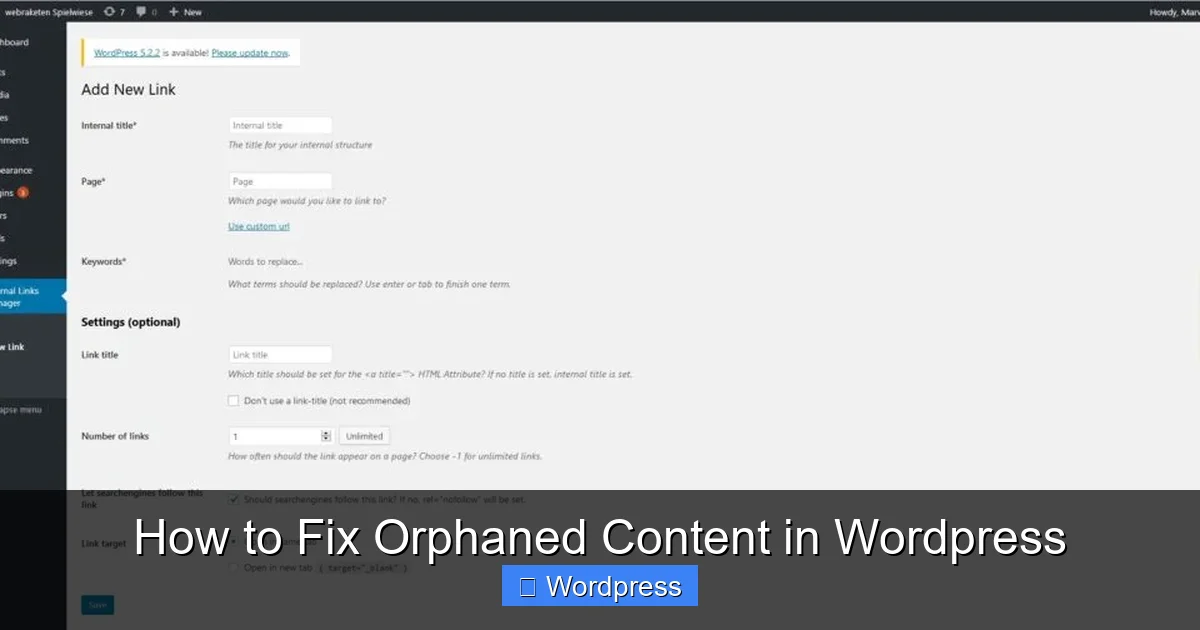
Visual guide about How to Fix Orphaned Content in WordPress
Image source: learnwoo.com
Once you’ve fixed orphaned content, take steps to avoid it happening again.
Use a Child Theme for Customizations
Customizing your theme directly can lead to lost changes—and orphaned content—during updates. Instead, use a child theme to safely modify templates, styles, and functions. This ensures your content remains intact even when the parent theme is updated.
Clean Up Unused Plugins and Themes
Deactivated plugins and unused themes can leave behind database entries. Regularly delete plugins and themes you no longer use. For guidance, see our guide on how to delete a theme in WordPress.
Backup Your Site Regularly
Before making major changes—like switching themes or updating plugins—always back up your site. Use plugins like UpdraftPlus or your hosting provider’s backup tool. This lets you restore your site quickly if orphaned content appears.
Audit Your Site Monthly
Set a monthly reminder to:
– Review posts, pages, and media
– Clean up drafts and trash
– Check for broken links using a tool like this broken link fixer
Regular maintenance keeps your site healthy and reduces the risk of orphaned content.
Troubleshooting Common Issues
Even with careful steps, you might run into problems. Here’s how to handle them.
Content Still Missing After Restoration
If restored posts don’t appear on the front end:
– Check if the post status is “Published”
– Verify the post is assigned to a visible category
– Ensure your theme supports the post type (e.g., custom post types may need theme support)
Plugin Conflicts After Cleanup
Some cleanup plugins may deactivate or conflict with others. If your site breaks:
– Deactivate the cleanup plugin
– Restore from backup
– Try a different plugin or manual method
Database Errors After Repair
If the database repair tool causes issues:
– Restore from a recent backup
– Contact your hosting provider for assistance
– Avoid running multiple repair tools at once
Conclusion
Orphaned content in WordPress is a common but manageable issue. By understanding what causes it—theme changes, plugin deactivation, or database clutter—you can take proactive steps to prevent it. Use the methods in this guide to identify, restore, and clean up orphaned posts, pages, and media files. Always back up your site before making changes, and consider using a child theme and regular maintenance to keep your content safe and accessible. With these best practices, your WordPress site will stay organized, fast, and user-friendly.