
This guide walks you through the complete process of installing the Astra theme in WordPress. Whether you’re a beginner or experienced user, you’ll learn how to install, activate, and customize Astra for a fast, SEO-friendly website.
Key Takeaways
- Easy Installation: Astra can be installed directly from the WordPress theme directory in just a few clicks.
- Lightweight & Fast: Astra is optimized for speed and performance, making it ideal for SEO and user experience.
- Customization Options: Use the WordPress Customizer or page builders like Elementor to design your site.
- Free and Premium Versions: Start with the free version and upgrade to Astra Pro for advanced features.
- Compatibility: Works seamlessly with popular plugins like WooCommerce, Yoast SEO, and LearnDash.
- Child Theme Recommended: Always use a child theme when making customizations to avoid losing changes during updates.
- Troubleshooting Tips: Common issues like white screen or missing styles can usually be fixed with simple steps.
How to Install Astra Theme in WordPress
If you’re building a WordPress website and want a fast, flexible, and beginner-friendly theme, Astra is one of the best choices. Whether you’re creating a blog, business site, or online store, Astra offers clean design, excellent performance, and deep customization options.
In this guide, you’ll learn how to install the Astra theme in WordPress step by step. We’ll cover both the free and premium versions, explain how to activate and customize the theme, and share tips to avoid common mistakes. By the end, you’ll have a fully functional Astra-powered website ready for content and visitors.
Why Choose Astra Theme?
Visual guide about How to Install Astra Theme in WordPress
Image source: realjossy.com
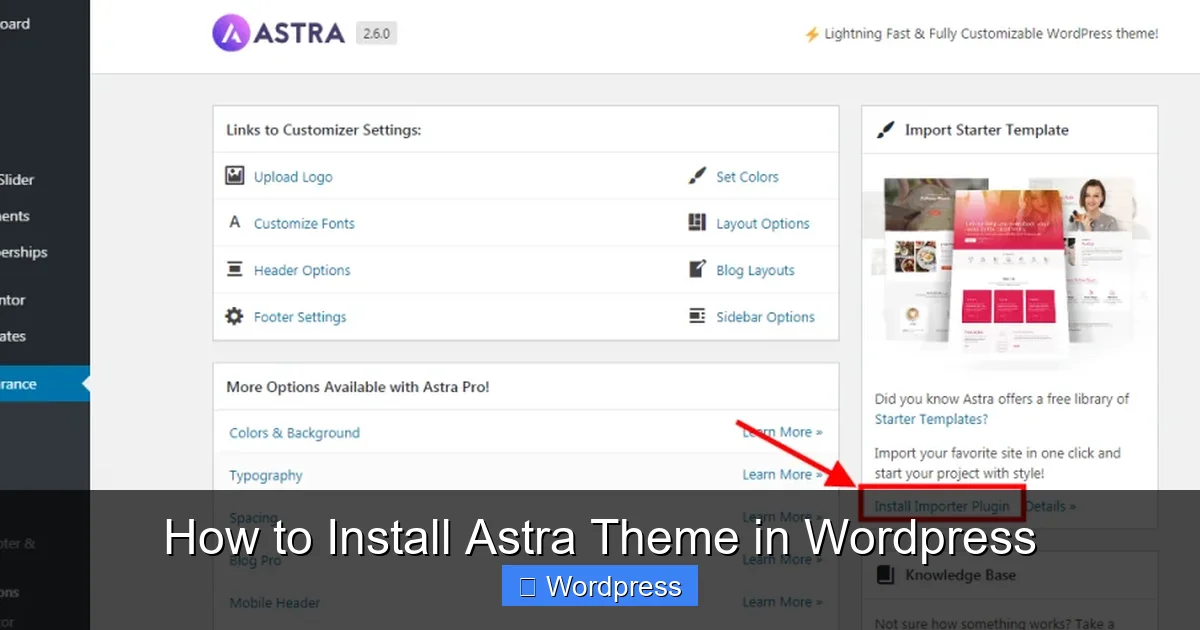
Before we dive into the installation, let’s quickly explore why Astra is so popular among WordPress users. Astra is a lightweight, highly customizable theme that loads in under half a second. It’s built with speed and SEO in mind, which helps your site rank better in search engines.
Astra is also compatible with all major page builders, including Elementor, Beaver Builder, and Gutenberg. This means you can design your site exactly how you want it—no coding required. Plus, it supports WooCommerce, so you can easily set up an online store.
Whether you’re a blogger, freelancer, or small business owner, Astra gives you the tools to create a professional website without the complexity.
Step 1: Log in to Your WordPress Dashboard
Visual guide about How to Install Astra Theme in WordPress
Image source: wpastra.com
To install any theme in WordPress, you need access to your admin dashboard. Start by logging in to your WordPress site.
Go to your website’s login page—usually something like yoursite.com/wp-admin—and enter your username and password. Once logged in, you’ll see the WordPress dashboard, which is your control center for managing your site.
Navigate to the Themes Section
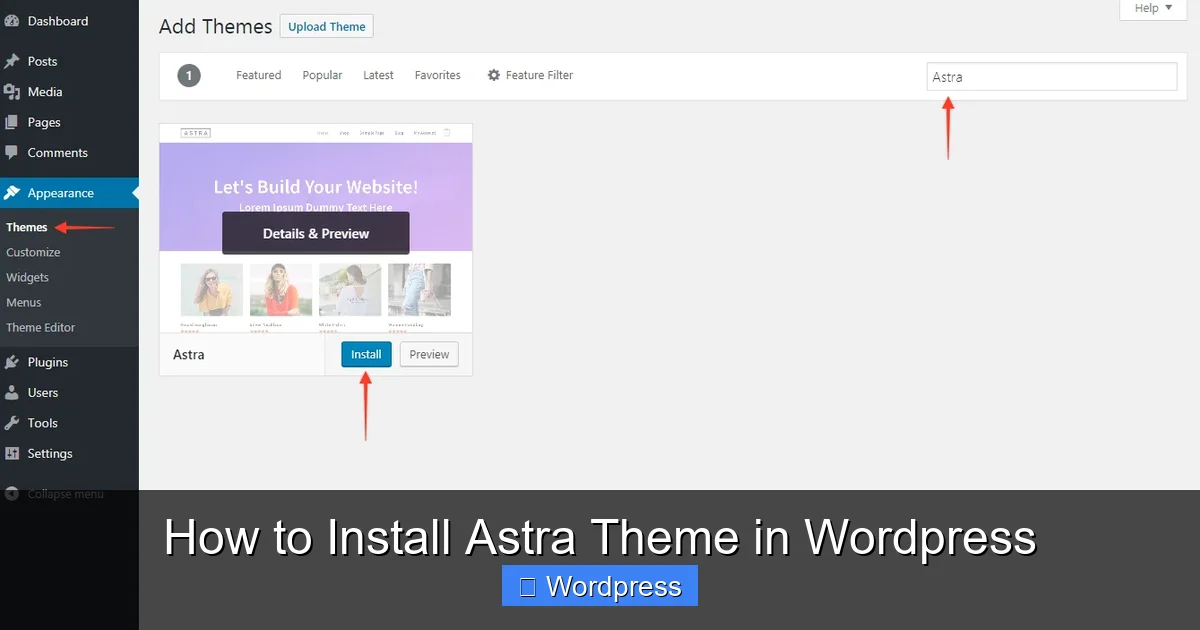
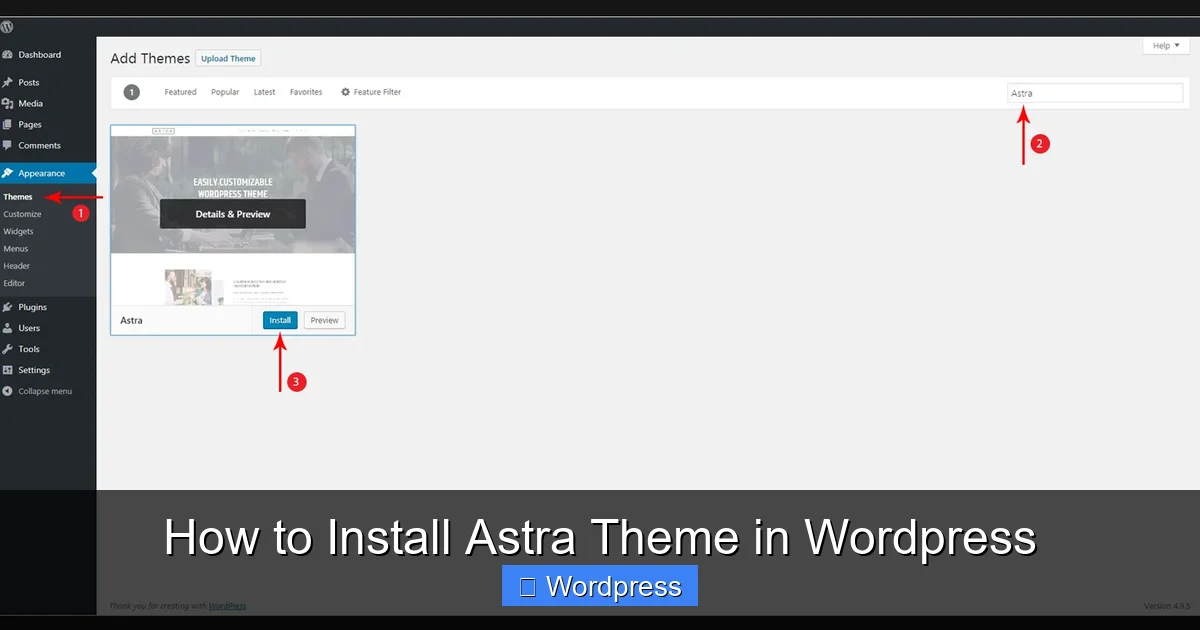
From the left-hand menu, hover over Appearance and click on Themes. This will take you to the theme management page, where you can view currently installed themes and add new ones.
Step 2: Install Astra Theme from the WordPress Directory
Visual guide about How to Install Astra Theme in WordPress
Image source: wpastra.com
The easiest way to install Astra is directly from the WordPress theme repository. Here’s how:
Click “Add New”
On the Themes page, click the Add New button at the top. This opens a search interface where you can browse and install themes.
Search for “Astra”
In the search bar, type “Astra” and press Enter. You should see the Astra theme appear in the results. It’s usually the first one listed because of its popularity.
Click “Install”
Hover over the Astra theme preview and click the Install button. WordPress will download and install the theme automatically. This usually takes just a few seconds.
Activate the Theme
Once installed, the “Install” button will change to “Activate.” Click it to activate Astra on your site. Your website will now use the Astra theme.
Step 3: Install Astra via Upload (Alternative Method)
If you’ve downloaded the Astra theme from a third-party site or have a premium version (Astra Pro), you may need to upload it manually.
Download the Theme File
If you’re using Astra Pro, download the theme ZIP file from your purchase confirmation email or the Astra website. Make sure you’re downloading the theme file, not the plugin.
Go to Add New Theme
In your WordPress dashboard, go to Appearance > Themes > Add New.
Click “Upload Theme”
At the top, click the Upload Theme button, then choose the ZIP file you downloaded. Click Install Now.
Activate After Upload
Once the upload is complete, click Activate to start using Astra.
> 💡 Tip: If you’re installing Astra Pro, you’ll also need to install and activate the Astra Pro Addon plugin for full functionality.
Step 4: Customize Your Astra Theme
Now that Astra is active, it’s time to make it look great. WordPress makes this easy with the built-in Customizer.
Open the Customizer
Go to Appearance > Customize. This opens the WordPress Customizer, where you can preview changes in real time.
Choose a Starter Template (Optional)
Astra offers dozens of free and premium starter templates. To access them, click on Starter Templates in the Customizer. You can browse by category—like business, blog, or eCommerce—and import a full site with one click.
> 📌 Note: Some templates require the Astra Pro plugin or a page builder like Elementor. Make sure you have the necessary tools installed.
Customize Colors, Fonts, and Layout
Use the Customizer to adjust:
– Site identity (logo, title, tagline)
– Colors and typography
– Header and footer layouts
– Blog and page settings
Changes appear instantly, so you can see exactly how your site will look.
Step 5: Install Recommended Plugins
Astra works best with a few key plugins. After activation, you may see a notice recommending plugins like:
– Elementor (for drag-and-drop design)
– Starter Templates (to import demo sites)
– WPForms (for contact forms)
– Yoast SEO (for search engine optimization)
You can install these directly from the WordPress plugin directory. Go to Plugins > Add New, search for the plugin, install, and activate.
Step 6: Set Up a Child Theme (Recommended)
Before making major customizations, it’s smart to create a child theme. This protects your changes when the parent theme updates.
Astra provides a free child theme plugin. Go to Plugins > Add New, search for “Astra Child Theme Generator,” install and activate it. Then follow the prompts to generate and activate your child theme.
For more details, check out our guide on what is a child theme in WordPress.
Troubleshooting Common Issues
Even with a smooth process, you might run into a few hiccups. Here’s how to fix them:
White Screen After Activation
This usually means a plugin conflict. Deactivate all plugins, then reactivate them one by one to find the culprit. You can also switch to a default theme like Twenty Twenty-Four to test.
Missing Styles or Layout Issues
Clear your browser cache and WordPress cache (if using a caching plugin). Also, make sure your permalinks are set correctly under Settings > Permalinks.
Starter Template Not Loading
Ensure you have the required plugins installed, especially Elementor or Gutenberg. Also, check that your server meets Astra’s requirements (PHP 7.4 or higher recommended).
Theme Not Appearing in Customizer
Try reactivating the theme. If that doesn’t work, reinstall it. For more help, see our guide on how to deactivate a theme in WordPress.
Best Practices After Installation
To get the most out of Astra, follow these tips:
– Update Regularly: Keep Astra and all plugins updated for security and performance. Learn how to update a theme on WordPress safely.
– Use a Caching Plugin: Improve speed with plugins like WP Super Cache or LiteSpeed Cache.
– Optimize Images: Use tools like Smush or ShortPixel to compress images before uploading.
– Test on Mobile: Astra is responsive, but always preview your site on phones and tablets.
Conclusion
Installing the Astra theme in WordPress is simple, fast, and effective. Whether you use the built-in installer or upload manually, you can have a professional-looking site up and running in minutes. With its speed, flexibility, and compatibility, Astra is a top choice for WordPress users of all levels.
Now that your theme is installed, start customizing, add your content, and launch your site. And if you ever need to switch themes or manage your setup, check out our guide on how to apply a WordPress theme for more tips.