
Manually downloading or uploading a WordPress theme gives you full control over customization and security, bypassing the need for automatic installations. You can download a theme from a trusted source, then upload it directly to your WordPress site via the admin dashboard or FTP, ensuring compatibility and avoiding potential plugin conflicts. This method is ideal for advanced users or when installing premium or custom themes not available in the WordPress directory.
“`html
Key Takeaways
- Download themes securely: Always get themes from trusted sources like WordPress.org or reputable developers.
- Use FTP for manual uploads: Connect via FTP to upload theme files directly to your server’s /wp-content/themes/ folder.
- Zip files before uploading: Compress your theme folder into a .zip file for easier handling and upload.
- Activate after upload: Go to Appearance > Themes in WordPress to activate your newly uploaded theme.
- Backup your site first: Always create a full backup before adding or changing themes to prevent data loss.
- Check compatibility: Ensure the theme supports your WordPress version and required plugins.
Why This Matters / Understanding the Problem
So you’ve found the perfect WordPress theme—maybe it’s sleek, fast, and packed with features. But when you try to install it through the dashboard, you hit a wall. Maybe your hosting doesn’t allow direct uploads, or the theme file is too large. That’s when knowing how can you manually download or upload a WordPress theme becomes a game-changer.
I remember my first time trying to use a premium theme from a third-party site. The automatic installer failed, and I panicked—until I learned the manual method. It’s simpler than it sounds, and once you’ve done it once, you’ll wonder why you ever worried. Whether you’re dealing with a custom theme, a premium download, or just need more control, manual installation gives you that flexibility.
What You Need
Before we dive in, let’s make sure you have everything ready. Don’t worry—it’s not complicated.
Visual guide about How Can You Manually Download or Upload a WordPress Theme
Image source: gamepur.com
- A WordPress website (obviously!)
- FTP access or file manager access via your hosting control panel (like cPanel)
- The theme .zip file downloaded to your computer
- A little patience and confidence—you’ve got this!
If you’re not sure how to access your site files, most hosts like Bluehost or SiteGround offer a file manager right in their dashboard. No need for extra software unless you prefer FTP clients like FileZilla.
Step-by-Step Guide to How Can You Manually Download or Upload a WordPress Theme
Step 1: Download the Theme File
First things first—get your theme. If you bought it from a marketplace like ThemeForest or Elegant Themes, log into your account and download the .zip file. Make sure you’re grabbing the “Installable WordPress Theme” file, not the full package with documentation or plugins.
Pro tip: Save it somewhere easy to find, like your Desktop or Downloads folder. You’ll need it in a minute.
Step 2: Access Your WordPress Site Files
Now, you need to get into your website’s backend. There are two main ways:
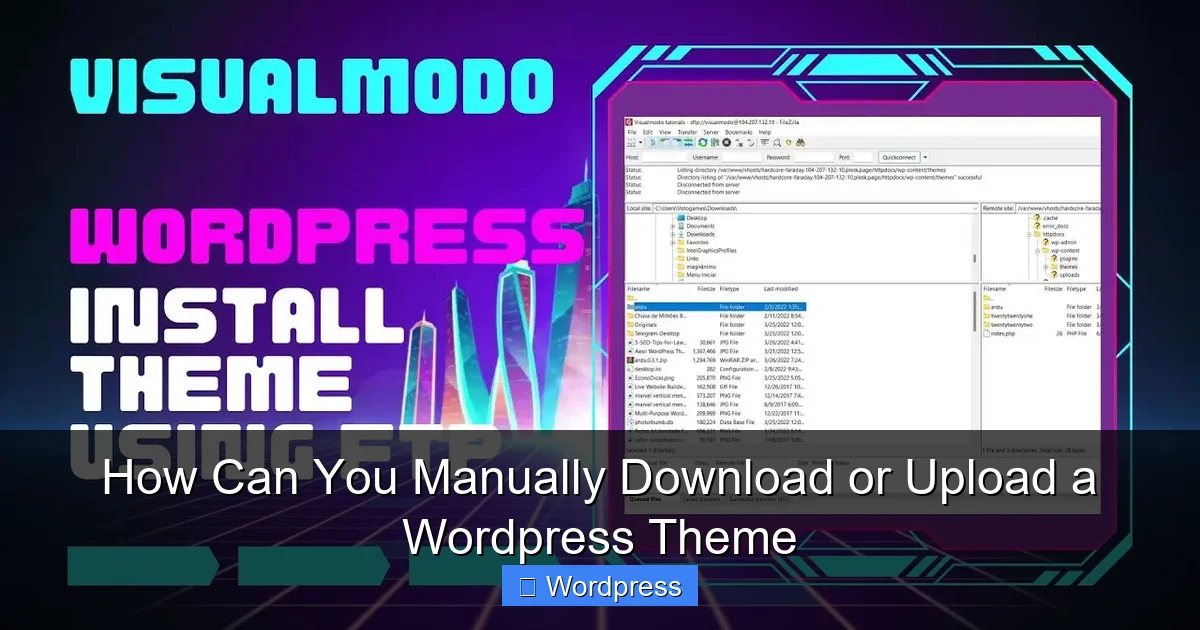
- Via FTP: Use an FTP client (FileZilla is free and reliable). Enter your FTP credentials (usually found in your hosting account).
- Via Hosting File Manager: Log into your hosting control panel (like cPanel), find “File Manager,” and navigate to your WordPress root directory.
Once you’re in, go to wp-content > themes. This is where all your themes live.
Step 3: Upload the Theme Folder
Here’s where the magic happens. Don’t upload the .zip file directly—WordPress can’t read it like that. Instead:
- Extract the .zip file on your computer. You should now see a folder named something like
my-themeorastra-child. - Upload this extracted folder (not the .zip!) into the
themesdirectory.
Use drag-and-drop in the file manager or the “Upload” button in your FTP client. Wait for it to finish—larger themes may take a minute.
Step 4: Activate the Theme in WordPress
Now that the theme is on your server, head back to your WordPress dashboard. Go to Appearance > Themes. You should see your new theme listed there.
Click “Activate,” and boom—your site is now using the new theme. Take a look at your homepage to make sure everything looks right.
If something looks off, don’t panic. Some themes require plugins or demo content to look like the preview. Check the theme documentation for setup tips.
Pro Tips & Common Mistakes to Avoid
Let me share a few hard-earned lessons from my own WordPress journey.
Visual guide about How Can You Manually Download or Upload a WordPress Theme
Image source: visualmodo.com
Warning: Never upload the .zip file directly into the themes folder. It won’t work—WordPress needs the actual theme files, not the compressed archive.
Pro Tip: Always back up your site before installing a new theme. If something goes wrong, you can restore it quickly. I learned this the hard way after a theme conflict wiped my custom CSS.
Another common mistake? Forgetting to check if the theme is compatible with your WordPress version. Most modern themes are, but older or niche themes might not be. Check the theme’s documentation or support page.
Also, if you’re using a child theme, make sure the parent theme is already installed. You can’t activate a child theme without it. Need a refresher? Here’s a helpful guide on what is a child theme in WordPress and why it’s worth using.
FAQs About How Can You Manually Download or Upload a WordPress Theme
Q: Can I upload a theme without FTP access?
A: Yes! Most hosting providers offer a file manager in their control panel (like cPanel). Use that to navigate to wp-content/themes and upload your extracted theme folder.
Q: What if my theme doesn’t appear after uploading?
A: Double-check that you uploaded the correct folder—the one that contains style.css. If the folder structure is wrong (e.g., you uploaded a folder inside a folder), WordPress won’t recognize it.
Q: Is it safe to manually upload themes?
A: As long as you download the theme from a trusted source (like the official WordPress repository or a reputable marketplace), it’s safe. Avoid random free theme sites—they sometimes include malicious code.
Q: Can I still update a manually uploaded theme?
A: Yes, but you’ll need to do it manually too. When a new version is available, download it, replace the old folder (after backing up), and reactivate. For easier updates, consider using a theme from the WordPress directory. Need help? Here’s how to update a theme on WordPress the right way.
Q: What if my site breaks after activating the new theme?
A: First, don’t panic. Switch back to a default theme like Twenty Twenty-Four via FTP by renaming the problematic theme folder. Then troubleshoot—check for plugin conflicts or missing dependencies. You can also deactivate a theme in WordPress safely if needed.
Q: Do I need to install plugins after uploading a theme?
A: Some themes recommend or require plugins for full functionality (like page builders or sliders). Check the theme’s documentation. If it says “Required: Elementor,” go ahead and install it.
Final Thoughts
Learning how can you manually download or upload a WordPress theme might seem intimidating at first, but it’s really just a few steps once you get the hang of it. It gives you more control, especially when dealing with premium or custom themes that don’t play nice with the automatic installer.
Remember: always back up, upload the extracted folder (not the .zip), and double-check your file paths. And if you ever feel stuck, your hosting support team can usually help with file access issues.
Now go ahead—install that dream theme and make your site shine. And if you’re curious about which themes are fastest for SEO, check out our roundup of the best WordPress theme for SEO and speed. Happy building!
“`