Changing your WordPress theme is easier than you think—if you follow the right steps. This guide walks you through every stage, from backing up your site to activating your new design, ensuring no data is lost and your site stays functional.
Key Takeaways
- Always back up your site first: Prevent data loss by creating a full backup before making any changes.
- Test your new theme in a staging environment: Avoid disrupting your live site by previewing changes safely.
- Check plugin and content compatibility: Some themes may not support certain plugins or custom post types.
- Use a child theme for customizations: Protect your design tweaks from being overwritten during updates.
- Clear your cache after switching: Ensure visitors see the updated design immediately.
- Monitor your site after activation: Watch for broken links, missing images, or layout issues.
- Know how to revert if needed: Keep your old theme installed until you’re confident the new one works perfectly.
How Do I Change My WordPress Theme? A Complete Step-by-Step Guide
So you’ve decided it’s time for a fresh look—maybe your current WordPress theme feels outdated, loads too slowly, or just doesn’t match your brand anymore. Whatever the reason, changing your WordPress theme can breathe new life into your website. But if you’ve never done it before, the process might seem a little intimidating.
Don’t worry! With the right preparation and a clear plan, switching themes is straightforward and safe. In this guide, we’ll walk you through how to change your WordPress theme step by step—from backing up your site to activating your new design and troubleshooting common issues. By the end, you’ll feel confident making the switch without breaking your site.
Why Change Your WordPress Theme?
There are many good reasons to update your theme:
- Improved design and user experience
- Better mobile responsiveness
- Faster loading speeds
- Modern features like drag-and-drop builders or SEO optimization
- Alignment with a rebrand or new business direction
However, changing a theme isn’t just about aesthetics. It can affect your site’s functionality, SEO, and performance—so it’s important to do it carefully.
Step 1: Back Up Your Website
Before you do anything else, create a full backup of your site. This includes your database, files, themes, plugins, and uploads. If something goes wrong during the switch, you can restore everything quickly.
How to Back Up Your Site
- Use a backup plugin: Plugins like UpdraftPlus, BackupBuddy, or Jetpack make automated backups simple. Install one, configure it to back up to cloud storage (like Google Drive or Dropbox), and run a manual backup now.
- Check with your host: Many hosting providers (like Bluehost or WP Engine) offer built-in backup tools. Log into your hosting dashboard and look for a “Backups” section.
- Manual backup (advanced): If you’re comfortable with FTP and phpMyAdmin, you can download your files and export your database manually—but this is riskier for beginners.
Pro tip: Always verify your backup worked by checking the file size and date. A zero-byte backup is useless!
Step 2: Choose Your New Theme
Now it’s time to pick a theme that fits your needs. WordPress offers thousands of free and premium options.
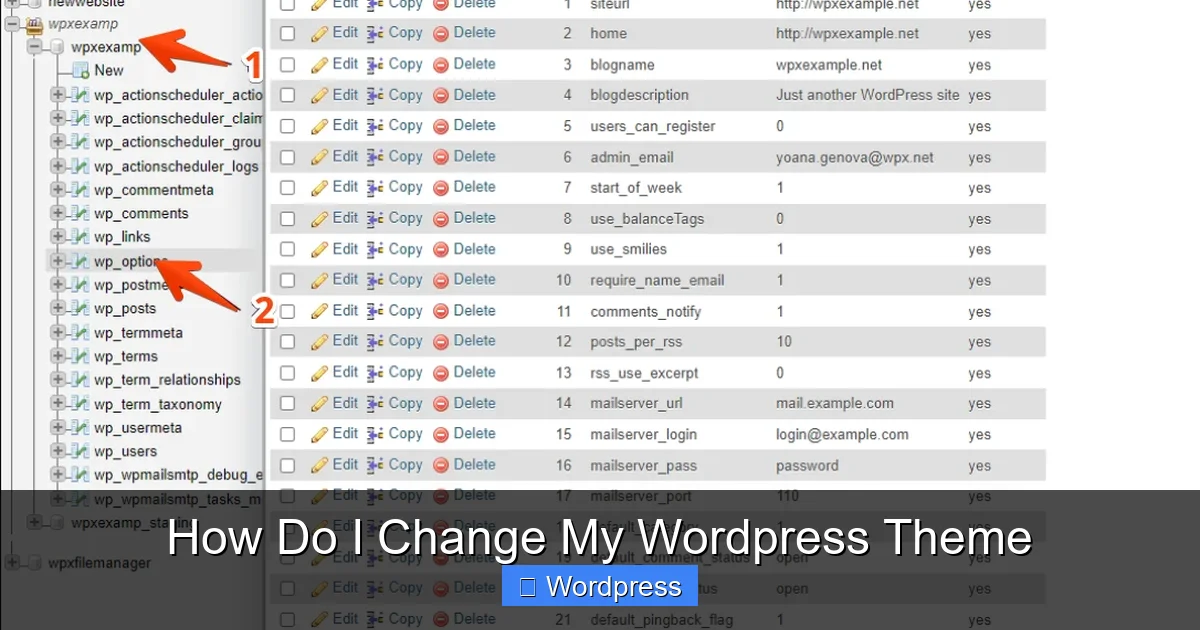
Visual guide about How Do I Change My WordPress Theme
Image source: wpx.net
Where to Find Themes
- WordPress Theme Directory: Go to Appearance > Themes > Add New in your dashboard. Browse free themes with built-in reviews and ratings.
- Premium theme marketplaces: Sites like ThemeForest, Elegant Themes, or Astra offer advanced designs—often with better support and features.
- Custom themes: If you have a developer, they may provide a custom-built theme tailored to your brand.
When choosing, consider:
- Mobile responsiveness
- Page speed (check reviews or use tools like GTmetrix)
- Compatibility with your plugins (especially page builders like Elementor)
- SEO-friendliness
- Support and update frequency
For help finding the right fit, check out our guide on the best WordPress theme for SEO and speed.
Step 3: Install the New Theme
Once you’ve chosen a theme, it’s time to install it—but don’t activate it yet!
Installing from the WordPress Directory
- Go to Appearance > Themes > Add New.
- Search for your desired theme by name.
- Click Install, then Activate—but wait! We’ll cover activation in the next step.
Uploading a Premium or Custom Theme
- Download the theme .zip file to your computer.
- In WordPress, go to Appearance > Themes > Add New > Upload Theme.
- Click Choose File, select the .zip file, and click Install Now.
- The theme will appear in your theme list—still inactive.
Note: If you get an “unpacking the package” error, your server may have file size limits. Try installing WP themes manually via FTP.
Step 4: Preview and Customize (Before Activating)
Never activate a new theme directly on your live site without testing. Instead, use the preview feature or a staging site.
Using the Live Preview
- Go to Appearance > Themes.
- Hover over your new theme and click Live Preview.
- You’ll see how your content looks with the new design—but changes aren’t saved yet.
- Use the Customizer (Appearance > Customize) to adjust colors, fonts, layouts, and widgets.
Using a Staging Site (Recommended)
A staging site is a clone of your live site where you can test changes safely. Most quality hosts (like WP Engine or SiteGround) offer one-click staging. If yours doesn’t, use a plugin like WP Staging.
On your staging site:
- Install and activate the new theme.
- Import your content and test all pages.
- Check forms, sliders, galleries, and eCommerce functionality (if applicable).
- Fix any layout issues using the Customizer or theme options.
This step prevents downtime and visitor frustration on your live site.
Step 5: Activate Your New Theme
Once you’re happy with how everything looks and works, it’s time to go live.
How to Activate
- Go to Appearance > Themes.
- Find your new theme and click Activate.
- Your site will instantly switch to the new design.
Important: Keep your old theme installed (but not active) for at least a few days. If you run into problems, you can quickly switch back.
Step 6: Post-Activation Checklist
After activating, don’t just walk away! Follow this checklist to ensure everything runs smoothly.
1. Clear Your Cache
If you use a caching plugin (like WP Super Cache or W3 Total Cache), clear the cache so visitors see the new design immediately.
2. Check All Pages and Posts
Visit key pages—homepage, blog, contact, about—and look for:
- Missing images or broken links
- Misaligned text or buttons
- Missing sidebars or widgets
3. Test Forms and Plugins
Submit a test form, add an item to your cart (if you have WooCommerce), or try any interactive features. Some themes don’t support certain plugins out of the box.
4. Review Menus and Widgets
Go to Appearance > Menus and Appearance > Widgets to ensure your navigation and sidebar content transferred correctly. You may need to reassign menu locations.
5. Set Your Homepage and Blog Page
If your new theme uses a different homepage layout, go to Settings > Reading and confirm your static front page and posts page are set correctly.
Troubleshooting Common Issues
Even with careful planning, things can go wrong. Here’s how to fix the most common problems.
White Screen of Death (WSOD)
If your site goes blank after activation:
- Access your site via FTP or your host’s file manager.
- Rename the new theme folder (e.g., from “astra” to “astra-old”).
- WordPress will revert to a default theme (like Twenty Twenty-Four).
- Reinstall or fix the problematic theme.
Missing Widgets or Menus
Some themes use different widget areas. Go to Appearance > Widgets and drag your content into the correct zones. For menus, check Appearance > Menus > Manage Locations.
Broken Layouts or Styling
This often happens when a theme doesn’t support your page builder. If you use Elementor, Beaver Builder, or Divi, make sure your new theme is compatible. You may need to rebuild certain pages or switch to a child theme to preserve custom CSS.
Slow Performance
Some themes are bloated with unnecessary features. Use tools like Query Monitor or GTmetrix to identify slow elements. Consider switching to a lighter theme like GeneratePress—read our GeneratePress theme review for details.
When to Use a Child Theme
If you plan to customize your new theme (e.g., edit CSS, add PHP functions, or modify templates), always use a child theme. This protects your changes when the parent theme updates.
Most premium themes include child theme files. For free themes, you can create one using plugins like Child Theme Configurator or manually via FTP.
Conclusion
Changing your WordPress theme doesn’t have to be scary. By backing up your site, testing in a safe environment, and following a clear process, you can upgrade your design with confidence. Remember: preparation prevents problems.
Take your time, double-check everything, and don’t hesitate to revert if something feels off. With the right approach, your new theme will look great, load fast, and keep your visitors engaged.
Ready to explore your options? Check out our guide on how to apply a WordPress theme for even more tips on customization and setup.