
This guide teaches you how to add a new page in WordPress theme using built-in tools or custom code. Whether you’re a beginner or developer, you’ll find clear steps to create pages that match your site’s design and functionality.
Key Takeaways
- Use the WordPress admin dashboard to quickly create and publish new pages without touching any code.
- Custom page templates let you design unique layouts for specific pages like About, Services, or Landing pages.
- Child themes are essential when modifying theme files to avoid losing changes during updates.
- Flush permalinks if your new page shows a 404 error after creation.
- Use plugins like Elementor for drag-and-drop page building without coding.
- Always back up your site before making changes to theme files.
Introduction: Why Adding Pages Matters in WordPress
WordPress powers over 40% of all websites on the internet, and one of its greatest strengths is flexibility. Whether you’re running a blog, business site, or online store, adding new pages is a routine task. Knowing how to add a new page in WordPress theme helps you grow your site, improve navigation, and deliver better user experiences.
In this guide, you’ll learn multiple methods—from simple admin tools to advanced template creation. We’ll cover everything you need, whether you’re a beginner using the visual editor or a developer building custom layouts. By the end, you’ll be able to add pages confidently and keep your site looking professional.
Method 1: Adding a Page via the WordPress Admin Dashboard
The easiest and most common way to add a new page is through the WordPress admin area. This method requires no coding and works with any theme.
Visual guide about How to Add New Page in WordPress Theme
Image source: testingdocs.com
Step 1: Log in to Your WordPress Admin
Go to yoursite.com/wp-admin and log in with your username and password. Once logged in, you’ll see the WordPress dashboard.
Step 2: Navigate to Pages
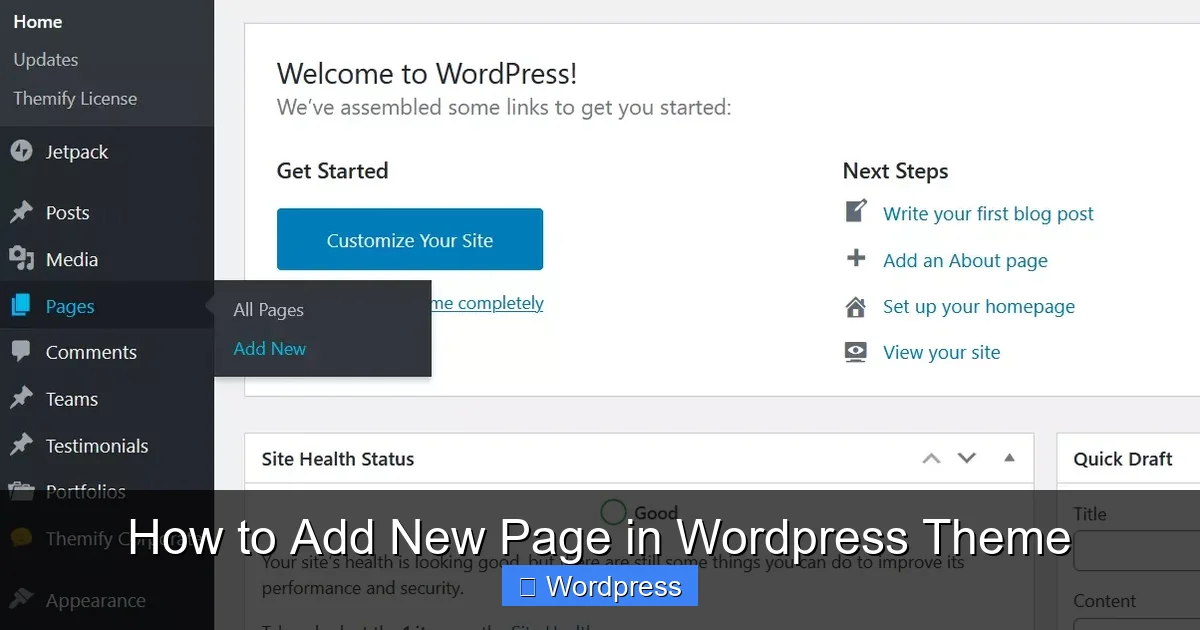
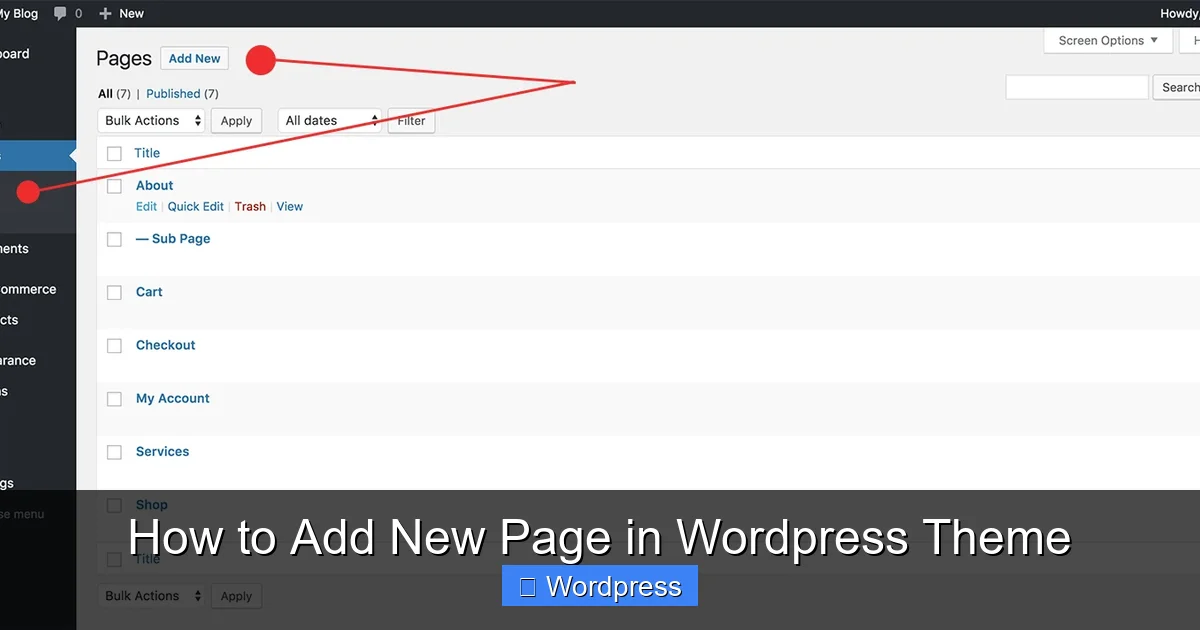
In the left-hand menu, click on Pages, then select Add New. This opens the WordPress block editor (Gutenberg).
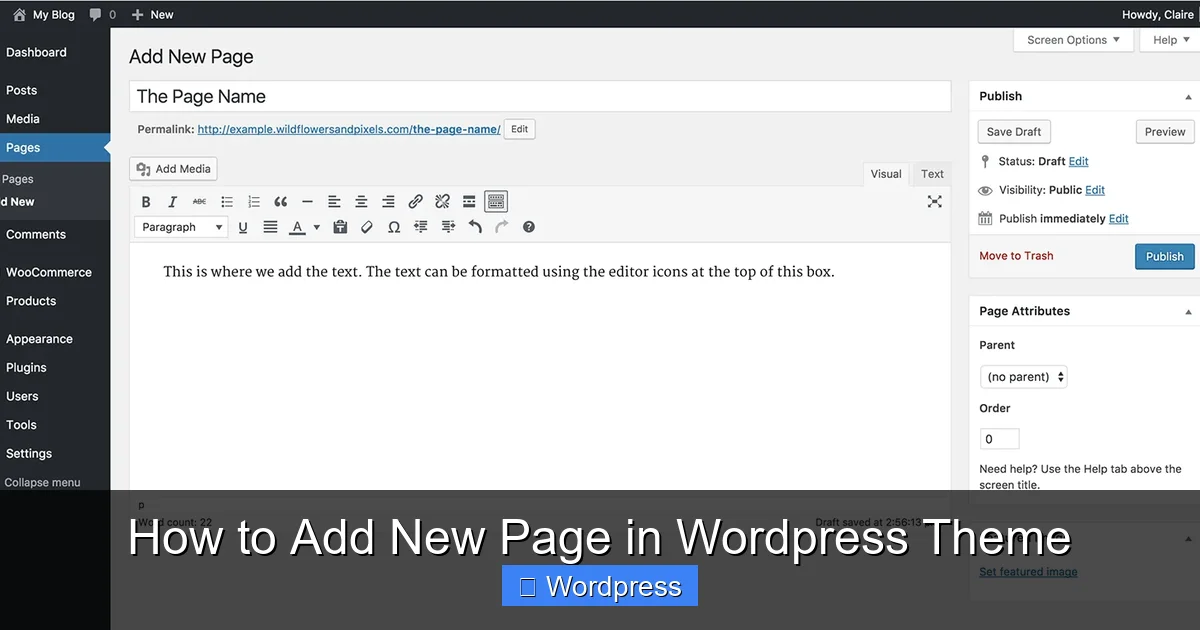
Step 3: Enter Page Title and Content
Type your page title at the top (e.g., “About Us” or “Contact”). Below, use blocks to add text, images, buttons, or videos. For example, add a “Paragraph” block for text or an “Image” block to upload a photo.
Step 4: Set Page Attributes (Optional)
On the right sidebar, under Page Attributes, you can:
- Choose a Parent Page to create a subpage (e.g., “Team” under “About”).
- Select a Template if your theme offers custom templates (we’ll cover this later).
Step 5: Publish the Page
Click the Publish button in the top-right corner. Your page is now live! Visit your site and navigate to the new page to confirm it’s working.
Tip: Use the “Preview” button to see how the page looks before publishing.
Method 2: Creating a Custom Page Template
If you want a unique layout—like a full-width landing page or a portfolio grid—you’ll need a custom page template. This method involves editing theme files, so proceed with caution.
Visual guide about How to Add New Page in WordPress Theme
Image source: wildflowersandpixels.co.uk
Step 1: Use a Child Theme
Never edit your main theme files directly. Instead, use a child theme to preserve changes during updates. If you don’t have one, learn what a child theme is in WordPress and how to create it.
Step 2: Create a New Template File
In your child theme folder, create a new PHP file. Name it something descriptive, like page-landing.php.
Step 3: Add Template Header
At the top of the file, include this code:
This tells WordPress this file is a page template named “Landing Page.”
Step 4: Build the Template
Add HTML and PHP to design your layout. For example:
This creates a simple hero section. You can add CSS in your child theme’s style.css file to style it.
Step 5: Assign the Template to a Page
Go back to the WordPress admin, create a new page, and in the Page Attributes section, select “Landing Page” from the Template dropdown. Publish the page.
Tip: Use get_template_part() to include reusable sections like testimonials or features.
Method 3: Using a Page Builder Plugin
For users who prefer visual design, page builders like Elementor, Beaver Builder, or Divi make adding pages fast and flexible.
Visual guide about How to Add New Page in WordPress Theme
Image source: wildflowersandpixels.co.uk
Step 1: Install a Page Builder
Go to Plugins > Add New, search for “Elementor,” and click Install Now, then Activate.
Step 2: Create a New Page
Go to Pages > Add New, enter a title, and click Edit with Elementor.
Step 3: Design with Drag-and-Drop
Use Elementor’s widgets to add headings, images, forms, and more. You can choose from pre-designed templates or build from scratch. For example, select a “Landing Page” template and customize it.
Step 4: Publish
Click Update or Publish when done. Your page will use the builder’s design while still working within your theme.
Tip: Learn how to create a WordPress theme with Elementor for full control over design.
Method 4: Adding Pages Programmatically
Developers can add pages automatically using PHP. This is useful for plugins or theme setup.
Step 1: Use wp_insert_post()
Add this code to your theme’s functions.php file (preferably in a child theme):
function create_custom_page() {
  $page = array(
    'post_title'    => 'Custom Page',
    'post_content'  => 'This page was created programmatically.',
    'post_status'   => 'publish',
    'post_type'     => 'page'
  );
  wp_insert_post($page);
}
add_action('after_setup_theme', 'create_custom_page');
This creates a page titled “Custom Page” when the theme is activated.
Step 2: Prevent Duplicates
To avoid creating the same page multiple times, check if it exists first:
if (!get_page_by_title('Custom Page')) {
  wp_insert_post($page);
}
Warning: Remove or comment out the code after the first run to prevent repeated page creation.
Troubleshooting Common Issues
Even with careful steps, you might run into problems. Here’s how to fix them.
Page Shows 404 Error
If your new page returns a 404, the permalink structure may need refreshing. Go to Settings > Permalinks and click Save Changes (no need to change anything). This flushes the rewrite rules.
Template Not Appearing in Dropdown
If your custom template doesn’t show up, ensure:
- The file is in the active theme (or child theme) folder.
- The
Template Namecomment is correct. - There are no syntax errors in the PHP file.
Changes Not Reflecting
Clear your browser cache and any caching plugins. If using a CDN, purge its cache too.
White Screen or PHP Error
This usually means a syntax error in your code. Check your PHP file for missing semicolons or brackets. Restore from backup if needed.
Best Practices for Adding Pages
Follow these tips to keep your site organized and secure:
- Use descriptive page titles for better SEO and user experience.
- Optimize images before uploading to improve page speed.
- Test on mobile to ensure responsiveness.
- Back up your site before making code changes. Use plugins like UpdraftPlus.
- Update your theme safely by learning how to update a theme on WordPress without breaking your site.
Conclusion: Choose the Right Method for Your Needs
Adding a new page in WordPress doesn’t have to be complicated. For most users, the admin dashboard is the fastest and safest option. Designers and developers can use custom templates or page builders for advanced layouts. Always use a child theme when modifying files, and remember to test your changes.
Whether you’re adding a simple contact page or a complex landing page, WordPress gives you the tools to do it right. Now that you know how to add a new page in WordPress theme, you can expand your site with confidence.