
Backing up your WordPress theme is essential to protect custom designs, code changes, and functionality. This guide covers reliable methods—including plugins, manual backups via FTP, and cPanel—to ensure you never lose your theme again.
Key Takeaways
- Always backup before updating: Theme updates can overwrite custom code, so a backup ensures you can restore your work.
- Use reliable plugins: Tools like UpdraftPlus or All-in-One WP Migration simplify theme and site backups with one-click options.
- Manual backups give full control: Downloading theme files via FTP lets you save exact copies of your customized theme.
- Store backups offsite: Save backups in cloud storage (Google Drive, Dropbox) or external drives to prevent data loss during server crashes.
- Test your backups regularly: A backup is only useful if it works—restore a test site periodically to confirm integrity.
- Child themes prevent overwrite risks: Always use a child theme when making changes to avoid losing edits during updates.
- Automate for peace of mind: Schedule regular backups so you never forget, especially after major design or functionality changes.
Why Backing Up Your WordPress Theme Matters
Your WordPress theme controls your site’s design, layout, and user experience. Whether you’ve spent hours tweaking CSS, adding custom PHP functions, or integrating plugins, losing your theme can mean losing all that work. A backup acts as a safety net—letting you restore your site quickly after a failed update, hacking attempt, or accidental deletion.
Many users assume that updating a theme is safe, but even minor updates can break custom code or reset settings. That’s why knowing how to backup WordPress theme files is a must-have skill for any WordPress site owner.
In this guide, you’ll learn three proven methods: using backup plugins, manual backups via FTP, and cPanel file management. Each method has its strengths, and we’ll help you choose the best one for your needs.
Method 1: Backup WordPress Theme Using a Plugin

Visual guide about How to Backup WordPress Theme
Image source: theme8848.com
Plugins are the easiest and most popular way to backup your WordPress theme. They automate the process and often include scheduling, cloud storage, and one-click restores.
Step 1: Choose a Reliable Backup Plugin
Start by installing a trusted backup plugin. Some top options include:
– UpdraftPlus: Free, lightweight, and supports cloud storage like Google Drive and Dropbox.
– All-in-One WP Migration: Great for full site backups, including themes, plugins, and databases.
– Duplicator: Ideal for cloning or migrating sites, with strong backup features.
For this guide, we’ll use UpdraftPlus because it’s free, widely used, and beginner-friendly.
Step 2: Install and Activate the Plugin
Go to your WordPress dashboard. Navigate to Plugins > Add New. Search for “UpdraftPlus,” click Install Now, then Activate.
Step 3: Configure Backup Settings
Once activated, go to Settings > UpdraftPlus Backups. You’ll see options to choose what to backup: files, database, or both.
To backup your theme specifically:
– Under “Files to backup,” make sure “wp-content/themes” is selected.
– You can also choose to include plugins, uploads, and other directories if you want a full site backup.
Step 4: Choose a Remote Storage Location
Storing backups on your server isn’t safe—if the server fails, you lose everything. Instead, connect a remote storage service:
– Click “Settings” in UpdraftPlus.
– Choose a service like Google Drive, Dropbox, or Amazon S3.
– Follow the prompts to authorize access.
This ensures your theme backup is safe even if your website goes down.
Step 5: Run a Manual Backup
Click the Backup Now button. Select the components you want (at minimum, include “wp-content/themes”). Click “Backup Now” again.
Wait for the process to complete. You’ll see a confirmation message and a list of saved backups.
Step 6: Schedule Automatic Backups (Optional but Recommended)
To avoid forgetting, set up automatic backups:
– Go to the “Settings” tab.
– Choose how often to backup (e.g., daily, weekly).
– Select which files and database to include.
– Save changes.
Now your theme—and entire site—will be backed up regularly without any effort.
Method 2: Manually Backup WordPress Theme via FTP
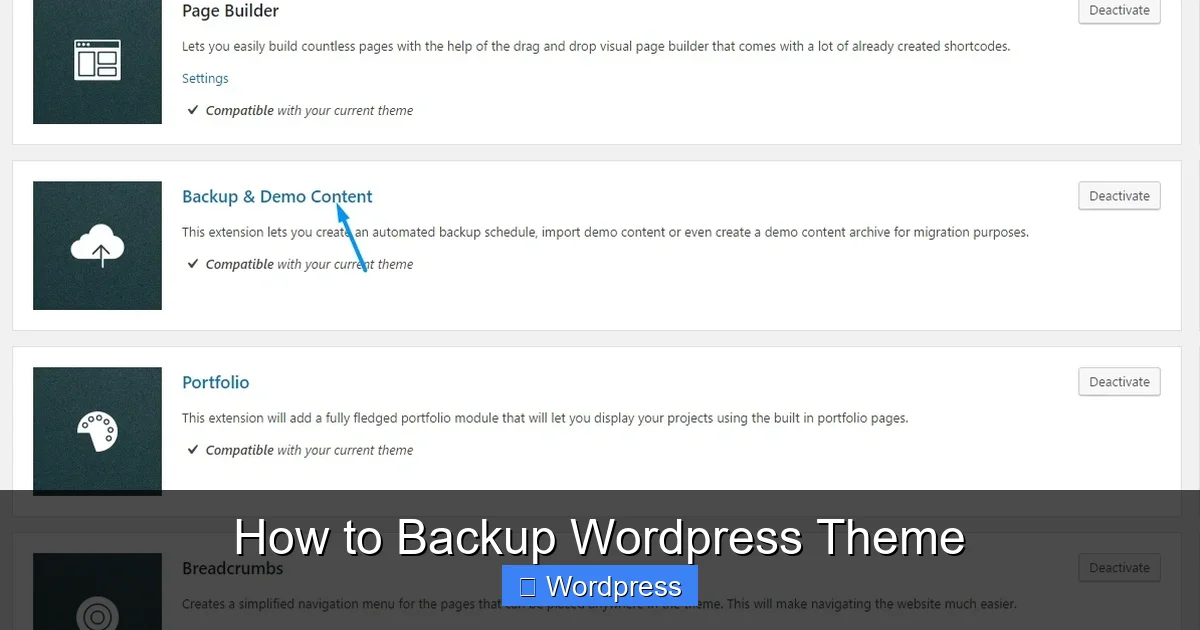
Visual guide about How to Backup WordPress Theme
Image source: themezly.com
If you prefer full control or don’t want to rely on plugins, manual backups via FTP are a solid alternative. This method downloads your theme files directly from the server.
Step 1: Connect to Your Site Using an FTP Client
You’ll need an FTP client like FileZilla (free) or Cyberduck. Download and install one if you don’t have it.
To connect:
– Open your FTP client.
– Enter your FTP credentials (host, username, password, port). These are usually found in your hosting control panel or welcome email.
– Click “Quickconnect.”
Step 2: Navigate to the Themes Folder
Once connected, browse to your WordPress installation directory. Look for the wp-content > themes folder.
Inside, you’ll see folders for each installed theme. For example:
– `twentytwentyfour` (default theme)
– `my-custom-theme` (your active or custom theme)
Step 3: Download Your Theme Folder
Right-click the folder of the theme you want to backup (e.g., `my-custom-theme`) and select Download.
The files will be saved to your computer. Keep them in a safe folder, like “WordPress Backups > Themes.”
Step 4: Backup Customizations and Child Themes
If you’re using a child theme, make sure to download that folder too. Child themes contain your custom CSS, templates, and functions—without them, your design changes will be lost.
Also, check for any custom files outside the theme folder, such as:
– Custom page templates in `wp-content/uploads`
– Modified plugin files
– Custom CSS added via the Customizer (export via Appearance > Customize > Export)
Step 5: Store Backups Securely
Don’t keep backups only on your computer. Copy them to:
– An external hard drive
– Cloud storage (Google Drive, OneDrive, Dropbox)
– A USB flash drive
Label files clearly, like “Theme-Backup-2024-06-15.zip”.
Method 3: Backup Theme Using cPanel File Manager
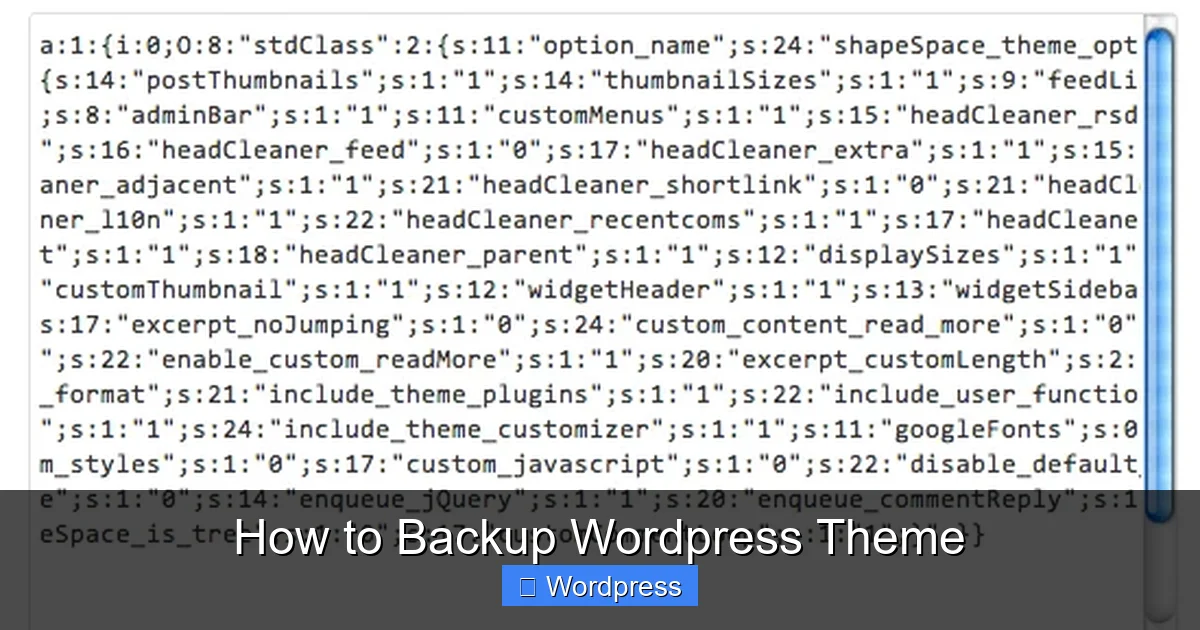
Visual guide about How to Backup WordPress Theme
Image source: digwp.com
If your hosting provider uses cPanel, you can backup your theme without FTP or plugins.
Step 1: Log in to cPanel
Go to your hosting account and log in to cPanel. Look for the File Manager icon and click it.
Step 2: Navigate to the Themes Directory
In File Manager, go to:
public_html > wp-content > themes
You’ll see all installed themes listed as folders.
Step 3: Compress the Theme Folder
Select the theme folder you want to backup. Right-click and choose Compress.
Choose “Zip” as the format and click Compress File(s). A .zip file will be created in the same directory.
Step 4: Download the Zip File
Right-click the new .zip file and select Download. Save it to your computer.
Now you have a compressed backup of your theme that’s easy to store and restore.
Best Practices for Theme Backups
Backing up your theme is just the first step. Follow these best practices to ensure your backups are reliable:
- Backup before every update: Whether you’re updating WordPress, your theme, or plugins, always create a fresh backup first. This is especially important before updating your theme, as updates can overwrite custom code.
- Use version control for developers: If you’re a developer, consider using Git to track changes in your theme. This lets you revert to any previous version instantly.
- Keep multiple backup versions: Don’t overwrite old backups. Keep at least the last 3–5 versions in case the latest one is corrupted.
- Test your backups: Try restoring a backup on a staging site to make sure it works. A broken backup is worse than no backup.
- Document your customizations: Keep a text file with notes on what you changed—custom CSS, PHP edits, template overrides. This helps during restoration.
Troubleshooting Common Backup Issues
Even with the best methods, problems can happen. Here’s how to fix common issues:
Backup Fails or Times Out
Large themes or slow servers can cause timeouts. Try:
– Increasing PHP memory limit in `wp-config.php`
– Using a plugin with chunked backups (like UpdraftPlus)
– Splitting the backup into smaller parts
Can’t Find the Theme Folder
If you don’t see your theme in `wp-content/themes`, check:
– You’re in the correct WordPress installation (some hosts use subdirectories)
– The theme is properly installed (go to Appearance > Themes to confirm)
Restored Theme Looks Broken
This usually happens when:
– The database wasn’t backed up (theme settings are stored in the database)
– A plugin conflict occurred after restore
Solution: Restore both files and database, or check for missing plugins.
Conclusion
Knowing how to backup WordPress theme is a critical skill for any website owner. Whether you use a plugin, FTP, or cPanel, regular backups protect your design, functionality, and hard work.
Start by choosing a method that fits your comfort level. Plugins are great for beginners, while manual backups offer more control. And always remember: a backup is only useful if it’s tested and stored safely.
Don’t wait for a crisis to act. Backup your theme today—and sleep easier knowing your site is protected.