This guide walks you through step-by-step methods to integrate ChatGPT into your WordPress site, whether you’re using a plugin or custom code. You’ll learn how to enhance user experience, automate support, and generate content efficiently.
Key Takeaways
- Use plugins for easy integration: Tools like WP ChatGPT or AI Power make setup fast and code-free.
- Custom code offers more control: Developers can embed ChatGPT using the OpenAI API for tailored functionality.
- Improve customer support: Add a live AI chatbot to answer common questions 24/7.
- Enhance content creation: Use ChatGPT to generate blog ideas, drafts, or SEO-friendly text directly in WordPress.
- Ensure security and privacy: Always protect API keys and follow best practices when handling user data.
- Test thoroughly before going live: Check chatbot responses and performance to avoid errors or misleading answers.
Introduction: Why Integrate ChatGPT into WordPress?
Adding ChatGPT to your WordPress website can transform how visitors interact with your content. Whether you run a blog, an online store, or a support portal, an AI-powered chatbot can answer questions, suggest products, or even help write posts. In this guide, you’ll learn how to integrate ChatGPT into WordPress using simple plugins or custom coding—no advanced tech skills required.
We’ll cover two main methods: using a ready-made plugin (great for beginners) and embedding ChatGPT via the OpenAI API (ideal for developers). By the end, you’ll have a functional AI assistant that improves engagement and saves time.
Method 1: Integrate ChatGPT Using a WordPress Plugin
The easiest way to add ChatGPT to your site is through a plugin. These tools handle the technical work, so you can focus on customizing the chatbot’s behavior.
Step 1: Choose a Reliable ChatGPT Plugin
Several plugins simplify ChatGPT integration. Popular options include:
- AI Power (formerly GPT AI Power): Offers chatbot, content generation, and WooCommerce support.
- WP ChatGPT: Lightweight and focused on live chat functionality.
- ChatBot for WordPress: Includes pre-built templates and easy styling.
For most users, AI Power is recommended due to its versatility and active development.
Step 2: Install and Activate the Plugin
- Go to your WordPress dashboard.
- Navigate to Plugins > Add New.
- Search for your chosen plugin (e.g., “AI Power”).
- Click Install Now, then Activate.
Once activated, you’ll see a new menu item in your dashboard—usually labeled “AI Power” or “ChatGPT.”
Step 3: Connect to OpenAI (Get Your API Key)
To use ChatGPT, you need an API key from OpenAI. Here’s how:
- Visit platform.openai.com and sign in (or create an account).
- Go to API Keys under your account settings.
- Click Create new secret key and copy it.
- Return to your WordPress plugin settings and paste the key into the designated field.
Pro Tip: Never share your API key publicly. Store it securely and avoid hardcoding it in themes or public files.
Step 4: Configure the Chatbot
Most plugins let you customize:
- Chat window appearance: Position (bottom-right, floating, etc.), colors, and logo.
- Welcome message: Set a greeting like “Hi! How can I help you today?”
- Response behavior: Choose whether the bot answers only specific topics or acts as a general assistant.
- Triggers: Decide when the chat appears—on page load, after scrolling, or via a button.
Test different settings to match your site’s tone and audience.
Step 5: Publish and Test
Save your settings and visit your site. Look for the chat widget—usually in the bottom-right corner. Try asking a question like “What services do you offer?” and see if the bot responds accurately.
Method 2: Custom Integration Using OpenAI API (For Developers)
If you prefer full control or want to build a unique chat experience, use the OpenAI API directly. This method requires basic coding knowledge.
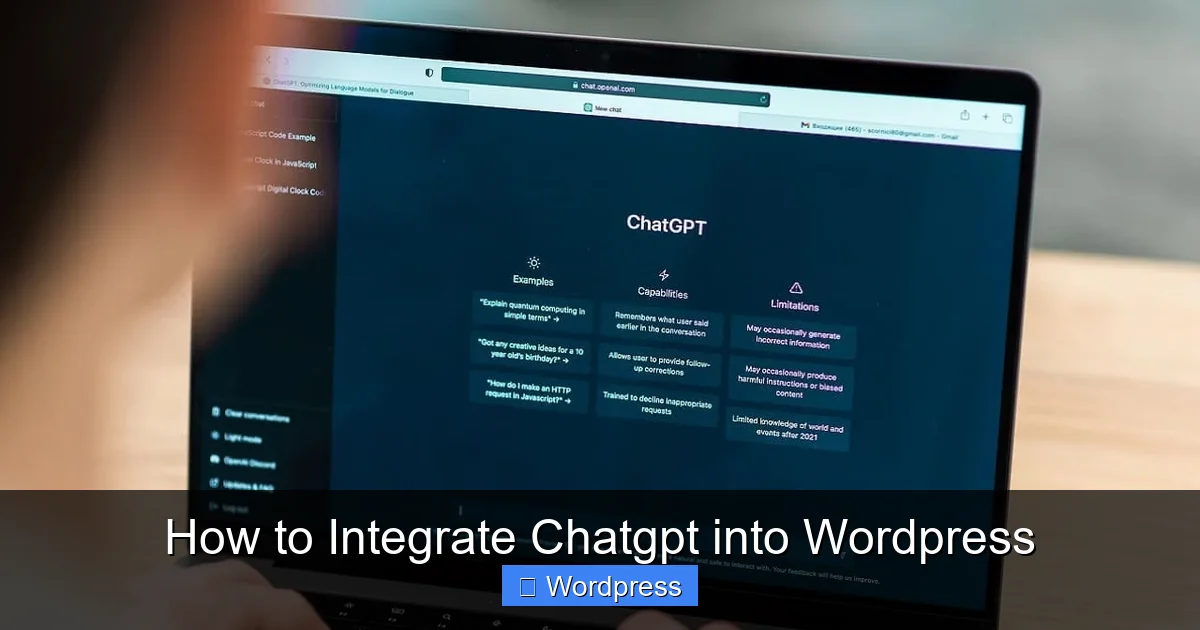
Visual guide about How to Integrate Chatgpt into WordPress
Image source: technipages.com
Step 1: Get Your OpenAI API Key
Follow the same steps as in Method 1 to obtain your API key from OpenAI. Keep it private!
Step 2: Create a Custom Plugin or Use a Child Theme
To avoid losing changes during updates, create a custom plugin or use a child theme. For simplicity, we’ll use a custom plugin.
- In your WordPress installation, go to
/wp-content/plugins/. - Create a new folder named
custom-chatgpt-chatbot. - Inside it, create a file called
custom-chatgpt-chatbot.php.
Step 3: Add Plugin Code
Paste the following basic code into your PHP file:
'YOUR_API_KEY_HERE', // Replace with your key
'nonce' => wp_create_nonce('chatgpt_nonce')
));
}
add_action('wp_enqueue_scripts', 'enqueue_chatgpt_scripts');
function add_chatgpt_html() {
echo '';
}
add_action('wp_footer', 'add_chatgpt_html');
?>
Note: Replace YOUR_API_KEY_HERE with your actual OpenAI API key.
Step 4: Create the JavaScript File
In the same plugin folder, create chatbot.js and add:
jQuery(document).ready(function($) {
    $('#chatgpt-send').click(function() {
        const message = $('#chatgpt-input').val();
        if (!message) return;

        $('#chatgpt-messages').append('' + message + '');
        $('#chatgpt-input').val('');

        $.ajax({
            url: 'https://api.openai.com/v1/chat/completions',
            type: 'POST',
            headers: {
                'Authorization': 'Bearer ' + chatgpt_vars.api_key,
                'Content-Type': 'application/json'
            },
            data: JSON.stringify({
                model: 'gpt-3.5-turbo',
                messages: [{ role: 'user', content: message }]
            }),
            success: function(response) {
                const reply = response.choices[0].message.content;
                $('#chatgpt-messages').append('' + reply + '');
            },
            error: function() {
                $('#chatgpt-messages').append('Sorry, I couldn’t respond right now.');
            }
        });
    });
});
This script sends user messages to ChatGPT and displays the reply.
Step 5: Style the Chatbot (Optional)
Add CSS to make your chatbot look professional. You can include it in your theme’s style.css or via the best way to add CSS in WordPress.
Troubleshooting Common Issues
Chatbot not appearing? Check if the plugin is active and the API key is correct. Also, ensure no caching plugins are blocking JavaScript.
Slow responses? OpenAI API can have latency. Consider adding a loading spinner or caching frequent queries.
Security concerns? Never expose your API key in frontend code for production sites. For better security, use WordPress REST API endpoints to proxy requests through your server.
Errors in custom code? Double-check syntax, API endpoint URLs, and CORS settings. Test with simple queries first.
Best Practices for Using ChatGPT on WordPress
- Set clear boundaries: Train or configure the bot to avoid off-topic or harmful responses.
- Monitor usage: Track conversations to improve accuracy and identify issues.
- Combine with human support: Let users escalate to a real person if needed.
- Update regularly: Keep plugins and themes updated to avoid compatibility issues—learn how to update theme on WordPress safely.
- Respect privacy: Inform users they’re chatting with AI and avoid storing sensitive data.
Conclusion
Integrating ChatGPT into WordPress is easier than ever—whether you use a plugin for quick setup or custom code for advanced features. This AI tool can boost engagement, streamline support, and even assist with content creation. Start with a trusted plugin like AI Power, test thoroughly, and gradually refine your chatbot’s personality and knowledge base.
Remember, the goal isn’t to replace human interaction but to enhance it. With the right setup, your WordPress site can offer smarter, faster, and more helpful experiences to every visitor.