This guide teaches you how to add meta tags in WordPress using plugins, theme settings, or manual code. Whether you’re a beginner or advanced user, you’ll find easy-to-follow steps to improve your site’s SEO and visibility.
Key Takeaways
- Meta tags help search engines understand your content: They include titles, descriptions, and keywords that improve SEO and click-through rates.
- Use SEO plugins for easy meta tag management: Tools like Yoast SEO and Rank Math let you add meta tags without coding.
- Some WordPress themes support meta tags natively: Check your theme settings before installing extra plugins.
- Manual code insertion is an option for developers: You can add meta tags directly to your theme’s header.php file or via functions.php.
- Always preview changes before publishing: Use tools like Google’s Rich Results Test to verify your meta tags are working.
- Keep meta descriptions under 160 characters: This ensures they display properly in search results.
- Regularly update meta tags for new content: Fresh, relevant tags help maintain strong SEO performance over time.
How to Add Meta Tags in WordPress: A Complete Guide
If you’re running a WordPress website, you’ve probably heard that meta tags are essential for SEO. But what exactly are they—and how do you add them? Don’t worry—this guide will walk you through every method, from beginner-friendly plugins to manual coding. By the end, you’ll know exactly how to add meta tags in WordPress like a pro.
Meta tags are snippets of HTML code that tell search engines what your page is about. They appear in the <head> section of your website and include elements like the meta title, meta description, and keywords. While Google no longer uses the keywords meta tag for ranking, the title and description are still critical for click-through rates.
In this guide, you’ll learn:
- What meta tags are and why they matter
- How to add them using popular SEO plugins
- How to use your WordPress theme’s built-in options
- How to insert meta tags manually with code
- Troubleshooting tips for common issues
Let’s get started!
Method 1: Add Meta Tags Using SEO Plugins
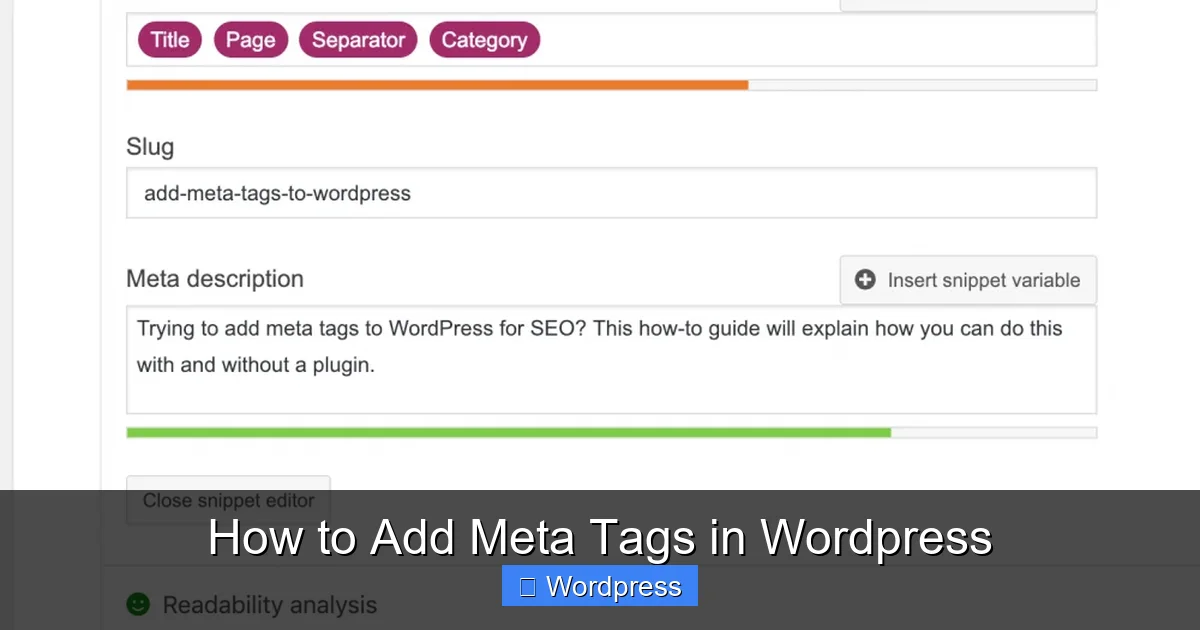
Visual guide about How to Add Meta Tags in WordPress
Image source: wpza.net
The easiest way to add meta tags in WordPress is by using an SEO plugin. These tools automate the process and give you full control over your meta titles and descriptions.
Step 1: Install an SEO Plugin
Two of the most popular options are Yoast SEO and Rank Math. Both are free, user-friendly, and highly effective.
To install Yoast SEO:
- Go to your WordPress dashboard.
- Click Plugins > Add New.
- Search for “Yoast SEO”.
- Click Install Now, then Activate.
Step 2: Configure Meta Tags for Pages and Posts
Once activated, Yoast SEO adds a meta box to every post and page editor.
- Open any post or page in the editor.
- Scroll down to the Yoast SEO section (usually below the content area).
- Click Edit snippet.
- Enter your SEO title (recommended: 50–60 characters).
- Write a compelling meta description (under 160 characters).
- Click Save or update your post.
Step 3: Set Global Meta Tag Defaults
You can also set default templates for meta titles and descriptions.
- Go to SEO > Search Appearance in your dashboard.
- Click the Content Types tab.
- Under “Posts” or “Pages,” click Edit.
- Use placeholders like
%%title%%or%%category%%to auto-generate titles. - Save changes.
Pro Tip: Use emotional or action-driven language in your meta descriptions to boost clicks. For example: “Discover 10 proven ways to grow your blog traffic—fast!”
Method 2: Use Your WordPress Theme’s Built-In Options
Some premium WordPress themes come with built-in SEO settings that let you add meta tags without plugins.
Step 1: Check Your Theme Settings
Go to Appearance > Customize or look for a theme-specific SEO panel (often under Theme Options).
For example, themes like Astra, GeneratePress, or Divi often include SEO modules.
Step 2: Enable Meta Tag Support
If your theme supports it:
- Navigate to the SEO or Header section.
- Toggle on “Meta Description” or “SEO Tags”.
- Enter global meta descriptions or enable per-page editing.
Note: Not all themes offer this feature. If yours doesn’t, consider switching to a more SEO-friendly theme. For help choosing or managing themes, check out our guide on how to apply a WordPress theme.
Method 3: Add Meta Tags Manually with Code
If you prefer full control or don’t want to use plugins, you can add meta tags directly to your theme files.
Step 1: Access Your Theme’s Header File
- Go to Appearance > Theme File Editor.
- Select header.php from the list on the right.
Warning: Always back up your site before editing theme files. A small mistake can break your website.
Step 2: Insert Meta Tags in the <head> Section
Look for the <head> tag and add your meta tags just below it.
Example:
<meta name="description" content="Learn how to add meta tags in WordPress to improve SEO and search rankings.">
<meta name="keywords" content="WordPress, meta tags, SEO, how to add meta tags">
For dynamic content (like post titles), use PHP:
<meta name="description" content="<?php echo get_the_excerpt(); ?>">
Step 3: Use functions.php for Advanced Control
To add meta tags programmatically, edit your theme’s functions.php file.
Example code to add a meta description dynamically:
function add_custom_meta_tags() {
    if (is_single() || is_page()) {
        global $post;
        $description = strip_tags(get_the_excerpt($post->ID));
        echo '<meta name="description" content="' . esc_attr($description) . '">';
    }
}
add_action('wp_head', 'add_custom_meta_tags');
This method is powerful but requires basic PHP knowledge. If you’re not comfortable with code, stick to plugins.
Troubleshooting Common Issues
Even with the best setup, you might run into problems. Here’s how to fix them.
Meta Tags Not Showing in Search Results
Google may ignore your meta tags if they’re too long, duplicate, or irrelevant. Always:
- Keep descriptions under 160 characters.
- Make each page’s meta tag unique.
- Use natural, keyword-rich language.
Plugin Conflicts
If you’re using multiple SEO plugins (like Yoast and All in One SEO), they may conflict. Only use one SEO plugin at a time.
Theme Overrides Plugin Settings
Some themes hardcode meta tags, overriding plugin settings. To fix this:
- Check your theme’s header.php file for existing meta tags.
- Remove or comment them out if using a plugin.
- Or switch to a more compatible theme.
For help managing themes, see our article on what is a child theme in WordPress—it’s a safer way to customize your site without losing updates.
Best Practices for Meta Tags
Now that you know how to add meta tags, follow these best practices to maximize their impact:
- Write unique meta descriptions for every page: Duplicate descriptions can hurt your SEO.
- Include target keywords naturally: But avoid keyword stuffing.
- Use action words: Phrases like “Learn,” “Discover,” or “Get” increase clicks.
- Update meta tags when content changes: Keep them accurate and relevant.
- Test your tags: Use Google’s Rich Results Test to preview how they’ll appear.
Conclusion
Adding meta tags in WordPress doesn’t have to be complicated. Whether you use a plugin like Yoast SEO, rely on your theme’s built-in tools, or write custom code, you now have the knowledge to boost your site’s SEO effectively.
Remember: meta tags are your first impression in search results. Make them count with clear, compelling, and concise descriptions. Start optimizing today—and watch your click-through rates rise.
For more WordPress tips, check out our guide on how to update a theme on WordPress to keep your site secure and up to date.