Adding a sidebar to your WordPress theme enhances layout flexibility and improves user experience. This guide walks you through registering, displaying, and customizing sidebars using code or plugins—no prior coding experience required.
Key Takeaways
- Understand what a WordPress sidebar is: A widget-ready area that appears alongside your main content, typically on the right or left side of posts and pages.
- Use the WordPress Customizer for simple setups: You can add and manage widgets without touching any code through Appearance > Customize > Widgets.
- Register a new sidebar with functions.php: For custom themes, use
register_sidebar()in your theme’sfunctions.phpfile to create a new widget area. - Display the sidebar in your theme files: Insert
get_sidebar()or custom template parts into files likesingle.php,page.php, orindex.php. - Use plugins for non-coders: Tools like Widget Options or Custom Sidebars let you add and manage sidebars visually—ideal if you’re not comfortable editing code.
- Always use a child theme: When modifying theme files, create a child theme to preserve changes during updates.
- Test responsiveness: Ensure your sidebar looks good on mobile devices by checking breakpoints and adjusting CSS if needed.
How Can I Add a Sidebar to My WordPress Theme
If you’re building or customizing a WordPress website, you’ve probably noticed that many themes include a sidebar—that vertical column usually packed with widgets like search bars, recent posts, social links, or ads. But what if your current theme doesn’t have one, or you want to add an extra sidebar to specific pages? Don’t worry—adding a sidebar to your WordPress theme is easier than it sounds, whether you’re a beginner or a seasoned developer.
In this guide, you’ll learn exactly how to add a sidebar to your WordPress theme using built-in tools, code snippets, or plugins. We’ll cover everything from registering a new widget area to placing it on your site and styling it for a professional look. By the end, you’ll be able to customize your layout with confidence.
What Is a WordPress Sidebar?
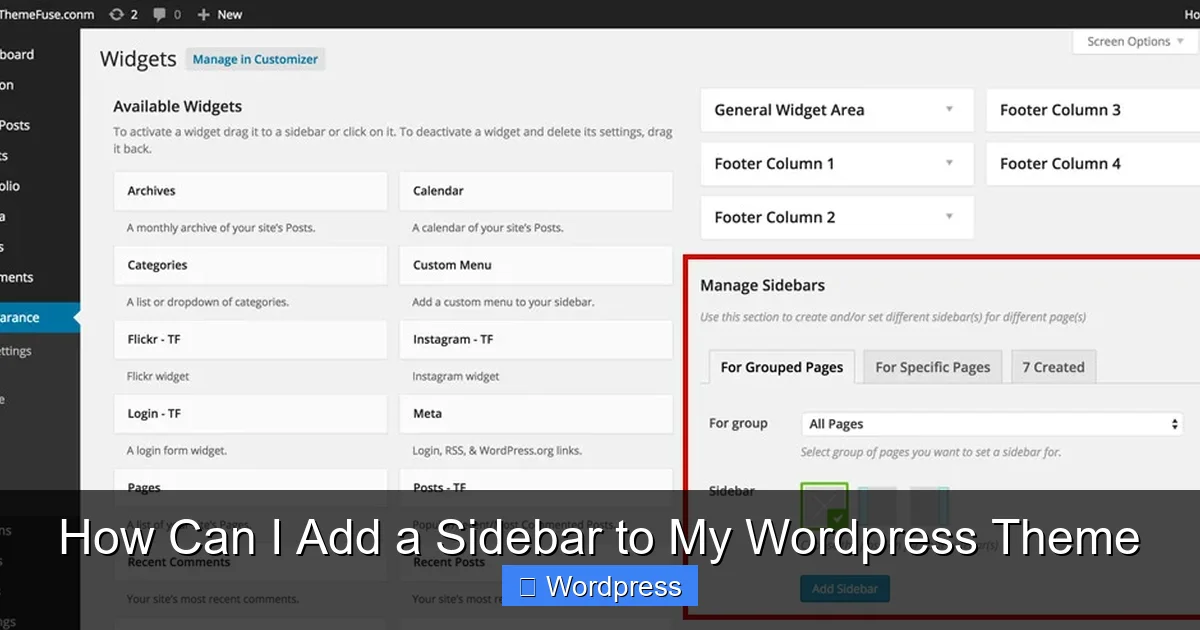
Visual guide about How Can I Add a Sidebar to My WordPress Theme
Image source: docs.themefuse.com
Before diving into the steps, let’s clarify what a sidebar actually is. In WordPress, a sidebar is a widgetized area—a section of your theme where you can drag and drop widgets like calendars, menus, or newsletter signup forms. Most themes come with at least one default sidebar (often called “Primary Sidebar”), but you can add as many as you need.
Sidebars are great for:
- Improving navigation
- Increasing engagement with calls-to-action
- Displaying dynamic content without editing every page
- Boosting SEO with internal links and related content
Now, let’s get into the practical steps.
Method 1: Add a Sidebar Using the WordPress Customizer
The easiest way to add content to an existing sidebar is through the WordPress Customizer. This method requires no coding and works with most themes.
Step 1: Access the Customizer
Go to your WordPress dashboard. Navigate to Appearance > Customize. This opens the live theme customizer.
Step 2: Open the Widgets Section
In the left panel, click on Widgets. You’ll see a list of available sidebars (e.g., “Sidebar,” “Footer,” “Blog Sidebar”).
Step 3: Add Widgets to Your Sidebar
Click on the sidebar you want to edit. Then, click “Add a Widget” and choose from options like:
- Search
- Recent Posts
- Categories
- Custom HTML
- Social Media Icons
Drag and drop widgets into your desired order. You can also configure each widget’s settings (e.g., title, number of posts to show).
Step 4: Publish Your Changes
Once you’re happy with the layout, click Publish at the top. Your sidebar will now appear on the frontend of your site—usually on the right or left side of your content, depending on your theme.
Tip: If you don’t see a sidebar on your site after adding widgets, your theme might not support sidebars by default. In that case, move to Method 2 or 3.
Method 2: Register a New Sidebar with Code
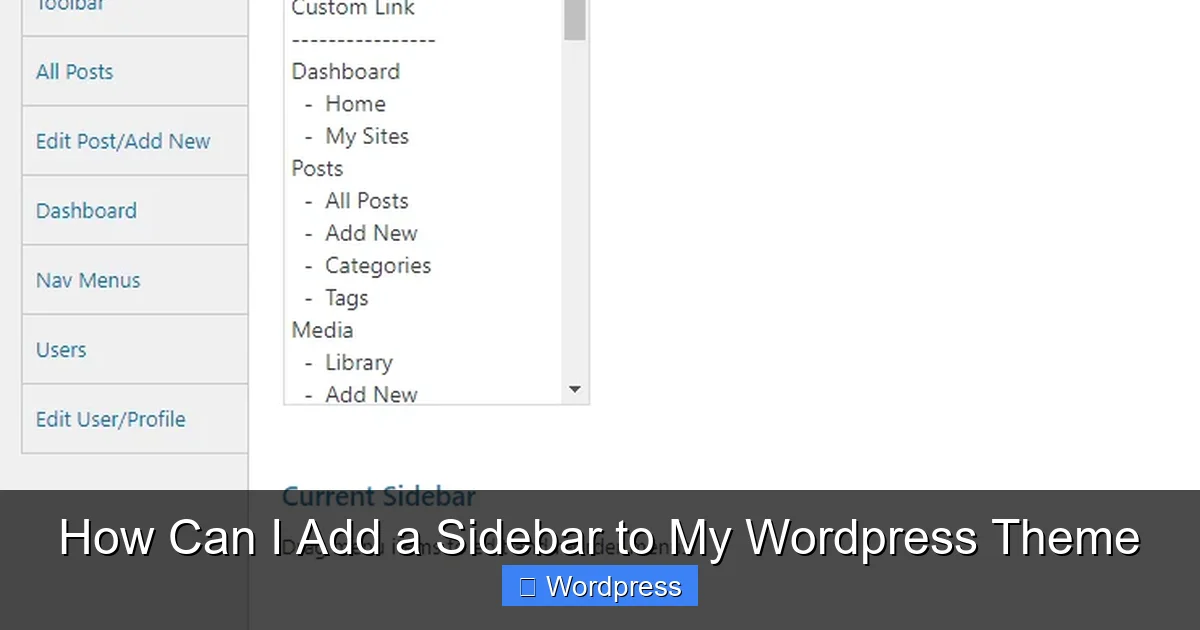
Visual guide about How Can I Add a Sidebar to My WordPress Theme
Image source: mywpcustomize.com
If your theme doesn’t include a sidebar—or you want to add a second one—you’ll need to register it manually. This involves editing your theme’s functions.php file.
Important: Always use a child theme when making code changes. This prevents your edits from being overwritten when the parent theme updates.
Step 1: Open Your Child Theme’s functions.php
Go to Appearance > Theme File Editor in your dashboard. From the right sidebar, select your child theme and open functions.php.
Alternatively, use an FTP client or file manager to access /wp-content/themes/your-child-theme/functions.php.
Step 2: Add the register_sidebar() Function
Paste the following code at the bottom of the file:
function my_custom_sidebar() {
register_sidebar( array(
'name' => __( 'Custom Sidebar', 'textdomain' ),
'id' => 'custom-sidebar-1',
'description' => __( 'A custom sidebar for your site.', 'textdomain' ),
'before_widget' => '',
'before_title' => '',
'after_title' => '
',
) );
}
add_action( 'widgets_init', 'my_custom_sidebar' );
Replace “Custom Sidebar” with your preferred name. The id must be unique and lowercase with hyphens.
Step 3: Save the File
Click Update File or save via your FTP client. Your new sidebar is now registered and ready to use.
Method 3: Display the Sidebar in Your Theme
Registering a sidebar makes it available in the Widgets area, but you still need to tell WordPress where to show it.
Step 1: Locate the Template File
Decide where you want the sidebar to appear. Common locations include:
single.php– for blog postspage.php– for static pagesindex.php– for the blog homepagearchive.php– for category or tag pages
Open the appropriate file in your child theme.
Step 2: Insert the Sidebar Code
Find the spot where you want the sidebar to appear—usually after the main content div. Add this line:
This calls the default sidebar. If you created a custom sidebar with a unique ID (like “custom-sidebar-1”), use:
Place it inside a container for better styling, like:
Step 3: Style the Sidebar (Optional)
To make your sidebar look polished, add CSS. Go to Appearance > Customize > Additional CSS and add rules like:
.custom-sidebar {
    width: 30%;
    float: right;
    padding: 20px;
    background: #f9f9f9;
    border-left: 1px solid #ddd;
}
Adjust widths and spacing to match your design. Use media queries to ensure it stacks nicely on mobile.
Method 4: Use a Plugin (No Coding Required)
If you’d rather avoid code, plugins are a great alternative. They let you create and manage sidebars through a user-friendly interface.
Recommended Plugins
- Custom Sidebars – Create unlimited sidebars and assign them to specific pages or posts.
- Widget Options – Show or hide widgets based on page, user role, or device.
- Elementor – If you use Elementor, you can design sidebars visually with drag-and-drop widgets.
How to Use Custom Sidebars Plugin
- Install and activate the plugin from Plugins > Add New.
- Go to Appearance > Custom Sidebars.
- Click Add New Sidebar, give it a name, and save.
- Assign the sidebar to specific pages, posts, or templates using the conditions panel.
- Add widgets via Appearance > Widgets as usual.
This method is perfect for non-developers who need flexibility without touching code.
Troubleshooting Common Issues
Sidebar Not Appearing?
- Check if your theme supports sidebars. Some minimal themes (like Twenty Twenty-Four) use full-width layouts by default.
- Ensure you’ve added widgets to the sidebar in the Customizer.
- Verify that
get_sidebar()ordynamic_sidebar()is correctly placed in your template file.
Sidebar Looks Broken on Mobile?
Use responsive CSS. For example:
@media (max-width: 768px) {
    .custom-sidebar {
        width: 100%;
        float: none;
        border-left: none;
        border-top: 1px solid #ddd;
    }
}
Changes Disappeared After Theme Update?
This happens when you edit the parent theme directly. Always use a child theme to preserve customizations.
Conclusion
Adding a sidebar to your WordPress theme is a powerful way to enhance functionality and design. Whether you use the built-in Customizer, write a few lines of PHP, or install a plugin, you now have multiple proven methods to get the job done.
Remember: start simple. If you’re new to WordPress, try the Customizer first. As you gain confidence, explore code-based solutions for greater control. And always back up your site before making changes.
With a well-placed sidebar, you can guide visitors, promote content, and create a more engaging experience—all without touching a single line of code (unless you want to!).