
Want to save time and avoid rebuilding pages from scratch? This guide shows you exactly how to duplicate a page in WordPress—whether you’re using the default editor or a plugin. Perfect for creating landing pages, templates, or testing new designs quickly.
Key Takeaways
- WordPress doesn’t natively support page duplication, but you can use plugins or built-in features like revisions and copy-to-clipboard.
- Popular plugins like Duplicate Page, Yoast Duplicate Post, and WP Sheet Editor make duplicating pages fast and easy with one click.
- Always update titles, slugs, and meta data after duplication to avoid SEO issues and confusion.
- Test duplicated pages before publishing—especially if they include forms, shortcodes, or dynamic content.
- Use child themes when customizing duplicated pages to protect changes during theme updates. Learn more about what is a child theme in WordPress.
- For landing pages, consider using dedicated tools like Elementor or landing page builders for better control. Check out our guide on landing page in WordPress.
- Keep your site clean by deleting unused duplicated drafts to improve performance and organization.
Why Duplicate a Page in WordPress?
Imagine you’ve spent hours crafting the perfect About Us page—great design, smooth layout, and compelling copy. Now you need a similar page for your Services section. Do you really want to start from scratch? Of course not! That’s where duplicating a page in WordPress comes in handy.
Whether you’re building multiple landing pages, creating templates for clients, or testing design variations, duplicating pages saves time, ensures consistency, and reduces errors. It’s a simple trick that can supercharge your workflow—especially if you manage multiple sites or frequently update content.
In this guide, we’ll walk you through several reliable methods to duplicate a page in WordPress, from free plugins to built-in tricks. By the end, you’ll know exactly how to copy any page with confidence.
Method 1: Use a Dedicated Duplication Plugin
The easiest and most popular way to duplicate a page is by using a plugin. These tools are lightweight, user-friendly, and often free. Here’s how to do it with one of the top options: Duplicate Page.
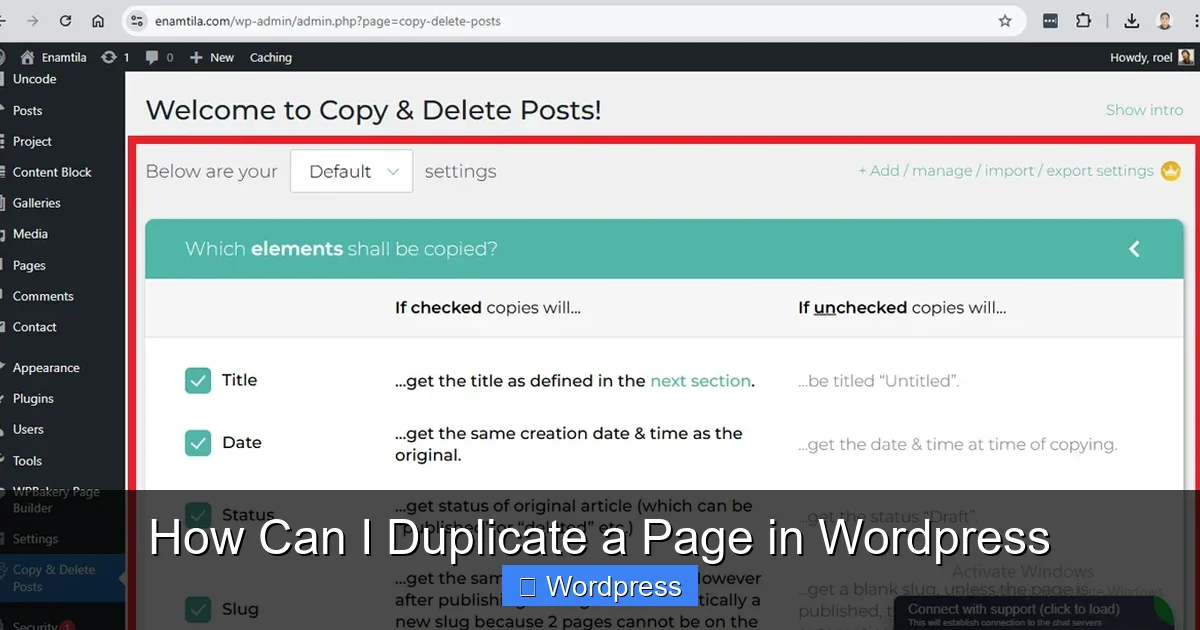
Visual guide about How Can I Duplicate a Page in WordPress
Image source: workroom.ph
Step 1: Install the Duplicate Page Plugin
- Go to your WordPress dashboard.
- Navigate to Plugins > Add New.
- In the search bar, type “Duplicate Page”.
- Find the plugin by mndsingh287 (it has over 800,000 active installations).
- Click Install Now, then Activate.
Step 2: Duplicate Your Page
- Go to Pages > All Pages.
- Hover over the page you want to duplicate.
- You’ll see new options: Duplicate This, Clone, or New Draft (depending on the plugin).
- Click Duplicate This. A copy will appear in your pages list with “(Copy)” added to the title.
Step 3: Edit and Publish the Duplicated Page
- Click Edit on the new page.
- Update the title, slug (URL), content, and featured image as needed.
- Click Update or Publish when ready.
Pro Tip: Some plugins let you duplicate pages as drafts, published pages, or even copy them to another site. Explore the plugin settings to customize this behavior.
Method 2: Use the Built-in “Copy to Clipboard” Feature (Gutenberg Editor)
If you prefer not to install a plugin, WordPress’s Gutenberg editor has a hidden gem: the ability to copy entire pages to your clipboard.
Step 1: Open the Page You Want to Duplicate
- Go to Pages > All Pages.
- Click Edit on the page you want to copy.
Step 2: Copy All Blocks
- In the editor, click the three-dot menu in the top-right corner.
- Select Copy All Content. This copies every block (text, images, buttons, etc.) to your clipboard.
Step 3: Create a New Page and Paste
- Go to Pages > Add New.
- Click inside the editor area.
- Press Ctrl+V (Windows) or Cmd+V (Mac) to paste the content.
- Update the title, slug, and any page-specific details.
- Click Publish.
Note: This method copies content but not page settings like SEO meta, featured image, or custom fields. You’ll need to reconfigure those manually.
Method 3: Use Yoast Duplicate Post Plugin
Yoast is famous for SEO, but its Duplicate Post plugin is also excellent for cloning pages, posts, and even custom post types.
Step 1: Install Yoast Duplicate Post
- Go to Plugins > Add New.
- Search for “Yoast Duplicate Post”.
- Install and activate the plugin.
Step 2: Configure the Plugin (Optional)
- Go to Settings > Duplicate Post.
- Choose what to copy: content, title, featured image, custom fields, etc.
- Set default status for duplicates (draft, published, private).
Step 3: Duplicate the Page
- Go to Pages > All Pages.
- Hover over the desired page.
- Click Clone or New Draft.
- Edit the new page and publish when ready.
Bonus: This plugin also lets you bulk duplicate pages and schedule duplications—great for recurring content like weekly blogs or seasonal landing pages.
Method 4: Use WP Sheet Editor for Advanced Users
If you manage many pages or need bulk actions, WP Sheet Editor is a powerful tool that turns your pages into a spreadsheet-like interface.
Step 1: Install WP Sheet Editor
- Go to Plugins > Add New.
- Search for “WP Sheet Editor – Posts, Pages, and Custom Post Types”.
- Install and activate.
Step 2: Open the Pages Spreadsheet
- Go to WP Sheet Editor > Pages.
- You’ll see all your pages in a table format.
Step 3: Duplicate Pages in Bulk
- Select the pages you want to duplicate (use checkboxes).
- Click the Bulk Actions dropdown.
- Choose Duplicate.
- Confirm the action. New copies will appear in the list.
Ideal for: Agencies, large websites, or anyone who needs to clone multiple pages at once. It also supports filtering, sorting, and inline editing.
Important Tips After Duplicating a Page
Duplicating a page is just the first step. To keep your site professional and SEO-friendly, follow these best practices:
1. Update the Page Title and Slug
Never leave the duplicated page with a title like “About Us (Copy)”. Change it to something unique, like “Our Services”. Also, update the slug (URL) to reflect the new content—e.g., change yourwebsite.com/about-us-2 to yourwebsite.com/services.
2. Check Internal Links
If your original page had links to other pages (like “Learn more about our team”), make sure they still make sense on the new page. Update or remove outdated links.
3. Refresh SEO Settings
Plugins like Yoast SEO or Rank Math allow you to set meta titles, descriptions, and focus keywords. Always review and customize these for the duplicated page to avoid duplicate content issues.
4. Test Forms and Dynamic Content
If your page includes contact forms, calendars, or embedded videos, test them thoroughly. Sometimes shortcodes or scripts don’t carry over correctly.
5. Use a Child Theme for Customizations
If you’re modifying the duplicated page’s design with custom CSS or templates, use a child theme. This ensures your changes aren’t lost when the parent theme updates.
Troubleshooting Common Issues
Even with the best tools, things can go wrong. Here’s how to fix common duplication problems:
Problem: Duplicated Page Doesn’t Appear
Solution: Check if the page was saved as a draft. Go to Pages > All Pages and look under “Drafts”. Also, clear your browser cache or try a different browser.
Problem: Images or Media Are Missing
Solution: Some plugins only copy content, not media files. Re-upload images or use a plugin that supports media duplication. Alternatively, use the clipboard method and manually re-add images.
Problem: Shortcodes or Plugins Don’t Work
Solution: Ensure all required plugins are active. Some shortcodes are context-sensitive (e.g., they only work on specific pages). Test in a staging environment first.
Problem: Duplicate Content SEO Penalty
Solution: Always change the title, meta description, and content slightly. Use canonical tags if needed, and avoid publishing identical pages on the same site.
Conclusion
Duplicating a page in WordPress doesn’t have to be complicated. Whether you use a simple plugin like Duplicate Page, the built-in clipboard feature, or advanced tools like WP Sheet Editor, you can save hours of repetitive work and maintain consistency across your site.
Remember: duplication is a starting point, not the finish line. Always customize titles, URLs, SEO settings, and content to match the new page’s purpose. And if you’re building landing pages frequently, consider exploring dedicated landing page tools in WordPress for even more flexibility.
With these methods, you’re ready to clone pages like a pro—whether you’re launching a new service, testing a design, or managing multiple client sites. Happy duplicating!