Installing a WordPress theme is simple and can be done in minutes using the built-in theme installer, uploading a ZIP file, or manually via FTP. This guide walks you through every method, so you can choose the one that works best for you—even if you’re a beginner.
Key Takeaways
- WordPress themes change your site’s design instantly: A theme controls layout, colors, fonts, and overall look—no coding needed.
- You can install themes directly from the WordPress dashboard: Use the built-in theme directory for free, trusted options.
- Premium themes require ZIP file upload: If you bought a theme, upload it via Appearance > Themes > Add New.
- Manual installation is useful for large files or restricted hosting: Use FTP or file manager to upload theme folders when the dashboard fails.
- Always use a child theme for customizations: This protects your changes when the parent theme updates—learn more about child themes here.
- Test your site after installing a new theme: Check for broken layouts, missing widgets, or plugin conflicts.
- Keep themes updated for security and performance: Outdated themes can slow your site or expose vulnerabilities—see how to update your WordPress theme safely.
How Do I Install a WordPress Theme?
Whether you’re launching a blog, business site, or online store, choosing the right WordPress theme is one of the most important decisions you’ll make. The good news? Installing a WordPress theme is fast, easy, and doesn’t require any coding skills. In this guide, we’ll show you three proven methods to install a WordPress theme—directly from the dashboard, by uploading a ZIP file, or manually via FTP. By the end, you’ll know exactly how to get your site looking professional in minutes.
What Is a WordPress Theme?
A WordPress theme is a collection of files that determine how your website looks and functions. It controls everything from layout and typography to color schemes and navigation menus. Themes are fully customizable and can be switched anytime—without losing your content. Whether you want a minimal blog layout or a feature-rich business template, there’s a theme for every need.
Visual guide about How Do I Install a WordPress Theme?
Image source: visualmodo.com
WordPress offers thousands of free themes in its official directory, plus countless premium options from marketplaces like ThemeForest, Elegant Themes, and StudioPress. Once installed, you can further personalize your theme using the WordPress Customizer or page builders like Elementor.
Method 1: Install a Theme from the WordPress Dashboard (Free Themes)
The easiest way to install a WordPress theme is through the built-in theme browser. This method works for all free themes available in the WordPress.org directory. Here’s how:
Visual guide about How Do I Install a WordPress Theme?
Image source: mysterythemes.com
Step 1: Log in to Your WordPress Admin
Go to yoursite.com/wp-admin and log in with your username and password.
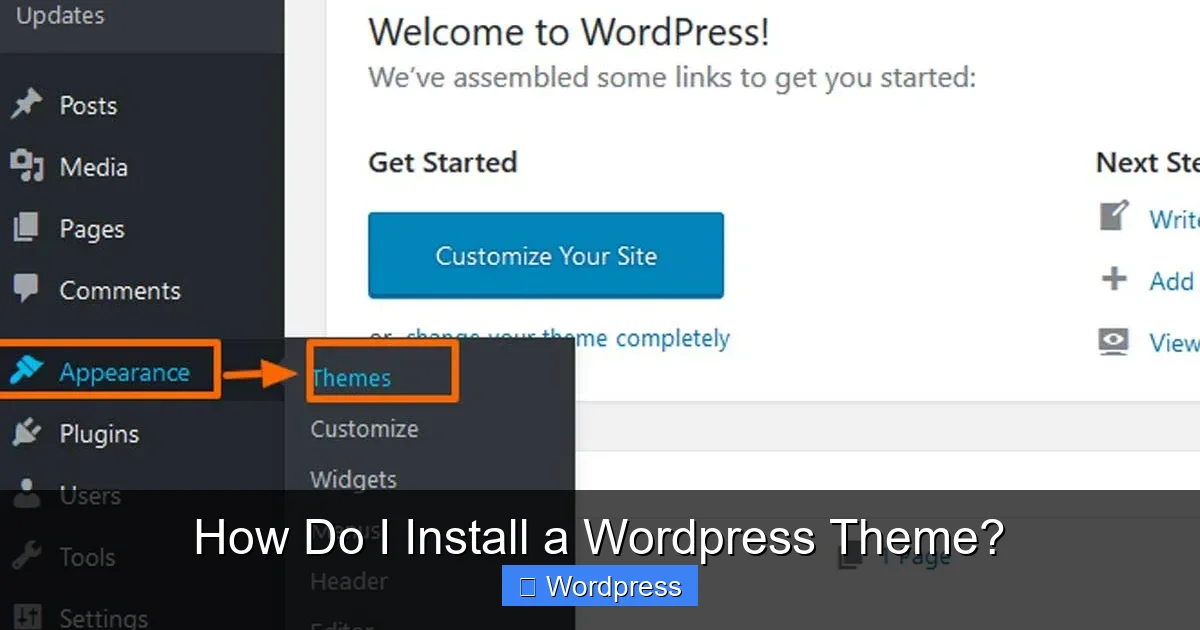
Step 2: Navigate to Appearance > Themes
In the left-hand menu, hover over Appearance and click Themes. You’ll see a list of currently installed themes.
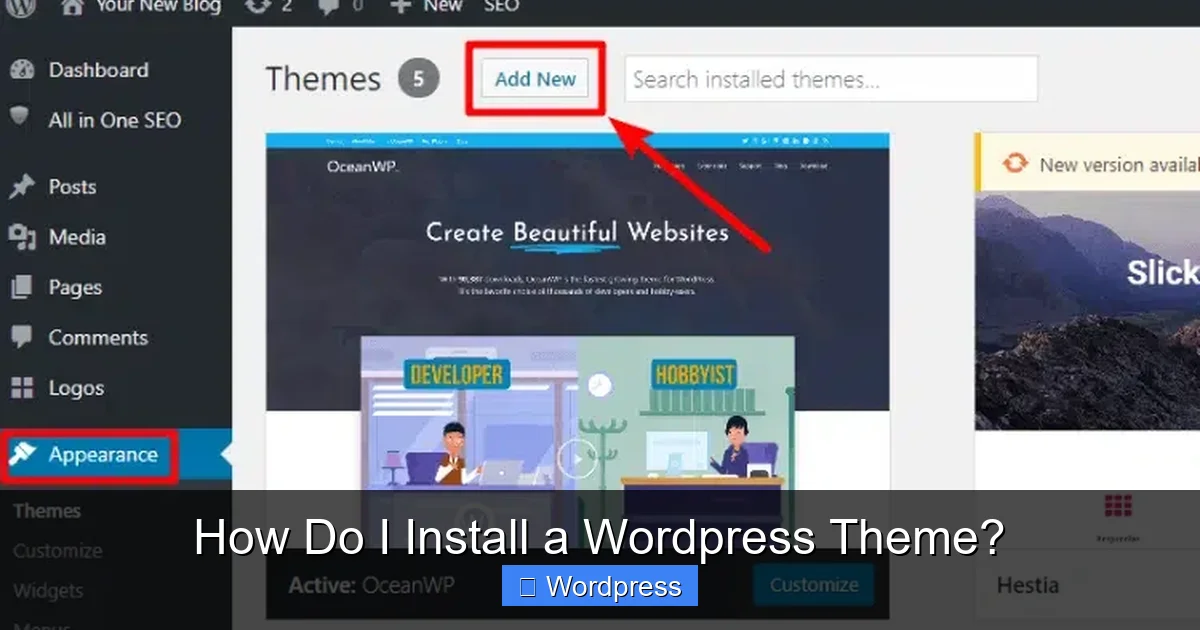
Step 3: Click “Add New”
At the top of the screen, click the blue Add New button. This opens the theme directory with thousands of free options.
Step 4: Search or Browse for a Theme
Use the search bar to find a theme by name, or filter by features like “Blog,” “E-commerce,” or “Responsive Layout.” You can also sort by popularity, latest, or featured.
Step 5: Preview and Install
Hover over any theme and click Preview to see how it looks on your site. When you find one you like, click Install. WordPress will download and install it automatically.
Step 6: Activate the Theme
After installation, click Activate to make the theme live on your site. Your website will instantly update with the new design.
Pro Tip: Always preview a theme before activating it. Some themes may not work well with your current plugins or content structure.
Method 2: Upload a Theme ZIP File (Premium or Custom Themes)
If you’ve purchased a premium theme or downloaded one from a third-party site, you’ll need to upload it as a ZIP file. This method works for any theme not available in the WordPress directory.
Visual guide about How Do I Install a WordPress Theme?
Image source: digitechspot.com
Step 1: Download the Theme ZIP File
After purchasing or downloading a theme, make sure you have the correct ZIP file. It should contain a folder with theme files—not another ZIP inside.
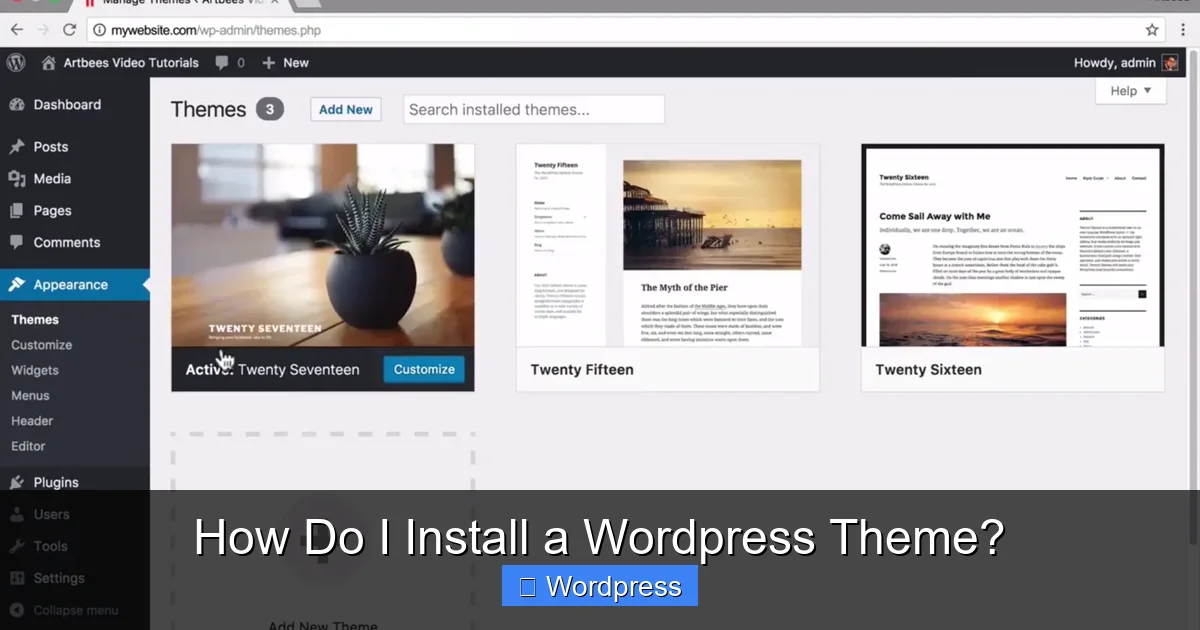
Step 2: Go to Appearance > Themes > Add New
In your WordPress dashboard, navigate to Appearance > Themes, then click Add New.
Step 3: Click “Upload Theme”
At the top, click the Upload Theme button. A file picker will appear.
Step 4: Choose the ZIP File and Install
Click Choose File, select your theme’s ZIP file from your computer, and click Install Now. WordPress will extract and install the theme.
Step 5: Activate the Theme
Once installed, click Activate to apply the theme to your site.
Note: If you get an error like “The package could not be installed,” the ZIP file may be corrupted or not a valid WordPress theme. Re-download it from the source.
Method 3: Install a Theme Manually via FTP
Sometimes, especially with large themes or restricted hosting environments, the dashboard upload method fails. In those cases, manual installation via FTP is your best option. This method gives you full control over the process.
Step 1: Download and Extract the Theme
Download the theme ZIP file to your computer and extract it. You should see a folder named after the theme (e.g., astra, oceanwp).
Step 2: Connect to Your Site via FTP
Use an FTP client like FileZilla or your hosting provider’s file manager. Log in using your FTP credentials (usually found in your hosting control panel).
Step 3: Navigate to the Themes Folder
Go to /wp-content/themes/ on your server. This is where all WordPress themes are stored.
Step 4: Upload the Theme Folder
Drag and drop the extracted theme folder into the themes directory. Wait for the upload to complete.
Step 5: Activate the Theme in WordPress
Return to your WordPress dashboard, go to Appearance > Themes, and you should see the new theme listed. Click Activate to use it.
Tip: Manual installation is also useful if your hosting has file size limits. For more details, check out our guide on how to install WP themes manually.
Troubleshooting Common Theme Installation Issues
Even with clear steps, things can go wrong. Here are solutions to the most common problems:
“The package could not be installed.”
This usually means the ZIP file is invalid or corrupted. Re-download the theme from the original source and try again. Make sure you’re uploading the theme ZIP, not a plugin or documentation file.
“Maximum upload size exceeded.”
Some hosts limit file uploads to 2MB or 8MB. If your theme is larger, use the manual FTP method instead. Alternatively, contact your host to increase the limit.
White Screen or Broken Layout After Activation
This could mean the theme is incompatible with your WordPress version or plugins. Switch back to a default theme like Twenty Twenty-Four, then check for updates or conflicts. You may need to deactivate the problematic theme temporarily.
Missing Widgets or Menus
Some themes don’t support all widget areas. Go to Appearance > Widgets and Menus to reconfigure them. You might also need to import demo content if the theme offers it.
Best Practices After Installing a WordPress Theme
Installing a theme is just the first step. To get the most out of it, follow these best practices:
- Create a child theme before making customizations: This ensures your changes aren’t lost during updates. Learn why child themes are essential.
- Import demo content (if available): Many premium themes offer one-click demo imports to help you get started quickly.
- Optimize for speed and SEO: Choose a lightweight, well-coded theme. See our review of the best WordPress theme for SEO and speed.
- Test on mobile devices: Ensure your theme is responsive and looks great on phones and tablets.
- Keep your theme updated: Regular updates fix bugs and improve security. Never skip them.
Conclusion
Installing a WordPress theme is a straightforward process that can transform your website in minutes. Whether you’re using a free theme from the directory, uploading a premium ZIP file, or installing manually via FTP, the steps are simple and beginner-friendly. Just remember to preview your theme, test your site after activation, and always use a child theme for custom changes.
With the right theme, your WordPress site will not only look professional but also perform well for visitors and search engines. Now that you know how to install a WordPress theme, you’re ready to take your website to the next level.