This guide walks you through how to install a WordPress theme using three reliable methods: directly from the WordPress dashboard, uploading a ZIP file, or manually via FTP. Whether you’re using a free theme from the directory or a premium one you purchased, you’ll find clear, beginner-friendly instructions to get your site looking great fast.
Key Takeaways
- Choose the right installation method: Use the WordPress dashboard for free themes, upload ZIP files for premium themes, or FTP for advanced users.
- Always back up your site first: Prevent data loss by creating a full backup before installing or switching themes.
- Check theme compatibility: Ensure your theme supports your WordPress version and required plugins like WooCommerce or page builders.
- Use a child theme for customizations: Protect your design changes from being overwritten during updates by using a child theme.
- Test after installation: Preview your site on desktop and mobile to catch layout issues early.
- Keep themes updated: Regularly update your theme for security, performance, and new features—learn how to update a WordPress theme safely.
- Remove unused themes: Free up space and improve security by deleting themes you no longer use—see how to delete a WordPress theme.
How Do I Install a WordPress Theme? A Complete Step-by-Step Guide
So you’ve picked out the perfect WordPress theme—maybe it’s sleek and modern, packed with features, or just simple and fast. Now comes the big question: how do I install a WordPress theme? Don’t worry. It’s easier than you think, and you don’t need to be a developer to do it.
In this guide, we’ll walk you through three proven methods to install a WordPress theme: directly from the WordPress dashboard, uploading a ZIP file, and manually via FTP. We’ll also share practical tips, common pitfalls to avoid, and what to do if something goes wrong. By the end, you’ll have your new theme up and running—and your website looking exactly how you want it.
Method 1: Install a WordPress Theme from the Dashboard (Free Themes)
Visual guide about How Do I Install a WordPress Theme
Image source: mysterythemes.com
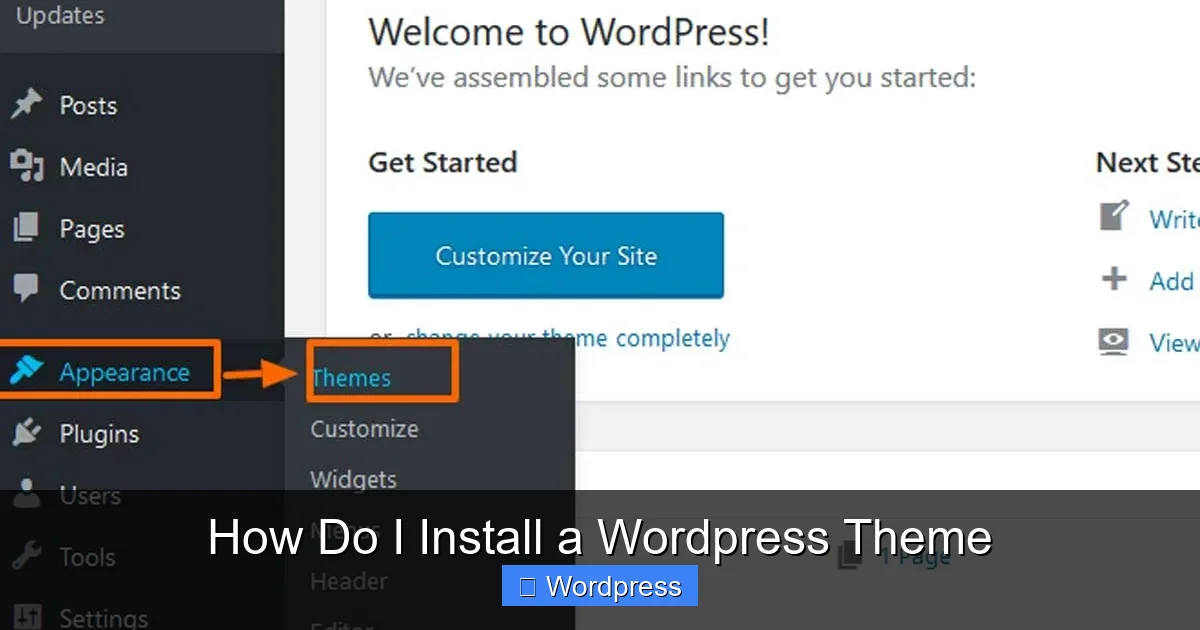
The easiest and most beginner-friendly way to install a WordPress theme is directly from your WordPress admin dashboard. This method works for free themes available in the official WordPress theme directory.
Step 1: Log in to Your WordPress Admin
Go to your website’s login page (usually yoursite.com/wp-admin) and enter your username and password.
Step 2: Navigate to Appearance > Themes
In the left-hand menu, click Appearance, then select Themes. You’ll see a list of themes already installed on your site.
Step 3: Click “Add New”
At the top of the Themes page, click the Add New button. This takes you to the WordPress theme directory, where thousands of free themes are available.
Step 4: Search or Browse for a Theme
You can browse featured themes, or use the search bar to find one by name or keyword (like “blog,” “business,” or “minimal”). You can also filter by features, layout, or subject.
Step 5: Preview and Install
Click on any theme to see a live preview. If you like it, click the Install button. WordPress will download and install the theme automatically.
Step 6: Activate the Theme
Once installed, click Activate to make the theme live on your site. Your website will now use the new design.
Pro Tip: Always preview a theme before activating it. Some themes change your homepage layout or menu structure, which might affect your content.
Method 2: Upload a Theme ZIP File (Premium or Custom Themes)
Visual guide about How Do I Install a WordPress Theme
Image source: digitechspot.com
If you’ve purchased a premium theme from a marketplace like ThemeForest, Elegant Themes, or Astra, or received a custom theme from a developer, you’ll likely have a ZIP file. Here’s how to upload it.
Step 1: Download the Theme ZIP File
After purchasing, download the theme file to your computer. Make sure you’re downloading the actual theme—not documentation or installable WordPress file. It should end in .zip.
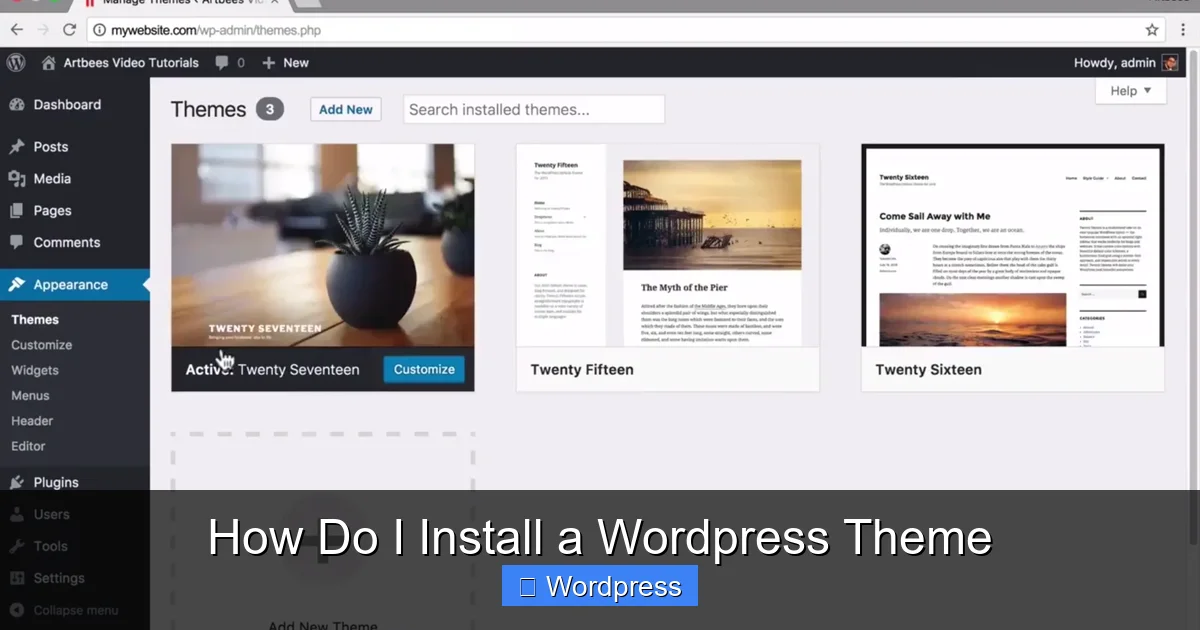
Step 2: Go to Appearance > Themes > Add New
Just like in Method 1, go to your WordPress dashboard, then Appearance > Themes > Add New.
Step 3: Click “Upload Theme”
At the top of the page, click the Upload Theme button, then choose the ZIP file from your computer.
Step 4: Install and Activate
Click Install Now. WordPress will extract and install the theme. Once done, click Activate to apply it to your site.
Important: Do not unzip the theme file before uploading. WordPress needs the ZIP file to install properly.
Method 3: Install a WordPress Theme Manually via FTP
For advanced users or when the dashboard upload fails (due to file size limits or server restrictions), you can install a theme manually using FTP.
Step 1: Download and Extract the Theme
Download the theme ZIP file to your computer and extract it. You should see a folder with the theme name (e.g., “astra” or “oceanwp”).
Step 2: Connect to Your Site via FTP
Use an FTP client like FileZilla to connect to your website. You’ll need your FTP credentials (usually provided by your hosting provider).
Step 3: Navigate to the Themes Folder
Go to your website’s root directory, then open wp-content > themes.
Step 4: Upload the Theme Folder
Drag and drop the extracted theme folder into the themes directory. Wait for the upload to complete.
Step 5: Activate the Theme in WordPress
Go back to your WordPress dashboard, then Appearance > Themes. You should now see your new theme listed. Click Activate.
Note: This method gives you more control but requires basic technical knowledge. If you’re unsure, stick to the dashboard methods.
What to Do After Installing a WordPress Theme
Installing a theme is just the first step. Here’s what to do next to ensure everything works smoothly.
Import Demo Content (If Available)
Many premium themes come with demo content—pre-designed pages, menus, and widgets. Look for an “Import Demo” button in the theme options or WordPress Customizer. This helps you see how the theme looks with real content.
Install Required Plugins
Some themes require specific plugins (like page builders or sliders). WordPress will usually prompt you to install them after activation. Don’t skip this step—your theme might not work properly without them.
Customize Your Theme
Go to Appearance > Customize to adjust colors, fonts, layouts, and more. Most modern themes are highly customizable without coding.
Set Your Homepage and Blog Page
If your theme changes your homepage, go to Settings > Reading and set your static homepage and posts page.
Check Mobile Responsiveness
Open your site on a phone or use Google’s Mobile-Friendly Test to ensure it looks good on all devices.
Troubleshooting Common Issues
Even with careful installation, you might run into problems. Here’s how to fix the most common ones.
“The package could not be installed. The theme is missing the style.css stylesheet.”
This error means you uploaded the wrong ZIP file—likely the entire downloaded package instead of the actual theme folder. Extract the ZIP, find the inner theme folder, and upload only that.
White Screen or Broken Layout After Activation
This usually happens due to a plugin conflict or PHP error. Deactivate all plugins, then reactivate them one by one to find the culprit. You can also switch back to a default theme like Twenty Twenty-Four to test.
Theme Not Appearing in the Dashboard
If you installed via FTP and the theme doesn’t show up, double-check that the folder is in wp-content/themes and that it contains a valid style.css file.
Missing Features or Widgets
Some themes require you to install companion plugins. Check the theme documentation or look for prompts in the WordPress dashboard.
Best Practices for Theme Installation
To avoid headaches down the road, follow these best practices:
- Back up your site first: Use a plugin like UpdraftPlus to create a full backup before installing or switching themes.
- Use a staging site: Test new themes on a copy of your site before going live.
- Keep themes updated: Outdated themes can have security vulnerabilities. Learn how to update a WordPress theme safely.
- Delete unused themes: Remove themes you’re not using to reduce clutter and improve security. See how to delete a WordPress theme.
- Use a child theme for custom code: If you plan to modify theme files, always use a child theme to preserve changes during updates.
Conclusion
Now you know how to install a WordPress theme—whether you’re using a free theme from the directory, uploading a premium ZIP file, or going the manual FTP route. Each method is straightforward, and with the tips in this guide, you can avoid common mistakes and get your site looking professional in no time.
Remember to back up your site, test your new theme thoroughly, and keep it updated. And if you ever need to switch back, you can always deactivate a theme in WordPress and return to your previous design.
With the right theme, your website can be faster, more attractive, and easier to manage. So go ahead—install that theme and start building the site you’ve always wanted.