
This guide explains how WordPress works by breaking down its core components like themes, plugins, hosting, and the database. You’ll understand how content is created, managed, and displayed on your site.
Key Takeaways
- WordPress is a CMS: It manages your website’s content through a user-friendly dashboard.
- Themes control design: They determine your site’s look and layout—easily customizable.
- Plugins add functionality: From contact forms to SEO tools, plugins extend what your site can do.
- Hosting stores your site: Your WordPress files live on a web server provided by a hosting company.
- Content uses posts and pages: Posts are for blogs; pages are for static info like “About” or “Contact.”
- Database manages data: All content, settings, and user info are stored in a MySQL database.
- Regular updates keep you secure: Always update WordPress core, themes, and plugins to avoid vulnerabilities.
Introduction: What You’ll Learn About WordPress
If you’ve ever wondered how WordPress works, you’re in the right place. WordPress powers over 40% of all websites on the internet—and for good reason. It’s flexible, easy to use, and highly customizable. Whether you’re building a blog, portfolio, or online store, understanding how WordPress operates under the hood helps you make smarter decisions.
In this guide, we’ll walk you through the core parts of WordPress: themes, plugins, hosting, content types, and the database. By the end, you’ll know exactly how your site displays content, how design changes happen, and why regular maintenance matters. No technical jargon—just clear, practical explanations.
Step 1: Understanding WordPress as a Content Management System (CMS)
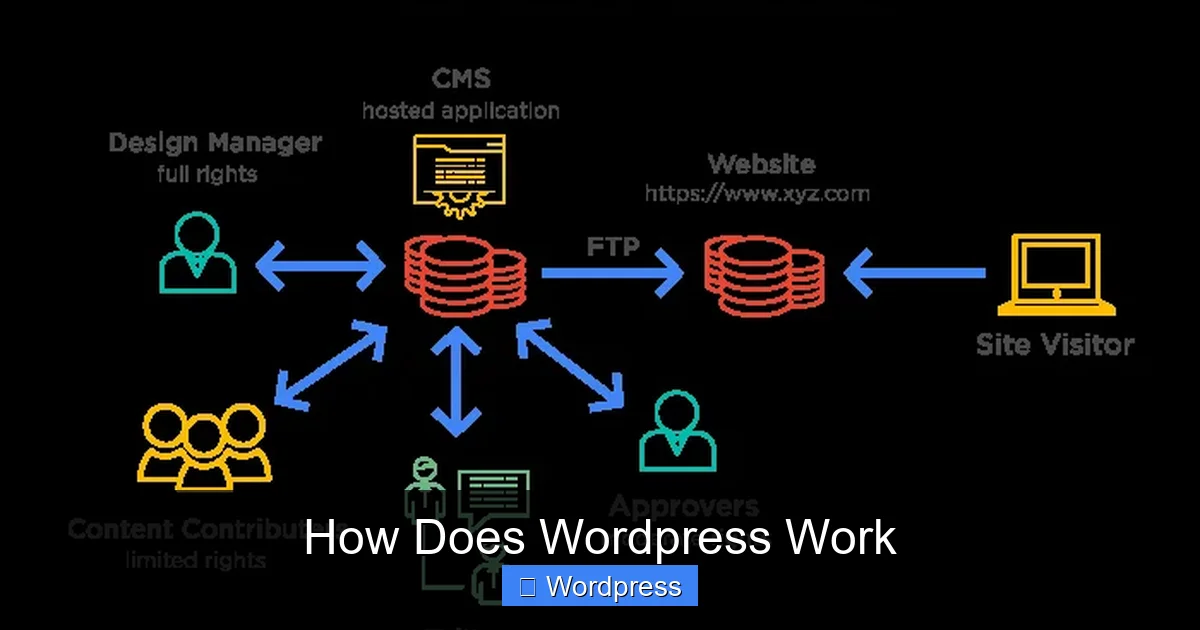
At its heart, WordPress is a content management system (CMS). That means it helps you create, edit, organize, and publish digital content—like blog posts, images, and pages—without needing to code.
Visual guide about How Does WordPress Work
Image source: pixelmattic.com
When you log into your WordPress dashboard (usually at yoursite.com/wp-admin), you’re accessing the admin area. From here, you can write new posts, upload photos, change your site’s design, and manage users—all through a simple interface.
Unlike static HTML websites that require manual file editing, WordPress dynamically generates web pages using templates and data stored in a database. This makes updates fast and consistent across your entire site.
How Content Gets Published
When you hit “Publish” on a new post, WordPress saves it to your database. Later, when someone visits your site, WordPress pulls that content from the database and inserts it into a pre-designed template (more on that soon). The result? A polished, professional-looking page—built automatically.
Step 2: The Role of Themes in WordPress
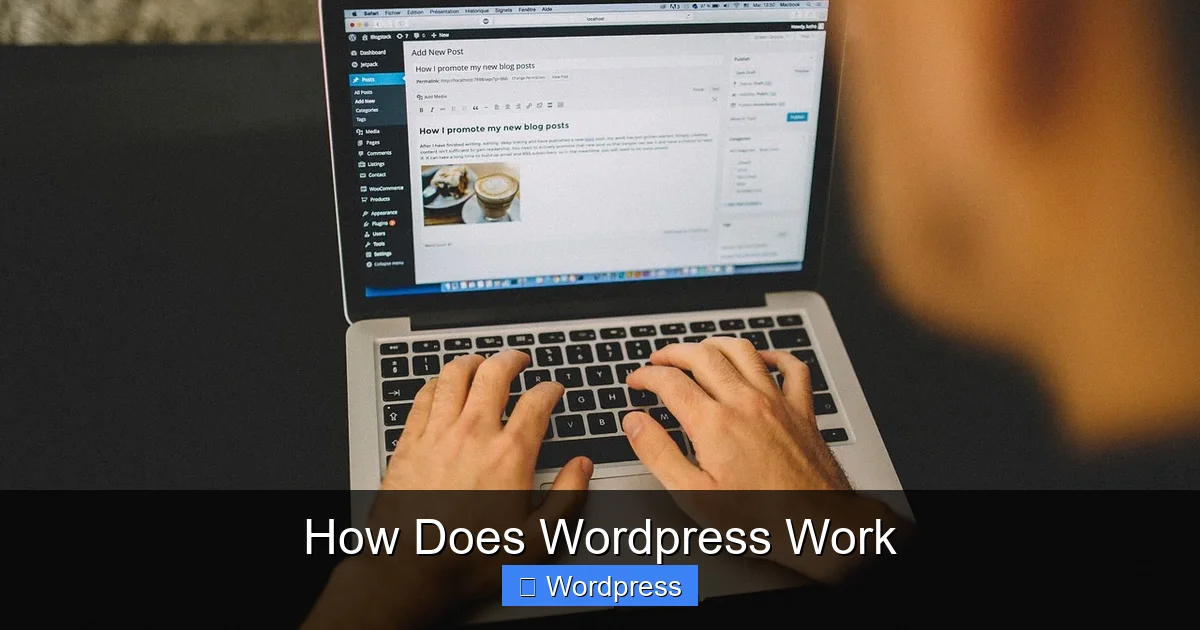
Themes are the visual engine of your WordPress site. They control everything from colors and fonts to layout and navigation menus. Think of a theme as the “skin” of your website.
Visual guide about How Does WordPress Work
Image source: data-display.com
WordPress comes with a default theme (like Twenty Twenty-Four), but you can install thousands of free or premium themes from the official directory or third-party marketplaces.
How to Apply a WordPress Theme
To change your site’s look, go to Appearance > Themes in your dashboard. Click “Add New,” browse or search for a theme, then click “Install” and “Activate.” Your site instantly updates with the new design.
Want to customize it further? Use the built-in Customizer (under Appearance > Customize) to tweak colors, upload a logo, or adjust the homepage layout—all in real time.
For advanced users, you can even create a custom theme using tools like Elementor. Check out our guide on how to create a WordPress theme with Elementor for step-by-step instructions.
Are All WordPress Themes Responsive?
Most modern themes are responsive—meaning they automatically adapt to mobile screens. However, always test your chosen theme on different devices. If responsiveness is crucial, read our article on whether all WordPress themes are responsive before installing.
Step 3: Adding Functionality with Plugins
Plugins are small software packages that add features to your WordPress site. Need a contact form? There’s a plugin for that. Want better SEO? Install an SEO plugin. E-commerce? Try WooCommerce.
WordPress has over 60,000 free plugins in its official repository. You can install them directly from your dashboard under Plugins > Add New.
Best Practices for Using Plugins
While plugins are powerful, too many can slow down your site or cause conflicts. Stick to well-reviewed, regularly updated plugins. Our guide on how many plugins you should use offers practical advice on balancing functionality and performance.
Always keep plugins updated—outdated ones are a common security risk. And if you stop using a plugin, deactivate and delete it to keep your site clean.
Step 4: Hosting and Where Your Site Lives
WordPress doesn’t run on your computer—it lives on a web server. That’s where web hosting comes in. A hosting provider stores all your WordPress files, images, and database on their servers and makes your site accessible online.
There are two main types of WordPress hosting:
- Shared hosting: Affordable and great for beginners (e.g., Bluehost, SiteGround).
- Managed WordPress hosting: Faster, more secure, and optimized specifically for WordPress (e.g., WP Engine).
For bloggers starting out, shared hosting is often enough. But if speed and reliability are priorities, consider managed hosting. Read our best WordPress hosting for bloggers review to compare top options.
How Hosting Affects Performance
Your host determines how fast your site loads, how much traffic it can handle, and how secure it is. Slow hosting = slow website = unhappy visitors. Always choose a reputable provider with good uptime and support.
Step 5: Posts vs. Pages – Organizing Your Content
WordPress uses two main content types: posts and pages.
- Posts: Used for time-sensitive content like blog articles. They appear in reverse chronological order and can be categorized or tagged.
- Pages: For static content that doesn’t change often—like “About Us,” “Contact,” or “Privacy Policy.”
You can organize posts using categories (broad topics) and tags (specific keywords). For example, a post about “healthy recipes” might be in the “Food” category and tagged with “vegan” and “quick meals.” Learn more in our guide to WordPress categories.
Step 6: The WordPress Database Explained
Behind every WordPress site is a MySQL database. This is where all your content lives—posts, pages, comments, user info, settings, and even plugin data.
When someone visits your site, WordPress queries the database, retrieves the requested content, and combines it with your theme’s template files to generate the final HTML page sent to the browser.
You don’t need to interact with the database directly, but it’s good to know it exists—especially during backups or migrations. Most hosts offer tools like phpMyAdmin to manage your database if needed.
Troubleshooting Common WordPress Issues
Even with its simplicity, WordPress can sometimes act up. Here are quick fixes for common problems:
- White screen of death: Usually caused by a plugin or theme conflict. Disable all plugins via FTP, then reactivate one by one.
- Can’t log in: Reset your password via email or through phpMyAdmin.
- Site loads slowly: Check your hosting plan, optimize images, and limit heavy plugins.
- Theme not updating: Clear your browser and WordPress cache. Also, ensure file permissions are correct.
Always back up your site before making major changes. Many hosts offer one-click backups, or you can use plugins like UpdraftPlus.
Conclusion: Putting It All Together
So, how does WordPress work? It’s a powerful combo of themes (for design), plugins (for features), hosting (for storage), and a database (for content). You manage everything through an intuitive dashboard, and WordPress handles the technical heavy lifting behind the scenes.
Whether you’re launching your first blog or scaling an online business, understanding these core components empowers you to build confidently. Remember: keep your site updated, choose quality themes and plugins, and pick reliable hosting. With that foundation, your WordPress site will stay fast, secure, and ready to grow.