This guide walks you through activating a WordPress theme from cPanel, whether you’ve uploaded a new theme or need to switch back to an existing one. Perfect for beginners and intermediate users, it covers file uploads, theme activation, and common fixes.
Key Takeaways
- Access your WordPress files via cPanel: Use the File Manager to navigate to the wp-content/themes folder where themes are stored.
- Upload a new theme manually: If your theme isn’t in the dashboard, upload the ZIP file via cPanel and extract it.
- Activate the theme from WordPress admin: Once uploaded, go to Appearance > Themes in your WordPress dashboard to activate it.
- Check file permissions: Incorrect permissions can prevent theme activation—ensure folders are set to 755 and files to 644.
- Troubleshoot common issues: White screen, missing styles, or errors? We cover fixes like enabling debug mode and clearing cache.
- Use child themes for safety: Always consider using a child theme to preserve customizations during updates.
- Keep themes updated: Regularly check for updates to ensure security and compatibility with your WordPress version.
How to Activate WordPress Theme from cPanel
If you’re managing a WordPress website, you might need to activate a theme directly from cPanel—especially if you’ve uploaded a custom theme or if your WordPress dashboard isn’t accessible. This guide will walk you through the entire process, from uploading your theme files to activating them safely and efficiently. Whether you’re a beginner or have some experience, these steps will help you get your site looking great in no time.
Why Activate a Theme from cPanel?
Visual guide about How to Activate WordPress Theme from Cpanel
Image source: slocumthemes.com
Sometimes, you can’t access your WordPress admin dashboard due to errors, plugin conflicts, or login issues. In those cases, cPanel gives you direct access to your website’s files, allowing you to manage themes even when the dashboard is down. Additionally, if you’ve purchased a premium theme or received a custom design, you may need to upload it manually via cPanel before activating it.
Step 1: Log in to Your cPanel Account
Visual guide about How to Activate WordPress Theme from Cpanel
Image source: blog.superbthemes.com
Start by logging into your hosting account’s cPanel. This is usually accessible via a URL like https://yourdomain.com/cpanel or through your hosting provider’s client area.
Find the File Manager
Once logged in, look for the File Manager icon under the “Files” section. Click on it to open your website’s file structure.
Navigate to the WordPress Theme Folder
In the File Manager, go to the root directory of your WordPress installation—typically named public_html. Inside, locate and open the wp-content folder, then click on themes. This is where all your WordPress themes are stored.
Step 2: Upload Your Theme (If Needed)
If the theme you want to activate isn’t already in the themes folder, you’ll need to upload it.
Upload the Theme ZIP File
Click the Upload button at the top of the File Manager. Select your theme’s ZIP file from your computer and upload it to the themes folder.
Extract the ZIP File
After uploading, right-click the ZIP file and choose Extract. Make sure the extracted folder has a clear name (e.g., my-custom-theme) and contains the theme files like style.css and functions.php.
Tip: Avoid spaces or special characters in folder names. Use hyphens or underscores instead.
Step 3: Verify Theme Installation
Before activating, double-check that the theme folder is correctly placed and contains all necessary files.
Check for Required Files
Open the theme folder and confirm it includes:
style.css(with theme header info)functions.phpindex.php
If any of these are missing, the theme may not activate properly.
Set Correct File Permissions
Right-click the theme folder and select Change Permissions. Set folders to 755 and files to 644. Incorrect permissions can prevent WordPress from reading the theme.
Step 4: Activate the Theme via WordPress Dashboard
Now that your theme is uploaded, you can activate it from the WordPress admin area.
Log in to WordPress Admin
Go to https://yourdomain.com/wp-admin and log in with your credentials.
Go to Appearance > Themes
In the left sidebar, click Appearance, then Themes. You should see your newly uploaded theme listed.
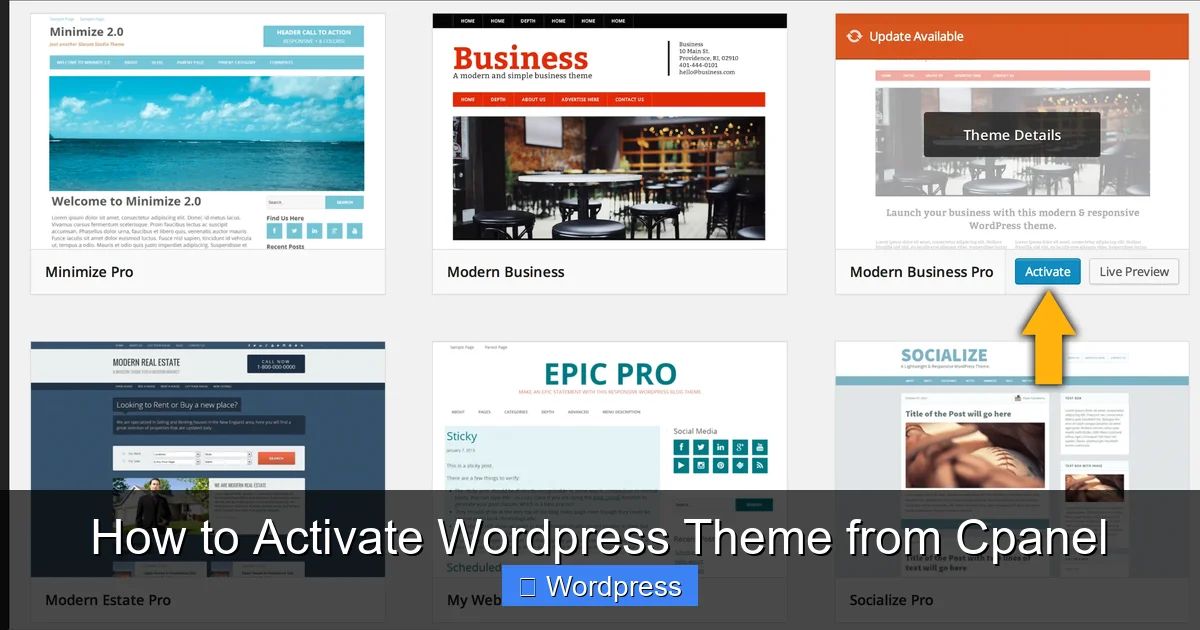
Click “Activate”
Hover over the theme and click the Activate button. Your site will now use the new theme.
Note: If you don’t see the theme, refresh the page or clear your browser cache.
Alternative: Activate Theme via Database (Advanced)
If you can’t access the WordPress dashboard at all, you can activate a theme directly through the database using phpMyAdmin in cPanel.
Open phpMyAdmin
In cPanel, find and click the phpMyAdmin icon under the “Databases” section.
Select Your WordPress Database
Choose the database associated with your WordPress site (usually named something like yourdomain_wp).
Find the wp_options Table
Look for the table named wp_options (the prefix may vary, e.g., wp_ or wp123_).
Edit the template and stylesheet Rows
Find the rows where option_name is template and stylesheet. Change both option_value fields to the folder name of your theme (e.g., my-custom-theme).
Warning: Be very careful when editing the database. A mistake can break your site. Always back up your database first.
Troubleshooting Common Issues
Even with careful steps, you might run into problems. Here’s how to fix the most common ones.
White Screen After Activation
This usually means a PHP error. Enable debugging by editing your wp-config.php file:
- Add or update:
define('WP_DEBUG', true); - Check the error message for clues
Common causes include missing files or syntax errors in the theme.
Theme Appears Broken or Missing Styles
This often happens if the theme’s assets (CSS, JS) aren’t loading. Check:
- File permissions (should be 644 for files, 755 for folders)
- Correct theme folder name (no spaces or uppercase letters)
- Browser cache (clear it or try incognito mode)
Theme Not Showing in Dashboard
If the theme doesn’t appear in Appearance > Themes:
- Ensure it’s in the correct
wp-content/themesfolder - Verify the
style.cssfile has proper header info - Try re-uploading the theme
“Stylesheet is Missing” Error
This means WordPress can’t find the style.css file. Double-check:
- The file exists in the theme folder
- It’s not inside a subfolder
- The theme folder isn’t nested (e.g.,
themes/my-theme/my-theme/)
Best Practices for Theme Activation
To avoid issues and keep your site secure, follow these best practices:
Use a Child Theme
Always use a child theme when making customizations. This protects your changes when the parent theme updates.
Backup Before Activating
Use a plugin or your hosting backup tool to create a full site backup before switching themes.
Test on a Staging Site
If possible, test the new theme on a staging environment before activating it on your live site.
Keep Themes Updated
Regularly check for updates to ensure compatibility and security. Learn how to update a WordPress theme safely.
Remove Unused Themes
Delete themes you’re not using to reduce clutter and potential security risks. See how to delete a theme in WordPress.
Conclusion
Activating a WordPress theme from cPanel is a valuable skill, especially when your dashboard is inaccessible or you’re working with custom themes. By following this guide, you can upload, verify, and activate themes with confidence. Remember to always back up your site, check file permissions, and use child themes for safer customization. With these steps, you’ll keep your WordPress site running smoothly and looking professional.