This guide walks you through how to add a meta tag to your WordPress home page using built-in features, plugins, or code. Whether you’re optimizing for SEO or customizing metadata, you’ll find clear, beginner-friendly instructions to get it done fast and correctly.
Key Takeaways
- Meta tags improve SEO: They help search engines understand your page content and boost visibility in search results.
- Use plugins for simplicity: Tools like Yoast SEO or Rank Math make adding meta tags easy without touching code.
- Edit theme files for full control: Advanced users can manually add meta tags by editing header.php or using functions.php.
- Child themes prevent issues: Always use a child theme when modifying theme files to avoid losing changes after updates.
- Test your changes: Use browser tools or SEO checkers to confirm your meta tags are live and working.
- Focus on unique descriptions: Each page should have a custom meta description to improve click-through rates.
- Avoid duplicate content: Duplicate meta tags across pages can hurt your SEO performance.
Why Meta Tags Matter for Your WordPress Home Page
Meta tags are small pieces of HTML code that tell search engines what your page is about. They don’t appear on the page itself but are crucial for SEO. The most important meta tag for your home page is the meta description—a short summary (usually under 160 characters) that shows up in search results. A well-written description can increase your click-through rate and help your site rank better.
Adding meta tags to your WordPress home page ensures search engines like Google understand your content. It also helps users decide whether to click on your link. Without proper meta tags, your site might get overlooked—even if your content is excellent.
In this guide, you’ll learn how to add a meta tag to your WordPress home page using three reliable methods: plugins, theme customization, and manual code editing. We’ll cover each step clearly, so even beginners can follow along.
Method 1: Add Meta Tags Using an SEO Plugin
Visual guide about How to Add a Meta Tag to WordPress Home Page
Image source: oppilla.com
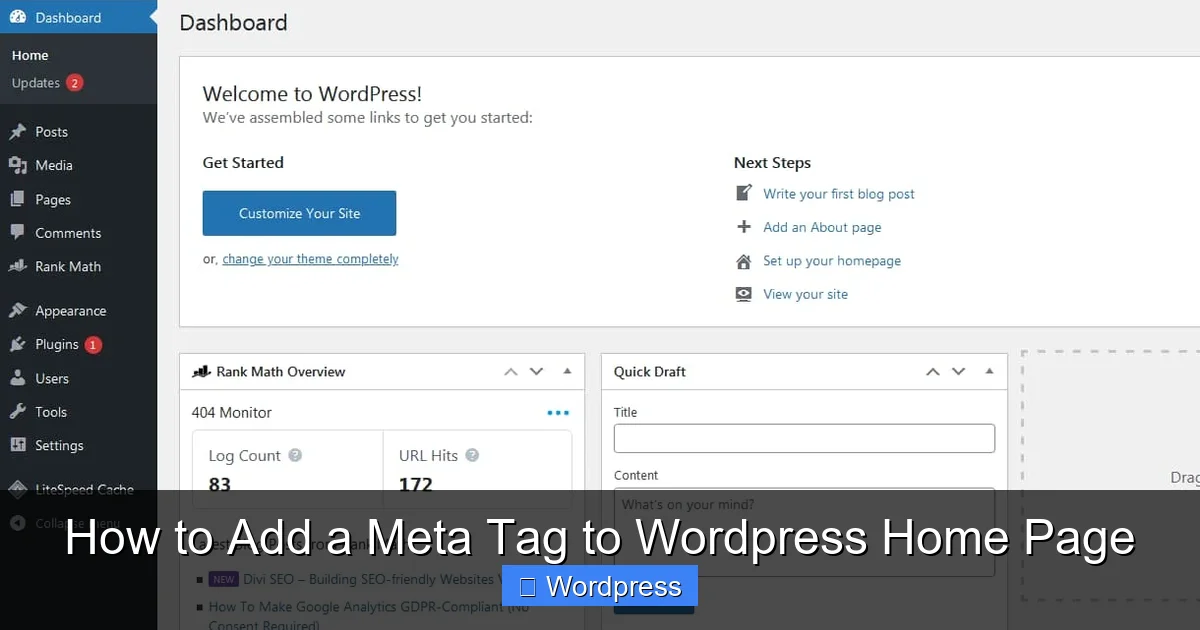
The easiest and most recommended way to add meta tags is by using an SEO plugin. These tools are designed to handle metadata, improve rankings, and simplify SEO management.
Step 1: Install an SEO Plugin
Go to your WordPress dashboard. Click Plugins > Add New. Search for “Yoast SEO” or “Rank Math SEO”—both are free and highly rated. Click Install Now, then Activate.
Step 2: Configure the Plugin
After activation, you’ll see a new SEO menu in your dashboard. Click on it and follow the setup wizard. It will guide you through basic settings like site title, description, and social profiles.
Step 3: Add Meta Description to the Home Page
To add a meta tag to your home page:
- Go to SEO > Search Appearance.
- Click the Content Types tab.
- Find “Posts” or “Pages” depending on your home page setup.
- Scroll down to the Meta Description field.
- Enter a custom description (e.g., “Discover expert tips and tools to grow your WordPress website. Start building smarter today.”).
- Click Save Changes.
If your home page is a static page (like “Home”), go to Pages > All Pages, find your home page, and click Edit. Scroll down to the SEO section (usually below the content editor) and enter your meta description there.
Step 4: Preview and Publish
Use the “Preview” button in the SEO section to see how your meta tag will look in search results. When satisfied, update or publish the page.
Method 2: Add Meta Tags by Editing Theme Files
Visual guide about How to Add a Meta Tag to WordPress Home Page
Image source: oppilla.com
If you prefer more control or don’t want to use a plugin, you can add meta tags directly to your theme’s code. This method requires caution—always back up your site first.
Step 1: Access Your Theme Files
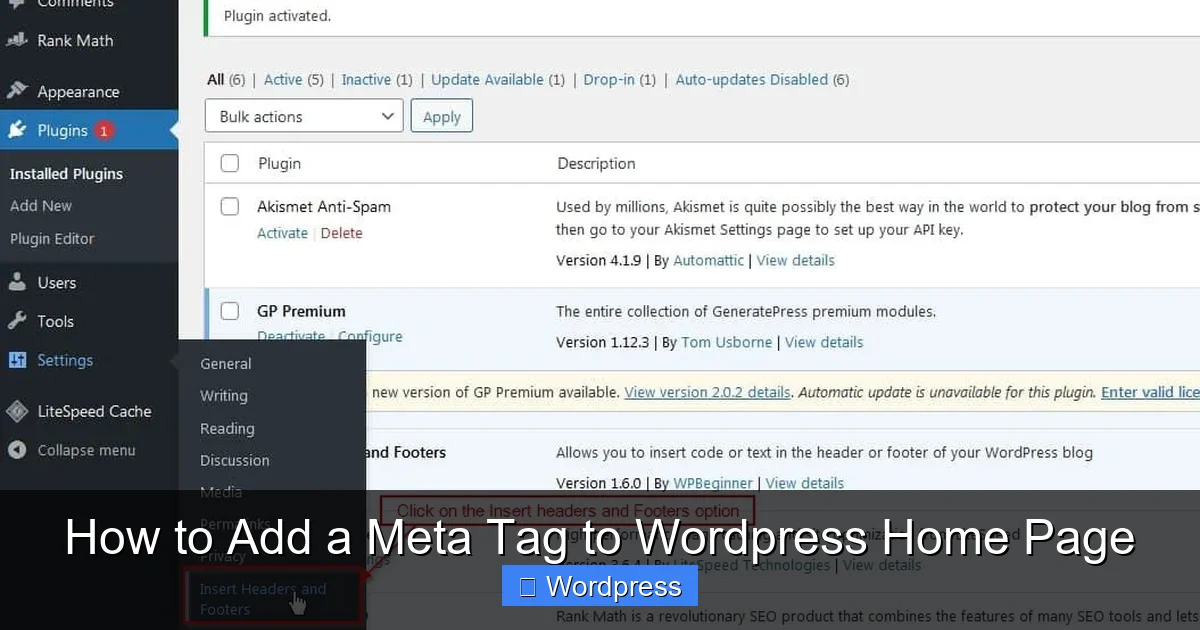
Go to Appearance > Theme File Editor in your WordPress dashboard. On the right, find and click header.php. This file contains the <head> section where meta tags belong.
Step 2: Insert the Meta Tag
Look for the <head> tag. Just below it, add your meta description like this:
<meta name="description" content="Your custom home page description here.">
Replace the text inside content="" with your own description. Keep it under 160 characters for best results.
Step 3: Save and Test
Click Update File. Then, visit your home page and right-click to “View Page Source.” Search for your meta description to confirm it’s there.
Important: Use a Child Theme
Editing theme files directly can cause problems when your theme updates. To avoid losing changes, create a child theme first. You can learn how to set one up in our guide on what is a child theme in WordPress.
Method 3: Add Meta Tags Using functions.php
For developers or advanced users, adding meta tags via functions.php is a clean and flexible option. This method uses WordPress hooks to insert code safely.
Step 1: Open functions.php
Go to Appearance > Theme File Editor. On the right, click functions.php.
Step 2: Add the Code Snippet
Paste this code at the bottom of the file:
function add_home_meta_description() {
    if (is_front_page()) {
        echo '<meta name="description" content="Welcome to our WordPress site. Get tips, tools, and tutorials to grow your online presence.">';
    }
}
add_action('wp_head', 'add_home_meta_description');
This code checks if the current page is the home page (is_front_page()) and adds the meta tag only there.
Step 3: Save and Verify
Click Update File. Visit your home page and check the page source to confirm the meta tag appears.
Troubleshooting Common Issues
Sometimes, meta tags don’t show up as expected. Here’s how to fix common problems:
Meta Tag Not Appearing
- Clear your cache if you use a caching plugin.
- Check if another plugin is overriding your meta tags.
- Ensure you’re editing the correct file (e.g.,
header.phpin the active theme).
Changes Lost After Theme Update
This happens when you edit the parent theme directly. Always use a child theme to preserve customizations. Learn how to create one in our guide on how to create a WordPress theme with Elementor.
Duplicate Meta Descriptions
Avoid using the same description on multiple pages. Use unique, keyword-rich descriptions for each page to improve SEO.
Best Practices for Meta Tags
Follow these tips to get the most from your meta tags:
- Keep it concise: Aim for 150–160 characters.
- Include keywords: Use relevant terms your audience searches for.
- Write for humans: Make it compelling and clear.
- Be accurate: Match the description to your page content.
- Update regularly: Refresh meta tags when content changes.
Conclusion
Adding a meta tag to your WordPress home page is a simple but powerful way to improve your site’s SEO. Whether you use a plugin like Yoast SEO, edit theme files, or add code via functions.php, the process is straightforward once you know the steps.
Remember to use a child theme when making code changes, test your results, and keep your descriptions unique and engaging. With the right meta tag, your home page will stand out in search results and attract more visitors.
Now that you know how to add a meta tag to your WordPress home page, take a few minutes to implement it. Your future self—and your website visitors—will thank you.