This guide walks you through how to add a domain in WordPress, whether you’re using WordPress.com or self-hosted WordPress.org. You’ll learn to connect your custom domain, update DNS records, and troubleshoot common issues.
Key Takeaways
- Choose the right WordPress platform: WordPress.com offers built-in domain services, while WordPress.org requires external hosting and manual setup.
- Register your domain first: Buy your domain from a trusted registrar like Namecheap, GoDaddy, or Google Domains before connecting it.
- Update DNS settings correctly: Point your domain’s nameservers or A record to your hosting provider to link it to your WordPress site.
- Use SSL for security: Always enable HTTPS after adding your domain to protect user data and improve SEO.
- Test your site after setup: Check for broken links, mixed content warnings, and proper redirection using tools like our guide to fix broken links in WordPress.
- Avoid common mistakes: Double-check spelling, wait for DNS propagation, and ensure your hosting plan supports custom domains.
How to Add Domain in WordPress: A Complete Step-by-Step Guide
Adding a custom domain to your WordPress website is one of the most important steps in building a professional online presence. Whether you’re starting a blog, launching an online store, or creating a portfolio, a custom domain (like www.yourname.com) makes your site look credible and memorable.
In this guide, we’ll walk you through how to add a domain in WordPress—whether you’re using WordPress.com or a self-hosted WordPress.org site. We’ll cover everything from choosing a domain registrar to updating DNS settings and troubleshooting common issues. By the end, you’ll have a fully connected domain ready for visitors.
Understanding WordPress Platforms: .com vs .org

Visual guide about How to Add Domain in WordPress
Image source: hostware.com.tr
Before adding a domain, it’s important to know which version of WordPress you’re using:
- WordPress.com: A hosted platform where WordPress manages your site, hosting, and security. It’s easier for beginners but has limitations unless you upgrade to a paid plan.
- WordPress.org: The self-hosted version where you download the software and install it on your own web hosting. It offers full control and flexibility but requires more technical setup.
The process for adding a domain differs slightly between the two. We’ll cover both scenarios in detail.
Step 1: Register Your Domain Name
The first step in how to add a domain in WordPress is to register your desired domain name. You can’t connect a domain you don’t own.
Choose a Domain Registrar
Popular and reliable domain registrars include:
- Namecheap
- GoDaddy
- Google Domains
- Bluehost (also offers hosting)
When choosing a domain, aim for something short, brandable, and easy to spell. Avoid numbers and hyphens if possible.
Check Domain Availability
Use the search tool on your chosen registrar’s website to see if your desired domain is available. If it’s taken, try variations or different extensions (like .net or .co).
Purchase the Domain
Once you find an available domain, complete the purchase. Most registrars offer privacy protection (to hide your personal info from public records) for a small fee—consider enabling it.
Step 2: Add Domain to WordPress.com (Hosted Version)
Visual guide about How to Add Domain in WordPress
Image source: en-support.files.wordpress.com
If you’re using WordPress.com, the process is streamlined because the platform handles much of the technical work.
Upgrade Your Plan (If Needed)
To use a custom domain on WordPress.com, you’ll need at least the Premium plan. The free plan only allows subdomains (e.g., yoursite.wordpress.com).
Go to your WordPress.com dashboard, click My Sites > Manage > Plans, and upgrade if necessary.
Connect Your Domain
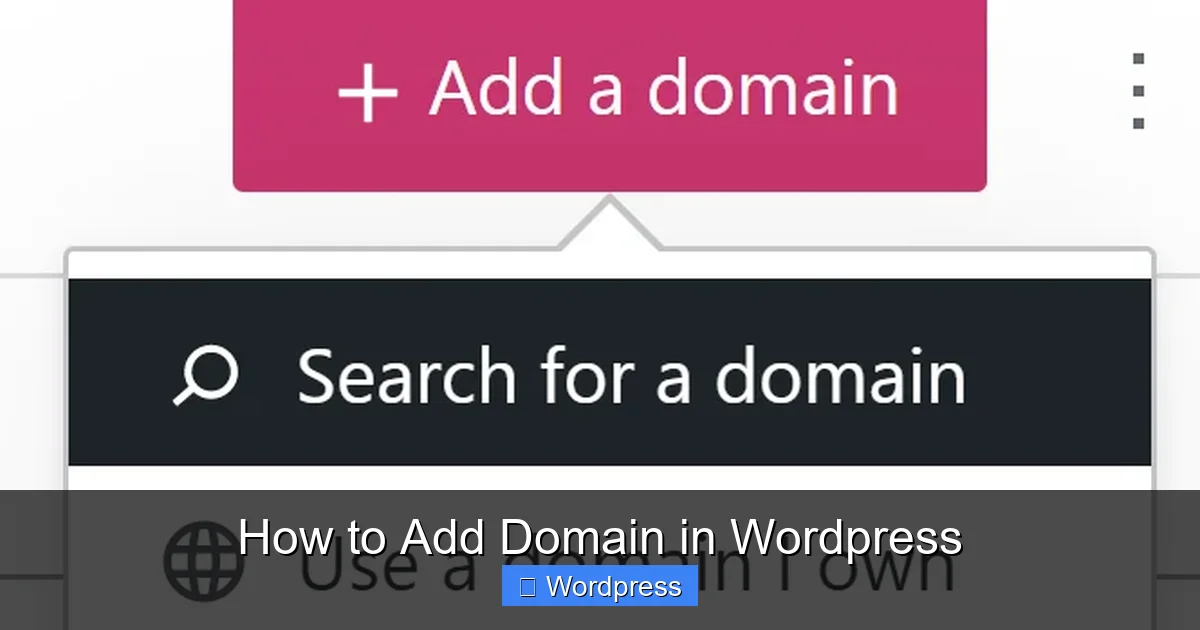
- Go to My Sites > Manage > Domains.
- Click Add Domain.
- Choose Use a domain I own.
- Enter your domain name (e.g., yoursite.com) and click Continue.
- Follow the prompts to verify ownership and update DNS settings.
WordPress.com will provide you with nameserver addresses (like ns1.wordpress.com). You’ll need to log in to your domain registrar and update the nameservers to these values.
Update Nameservers at Your Registrar
- Log in to your domain registrar’s website.
- Find the domain management section.
- Look for “Nameservers” or “DNS Settings.”
- Replace the default nameservers with the ones provided by WordPress.com.
- Save changes.
DNS changes can take 24–48 hours to propagate globally. During this time, your site may be intermittently accessible.
Step 3: Add Domain to Self-Hosted WordPress (WordPress.org)
If you’re using WordPress.org, you’ll need to connect your domain through your web hosting provider.
Log in to Your Hosting Account
Access your hosting control panel (like cPanel, Plesk, or a custom dashboard). Common hosts include Bluehost, SiteGround, HostGator, and DreamHost.
Find the Domain Management Section
Look for options like “Domains,” “Add-on Domains,” or “Domain Manager.”
Connect Your Domain
There are two main ways to connect your domain:
Option A: Update Nameservers (Recommended)
- Get the nameserver addresses from your hosting provider (usually found in your welcome email or hosting dashboard).
- Log in to your domain registrar.
- Navigate to DNS or nameserver settings.
- Replace the current nameservers with your host’s nameservers.
- Save changes.
Option B: Update A Record (Alternative)
If you prefer to keep your registrar’s nameservers, you can point the A record to your hosting server’s IP address:
- Find your hosting server’s IP address (usually in your hosting dashboard under “Server Information”).
- Go to your domain registrar’s DNS settings.
- Locate the A record for “@” (root domain).
- Change the value to your hosting IP address.
- Save changes.
Update WordPress Site URL
After connecting your domain, you must update WordPress to recognize it:
- Log in to your WordPress admin dashboard.
- Go to Settings > General.
- Update both the WordPress Address (URL) and Site Address (URL) to your new domain (e.g., https://yoursite.com).
- Save changes.
If you can’t access your dashboard after changing the URL, you may need to update it manually via wp-config.php or your database using phpMyAdmin.
Step 4: Enable SSL (HTTPS)
Security is crucial. Most hosting providers offer free SSL certificates via Let’s Encrypt.
Install SSL Certificate
- Log in to your hosting control panel.
- Look for “SSL/TLS” or “Security” settings.
- Enable SSL for your domain.
- Some hosts auto-install SSL; others require a click to activate.
Force HTTPS in WordPress
To ensure all traffic uses HTTPS:
- Install and activate the Really Simple SSL plugin (free and user-friendly).
- The plugin will detect your SSL certificate and automatically redirect HTTP to HTTPS.
Alternatively, add this line to your .htaccess file:
RewriteEngine On
RewriteCond %{HTTPS} off
RewriteRule ^(.*)$ https://%{HTTP_HOST}%{REQUEST_URI} [L,R=301]
Troubleshooting Common Issues
Even with careful setup, you might encounter problems. Here’s how to fix the most common ones.
Site Not Loading After Domain Change
- Wait 24–48 hours for DNS propagation.
- Clear your browser cache and try accessing the site in incognito mode.
- Check if the nameservers or A record are correctly set.
Mixed Content Warnings (HTTP/HTTPS)
This happens when some resources (images, scripts) load over HTTP instead of HTTPS. Use the Really Simple SSL plugin or manually update links in your content.
404 Errors or Broken Links
After a domain change, internal links may break. Use our guide to fix broken links in WordPress to scan and repair them quickly.
Domain Not Pointing to WordPress
Double-check:
- Nameservers are correctly updated.
- The domain is properly connected in your hosting panel.
- WordPress site URLs are set correctly in Settings > General.
Best Practices After Adding Your Domain
- Set up email: Use your domain for professional email (e.g., hello@yoursite.com) via your host or Google Workspace.
- Submit to Google Search Console: Helps monitor indexing and performance.
- Install security plugins: Protect your site from malware and attacks.
- Backup regularly: Use plugins like UpdraftPlus to save your site data.
Conclusion
Adding a domain in WordPress is a straightforward process once you understand the steps. Whether you’re on WordPress.com or WordPress.org, the key is to register your domain, update DNS settings correctly, and ensure your site uses HTTPS.
By following this guide, you’ve not only connected your domain but also set up a secure, professional website ready for growth. Remember to test your site thoroughly and keep it updated.
For more WordPress tips, check out our guide on what is a child theme in WordPress to safely customize your site, or learn how to apply a WordPress theme for a fresh look.