This guide shows you how to add font to WordPress theme using multiple proven methods—Google Fonts, custom CSS, and plugins. Whether you’re a beginner or developer, you’ll find clear steps to enhance your site’s typography safely and effectively.
Key Takeaways
- Use Google Fonts for free, fast-loading typography: Easily integrate thousands of web-safe fonts with minimal code.
- Custom CSS gives full control over font styling: Add and style fonts directly in your theme using @font-face rules.
- Plugins simplify font management for non-coders: Tools like Easy Google Fonts let you apply fonts without touching code.
- Always use a child theme when editing theme files: This prevents losing changes during theme updates.
- Test font performance and compatibility: Ensure new fonts don’t slow down your site or break on mobile devices.
- Fallback fonts are essential for reliability: Define font stacks so text remains readable if your custom font fails to load.
How to Add Font to WordPress Theme: A Complete Guide
Adding a custom font to your WordPress theme can dramatically improve your website’s look and feel. Whether you want a sleek modern typeface or a classic serif, changing your font helps establish brand identity and boosts readability. In this guide, you’ll learn how to add font to WordPress theme using three reliable methods: Google Fonts, custom CSS, and plugins. We’ll walk you through each step with clear instructions, practical tips, and troubleshooting advice—so even if you’re new to WordPress, you can do it confidently.
Why Change Your WordPress Font?
Your website’s typography affects how visitors perceive your content. A well-chosen font enhances professionalism, guides readability, and supports your branding. Default WordPress themes often use generic fonts like Arial or Times New Roman. By customizing your font, you stand out from the crowd and create a more engaging user experience.
Plus, with today’s tools, adding a font is easier than ever—no advanced coding skills required. Let’s explore the best ways to do it.
Method 1: Add Font Using Google Fonts (Recommended)
Google Fonts is the most popular and beginner-friendly way to add fonts to your WordPress site. It offers over 1,400 free, open-source fonts that load quickly and work across all devices.
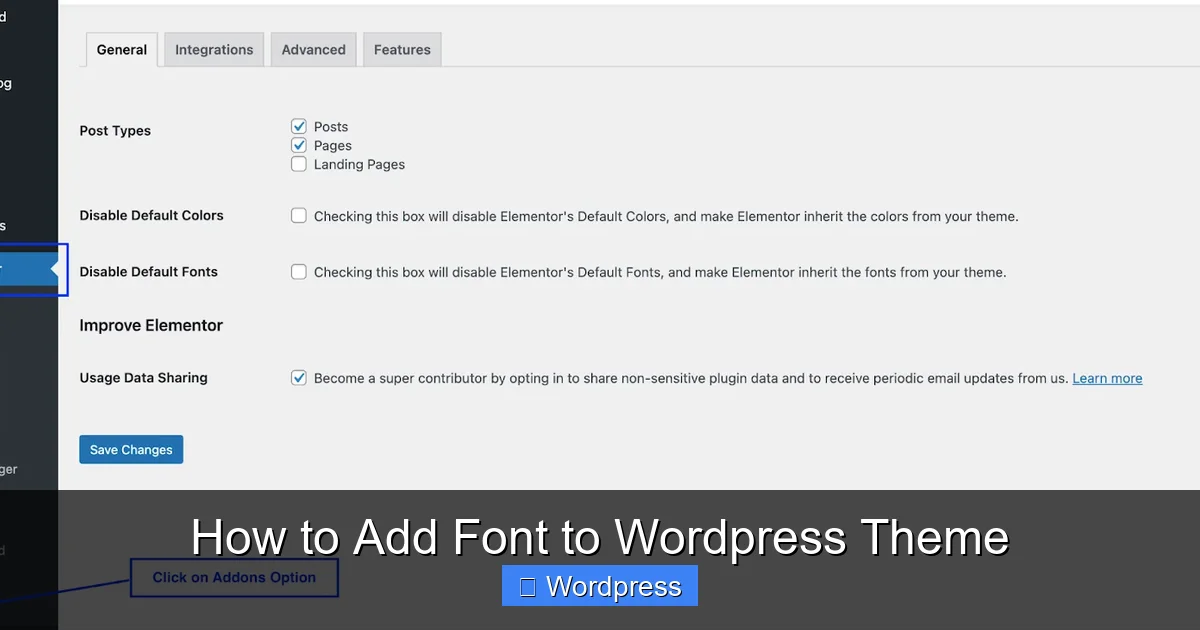
Visual guide about How to Add Font to WordPress Theme
Image source: support.cookiebot.com
Step 1: Choose a Font from Google Fonts
Go to fonts.google.com and browse or search for a font you like. Click on the font name, then click the “+ Select this style” button. A sidebar will appear with embed code.
Step 2: Copy the Embed Link
In the sidebar, under “Embed,” copy the <link> tag. It looks something like this:
<link href="https://fonts.googleapis.com/css2?family=Roboto:wght@400;700&display=swap" rel="stylesheet">
Step 3: Add the Link to Your Theme
There are two safe ways to add this code:
Option A: Use a Child Theme (Best Practice)
Always use a child theme when editing theme files. This ensures your changes aren’t lost when the parent theme updates.
- Go to Appearance > Theme File Editor in your WordPress dashboard.
- Select your child theme from the dropdown.
- Open
header.phpand paste the Google Fonts<link>tag inside the<head>section. - Click “Update File.”
Option B: Use a Plugin (Easier)
If you’re not comfortable editing files, use a plugin like Easy Google Fonts or OMGF. These let you add Google Fonts through the WordPress Customizer with no coding.
- Install and activate the plugin.
- Go to Appearance > Customize > Typography.
- Choose your font and apply it to headings, body text, etc.
Step 4: Apply the Font with CSS
Now that the font is loaded, you need to tell WordPress where to use it. Add this CSS in Appearance > Customize > Additional CSS:
body {
  font-family: 'Roboto', sans-serif;
}
h1, h2, h3 {
  font-family: 'Roboto', sans-serif;
  font-weight: 700;
}
Replace ‘Roboto’ with your chosen font name. Always include a fallback like sans-serif in case the font fails to load.
Method 2: Add Custom Fonts with CSS (@font-face)
If you have a premium or custom font file (like .woff or .woff2), you can upload it and use CSS to load it. This method gives you full control but requires a bit more technical know-how.
Visual guide about How to Add Font to WordPress Theme
Image source: wpkube.com
Step 1: Prepare Your Font Files
Make sure your font is in web-friendly formats: .woff, .woff2, .ttf, or .eot. Use a tool like Transfonter to convert desktop fonts into web formats.
Step 2: Upload Fonts to Your Server
Go to Media > Add New and upload your font files. Note the file URLs—you’ll need them in the next step.
Step 3: Add @font-face Rule in CSS
In Appearance > Customize > Additional CSS, add a rule like this:
@font-face{
  font-family: 'MyCustomFont';
  src: url('https://yourwebsite.com/wp-content/uploads/2024/06/myfont.woff2') format('woff2'),
       url('https://yourwebsite.com/wp-content/uploads/2024/06/myfont.woff') format('woff');
  font-weight: normal;
  font-style: normal;
  font-display: swap;
 }
The font-display: swap; ensures text remains visible while the font loads.
Step 4: Apply the Font
Now use the font in your CSS:
body {
  font-family: 'MyCustomFont', Arial, sans-serif;
}
Tip: Use a Child Theme for File Edits
If you’re adding the @font-face rule to your theme’s style.css, do it in a child theme to avoid losing changes during updates.
Method 3: Use a Font Plugin (No Coding)
For users who prefer a visual approach, plugins make adding fonts simple and safe. Here are two great options:
Easy Google Fonts
This plugin integrates Google Fonts directly into the WordPress Customizer.
- Install and activate Easy Google Fonts from the plugin directory.
- Go to Appearance > Customize > Typography.
- Choose fonts for headings, paragraphs, buttons, etc.
- No code needed—everything updates live.
OMGF (Optimize My Google Fonts)
OMGF not only adds Google Fonts but also optimizes them for speed by downloading and self-hosting font files. This reduces external requests and improves page load times.
- Install and activate OMGF.
- Go to Settings > OMGF and scan for Google Fonts.
- Select fonts to download and optimize.
- The plugin handles everything automatically.
These plugins are perfect if you want to add font to WordPress theme without touching code or worrying about performance.
Troubleshooting Common Font Issues
Even with the best methods, you might run into problems. Here’s how to fix them:
Font Not Loading?
- Check the font URL in your CSS—make sure it’s correct.
- Clear your browser and WordPress cache.
- Ensure the font file is uploaded and accessible.
Font Looks Different on Mobile?
- Test your site on multiple devices.
- Use responsive font sizes with
remoremunits. - Add media queries to adjust font size on smaller screens.
Site Slow After Adding Font?
- Limit the number of font weights and styles (e.g., only regular and bold).
- Use
font-display: swap;to prevent blocking text rendering. - Consider self-hosting fonts with OMGF to reduce external requests.
Changes Not Showing?
- If you edited theme files directly, make sure you’re using a child theme.
- Re-save your permalinks under Settings > Permalinks.
- Disable caching plugins temporarily to see changes.
Best Practices for Using Fonts in WordPress
- Stick to 2–3 fonts max: Too many fonts look messy and slow down your site.
- Prioritize readability: Choose fonts that are easy to read on all screen sizes.
- Use web-safe fallbacks: Always include a generic font like
sans-seriforserif. - Test performance: Use tools like Google PageSpeed Insights to check font impact.
- Keep backups: Before making changes, back up your site using a plugin like UpdraftPlus.
Conclusion
Adding a font to your WordPress theme is a simple yet powerful way to elevate your website’s design. Whether you use Google Fonts, custom CSS, or a plugin, you now have the tools to do it safely and effectively. Remember to use a child theme when editing files, test your changes across devices, and prioritize performance. With the right font, your content will look more professional, engaging, and on-brand.
Ready to get started? Pick a method that fits your skill level and give your site a fresh new look today!