This guide walks you through how to add a sidebar to a WordPress theme, whether you’re using a classic theme or building a custom one. You’ll learn to register sidebars, display them with PHP, and style them using CSS—all without breaking your site.
Key Takeaways
- Sidebars enhance usability: They provide space for widgets like search bars, recent posts, and ads, improving user experience.
- Register sidebars in functions.php: Use the
register_sidebar()function to define a new sidebar area in your theme. - Display sidebars with get_sidebar(): Call the sidebar in your template files using
get_sidebar()or custom template parts. - Use child themes for safety: Always modify themes via a child theme to preserve changes during updates.
- Style with CSS: Customize your sidebar’s appearance using CSS in your theme’s stylesheet.
- Test after changes: Always preview your site and check responsiveness after adding a sidebar.
- Use plugins if coding isn’t your strength: Plugins like Widget Options let you manage sidebars without touching code.
How to Add Sidebar to WordPress Theme
Adding a sidebar to your WordPress theme is a great way to organize content and improve navigation. Whether you’re running a blog, business site, or portfolio, sidebars give you space for useful widgets like recent posts, categories, social media links, or ads. In this guide, we’ll show you exactly how to add a sidebar to a WordPress theme—step by step—whether you’re using a default theme like Twenty Twenty-Four or building your own.
By the end of this tutorial, you’ll know how to register a sidebar, display it on your site, and style it to match your design. We’ll also cover best practices to keep your site safe and functional.
What Is a WordPress Sidebar?
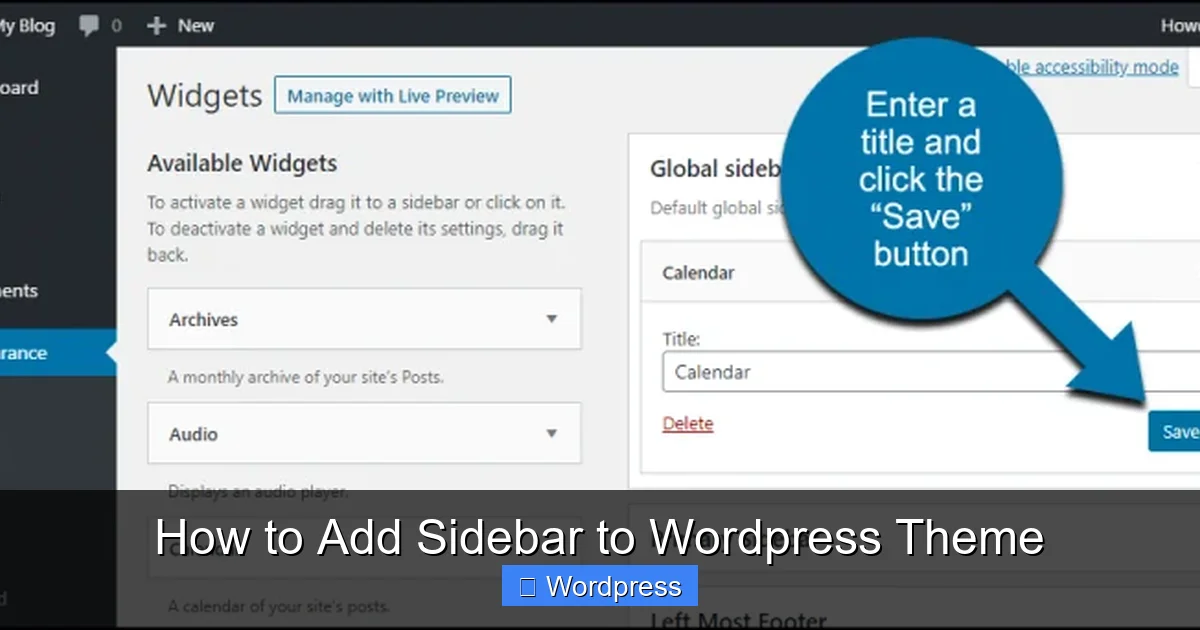
Visual guide about How to Add Sidebar to WordPress Theme
Image source: greengeeks.com
A sidebar in WordPress is a widget-ready area that appears alongside your main content—usually on the right or left side. It’s not a physical bar but a designated section where you can drag and drop widgets from the WordPress dashboard.
Most themes come with at least one sidebar, but some minimalist themes don’t include one by default. If your theme lacks a sidebar or you want to add more, you’ll need to create one manually.
Method 1: Register a Sidebar Using functions.php
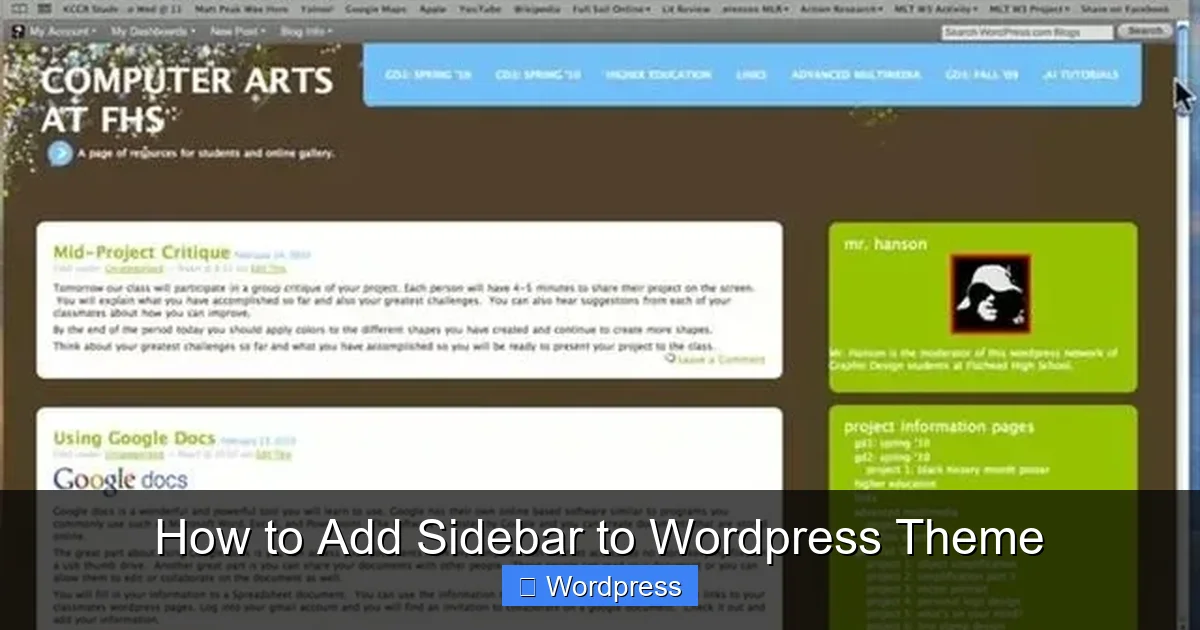
Visual guide about How to Add Sidebar to WordPress Theme
Image source: img.gadgethacks.com
The most reliable way to add a sidebar is by registering it in your theme’s functions.php file. This tells WordPress that your theme supports a new widget area.
Step 1: Access Your Theme Files
You’ll need to edit your theme files. The safest way is to use a child theme. If you haven’t created one yet, check out our guide on what is a child theme in WordPress to learn why it’s essential.
Once you have a child theme active, go to Appearance > Theme File Editor in your WordPress dashboard. Select your child theme and open the functions.php file.
Step 2: Add the register_sidebar() Code
Paste the following code into your functions.php file:
function my_custom_sidebar() {
register_sidebar( array(
'name' => __( 'Custom Sidebar', 'textdomain' ),
'id' => 'custom-sidebar-1',
'description' => __( 'Add widgets here.', 'textdomain' ),
'before_widget' => '',
'before_title' => '',
'after_title' => '
',
) );
}
add_action( 'widgets_init', 'my_custom_sidebar' );
Let’s break this down:
– name: The name shown in the WordPress admin.
– id: A unique identifier (no spaces, lowercase).
– description: A short note for admins.
– before_widget and after_widget: HTML wrappers for each widget.
– before_title and after_title: HTML for widget titles.
You can customize these values. For example, change Custom Sidebar to Blog Sidebar if it’s for your blog.
Step 3: Save and Check the Widgets Area
Save the file and go to Appearance > Widgets. You should now see your new sidebar listed. You can drag widgets into it, like a Search box or Recent Posts.
Method 2: Display the Sidebar on Your Site
Registering the sidebar makes it available in the admin, but it won’t appear on your site until you add it to a template file.
Step 1: Locate the Right Template File
Common files where you might add a sidebar include:
– single.php – for blog posts
– page.php – for pages
– index.php – for the blog homepage
– archive.php – for category/tag archives
Open the file where you want the sidebar to appear.
Step 2: Add the Sidebar Code
Look for the main content area, usually wrapped in a <div> with a class like content or main. After it, add:
<?php get_sidebar(); ?>
This calls the default sidebar.php file. But if you want to use your custom sidebar, create a new file called sidebar-custom.php in your theme folder.
Step 3: Create a Custom Sidebar Template
In your theme directory, create a file named sidebar-custom.php and add:
<aside id="secondary" class="widget-area">
    <?php if ( is_active_sidebar( 'custom-sidebar-1' ) ) : ?>
        <?php dynamic_sidebar( 'custom-sidebar-1' ); ?>
    <?php endif; ?>
</aside>
Then, in your template file, replace get_sidebar(); with:
<?php get_template_part( 'sidebar', 'custom' ); ?>
This loads your custom sidebar only where you want it.
Method 3: Style Your Sidebar with CSS
Now that your sidebar is visible, you’ll want to style it. Use CSS to control width, background, padding, and more.
Add CSS to Your Theme
Go to Appearance > Customize > Additional CSS or edit your style.css file in the child theme.
Add styles like:
.widget-area {
    width: 30%;
    float: right;
    padding: 20px;
    background-color: #f9f9f9;
    border-left: 1px solid #ddd;
}

.widget {
    margin-bottom: 20px;
}

.widget-title {
    font-size: 18px;
    margin-bottom: 10px;
    color: #333;
}
Adjust the values to fit your design. Use float: left; if you want the sidebar on the left.
Make It Responsive
On mobile devices, sidebars often stack below the content. Add this media query:
@media (max-width: 768px) {
    .widget-area {
        width: 100%;
        float: none;
        border-left: none;
        border-top: 1px solid #ddd;
    }
}
This ensures your sidebar looks good on all screen sizes.
Alternative: Use a Plugin (No Coding)
If you’re not comfortable editing code, use a plugin. Widget Options or Custom Sidebars let you create and manage sidebars from the dashboard.
Install and activate the plugin, then go to Appearance > Widgets. You’ll see new sidebar options. Assign widgets and choose where they appear—on specific pages, posts, or categories.
This method is beginner-friendly and doesn’t require touching any files.
Troubleshooting Common Issues
Sidebar Not Showing Up?
– Make sure you added get_sidebar(); or get_template_part() in the correct template file.
– Check that the sidebar ID in functions.php matches the one in your template.
– Clear your cache if you’re using a caching plugin.
Widgets Not Appearing?
– Go to Appearance > Widgets and ensure widgets are assigned to your sidebar.
– Verify that is_active_sidebar() is used in your sidebar template.
Layout Looks Broken?
– Check your CSS for conflicting floats or widths.
– Use browser developer tools (F12) to inspect elements and adjust styles.
Changes Disappeared After Update?
This happens if you edited the parent theme. Always use a child theme. If you haven’t, learn how to create a WordPress theme with Elementor or set up a child theme to protect your work.
Best Practices
– Use a child theme: Never edit parent theme files directly.
– Keep sidebars clean: Don’t overload with too many widgets.
– Optimize for speed: Heavy widgets can slow down your site.
– Test on mobile: Ensure your sidebar is responsive.
– Use semantic HTML: Wrap sidebars in <aside> tags for better SEO.
Conclusion
Adding a sidebar to your WordPress theme is a simple yet powerful way to enhance your site’s functionality and design. Whether you use code or a plugin, you now know how to add a sidebar to a WordPress theme safely and effectively.
Start by registering the sidebar in functions.php, display it in your template, and style it with CSS. Always use a child theme to avoid losing changes. And if you run into issues, refer back to this guide or try a plugin for a no-code solution.
With a well-placed sidebar, your visitors can easily find important content, increasing engagement and time on site.