
This guide shows you how to add style CSS in WordPress theme without breaking your site. You’ll learn safe methods like using a child theme, the WordPress Customizer, and plugins—plus best practices to keep your design clean and updates safe.
Key Takeaways
- Use a child theme: Always add custom CSS in a child theme to avoid losing changes during updates.
- Customizer is beginner-friendly: The WordPress Customizer lets you add CSS without touching code files.
- Plugins offer extra control: Use plugins like Simple Custom CSS for advanced styling without file editing.
- Never edit parent themes directly: Direct edits get overwritten when themes update, breaking your design.
- Test changes first: Always preview CSS changes before publishing to avoid layout issues.
- Keep CSS organized: Use comments and logical grouping to make your code easy to maintain.
How to Add Style CSS in WordPress Theme
Adding custom CSS to your WordPress theme is one of the most powerful ways to personalize your website’s look and feel. Whether you want to change colors, adjust spacing, or tweak fonts, CSS gives you full control over your site’s design. But if you’re not careful, you could break your layout or lose your changes after a theme update.
In this guide, you’ll learn how to add style CSS in WordPress theme safely and effectively. We’ll cover multiple methods—from beginner-friendly tools to more advanced techniques—so you can choose what works best for your skill level and needs.
Why Adding CSS the Right Way Matters
WordPress themes are regularly updated to fix bugs, improve security, and add new features. If you edit the theme’s core files directly—like style.css—you’ll lose all your changes when the theme updates. That’s why it’s essential to use methods that preserve your customizations.
The safest and most recommended approach is using a child theme. A child theme inherits all the functionality and styling of the parent theme but allows you to make changes without affecting the original files. This ensures your custom CSS survives updates.
Alternatively, you can use built-in WordPress tools like the Customizer or install lightweight plugins designed for adding custom CSS. These options are great for quick tweaks or users who aren’t comfortable editing code.
Method 1: Add CSS Using a Child Theme
Visual guide about How to Add Style Css in WordPress Theme
Image source: wpastra.com
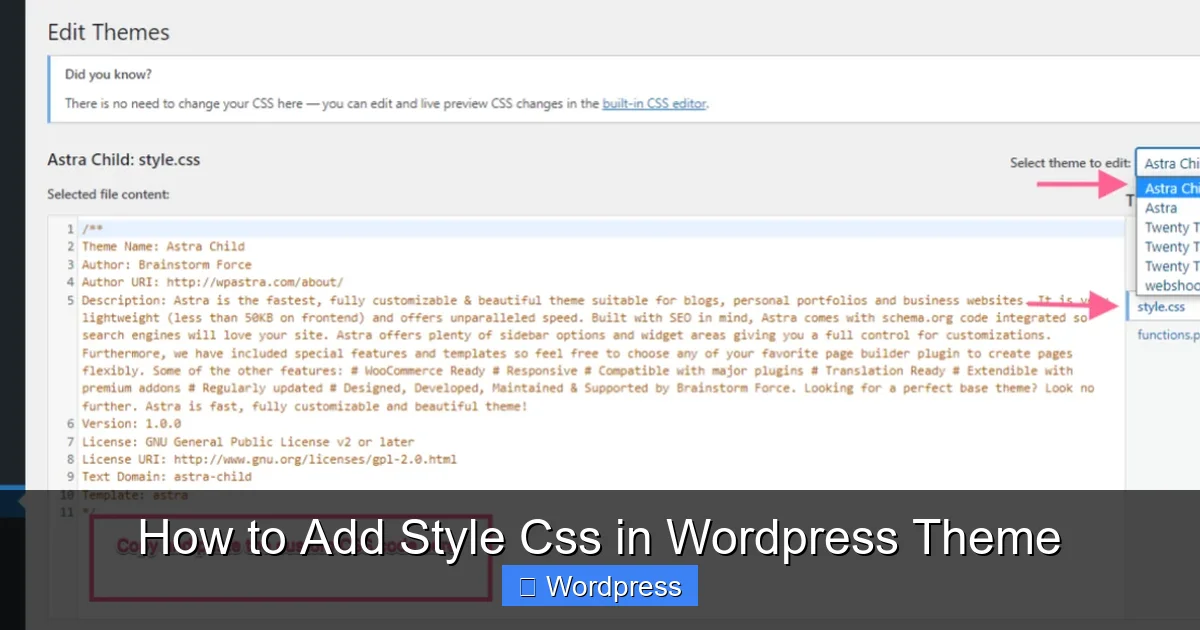
Using a child theme is the gold standard for adding custom CSS in WordPress. It’s safe, reliable, and supported by all professional developers.
Step 1: Create a Child Theme
If you don’t already have a child theme, you’ll need to create one. Here’s how:
- Go to your WordPress dashboard.
- Navigate to Appearance > Themes.
- Click Add New and search for “Child Theme” or use a plugin like Child Theme Configurator to generate one automatically.
- Alternatively, manually create a folder in
/wp-content/themes/named after your parent theme plus “-child” (e.g.,twentytwentyfour-child). - Inside that folder, create two files:
style.cssandfunctions.php.
Step 2: Add the Required Header to style.css
Open your child theme’s style.css file and add this header at the top:
/*
Theme Name:   Twenty Twenty-Four Child
Theme URI:    https://example.com/twentytwentyfour-child/
Description:  Child theme for Twenty Twenty-Four
Author:       Your Name
Template:     twentytwentyfour
Version:      1.0.0
*/
Make sure the Template: line matches the folder name of your parent theme exactly.
Step 3: Enqueue the Parent and Child Styles
In your child theme’s functions.php file, add this code to load both the parent and child stylesheets:
Step 4: Add Your Custom CSS
Now you can add your custom CSS directly to the child theme’s style.css file. For example:
/* Change header background color */
.site-header {
    background-color: #2c3e50;
    padding: 20px 0;
}

/* Make buttons rounded */
.button, .wp-block-button__link {
    border-radius: 25px;
    font-weight: bold;
}
Save the file, and your changes will appear on your site. Because you’re using a child theme, these styles won’t be lost during updates.
For more details on managing themes safely, check out our guide on how to delete a theme in WordPress to avoid clutter and conflicts.
Method 2: Use the WordPress Customizer
Visual guide about How to Add Style Css in WordPress Theme
Image source: i.ytimg.com
If you’re not ready to create a child theme, the WordPress Customizer offers a simple way to add CSS without touching any files.
Step 1: Access the Customizer
Go to Appearance > Customize in your WordPress dashboard.
Step 2: Open Additional CSS
In the Customizer panel, look for the Additional CSS section (usually near the bottom).
Step 3: Add Your CSS Code
Type or paste your CSS rules into the box. For example:
h1 {
    color: #e74c3c;
    font-family: 'Arial', sans-serif;
}

p {
    line-height: 1.6;
    margin-bottom: 15px;
}
As you type, you’ll see a live preview of your changes on the right side of the screen.
Step 4: Publish Your Changes
When you’re happy with the result, click Publish. Your CSS will be saved and applied site-wide.
This method is perfect for small tweaks and doesn’t require any coding knowledge. However, it’s not ideal for large amounts of CSS, as the Customizer can become slow with too much code.
Method 3: Use a Custom CSS Plugin
Plugins offer a middle ground between simplicity and flexibility. They let you add CSS through a clean interface without editing theme files.
One popular option is Simple Custom CSS and JS (available in the WordPress plugin directory).
Step 1: Install the Plugin
Go to Plugins > Add New, search for “Simple Custom CSS and JS”, and click Install Now, then Activate.
Step 2: Add Your CSS
After activation, go to Appearance > Custom CSS. You’ll see a clean editor where you can write or paste your CSS.
Step 3: Save and Preview
Click Save and visit your site to see the changes. The plugin stores your CSS in the database, so it won’t be affected by theme updates.
This method is great if you want more control than the Customizer but don’t want to manage a child theme. Just remember that deactivating the plugin will remove your CSS, so keep a backup.
For users who frequently update or switch themes, understanding how to update a theme on WordPress safely is crucial to maintaining your custom styles.
Best Practices When Adding CSS
No matter which method you choose, follow these tips to keep your site running smoothly:
- Use specific selectors: Avoid generic tags like
pordiv. Instead, target classes or IDs (e.g.,.entry-content p) to prevent unintended changes. - Add comments: Explain what each block of CSS does. This helps you (or others) understand the code later.
- Test on mobile: Always check how your CSS looks on phones and tablets. Use media queries for responsive design.
- Backup before major changes: Use a plugin like UpdraftPlus to backup your site before adding large amounts of CSS.
- Minify in production: Once your site is live, consider minifying your CSS to improve loading speed.
Troubleshooting Common Issues
Sometimes your CSS doesn’t work as expected. Here’s how to fix common problems:
CSS Not Applying?
Check if another rule is overriding yours. Use your browser’s developer tools (right-click > Inspect) to see which styles are active. Increase specificity or use !important sparingly.
Changes Not Showing?
Clear your browser cache and any caching plugins (like WP Super Cache). Also, ensure you’re editing the correct file or using the right method.
Site Looks Broken After Update?
If you edited the parent theme directly, your changes are likely gone. Restore from backup and switch to a child theme immediately.
For help identifying your current theme or checking compatibility, read our article on what WordPress theme is that to stay informed.
Conclusion
Learning how to add style CSS in WordPress theme opens up endless possibilities for customizing your website. Whether you use a child theme for full control, the Customizer for quick edits, or a plugin for convenience, the key is to avoid modifying parent theme files directly.
By following the methods in this guide, you’ll keep your site secure, your updates safe, and your design exactly how you want it. Start small, test often, and always back up your work.
Ready to take your WordPress skills further? Explore our guide on the best way to add CSS in WordPress website for advanced techniques and performance tips.