This guide walks you through how to change home page in WordPress using the built-in settings or a page builder. Whether you’re setting a static front page or switching back to latest posts, we’ve got you covered with clear instructions and helpful tips.
Key Takeaways
- WordPress allows two homepage types: a static page (like a custom welcome page) or a dynamic blog feed showing your latest posts.
- You can change your homepage without coding: All changes are made through the WordPress dashboard under Settings > Reading.
- Always create a draft page first: Before assigning it as your homepage, make sure your new page is published and ready to go live.
- Some themes override homepage settings: Check your theme’s customizer or homepage template if changes don’t appear immediately.
- Use page builders for advanced layouts: Tools like Elementor let you design stunning homepages without touching code.
- Clear your cache after changes: If you use caching plugins, purge the cache to see your new homepage right away.
- Test on mobile devices: Ensure your new homepage looks great on phones and tablets for the best user experience.
How to Change Home Page in WordPress: A Complete Step-by-Step Guide
Changing your homepage in WordPress might sound complicated, but it’s actually one of the easiest things you can do—even if you’re a complete beginner. Whether you want to replace your blog feed with a custom landing page or switch back to showing recent posts, WordPress gives you full control right from your dashboard.
In this guide, you’ll learn how to change home page in WordPress using the default settings, how to troubleshoot common issues, and how to use popular page builders for more creative freedom. By the end, you’ll be able to confidently update your site’s front page whenever you need to.
Understanding WordPress Homepage Options
Before making any changes, it’s important to understand that WordPress offers two main types of homepages:
Visual guide about How to Change Home Page in WordPress
Image source: wikihow.com
- Static Front Page: A fixed page you design yourself—perfect for business sites, portfolios, or landing pages.
- Latest Posts: A dynamic feed that automatically displays your most recent blog posts—ideal for blogs or news sites.
Most new WordPress sites start with “Your latest posts” as the homepage. But if you’ve installed a theme like Astra, GeneratePress, or Divi, it may have already created a static homepage for you. Knowing which type you currently have will help you decide what to change it to.
Method 1: Change Homepage via WordPress Reading Settings
This is the simplest and most reliable way to change your homepage. It works with any theme and doesn’t require plugins or coding.
Visual guide about How to Change Home Page in WordPress
Image source: itechguides.com
Step 1: Create Your New Homepage (If Needed)
If you want a static homepage, you’ll need to create the page first.
- Go to Pages > Add New in your WordPress dashboard.
- Give your page a title like “Home” or “Welcome.”
- Add content using the block editor—text, images, buttons, videos, etc.
- Click Publish when you’re ready.
Pro Tip: You can duplicate an existing page by installing a plugin like “Duplicate Page,” or manually copy content from another page to save time.
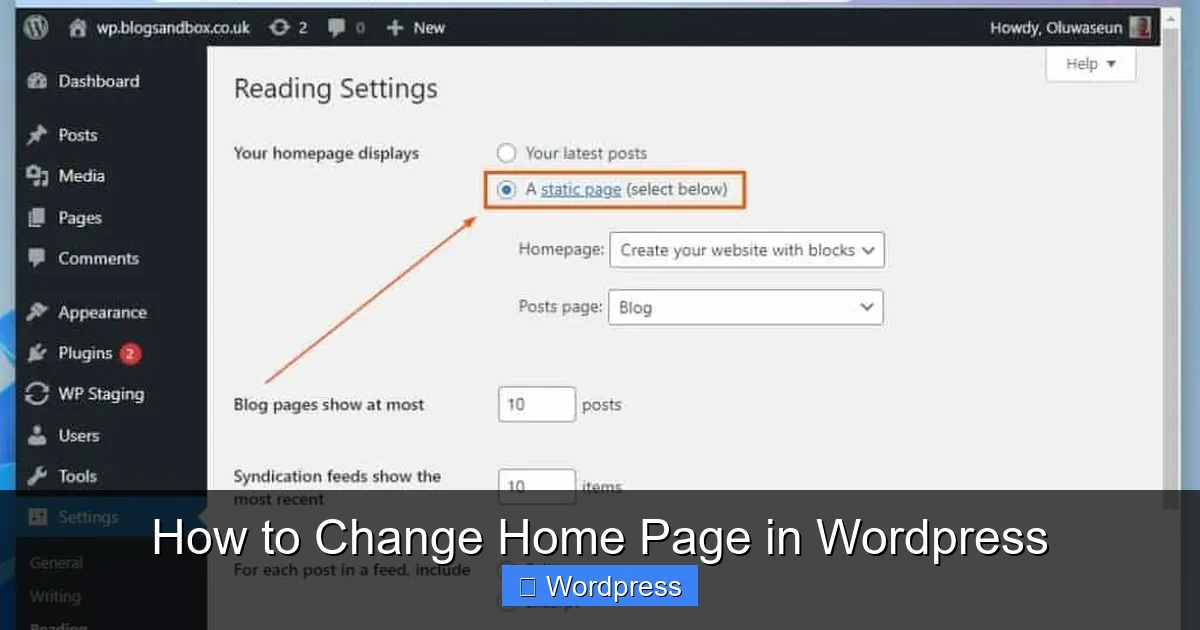
Step 2: Set the New Homepage in Reading Settings
- Navigate to Settings > Reading in your dashboard.
- Under “Your homepage displays,” select A static page.
- In the “Homepage” dropdown, choose the page you just created (e.g., “Home”).
- If you also want a separate blog page, select one under “Posts page” (e.g., “Blog”).
- Click Save Changes.
That’s it! Your new homepage is now live. Visit your site to confirm the change.
Step 3: Switch Back to Latest Posts (Optional)
If you ever want to revert to showing your latest posts:
- Go back to Settings > Reading.
- Select Your latest posts.
- Click Save Changes.
Method 2: Using a Page Builder (Elementor, Beaver Builder, etc.)
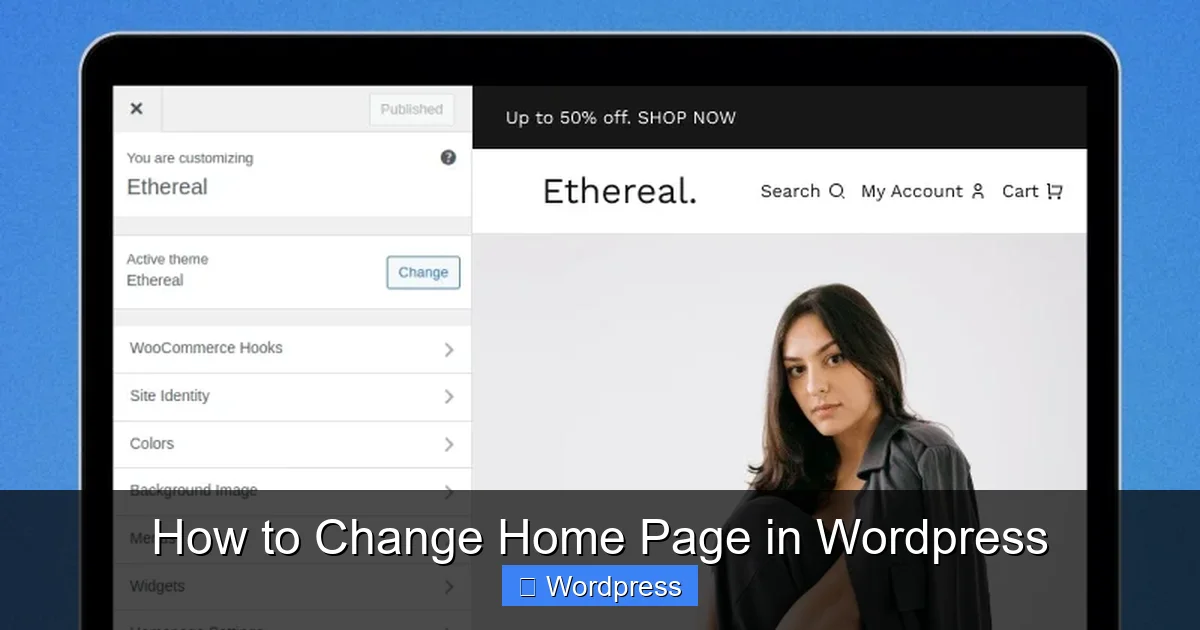
Many users prefer designing their homepage with drag-and-drop tools like Elementor. These builders offer more design flexibility and are perfect for creating professional-looking landing pages.
Visual guide about How to Change Home Page in WordPress
Image source: cdnblog.webkul.com
Step 1: Install and Activate Your Page Builder
If you haven’t already, install a page builder plugin. Elementor is free and widely used—go to Plugins > Add New, search for “Elementor,” and click Install & Activate.
Step 2: Edit Your Homepage with the Builder
- Go to Pages > All Pages.
- Find your current homepage (or the one you set as homepage in Reading Settings).
- Click Edit with Elementor (or your chosen builder).
- Use the visual editor to redesign the layout—add sections, widgets, animations, and more.
- Click Update when finished.
Note: Some themes include pre-designed homepage templates. For example, if you’re using a theme from Astra or OceanWP, check Appearance > Customize > Homepage Settings for built-in options.
Step 3: Assign the Edited Page as Homepage
Even after editing with a page builder, you still need to ensure the correct page is set as your homepage. Follow the same steps in Settings > Reading to assign it.
For advanced users, you can also create a completely custom homepage template using a child theme or a plugin like Elementor Theme Builder.
Troubleshooting Common Issues
Sometimes, your homepage change might not appear right away. Here’s how to fix the most common problems:
Issue 1: Changes Don’t Show Up
Solution: Clear your browser cache and any caching plugins (like WP Super Cache or W3 Total Cache). Also, check if your hosting provider has server-level caching—contact support if needed.
Issue 2: Theme Overrides Homepage Settings
Some premium themes use custom homepage templates that ignore the Reading Settings.
Solution: Go to Appearance > Customize and look for “Homepage Settings” or “Front Page” options. Adjust them there. If unsure, consult your theme’s documentation or support forum.
Issue 3: 404 Error on Homepage
This usually happens if the assigned homepage was deleted or unpublished.
Solution: Recreate the page or reassign a valid page in Settings > Reading. You can also check our guide on fixing 404 errors in WordPress for more help.
Issue 4: Homepage Looks Broken on Mobile
Solution: Use the responsive editing mode in your page builder (e.g., Elementor’s mobile view) to adjust spacing, font sizes, and image alignment. Always preview on actual devices when possible.
Best Practices for Homepage Design
Your homepage is often the first impression visitors have of your site. Keep these tips in mind:
- Keep it simple: Avoid clutter. Focus on clear headlines, a strong call-to-action, and easy navigation.
- Optimize for speed: Large images or too many plugins can slow down your homepage. Use compressed images and limit animations.
- Make it mobile-friendly: Over 60% of web traffic comes from mobile devices—test thoroughly.
- Include trust signals: Add testimonials, logos of clients, or security badges if applicable.
- Update regularly: Refresh your homepage seasonally or for promotions to keep it relevant.
Conclusion
Changing your homepage in WordPress is quick, safe, and doesn’t require technical skills. Whether you’re switching to a static page or redesigning with a page builder, the process is straightforward once you know where to look. Remember to use Settings > Reading for basic changes, and leverage tools like Elementor for advanced designs.
Don’t forget to test your new homepage across devices and clear caches to ensure everyone sees the update. With these steps, you’re fully equipped to customize your site’s front page whenever inspiration strikes.