
This guide walks you through how to change theme in WordPress website safely and efficiently. You’ll learn to preview, install, and activate new themes while preserving your content and avoiding common pitfalls.
Key Takeaways
- Always back up your site first: Changing themes can affect layouts and functionality, so a backup ensures you can restore your site if something goes wrong.
- Use the WordPress Customizer to preview themes: Test how a new theme looks with your content before going live.
- Check theme compatibility: Make sure your new theme supports your plugins, page builder, and custom code.
- Child themes protect customizations: If you’ve modified your current theme, use a child theme to preserve changes when switching.
- Deactivate unused themes: Keep your site clean and secure by removing themes you no longer use.
- Update permalinks after switching: Sometimes URLs break after a theme change—refresh permalinks to fix this.
- Test on a staging site first: For major changes, test the new theme on a copy of your site before applying it live.
How to Change Theme in WordPress Website
Changing your WordPress theme is one of the easiest ways to give your website a fresh look, improve performance, or better align with your brand. Whether you’re switching from a free theme to a premium one or just trying something new, this guide will walk you through the entire process—safely and effectively.
In this article, you’ll learn how to change theme in WordPress website using the built-in theme library, upload a custom theme, preview changes, and troubleshoot common issues. We’ll also cover best practices to ensure your content stays intact and your site remains functional.
Why Change Your WordPress Theme?
There are many reasons to switch themes. Maybe your current theme is outdated, slow, or doesn’t support the features you need. Perhaps you’re rebranding and want a more modern design. Or you’ve found a theme that’s better optimized for SEO and mobile responsiveness.
Whatever your reason, changing your theme can breathe new life into your site. But it’s important to do it the right way—rushing the process can lead to broken layouts, lost widgets, or even downtime.
Step 1: Back Up Your Website
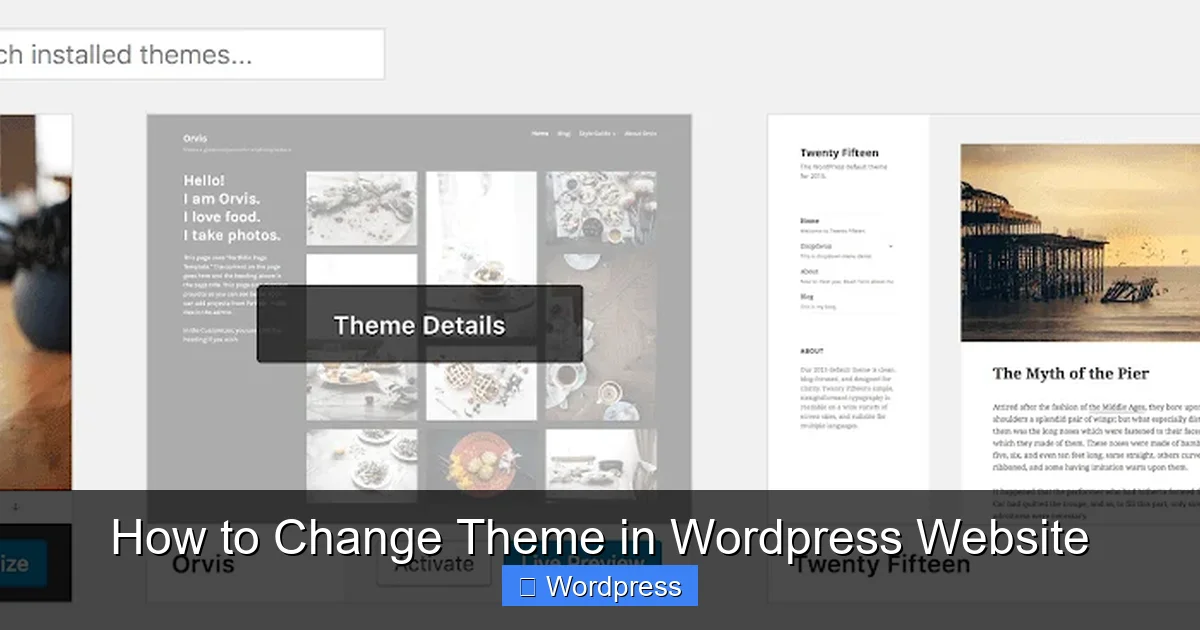
Visual guide about How to Change Theme in WordPress Website
Image source: wpengine.com
Before making any major change, always back up your site. This includes your database, files, themes, plugins, and uploads.
How to Back Up Your Site
- Use a backup plugin like UpdraftPlus, BackupBuddy, or Jetpack.
- Download a full copy of your site via FTP or your hosting control panel.
- Export your database using phpMyAdmin.
Having a recent backup means you can restore your site instantly if the new theme causes problems.
Step 2: Choose a New Theme
WordPress offers thousands of free and premium themes. You can browse the official directory or purchase from third-party marketplaces like ThemeForest, Elegant Themes, or Astra.
Where to Find Themes
- WordPress Theme Directory: Free, vetted themes available directly in your dashboard.
- Premium Marketplaces: Paid themes with advanced features and support.
- Custom Themes: Built by developers for specific needs.
When choosing a theme, consider:
- Mobile responsiveness
- Page speed and SEO optimization
- Compatibility with your plugins (e.g., WooCommerce, Elementor)
- Regular updates and support
For performance and SEO, check out our guide on the best WordPress theme for SEO and speed.
Step 3: Install the New Theme
You can install a theme in two ways: through the WordPress dashboard or by uploading a ZIP file.
Method 1: Install from the WordPress Directory
- Go to Appearance > Themes in your WordPress dashboard.
- Click Add New.
- Use the search bar to find a theme by name or keyword.
- Click Preview to see how it looks.
- Click Install when you find one you like.
Method 2: Upload a Custom Theme
If you’ve purchased a premium theme or received a custom one:
- Go to Appearance > Themes > Add New.
- Click Upload Theme.
- Choose the ZIP file from your computer.
- Click Install Now.
Once installed, the theme will appear in your theme list but won’t be active yet.
Step 4: Preview the Theme
Never activate a theme without previewing it first. WordPress lets you see how your content will look with the new design—without affecting live visitors.
How to Preview a Theme
- Go to Appearance > Themes.
- Hover over the installed theme and click Live Preview.
- Browse your site as a visitor would.
- Check homepage, blog posts, pages, and mobile view.
If something looks off—like missing widgets or broken menus—don’t activate it yet. You may need to adjust settings or choose a different theme.
Step 5: Activate the New Theme
Once you’re happy with the preview:
- In the theme preview window, click Activate.
- Or go back to Appearance > Themes, hover over the theme, and click Activate.
Your site will now use the new theme. Visit your homepage to confirm everything looks correct.
Step 6: Configure Theme Settings
Most themes come with customization options. After activation:
- Go to Appearance > Customize.
- Adjust colors, fonts, header, footer, and layout.
- Set up menus and widgets if they didn’t transfer.
- Save changes.
Some themes also have their own settings panel (e.g., under Theme Options). Check your theme documentation for details.
Step 7: Test Your Site
After activation, thoroughly test your site:
- Check all pages and posts.
- Test forms, buttons, and links.
- View on mobile, tablet, and desktop.
- Run a speed test using tools like GTmetrix or Google PageSpeed Insights.
If you notice issues, don’t panic—most can be fixed quickly.
Troubleshooting Common Issues
Broken Layout or Missing Content
This often happens if your old theme used custom page builders or shortcodes. Try:
- Switching back to the old theme temporarily.
- Using a plugin like Shortcodes Ultimate to restore functionality.
- Rebuilding affected pages with the new theme’s tools.
Menus or Widgets Disappeared
WordPress doesn’t always transfer widget and menu locations. Fix this by:
- Going to Appearance > Menus and reassigning menus to theme locations.
- Visiting Appearance > Widgets and placing widgets in the correct sidebars.
White Screen or Site Crash
This is rare but can happen with incompatible themes. To fix:
- Access your site via FTP or file manager.
- Rename the new theme folder (e.g., from “newtheme” to “newtheme-old”).
- WordPress will revert to a default theme like Twenty Twenty-Four.
- Then, investigate the issue or choose a different theme.
Permalinks Not Working
Sometimes URLs break after a theme change. Refresh permalinks:
- Go to Settings > Permalinks.
- Click Save Changes (no need to change anything).
- This rebuilds the rewrite rules.
Best Practices When Changing Themes
- Use a child theme if you’ve made customizations: Learn more about what is a child theme in WordPress and why it’s essential for safe updates.
- Test on a staging site first: Many hosts offer staging environments. Use them to avoid disrupting your live site.
- Keep your old theme installed temporarily: This lets you switch back quickly if needed.
- Update your theme regularly: Outdated themes can have security flaws. See our guide on how to update theme on WordPress.
- Remove unused themes: Improve security and performance by deleting themes you no longer use. Check out how to delete theme in WordPress.
Conclusion
Changing your WordPress theme doesn’t have to be stressful. By following these steps—backing up your site, previewing the theme, and testing thoroughly—you can switch designs safely and confidently.
Remember, the goal isn’t just a new look—it’s a better user experience, faster load times, and improved functionality. Whether you’re using a free theme from the directory or a premium design, the process is straightforward when you plan ahead.
Now that you know how to change theme in WordPress website, you’re ready to refresh your site’s design and keep it modern, fast, and engaging. Happy theming!