This guide shows you how to create a landing page in WordPress using built-in tools, popular page builders like Elementor, and dedicated plugins. Whether you’re promoting a product, capturing leads, or launching a campaign, you’ll learn to build a clean, conversion-focused page without coding.
Key Takeaways
- Choose the right method: Use a landing page plugin, page builder, or theme template based on your skill level and needs.
- Optimize for conversions: Focus on clear headlines, strong CTAs, and minimal distractions to increase visitor action.
- Use a responsive design: Ensure your landing page looks great on mobile, tablet, and desktop devices.
- Test and tweak: Use A/B testing tools to improve performance and boost conversion rates over time.
- Speed matters: Optimize images and limit plugins to keep your landing page fast and user-friendly.
- Integrate with email tools: Connect your form to email marketing services like Mailchimp or ConvertKit for lead capture.
- Maintain consistency: Match your landing page design and messaging to your brand and campaign goals.
How to Create a Landing Page in WordPress
Creating a landing page in WordPress is easier than you think—even if you’re not a developer. Whether you’re launching a new product, running a marketing campaign, or collecting email signups, a well-designed landing page can dramatically improve your conversion rates. In this guide, we’ll walk you through how to create a landing page in WordPress using simple, effective methods. You’ll learn how to use themes, plugins, and page builders to build a high-converting page in under an hour.
By the end of this tutorial, you’ll have a fully functional, mobile-friendly landing page that’s optimized for leads or sales. No coding required—just clear steps, practical tips, and real-world examples.
What Is a Landing Page?
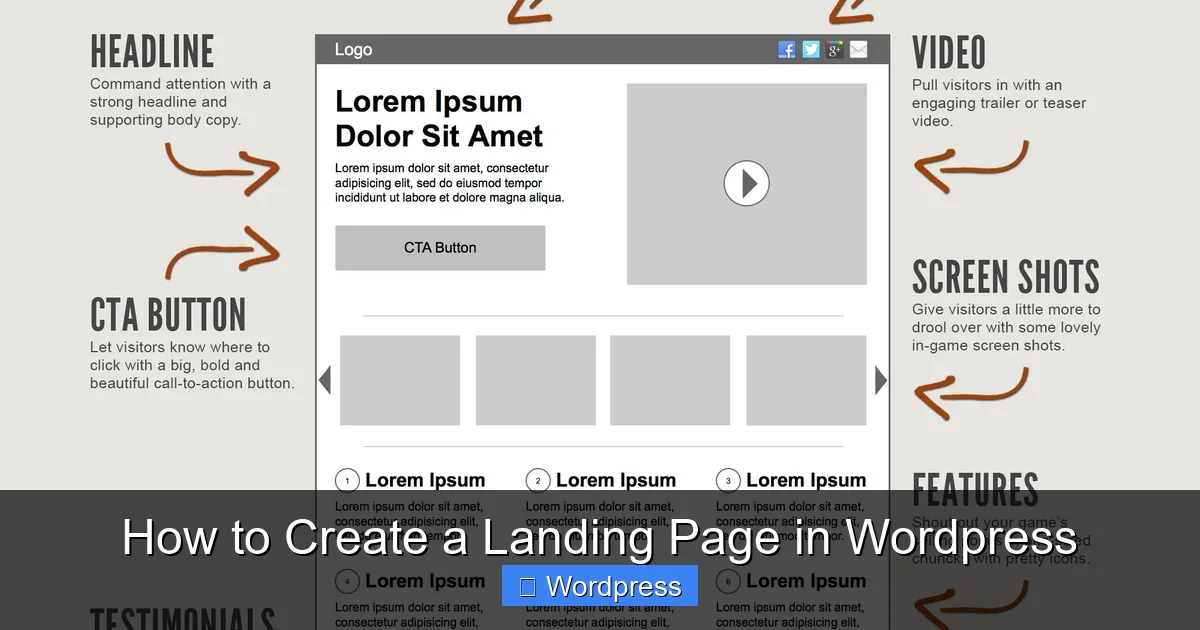
A landing page is a standalone web page designed for a specific marketing or advertising campaign. Unlike your homepage, a landing page has one clear goal—like getting visitors to sign up, download an ebook, or buy a product. It removes navigation menus and other distractions so visitors focus on taking action.
Visual guide about How to Create a Landing Page in WordPress
Image source: i0.wp.com
For example, if you’re promoting a free webinar, your landing page might include a headline, a short description, a registration form, and a strong call-to-action (CTA) button. The simpler and more focused the page, the better it converts.
Method 1: Use a Landing Page Plugin
The easiest way to create a landing page in WordPress is by using a dedicated plugin. These tools come with pre-designed templates, drag-and-drop editors, and built-in analytics. Here’s how to get started.
Visual guide about How to Create a Landing Page in WordPress
Image source: i.ytimg.com
Step 1: Install a Landing Page Plugin
Go to your WordPress dashboard, click Plugins > Add New, and search for a trusted landing page plugin. Popular options include:
- Thrive Architect – Great for conversion-focused designs.
- Elementor Pro – Includes landing page templates and advanced styling.
- Leadpages – Offers fast-loading, mobile-optimized pages.
- SeedProd – Perfect for beginners with a simple drag-and-drop builder.
For this example, we’ll use SeedProd because it’s free, easy to use, and doesn’t require coding.
Step 2: Activate and Launch the Builder
After installing and activating SeedProd, go to SeedProd > Landing Pages in your dashboard. Click Create New Landing Page. You’ll see a library of templates categorized by purpose—choose one that fits your goal (e.g., “Coming Soon,” “Lead Capture,” or “Sales Page”).
Click on a template to preview it, then select Use This Template. The drag-and-drop editor will open, allowing you to customize every element.
Step 3: Customize Your Landing Page
Use the editor to:
- Edit text: Change headlines, subheadings, and body copy to match your message.
- Upload images: Add your logo, product photos, or background images.
- Style buttons: Adjust colors, size, and text on your CTA button (e.g., “Get Started Now”).
- Add forms: Integrate with email services like Mailchimp or ConvertKit to capture leads.
Tip: Keep your design clean. Use plenty of white space, readable fonts, and contrasting colors for your CTA button.
Step 4: Publish Your Landing Page
Once you’re happy with the design, click Save and then Publish. SeedProd will give you a unique URL (e.g., yoursite.com/landing-page). You can also set it as your homepage or link it from ads and emails.
For more advanced customization, check out our guide on how to create a coming soon page in WordPress, which uses similar tools and techniques.
Method 2: Use a Page Builder (Elementor)
If you prefer more design control, a page builder like Elementor is a powerful option. It’s widely used and works with most WordPress themes.
Step 1: Install Elementor
Go to Plugins > Add New and search for “Elementor.” Install and activate the free version. For landing pages, consider upgrading to Elementor Pro for access to premium templates and widgets.
Step 2: Create a New Page
In your WordPress dashboard, go to Pages > Add New. Give your page a title like “Free Ebook Download” and click Edit with Elementor.
Step 3: Choose a Landing Page Template
Elementor opens with a template library. Click the Folder Icon to browse templates. Filter by “Landing Pages” and choose one that fits your campaign. Click Insert to add it to your page.
Step 4: Customize the Design
Use Elementor’s drag-and-drop interface to:
- Replace placeholder text with your own content.
- Upload your logo and brand images.
- Adjust colors and fonts to match your brand.
- Add a form widget and connect it to your email service.
Tip: Use the Navigator tool (bottom left) to easily select and edit sections, columns, or widgets.
Step 5: Optimize for Mobile
Click the Responsive Mode icon (bottom left) to preview your page on mobile and tablet. Adjust font sizes, padding, and button widths to ensure everything looks great on smaller screens.
For advanced styling, you can add custom CSS. Learn more in our guide on the best way to add CSS in WordPress.
Step 6: Publish and Test
Click Update to save your changes. Visit the page on different devices to test loading speed and functionality. Use tools like Google PageSpeed Insights to check performance.
Method 3: Use a Landing Page Theme
Some WordPress themes are built specifically for landing pages. These themes often include one-click demo imports and pre-designed layouts.
Step 1: Choose a Landing Page Theme
Go to Appearance > Themes > Add New and search for “landing page.” Popular options include:
- Astra – Lightweight and highly customizable.
- Neve – Fast and mobile-friendly.
- Landing Page Theme by WPExplorer – Free and simple.
Install and activate your chosen theme. For more details, see our guide on landing page WordPress themes.
Step 2: Customize with the WordPress Customizer
Go to Appearance > Customize. Here, you can:
- Upload your logo.
- Change the site title and tagline.
- Set a background image or color.
- Edit the homepage content.
Some themes include a “Landing Page” template. Go to Pages > Add New, select the template from the “Page Attributes” panel, and publish.
Step 3: Add Content and Forms
Use the WordPress block editor (Gutenberg) to add headings, paragraphs, images, and buttons. For forms, install a plugin like WPForms and embed a form block.
Tip: Keep your messaging clear and benefit-focused. Instead of “Download Our Ebook,” try “Get Your Free Guide to Doubling Your Sales.”
Troubleshooting Common Issues
Even with the best tools, you might run into problems. Here’s how to fix common issues:
- Page not loading: Clear your cache and check for plugin conflicts. Deactivate other plugins one by one to find the culprit.
- Design looks broken on mobile: Use your page builder’s responsive settings to adjust spacing and font sizes.
- Form not submitting: Ensure your email service is properly connected. Test the form with a real email address.
- Slow loading speed: Compress images using tools like Smush or ShortPixel. Avoid too many animations or heavy plugins.
Conclusion
Creating a landing page in WordPress doesn’t have to be complicated. Whether you use a plugin like SeedProd, a page builder like Elementor, or a dedicated theme, you can build a professional, high-converting page in minutes. The key is to focus on your goal, keep the design simple, and test your results.
Remember: your landing page is often the first impression visitors have of your offer. Make it count with clear messaging, a strong CTA, and a seamless user experience. Start simple, launch fast, and improve over time.