This guide walks you through how to create a theme in WordPress from scratch. You’ll learn essential files, template structure, and best practices to build a fully functional, responsive theme.
Key Takeaways
- Start with the basics: Every WordPress theme needs at least a style.css and index.php file to be recognized.
- Use template hierarchy: WordPress uses specific file names like single.php and page.php to display different content types.
- Enqueue styles and scripts properly: Always use wp_enqueue_style() and wp_enqueue_script() for loading CSS and JavaScript.
- Make your theme responsive: Use flexible layouts and media queries so your theme looks great on all devices.
- Test thoroughly: Check your theme on different browsers and screen sizes before going live.
- Consider using a child theme: If modifying an existing theme, always use a child theme to preserve changes during updates.
- Follow WordPress coding standards: Clean, well-documented code helps with maintenance and collaboration.
Introduction: Why Create Your Own WordPress Theme?
WordPress powers over 40% of the web, and while thousands of free and premium themes exist, creating your own gives you full control over design and functionality. Whether you’re a developer building for clients or a blogger wanting a unique look, learning how to create a theme in WordPress opens up endless possibilities.
In this guide, you’ll learn how to build a basic but complete WordPress theme from the ground up. We’ll cover the essential files, template structure, and coding practices you need to know. By the end, you’ll have a working theme you can customize further or use as a foundation for future projects.
Step 1: Set Up Your Development Environment
Before you start coding, make sure you have a local WordPress installation. Tools like Local by Flywheel, XAMPP, or MAMP let you run WordPress on your computer without affecting a live site.
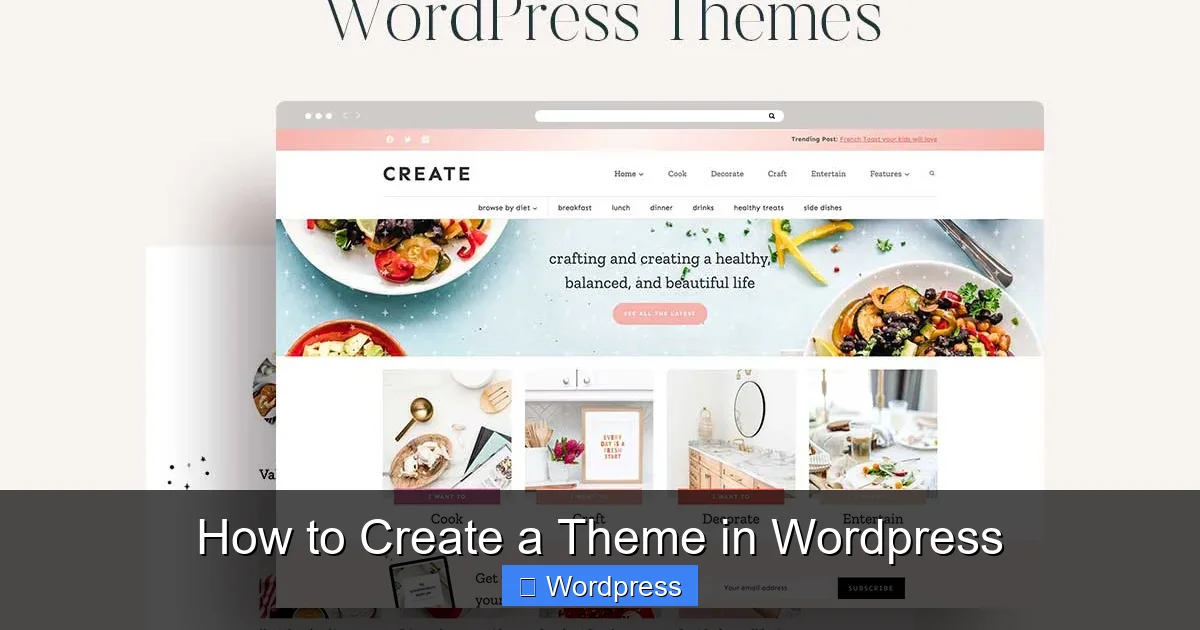
Visual guide about How to Create a Theme in WordPress
Image source: static.shareasale.com
Install WordPress Locally
- Download and install a local server tool (e.g., Local by Flywheel).
- Create a new WordPress site.
- Access the WordPress admin dashboard at
http://yoursite.local/wp-admin.
Locate the Themes Folder
Your theme files go in the wp-content/themes/ directory. Navigate to this folder in your file manager or code editor.
Step 2: Create Your Theme Folder and Files
Every WordPress theme needs at least two files: style.css and index.php.
Create the Theme Folder
- In
wp-content/themes/, create a new folder namedmy-custom-theme(use lowercase, no spaces).
Add the style.css File
Inside your theme folder, create a file called style.css. This file contains your theme’s metadata and CSS rules.
Add the following header at the top:
/*
Theme Name: My Custom Theme
Theme URI: https://example.com/my-custom-theme
Author: Your Name
Author URI: https://example.com
Description: A simple custom WordPress theme.
Version: 1.0
License: GNU General Public License v2 or later
License URI: http://www.gnu.org/licenses/gpl-2.0.html
Text Domain: my-custom-theme
*/
This information tells WordPress your theme exists. Without it, your theme won’t appear in the admin panel.
Create the index.php File
Now create index.php in the same folder. This is the main template file that displays content when no other template matches.
Add basic HTML and WordPress loop:
<!DOCTYPE html>
<html >
<head>
<meta charset="">
<meta name="viewport" content="width=device-width, initial-scale=1">
<title></title>
>
<header>
<h1><a href=""></a></h1>
<p></p>
</header>
<main>
"></a></h2>
<div></div>
</article>
</p>
</footer>
This simple template displays the site title, description, post titles, and excerpts. It uses core WordPress functions like the_title() and the_excerpt().
Step 3: Add More Template Files
WordPress uses a template hierarchy to decide which file to use for different pages. Adding more template files improves your theme’s flexibility.
Create header.php and footer.php
Split your index.php into reusable parts. Create header.php:
<!DOCTYPE html>
<html >
<head>
<meta charset="">
<meta name="viewport" content="width=device-width, initial-scale=1">
<title></title>
>
<header>
<h1><a href=""></a></h1>
<p></p>
</header>
And footer.php:
<footer>
<p>© </p>
</footer>
Now update index.php to use get_header() and get_footer():
<main>
"></a></h2>
<div></div>
</article>
Add single.php and page.php
Create single.php for individual blog posts and page.php for static pages. These follow the same structure but use the_content() instead of the_excerpt().
Example single.php:
<main>
</h1>
<div></div>
</article>
Step 4: Enqueue Styles and Scripts
Never link CSS or JavaScript directly in your templates. Use WordPress functions to enqueue them properly.
Create functions.php
In your theme folder, create functions.php. This file loads your styles and adds theme support features.
Add this code:
This loads your style.css, enables featured images, and improves HTML5 compatibility.
Step 5: Make Your Theme Responsive
Add responsive design to your style.css:
body {
font-family: Arial, sans-serif;
margin: 0;
padding: 0;
line-height: 1.6;
}
header, footer {
background: #333;
color: #fff;
padding: 1rem;
text-align: center;
}
main {
padding: 2rem;
max-width: 800px;
margin: 0 auto;
}
@media (max-width: 600px) {
main {
padding: 1rem;
}
h1, h2 {
font-size: 1.5rem;
}
}
Step 6: Activate Your Theme
Go to your WordPress admin dashboard → Appearance → Themes. You should see “My Custom Theme.” Click “Activate.”
Visit your site to see your new theme in action. If something looks off, check your browser console for errors.
Troubleshooting Common Issues
- Theme not appearing? Double-check the
style.cssheader. Missing or incorrect info hides the theme. - Styles not loading? Ensure
wp_head()andwp_footer()are in your templates and styles are enqueued. - White screen of death? Check for PHP syntax errors in
functions.phpor template files. - Images not showing? Verify
add_theme_support('post-thumbnails')is infunctions.php.
For more advanced customization, consider learning about child themes, which let you modify existing themes safely.
Conclusion
You’ve now built a fully functional WordPress theme from scratch! This foundation includes essential templates, proper script loading, and responsive design. From here, you can expand with custom post types, widgets, or page builders like Elementor.
Remember, creating a theme is just the beginning. Keep testing, refining, and learning. If you ever need to apply a new theme or update an existing one, your knowledge will help you do it confidently.
Happy theming!