This guide walks you through how to customize WordPress theme with Elementor, from installing the plugin to designing headers, pages, and global styles. Whether you’re a beginner or experienced user, you’ll learn practical techniques to create a professional-looking site without touching a line of code.
Key Takeaways
- Elementor simplifies WordPress theme customization: Use its visual editor to design pages, headers, and footers without coding.
- Start with a compatible theme: Choose lightweight themes like Hello Elementor for best performance and flexibility.
- Use Elementor’s Theme Builder: Customize site-wide elements like headers, footers, and single post layouts.
- Global settings save time: Set global colors, fonts, and styles to maintain consistency across your site.
- Responsive editing is built-in: Adjust designs for mobile, tablet, and desktop views directly in the editor.
- Backup before major changes: Always back up your site before customizing themes to avoid data loss.
- Troubleshoot common issues: Learn how to fix styling conflicts, loading errors, and template overrides.
Introduction: Why Customize Your WordPress Theme with Elementor?
If you’re using WordPress, chances are you want your website to look unique, professional, and aligned with your brand. While WordPress themes offer a solid foundation, they often come with design limitations. That’s where Elementor comes in—a powerful drag-and-drop page builder that lets you customize your WordPress theme visually, without needing to write code.
In this guide, you’ll learn exactly how to customize WordPress theme with Elementor, from setup to advanced styling. Whether you’re redesigning your homepage, tweaking your blog layout, or building a custom header, Elementor gives you full creative control. By the end, you’ll be able to transform any WordPress theme into a fully customized, responsive website.
Step 1: Install and Activate Elementor
Before you can start customizing, you need to install Elementor. Here’s how:
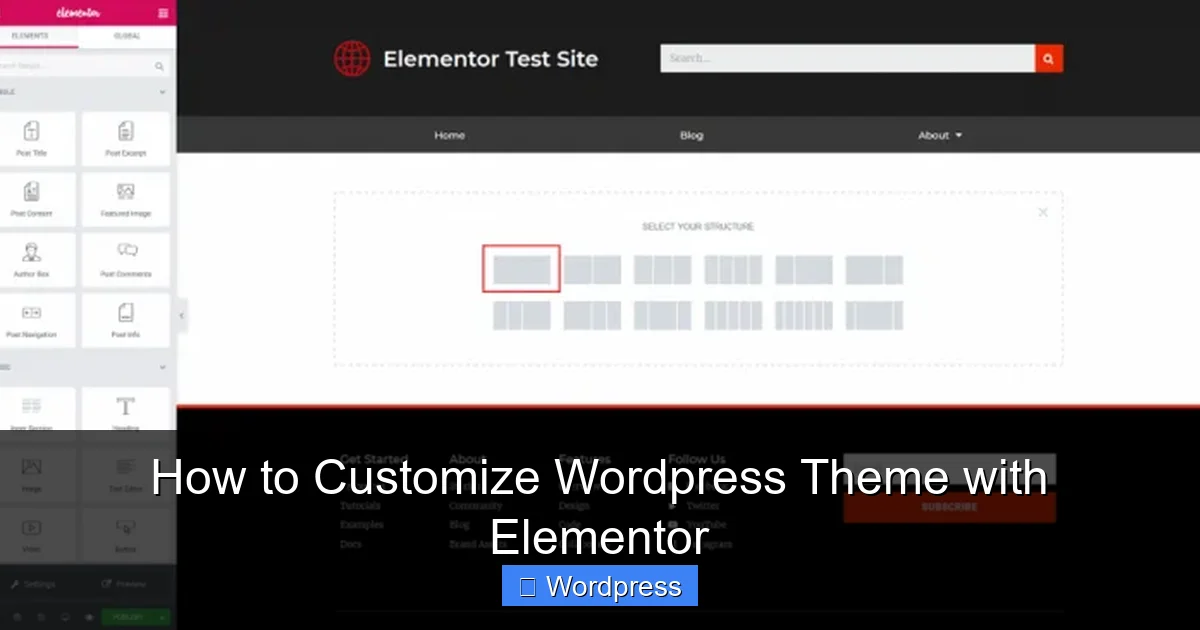
Visual guide about How to Customize WordPress Theme with Elementor
Image source: elementor.com
Install Elementor via WordPress Dashboard
- Go to your WordPress admin panel.
- Navigate to Plugins > Add New.
- Search for “Elementor” in the plugin directory.
- Click Install Now, then Activate.
Choose the Right Theme
For the best experience, use a lightweight, Elementor-friendly theme. The Hello Elementor theme is officially recommended because it’s minimal, fast, and fully compatible. You can install it from Appearance > Themes > Add New and search for “Hello Elementor”.
Alternatively, if you’re using an existing theme, make sure it supports Elementor. Most modern themes do, but some may have styling conflicts. If you’re unsure, check out our guide on how to apply a WordPress theme to ensure compatibility.
Step 2: Access the Elementor Editor
Once Elementor is active, you can start editing pages. Here’s how to open the editor:
Edit an Existing Page
- Go to Pages in your WordPress dashboard.
- Hover over any page and click Edit with Elementor.
Create a New Page
- Click Add New under Pages.
- Give your page a title.
- Click Edit with Elementor to launch the visual editor.
You’ll now see the Elementor interface: a live preview on the left and a panel of widgets and settings on the right.
Step 3: Customize Page Layouts with Elementor
Elementor uses a section-based layout system. Each page is built from sections, which contain columns and widgets.
Add and Style Sections
- Click the + icon to add a new section.
- Choose a layout (e.g., one column, two columns).
- Drag widgets like Heading, Text Editor, or Image into columns.
Customize Widgets and Content
Click any widget to open its settings. For example:
- Heading Widget: Change text, font, size, and color.
- Image Widget: Upload images, add links, and adjust alignment.
- Button Widget: Set button text, style, and link destination.
Use Pre-Designed Templates
Save time by using Elementor’s template library:
- Click the Folder icon in the panel.
- Browse templates by category (e.g., About Us, Contact).
- Insert a template with one click and customize it.
Step 4: Customize Global Styles
To maintain consistency, use Elementor’s global settings.
Set Global Colors and Fonts
- In the Elementor panel, click the Site Settings icon (gear icon).
- Go to Global Colors and define your brand palette (e.g., primary, secondary).
- Under Global Fonts, set default typography for headings and body text.
Now, when you apply these styles to widgets, they’ll automatically use your global settings. Change the global color once, and it updates everywhere.
Create Reusable Templates
Save custom sections or full pages as templates:
- Right-click a section and select Save as Template.
- Give it a name and save.
- Reuse it on other pages by inserting from the template library.
Step 5: Use Elementor Theme Builder for Full Site Customization
The Theme Builder (available in Elementor Pro) lets you customize site-wide parts like headers, footers, and single post layouts.
Build a Custom Header
- Go to Templates > Theme Builder.
- Click Add New and select Header.
- Design your header using widgets like logo, menu, and search bar.
- Set display conditions (e.g., show on all pages).
Design a Custom Footer
- Create a new Footer template.
- Add widgets like copyright text, social icons, and navigation links.
- Apply it site-wide or to specific pages.
Customize Single Post Layouts
Want a unique blog post design? Use the Theme Builder to:
- Override the default post layout.
- Add custom fields, related posts, or author boxes.
- Style the title, content, and meta information.
This gives you complete control over how your content appears—no need to rely on your theme’s default templates.
Step 6: Make Your Site Responsive
Elementor makes it easy to ensure your site looks great on all devices.
Switch Between Device Views
- Click the Responsive Mode icon (mobile, tablet, desktop) at the bottom of the editor.
- Adjust padding, font sizes, or hide elements for smaller screens.
Use Responsive Controls
Most widgets have responsive settings. For example:
- Set different font sizes for mobile and desktop.
- Hide a background image on mobile to improve loading speed.
- Change column direction from horizontal to vertical on tablets.
Always preview your design on multiple devices before publishing.
Step 7: Optimize Performance and Compatibility
Customizing your theme is great, but don’t sacrifice speed.
Use Lightweight Themes
Avoid heavy themes with built-in page builders. Stick to minimal themes like Hello Elementor for faster loading. If you’re upgrading an existing theme, learn how to upgrade WordPress theme safely without losing customizations.
Minimize Plugin Conflicts
Some plugins may interfere with Elementor. If your site looks broken:
- Deactivate plugins one by one to find the culprit.
- Check for JavaScript errors in the browser console.
Enable Safe Mode
If Elementor crashes, enable Safe Mode:
- Add
?elementor-safe-mode=1to your site URL. - This disables third-party plugins and helps identify conflicts.
Troubleshooting Common Issues
Even with the best tools, problems can happen. Here’s how to fix common issues:
Elementor Not Loading
- Clear your browser cache and WordPress cache.
- Increase PHP memory limit in
wp-config.php. - Disable conflicting plugins.
Styling Conflicts with Theme
- Switch to a default theme like Hello Elementor to test.
- Use Elementor’s Custom CSS panel to override theme styles.
- For advanced fixes, learn the best way to add CSS in WordPress.
Changes Not Saving
- Check if you have a caching plugin—clear the cache.
- Ensure file permissions are correct on your server.
- Try saving in incognito mode to rule out browser issues.
Conclusion: Unlock Your Website’s Full Potential
Customizing your WordPress theme with Elementor doesn’t have to be complicated. With the right tools and techniques, you can create a beautiful, responsive website that reflects your brand—no coding required. From editing pages to building global templates, Elementor puts powerful design control in your hands.
Remember to start with a compatible theme, use global styles for consistency, and test your site on all devices. And if you ever run into issues, the troubleshooting tips above will help you get back on track. Ready to take your site to the next level? Start customizing today and see the difference Elementor can make.