This guide shows you how to deactivate a theme in WordPress without breaking your site. You’ll learn safe methods, when to use them, and how to avoid common mistakes. Perfect for beginners and experienced users alike.
Key Takeaways
- Deactivating a theme switches your site to a default theme: WordPress automatically activates a default theme like Twenty Twenty-Four when you deactivate the current one.
- Always have a backup theme installed: Before deactivating, make sure another theme is available to prevent a blank or broken site.
- Use the WordPress dashboard for safe deactivation: The safest way is through Appearance > Themes in your admin panel.
- Child themes require parent theme deactivation: If using a child theme, deactivating it won’t affect the parent, but deactivating the parent will break the child.
- FTP deactivation is a last-resort option: If you can’t access the dashboard, rename the theme folder via FTP to force deactivation.
- Test after deactivation: Always check your site’s front end and admin area to ensure everything works correctly.
- Deactivation ≠ deletion: Deactivating keeps the theme files on your server; use the delete option only if you no longer need it.
How to Deactivate a Theme in WordPress: A Complete Guide
Changing or troubleshooting your WordPress site often requires deactivating the current theme. Whether you’re switching designs, fixing errors, or testing compatibility, knowing how to deactivate a theme in WordPress safely is essential. This guide walks you through multiple methods—dashboard, FTP, and troubleshooting—so you can choose the best approach for your situation.
In this guide, you’ll learn:
- Why and when to deactivate a theme
- Step-by-step instructions using the WordPress dashboard
- How to deactivate via FTP if the admin is inaccessible
- What to do with child themes
- Common issues and how to fix them
Why Deactivate a WordPress Theme?
You might need to deactivate a theme for several reasons:

Visual guide about How to Deactivate a Theme in WordPress
Image source: mllj2j8xvfl0.i.optimole.com
- Switching themes: You’ve installed a new theme and want to activate it.
- Troubleshooting errors: A white screen, broken layout, or plugin conflict may be caused by the current theme.
- Testing compatibility: You want to see how your site looks with a default theme before making changes.
- Security or performance issues: An outdated or compromised theme may need to be removed temporarily.
Whatever your reason, deactivating a theme is simple—but it must be done carefully to avoid downtime or data loss.
Method 1: Deactivate a Theme via the WordPress Dashboard
This is the safest and most common method. It works as long as you can access your WordPress admin area.
Step 1: Log in to Your WordPress Admin
Go to yoursite.com/wp-admin and log in with your username and password.
Step 2: Navigate to Appearance > Themes
In the left-hand menu, click Appearance, then select Themes. You’ll see all installed themes, with the active one marked.
Step 3: Activate a Different Theme
To deactivate the current theme, you must first activate another one. Hover over an inactive theme and click Activate. WordPress will automatically deactivate the previous theme.
Tip: Always choose a default WordPress theme like Twenty Twenty-Four or Twenty Twenty-Three as a fallback. These are stable and widely supported.
Step 4: Confirm the Change
Visit your website’s front end to ensure it loads correctly. If everything looks good, the deactivation was successful.
Note: If no other themes are installed, you’ll need to install one first. Go to Add New Theme, search for a default theme, and click Install followed by Activate.
Method 2: Deactivate a Theme Using FTP (When Dashboard Is Inaccessible)
If your site shows a white screen or error after activating a theme, you may not be able to access the dashboard. In this case, use FTP to force deactivation.
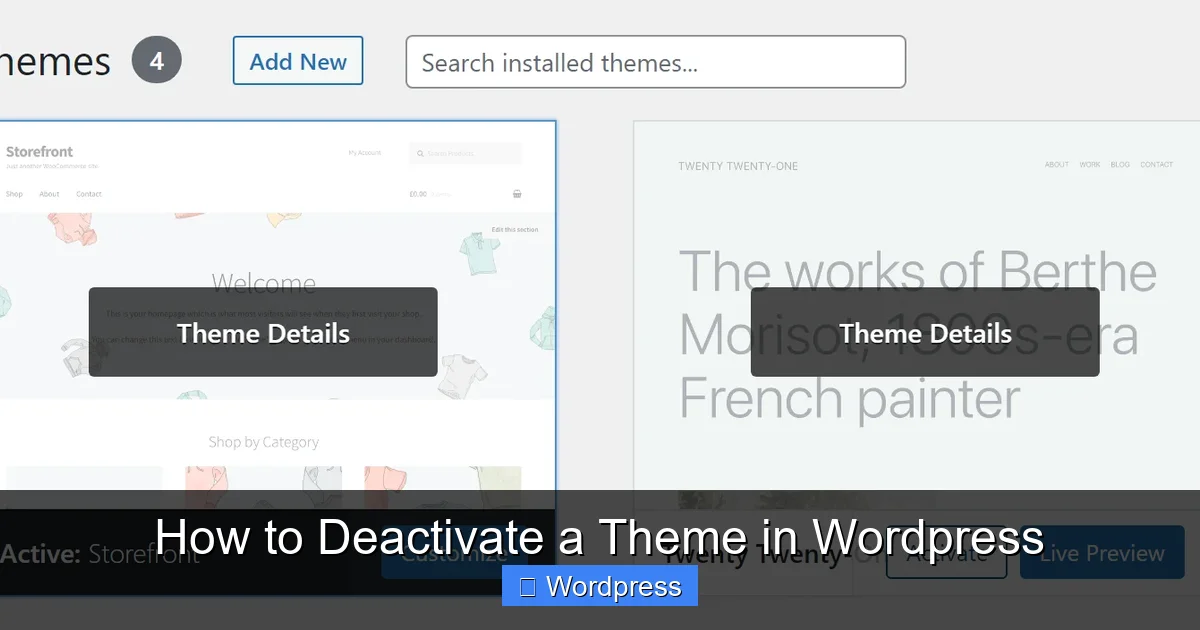
Visual guide about How to Deactivate a Theme in WordPress
Image source: mllj2j8xvfl0.i.optimole.com
Step 1: Connect to Your Site via FTP
Use an FTP client like FileZilla or your hosting control panel’s file manager. Log in with your FTP credentials.
Step 2: Navigate to the Themes Folder
Go to wp-content/themes/. You’ll see folders for each installed theme.
Step 3: Rename the Active Theme Folder
Find the folder of the active theme (e.g., my-custom-theme). Right-click it and select Rename. Add something like _old to the end (e.g., my-custom-theme_old).
WordPress can’t find the theme, so it will automatically switch to a default theme like Twenty Twenty-Four.
Step 4: Check Your Site
Refresh your website. If it loads, the theme has been deactivated. You can now log in to the dashboard and install or activate a new theme.
Important: After fixing the issue, you can rename the folder back if you want to reactivate the theme—but only if the problem is resolved.
Working with Child Themes
If you’re using a child theme, deactivating it works the same way—activate another theme from the dashboard. However, if you deactivate the parent theme, the child theme will stop working and may cause errors.
For example, if your child theme is based on twentytwentyfour, and you deactivate twentytwentyfour, your site will break. Always keep the parent theme active unless you’re replacing the entire setup.
Learn more about how child themes work in our guide: What Is a Child Theme in WordPress?
What Happens When You Deactivate a Theme?
Deactivating a theme doesn’t delete it. The files remain on your server, and you can reactivate it anytime. However, your site will:
- Switch to the next available theme (usually a default one)
- Lose customizations made in the Customizer (unless saved)
- Reset widget and menu placements if the new theme uses different sidebars
- Display content using the new theme’s layout and styles
To preserve settings, consider using a theme migration plugin or exporting customizer data before switching.
Troubleshooting Common Issues
Even with careful steps, problems can occur. Here’s how to fix them:
White Screen After Deactivation
If your site shows a blank page, it likely means no default theme is installed. Use FTP to rename the problematic theme folder, then install a default theme via the dashboard or manually upload it to wp-content/themes/.
“The active theme is broken” Error
This appears when WordPress can’t load the active theme. Follow the FTP method above to rename the theme folder and force a switch.
Customizer Settings Lost
Theme-specific settings (colors, fonts, layouts) may not transfer. To avoid this, take screenshots or note your settings before deactivating. Some themes offer export options.
Plugins Stop Working
Some plugins rely on theme features. If a plugin breaks after deactivation, check its documentation or contact support. You may need to adjust settings or switch to a compatible plugin.
Best Practices for Theme Deactivation
Follow these tips to ensure a smooth process:
- Always have a backup theme: Install at least one default theme before making changes.
- Test on a staging site first: If possible, deactivate themes on a copy of your site to avoid live disruptions.
- Backup your site: Use a plugin like UpdraftPlus to save your content and settings.
- Document customizations: Note any theme-specific code or settings you’ve added.
- Update regularly: Keep themes updated to reduce compatibility issues. Learn how to update a theme on WordPress safely.
When to Delete Instead of Deactivate
Deactivation is temporary. If you no longer need a theme, consider deleting it to free up space and improve security. Go to Appearance > Themes, hover over the inactive theme, and click Delete.
For a detailed walkthrough, see our guide: How to Delete a Theme in WordPress.
Conclusion
Deactivating a theme in WordPress is a straightforward process, but it requires caution. Whether you’re switching designs, fixing errors, or testing changes, use the dashboard method when possible. If the admin is inaccessible, FTP renaming is a reliable fallback. Always ensure a backup theme is available and test your site after making changes.
By following this guide, you can confidently manage your WordPress themes without risking downtime or data loss. Remember: deactivation is not deletion—keep themes you might reuse, and delete only those you no longer need.
For more theme management tips, check out How to Apply a WordPress Theme and How to Upgrade a WordPress Theme.