This guide walks you through how to delete a site WordPress—whether it’s hosted on WordPress.com or a self-hosted WordPress.org installation. You’ll learn safe deletion methods, backup essentials, and what to do afterward.
Key Takeaways
- Back up your site first: Always save your content, themes, plugins, and database before deleting anything.
- Know your hosting type: WordPress.com and self-hosted sites require different deletion steps.
- Delete via hosting panel for self-hosted sites: Use cPanel, Plesk, or your host’s file manager to remove files and databases.
- Use WP Reset for quick cleanup: This plugin can wipe your site while keeping WordPress installed—ideal for fresh starts.
- Cancel your domain and hosting: After deletion, stop recurring payments to avoid unnecessary charges.
- Check for residual data: Some hosts keep backups; contact support to ensure full removal.
- Consider alternatives: Sometimes deactivating or resetting is better than full deletion.
How to Delete a Site WordPress: A Complete Guide
Whether you’re rebranding, switching platforms, or simply done with your website, knowing how to delete a site WordPress properly is essential. Deleting a WordPress site isn’t just about hitting “delete” — it involves backing up data, removing files, clearing databases, and ensuring no traces remain. This guide covers everything you need to know, whether your site runs on WordPress.com or is self-hosted (WordPress.org).
In this guide, you’ll learn:
- How to back up your site before deletion
- Step-by-step instructions for WordPress.com and self-hosted sites
- How to use plugins like WP Reset for quick cleanup
- What to do after deletion (domain, hosting, etc.)
- Troubleshooting common issues
Step 1: Back Up Your WordPress Site
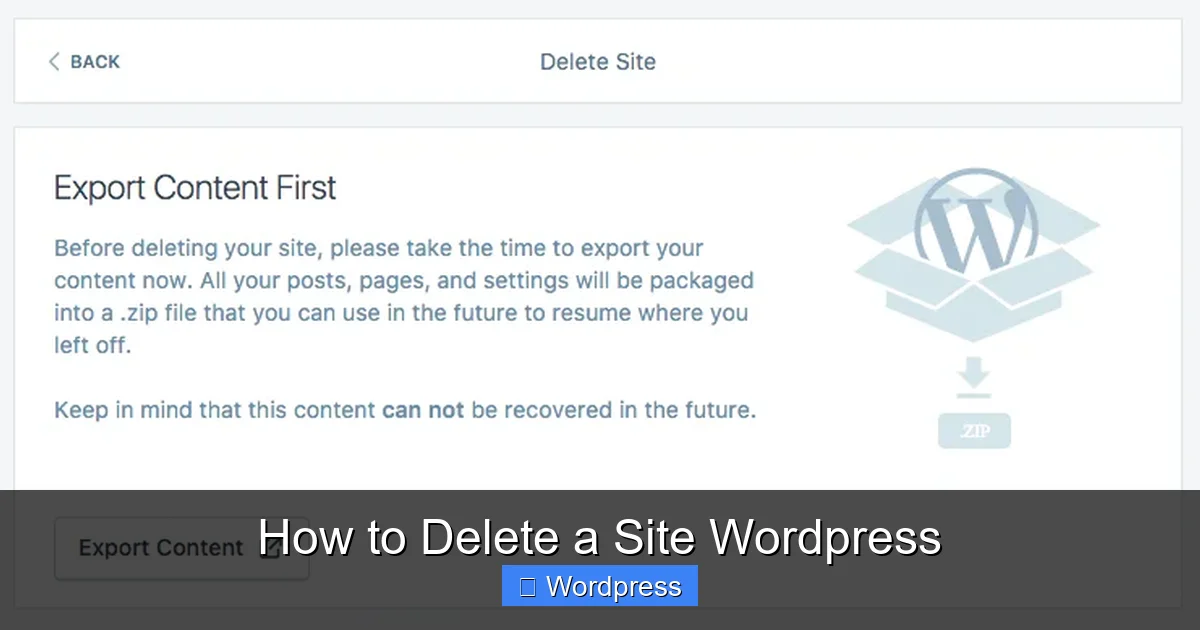
Before you delete anything, always create a full backup. This includes your posts, pages, media, themes, plugins, and database. If you change your mind later, you’ll be glad you did.
Visual guide about How to Delete a Site WordPress
Image source: en-support.files.wordpress.com
How to Back Up a Self-Hosted WordPress Site
For self-hosted sites (WordPress.org), use a reliable backup plugin like UpdraftPlus, Duplicator, or Jetpack. These tools let you download your entire site to your computer or cloud storage.
- Install and activate your chosen backup plugin.
- Run a full backup (files + database).
- Download the backup files to a secure location.
How to Back Up a WordPress.com Site
WordPress.com users can export content via the dashboard:
- Go to Tools > Export in your WordPress.com admin.
- Choose “All Content” to download posts, pages, comments, and media.
- Save the XML file to your computer.
Note: This export doesn’t include themes or plugins, which are managed by WordPress.com and can’t be downloaded.
Step 2: Determine Your WordPress Type
Not all WordPress sites are the same. The deletion process depends on whether your site is hosted on WordPress.com (managed hosting) or self-hosted (WordPress.org on your own server).
Visual guide about How to Delete a Site WordPress
Image source: en-support.files.wordpress.com
WordPress.com Sites
If you signed up at wordpress.com and your site uses a free subdomain (like yoursite.wordpress.com), you’re on WordPress.com. These sites are easier to delete but offer less control.
Self-Hosted WordPress Sites
If you downloaded WordPress from wordpress.org and installed it on your own hosting (e.g., Bluehost, SiteGround, or Hostinger), you have a self-hosted site. These require manual deletion via your hosting account.
Knowing your setup is crucial — deleting a self-hosted site incorrectly can affect other websites on the same hosting account.
Step 3: Delete a WordPress.com Site
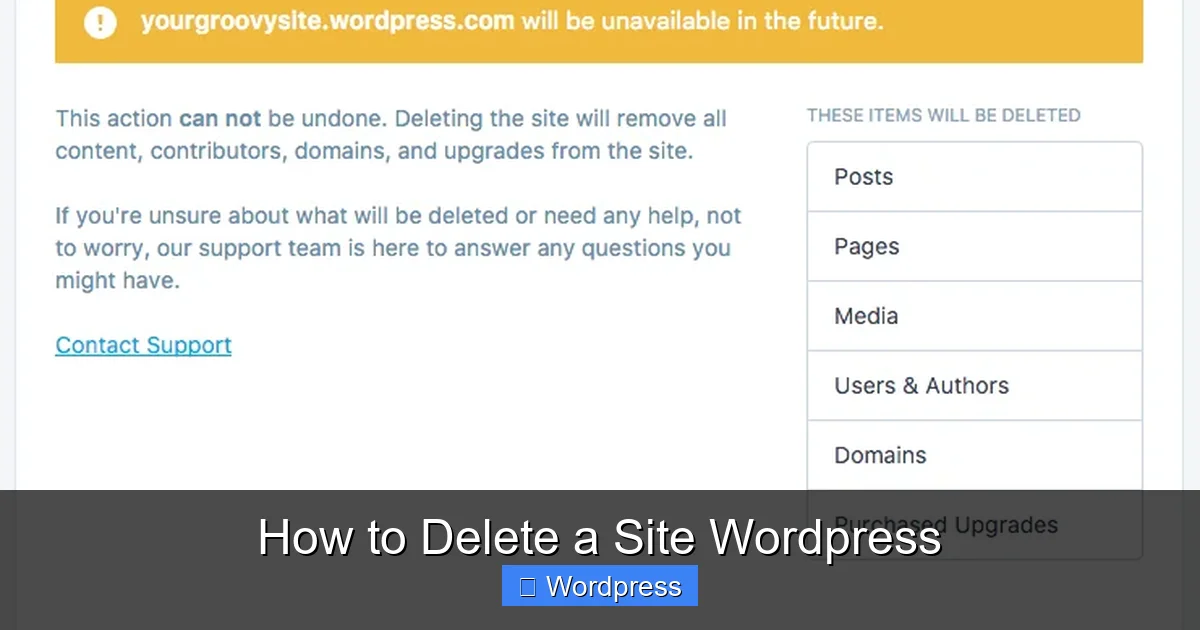
Deleting a WordPress.com site is straightforward but permanent. Once deleted, you can’t recover it.
Steps to Delete Your WordPress.com Site
- Log in to your WordPress.com account.
- Go to My Sites > Manage > Settings.
- Scroll down to the Delete Site section at the bottom.
- Click Delete Site and confirm by typing your site name.
- Enter your password to finalize.
After deletion, your site and all content will be removed. If you have a paid plan, cancel it separately to stop billing.
What Happens After Deletion?
- Your site URL becomes unavailable.
- All posts, pages, and media are erased.
- Custom domains linked to the site may need to be managed separately.
Step 4: Delete a Self-Hosted WordPress Site
Self-hosted sites require more hands-on work. You’ll need access to your hosting control panel (like cPanel) or FTP.
Option A: Delete via Hosting Control Panel (Recommended)
Most hosts use cPanel, Plesk, or a custom dashboard. Here’s how to delete your site using cPanel:
- Log in to your hosting account and open cPanel.
- Go to File Manager and navigate to your site’s root folder (usually
public_htmlor a subfolder). - Select all files and folders (Ctrl+A or Cmd+A), then click Delete.
- Next, go to MySQL Databases and delete the database associated with your WordPress site.
- Also remove the database user if no longer needed.
Tip: Take screenshots or notes of your database name and user before deleting — you’ll need them if restoring later.
Option B: Use FTP to Remove Files
If you prefer FTP, use an app like FileZilla:
- Connect to your server using FTP credentials.
- Navigate to your site’s root directory.
- Select and delete all files and folders.
- Then, log in to your hosting panel to delete the database (as above).
Option C: Use a WordPress Plugin (For Partial Deletion)
If you want to wipe content but keep WordPress installed (e.g., for a fresh start), use the WP Reset plugin.
- Install and activate WP Reset from the plugin directory.
- Go to Tools > WP Reset.
- Choose “Reset Database” to delete all posts, pages, comments, and settings.
- For a full wipe, select “Delete All Files” — this removes themes, plugins, and uploads.
Warning: WP Reset is powerful. Always back up first!
Step 5: Cancel Your Domain and Hosting
Deleting your site doesn’t automatically cancel your domain or hosting plan. You must do this separately to avoid ongoing charges.
Cancel Hosting
- Log in to your hosting provider’s website.
- Go to your account or billing section.
- Find your hosting plan and request cancellation.
- Some hosts require you to submit a support ticket.
Manage Your Domain
If you own a custom domain (e.g., yoursite.com):
- Decide whether to keep it (for future use) or let it expire.
- If keeping it, transfer it to another registrar or point it to a new site.
- If not, cancel the domain registration through your registrar (e.g., GoDaddy, Namecheap).
Note: Some hosts bundle domains with hosting. Check your billing details to avoid surprises.
Step 6: Verify Complete Deletion
After deletion, verify that your site is truly gone:
- Visit your site URL — it should show a “404 Not Found” or server error.
- Use a tool like What WordPress Theme Is That? to confirm no WordPress files remain.
- Contact your host to confirm no backups are retained (some keep them for 30 days).
Troubleshooting Common Issues
“I Can’t Delete My Site — Access Denied”
This usually means you lack admin privileges. Ensure you’re logged in as the site owner or have FTP/hosting admin access.
“Files Won’t Delete in cPanel”
Some files may be in use. Try deleting via FTP or contact your host for assistance.
“My Site Still Loads After Deletion”
Your browser or CDN (like Cloudflare) may be caching the site. Clear your cache and wait 24–48 hours. If it persists, check if files were fully removed.
“I Accidentally Deleted My Site”
If you have a backup, restore it using your backup plugin or host’s restore tool. Many hosts offer free restores within 7–30 days.
Alternatives to Full Deletion
Before deleting, consider these options:
- Put your site in maintenance mode — hides it temporarily.
- Reset your site — use WP Reset to start fresh without losing WordPress.
- Change your theme — sometimes a new look is all you need. Learn how to apply a WordPress theme for a quick refresh.
- Export and move content — migrate to a new platform instead of deleting.
Final Thoughts
Deleting a WordPress site is a big decision, but with the right steps, it’s simple and safe. Always back up first, know your hosting type, and follow the correct deletion method. Whether you’re using WordPress.com or a self-hosted setup, this guide ensures you remove your site completely and avoid future charges.
Remember: deletion is permanent. If you’re unsure, try resetting your site or changing themes instead. And if you ever need to rebuild, your backup will be a lifesaver.