This guide walks you through how to edit a category page in WordPress, whether you’re using the default editor, a page builder, or custom code. You’ll learn to change layouts, add descriptions, and style your category pages for better user experience and SEO.
Key Takeaways
- Understand category pages: They automatically display posts from a specific category and can be customized for branding and usability.
- Use built-in WordPress tools: Edit category titles and descriptions directly from the Categories menu in the dashboard.
- Leverage your theme’s options: Many modern themes offer built-in settings to modify category page layouts and styles.
- Use page builders for advanced control: Tools like Elementor let you design custom category templates without coding.
- Add custom CSS for fine-tuning: Use the Customizer or a child theme to apply unique styles to category pages.
- Test changes before publishing: Always preview your edits to ensure they look good on all devices.
- Keep SEO in mind: Optimize category descriptions and headings to improve search visibility.
Introduction: Why Edit a Category Page in WordPress?
Category pages are essential for organizing your content and helping visitors find related posts quickly. By default, WordPress generates these pages automatically, but they often look plain and lack branding. Learning how to edit a category page in WordPress lets you create a more engaging, professional experience.
Whether you run a blog, news site, or online store, customizing category pages can boost user engagement, reduce bounce rates, and improve SEO. In this guide, we’ll cover everything from basic edits to advanced design techniques—no coding expertise required.
Step 1: Access Your WordPress Dashboard
Before making any changes, log in to your WordPress admin area. This is where all site management happens.
How to Log In
Go to yourwebsite.com/wp-admin and enter your username and password. Once logged in, you’ll see the dashboard—your control center.
Navigate to Categories
In the left-hand menu, click Posts > Categories. Here, you’ll see a list of all your categories. This is where you can edit basic details like name and description.
Step 2: Edit Category Title and Description
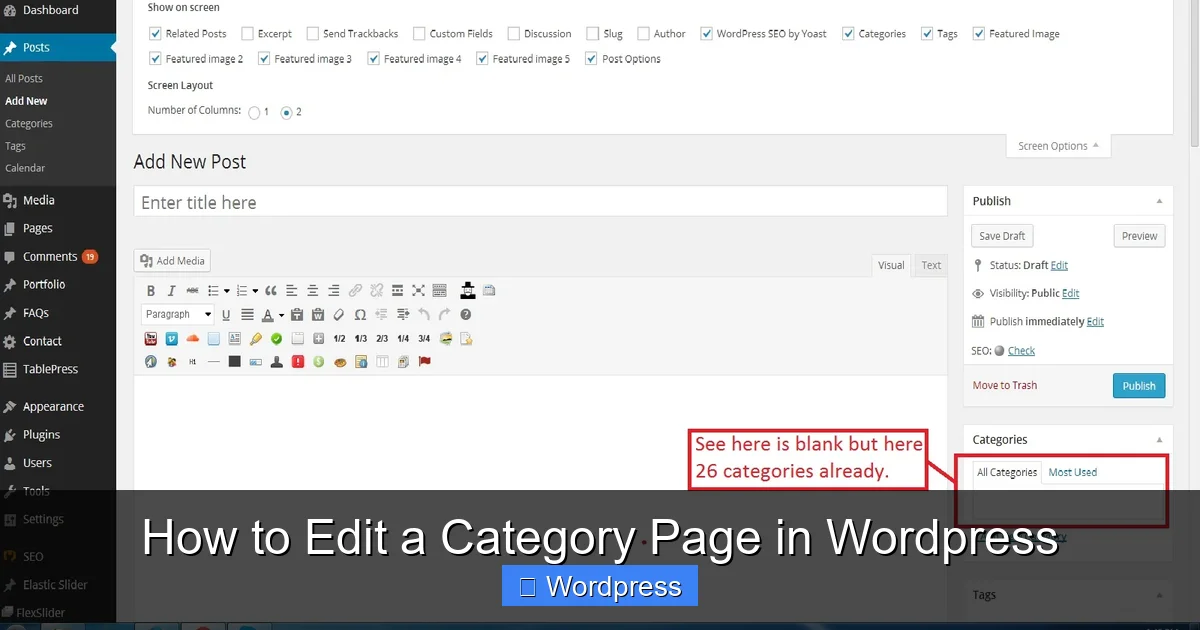
Visual guide about How to Edit a Category Page in WordPress
Image source: i.stack.imgur.com
The title and description appear at the top of your category page and are important for both users and search engines.
Find the Category to Edit
On the Categories page, hover over the category name and click Edit. Alternatively, click the category name to open its edit screen.
Update the Name and Description
Change the Name if needed—this becomes the page title. In the Description field, write a short summary of what the category covers. For example:
“Explore the latest tips and tutorials on WordPress themes, plugins, and website optimization.”
Save Your Changes
Click Update to save. The new description will appear on the category page if your theme supports it.
Tip: Not all themes display category descriptions by default. If yours doesn’t, check your theme settings or consider using a plugin or custom code (we’ll cover this later).
Step 3: Customize the Category Page Layout
Now that the basics are set, let’s improve the layout. The method depends on your theme and tools.
Check Your Theme’s Built-in Options
Many themes, like Astra, GeneratePress, or Kadence, offer customization options for archive pages (which include categories).
Go to Appearance > Customize and look for sections like Blog, Archives, or Category Layout. Here, you can:
– Change the number of posts per page
– Switch between grid and list layouts
– Show or hide post meta (date, author, etc.)
– Adjust image sizes
For example, in the Astra theme, you can set a custom layout for category pages under Customize > Blog > Blog / Archive.
Use a Page Builder (Recommended for Full Control)
If you want complete design freedom, use a page builder like Elementor, Beaver Builder, or Divi.
With Elementor Pro, you can create custom archive templates:
1. Go to Templates > Theme Builder > Archive
2. Click Add New and select “Archive”
3. Choose “Category” as the condition
4. Design your layout using drag-and-drop widgets
5. Save and publish
This method lets you add custom headers, featured images, call-to-action buttons, and more—all without touching code.
Note: If you’re using a free version of Elementor, you may need a plugin like Elementor Header & Footer Builder to edit archive templates.
Step 4: Add Custom CSS for Styling
Sometimes, you need to tweak the look beyond what themes or builders offer. That’s where custom CSS comes in.
Access the Customizer
Go to Appearance > Customize > Additional CSS. This safe space lets you add CSS that won’t be lost during updates.
Target Category Pages
WordPress adds specific CSS classes to category pages. For example, a category called “Tips” might have a body class like category-tips.
Use this to style only that page:
.category-tips .page-title {
  color: #2a5bd7;
  font-size: 2.5rem;
}
.category-tips .post {
  border-left: 4px solid #2a5bd7;
  padding-left: 15px;
}
You can also style all category pages:
.category .page-title {
  text-align: center;
  margin-bottom: 30px;
}
Use a Child Theme for Advanced Changes
If you’re comfortable with code, create a child theme to safely override template files. This is ideal for developers or advanced users.
For example, copy archive.php from your parent theme to your child theme, rename it category.php, and modify the layout.
Learn more about child themes and why they’re important for safe customization in our detailed guide: What Is a Child Theme in WordPress?
Step 5: Improve SEO and User Experience
A well-edited category page isn’t just pretty—it’s also optimized for search engines and readers.
Write Unique Descriptions
Avoid duplicate content by writing a unique description for each category. Include relevant keywords naturally, like “WordPress tutorials” or “blog design tips.”
Add Breadcrumbs
Breadcrumbs help users navigate and improve SEO. Many SEO plugins like Yoast or Rank Math include this feature. Enable it in the plugin settings.
Optimize Images and Load Speed
Large images slow down category pages. Use compressed images and lazy loading. Plugins like Smush or ShortPixel can help.
Include Internal Links
Link to related categories or popular posts within your description or sidebar. This keeps visitors on your site longer.
Troubleshooting Common Issues
Even with careful editing, problems can arise. Here’s how to fix the most common ones.
Category Description Not Showing
If your description doesn’t appear, your theme might not support it. Solutions:
– Use a plugin like Category Description Editor
– Add this code to your theme’s functions.php (use a child theme):
add_filter( 'category_description', 'do_shortcode' );
– Or use a page builder to manually add the description
Changes Not Saving
Clear your browser cache and WordPress cache (if using a plugin like WP Super Cache). Also, check for plugin conflicts by disabling plugins one by one.
Layout Looks Broken on Mobile
Use responsive design principles. In page builders, preview your design on mobile and tablet views. Adjust padding, font sizes, and image widths as needed.
Category Page Shows 404 Error
This usually happens after changing permalink settings. Go to Settings > Permalinks and click Save Changes to refresh the rewrite rules.
For more help with WordPress errors, check out our guide on 404 Error in WordPress.
Conclusion: Make Your Category Pages Shine
Editing a category page in WordPress doesn’t have to be complicated. With the right tools and techniques, you can transform a basic archive into a visually appealing, user-friendly section of your site.
Start with simple changes like updating titles and descriptions. Then, explore your theme’s options or use a page builder for advanced layouts. Don’t forget to style with CSS and optimize for SEO.
Remember, every change should enhance the user experience. Test your edits on different devices, monitor traffic, and keep improving. Your category pages are gateways to your content—make them count!
And if you’re using a custom theme or need to update it safely, always use a child theme when updating your WordPress theme to avoid losing your customizations.