Editing titles in WordPress is essential for content organization and SEO. This guide walks you through changing post and page titles directly in the editor, customizing SEO titles via plugins, and troubleshooting common issues—all in simple, actionable steps.
Key Takeaways
- Edit titles directly in the editor: Whether using the Block Editor or Classic Editor, you can change a post or page title with just a few clicks.
- SEO titles are different from display titles: Use plugins like Yoast SEO or Rank Math to customize how your title appears in search results.
- Permalinks update automatically: Changing a title usually updates the URL slug, but you can manually adjust it if needed.
- Child themes preserve customizations: If you modify theme files to alter title behavior, use a child theme to avoid losing changes during updates.
- Troubleshoot missing titles: If a title doesn’t appear, check theme settings, plugin conflicts, or template files.
- Bulk editing saves time: Use Quick Edit or plugins to update multiple titles at once.
- Always preview before publishing: Ensure your title looks good on both desktop and mobile devices.
How to Edit Title in WordPress: A Complete Step-by-Step Guide
Whether you’re updating a blog post, refining a product page, or improving your site’s SEO, knowing how to edit title in WordPress is a fundamental skill. Titles are more than just labels—they influence click-through rates, search engine rankings, and user experience. In this guide, you’ll learn how to change titles for posts and pages, customize SEO titles, manage permalinks, and troubleshoot common issues—all using built-in tools and popular plugins.
This guide covers both the Block Editor (Gutenberg) and the Classic Editor, so no matter which interface you use, you’ll find clear, actionable steps. We’ll also touch on best practices for writing effective titles and how to maintain consistency across your site.
Editing Titles in the WordPress Block Editor
The Block Editor, introduced in WordPress 5.0, is now the default editing interface. It offers a clean, intuitive way to manage your content—including titles.
Step 1: Open the Post or Page
Log in to your WordPress dashboard. Navigate to Posts > All Posts or Pages > All Pages. Find the content you want to edit and click on its title or the “Edit” link.
Step 2: Locate the Title Field
At the top of the editor, you’ll see a large text field labeled “Add title.” This is where your post or page title appears. Simply click inside it and type your new title.
Step 3: Update the Permalink (Optional)
Below the title, you’ll see the permalink—the URL for your page. WordPress automatically generates this based on your title, but you can edit it. Click the “Edit” button next to the URL, change the slug, and click “OK.” For example, changing “How to Edit Title in WordPress” to “edit-wordpress-title” shortens the URL.
Step 4: Save or Publish
Once you’ve edited the title, click “Update” (for existing content) or “Publish” (for new content). Your changes will go live immediately.
Pro Tip: Use the Document Panel
On the right-hand side of the Block Editor, open the “Document” tab. Here, you’ll find additional settings like categories, tags, and featured images. While the title isn’t editable here, this panel helps you manage related metadata that supports your title’s effectiveness.
Editing Titles in the Classic Editor
If you’re using the Classic Editor (via a plugin or older WordPress version), the process is similar but slightly different.
Visual guide about How to Edit Title in WordPress
Image source: brandglowup.com
Step 1: Access the Editor
Go to Posts > All Posts or Pages > All Pages and click “Edit” under the content you want to modify.
Step 2: Change the Title
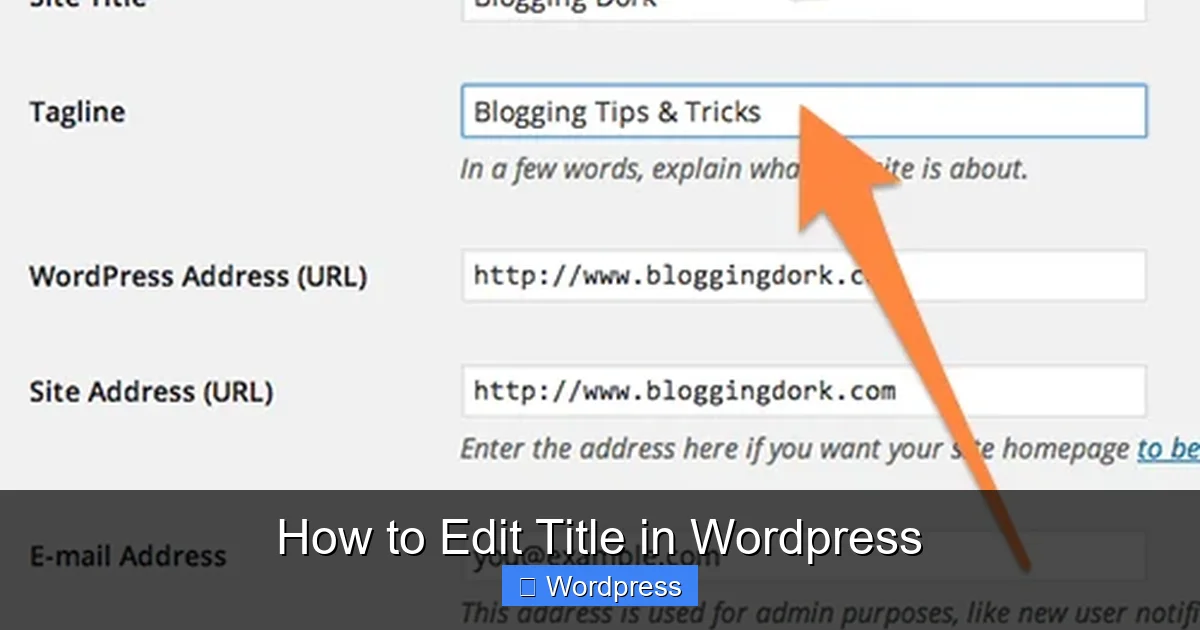
The title field appears at the top of the editing screen, just below the admin bar. Click inside it and type your new title.
Step 3: Adjust the Slug
Below the title, you’ll see a “Permalink” section. Click “Edit” to change the URL slug. Make sure it’s concise and includes relevant keywords.
Step 4: Save Changes
Click “Update” to save your changes. The new title will appear on your site right away.
Bonus: Use Quick Edit for Faster Updates
On the “All Posts” or “All Pages” screen, hover over a title and click “Quick Edit.” You can change the title and slug without opening the full editor—perfect for minor updates or bulk changes.
Customizing SEO Titles with Plugins
The title you see in the WordPress editor isn’t always the one that appears in Google search results. SEO plugins let you create custom titles optimized for search engines.
Visual guide about How to Edit Title in WordPress
Image source: mkscdn-9b59.kxcdn.com
Using Yoast SEO
Yoast SEO is one of the most popular SEO plugins. Here’s how to use it to edit your SEO title:
- Open a post or page in the editor.
- Scroll down to the Yoast SEO meta box (usually below the content area).
- Click on the “Edit snippet” button.
- In the “SEO Title” field, enter a custom title (up to 60 characters recommended).
- Add focus keywords and preview how it will look in search results.
- Click “Save” and update the post.
Using Rank Math
Rank Math offers similar functionality with a more modern interface:
- Edit your post or page.
- Find the Rank Math meta box (usually on the right or bottom).
- Click “Edit Snippet” and enter your desired SEO title.
- Use the red/yellow/green indicator to ensure optimal length and keyword usage.
- Save and publish.
Why Use SEO Titles?
SEO titles can differ from your page title to better match search intent. For example, your page might be titled “Best Coffee Makers 2024,” but your SEO title could be “Top 10 Coffee Makers of 2024 – Buyer’s Guide | YourSite.com” to include keywords and branding.
Editing Titles in Bulk
If you need to update multiple titles at once, WordPress offers built-in tools and plugins to help.
Using Quick Edit
On the “All Posts” screen, hover over any post and click “Quick Edit.” You can change the title and slug for that post without opening it. Repeat for other posts as needed.
Using Plugins for Advanced Bulk Editing
For more control, consider plugins like Bulk Page Creator or WP Sheet Editor. These allow you to edit titles, slugs, and other fields in a spreadsheet-like interface. You can filter by category, tag, or date, then make changes in bulk—saving hours of manual work.
Troubleshooting Common Title Issues
Sometimes, editing a title doesn’t work as expected. Here are common problems and solutions.
Title Doesn’t Update on the Frontend
If your title change doesn’t appear on the live site:
- Clear your browser cache and WordPress cache (if using a caching plugin).
- Check if a plugin or theme is overriding the title. Disable plugins one by one to identify conflicts.
- Ensure you clicked “Update” or “Publish” after editing.
Title Appears Twice
This usually happens when your theme displays the title automatically and you’ve added it again in the content. To fix:
- Edit your theme’s template files (e.g.,
single.phporpage.php). - Look for duplicate
<h1>tags and remove one. - Use a child theme to avoid losing changes during updates.
SEO Title Not Showing in Search Results
If your custom SEO title isn’t appearing in Google:
- Ensure your SEO plugin is active and properly configured.
- Check that the title isn’t too long (Google typically displays up to 60 characters).
- Resubmit your sitemap to Google Search Console.
- Wait a few days—search engines may take time to re-crawl your page.
Permalink Not Updating After Title Change
WordPress usually updates the slug when you change the title. If it doesn’t:
- Manually edit the slug in the editor.
- Go to Settings > Permalinks and click “Save Changes” to refresh rewrite rules.
- Use a plugin like Permalink Manager for advanced control.
Best Practices for Writing Effective Titles
Editing a title is more than just changing text—it’s about communication and strategy.
- Keep it clear and concise: Aim for 50–60 characters for SEO titles.
- Include keywords: Place important keywords near the beginning.
- Be specific: Instead of “Tips,” use “10 Time-Saving WordPress Tips for Beginners.”
- Use numbers and lists: Titles like “7 Ways to…” often perform better.
- Avoid clickbait: Be honest and accurate to build trust.
- Test and refine: Use tools like Google Search Console to see which titles get more clicks.
Conclusion
Knowing how to edit title in WordPress gives you greater control over your content’s visibility and impact. Whether you’re tweaking a blog post title, optimizing for SEO, or fixing a display issue, the process is straightforward once you understand the tools. Use the Block or Classic Editor for basic changes, leverage SEO plugins for search engine optimization, and always test your results.
Remember, your title is often the first thing users and search engines see. Make it count. With the steps in this guide, you’re well-equipped to create titles that attract clicks, improve rankings, and reflect your content’s value.