This guide shows you how to edit WordPress theme free using the Customizer, Theme Editor, and child themes. You’ll learn safe, beginner-friendly methods to customize colors, fonts, layouts, and more—without breaking your site.
Key Takeaways
- Use the WordPress Customizer: Easily change colors, fonts, and layouts in real time without touching code.
- Edit with a Child Theme: Safely modify theme files without losing changes during updates.
- Add Custom CSS: Style your site using the built-in Additional CSS tool for quick design tweaks.
- Avoid Direct Theme File Edits: Never edit parent theme files directly—always use a child theme to prevent data loss.
- Backup Before Editing: Always create a backup before making changes to avoid irreversible mistakes.
- Leverage Built-in Tools: WordPress offers free, powerful editing options—no need for premium plugins.
- Test Changes First: Use a staging site or preview mode to test edits before going live.
How to Edit WordPress Theme Free: A Complete Beginner’s Guide
Want to personalize your WordPress website but don’t want to spend money on premium themes or developers? You’re in the right place. In this guide, you’ll learn how to edit WordPress theme free using tools that come built into WordPress itself. Whether you’re tweaking colors, adjusting layouts, or adding custom code, these methods are safe, effective, and completely free.
We’ll walk you through step-by-step instructions using the WordPress Customizer, the Theme Editor, and child themes—so you can customize your site without risking crashes or losing your work during updates. By the end, you’ll have the confidence to make your WordPress site truly yours.
Why Edit Your WordPress Theme?
Your WordPress theme controls how your site looks and feels. While many free themes look great out of the box, they often lack the unique touches that make your brand stand out. Editing your theme lets you:

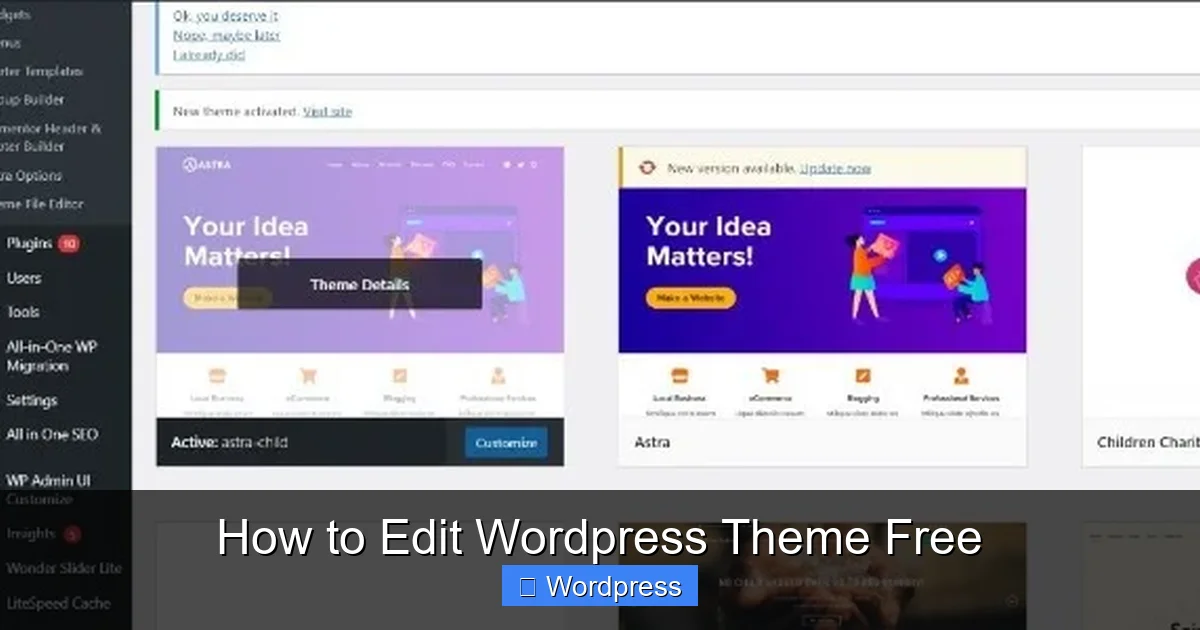
Visual guide about How to Edit WordPress Theme Free
Image source: images01.nicepagecdn.com
- Match your site’s design to your brand colors and fonts
- Improve user experience with better navigation or layout
- Add custom features like buttons, banners, or spacing
- Optimize for speed and mobile responsiveness
The best part? You don’t need to be a developer or pay for expensive tools. WordPress gives you everything you need—right in your dashboard.
Method 1: Use the WordPress Customizer (Easiest & Safest)
The WordPress Customizer is the simplest way to edit your theme. It lets you see changes in real time before publishing them. Here’s how to use it:
Step 1: Access the Customizer
Log in to your WordPress dashboard. Go to Appearance > Customize. This opens the live preview editor.
Step 2: Explore Available Options
Depending on your theme, you’ll see sections like:
- Site Identity: Change your site title, tagline, and logo.
- Colors: Adjust background, text, and accent colors.
- Typography: Change font styles and sizes (if supported by your theme).
- Header & Footer: Modify layout, add widgets, or upload a new header image.
- Menus: Create or rearrange navigation menus.
- Widgets: Add or remove content blocks in sidebars or footers.
Step 3: Make Changes and Publish
Click any setting, make your change, and watch it update in the preview. When you’re happy, click Publish to save.
Pro Tip: If you’re using a theme like Astra, GeneratePress, or Kadence, you’ll get even more customization options—many of which are free.
Method 2: Add Custom CSS (For Styling Tweaks)
Want to change something the Customizer doesn’t allow? Use Custom CSS. This lets you override default styles without editing theme files.
Visual guide about How to Edit WordPress Theme Free
Image source: talkerscode.com
Step 1: Open the Additional CSS Panel
In the Customizer, scroll down and click Additional CSS. This opens a code editor.
Step 2: Write Your CSS
Add CSS rules to style elements. For example:
/* Change button color */
.button, .wp-block-button__link {
  background-color: #0073aa;
  color: white;
}

/* Increase font size on headings */
h1, h2, h3 {
  font-size: 28px;
}
Use your browser’s inspector tool (right-click > Inspect) to find the class or ID of the element you want to style.
Step 3: Save and Preview
Click Publish to apply your CSS. Changes appear instantly on your live site.
Note: This method is safe because it doesn’t alter theme files. Even if you update your theme, your CSS stays intact.
Method 3: Use a Child Theme (For Advanced Edits)
If you need to edit PHP, HTML, or template files, always use a child theme. Editing the parent theme directly is risky—updates will erase your changes.
Step 1: Create a Child Theme
You can create one manually or use a plugin like Child Theme Configurator or One-Click Child Theme.
For manual creation:
- Create a new folder in
/wp-content/themes/(e.g.,mytheme-child). - Add a
style.cssfile with this header:/* Theme Name: MyTheme Child Template: mytheme */
- Add a
functions.phpfile to enqueue parent styles:
Step 2: Activate the Child Theme
Go to Appearance > Themes, find your child theme, and click Activate.
Step 3: Edit Files Safely
Now you can copy any file from the parent theme (like header.php or footer.php) into your child theme folder and edit it. WordPress will use the child version instead.
Example: To change the footer credit, copy footer.php to your child theme, open it, and edit the text.
For more details, check out our guide on what is a child theme in WordPress.
Method 4: Use the Theme Editor (Use with Caution)
WordPress includes a built-in Theme Editor under Appearance > Theme File Editor. While convenient, it’s risky—one typo can break your site.
When to Use It
Only use the Theme Editor if:
- You’re comfortable with PHP, HTML, or CSS
- You’ve created a backup
- You’re editing a child theme (not the parent)
How to Access It
Go to Appearance > Theme File Editor. Select your child theme from the dropdown. Choose a file (e.g., functions.php) and make changes.
Warning: If you see a red warning about “Fatal error,” your site may be down. Always have a backup and consider using a staging site first.
Troubleshooting Common Issues
My Site Crashed After Editing
If you edited a theme file and your site shows a white screen or error:
- Access your site via FTP or file manager.
- Navigate to
/wp-content/themes/and rename your child theme folder (e.g., tomytheme-child-broken). - WordPress will revert to the default theme, restoring access.
- Fix the error in the file and reactivate the child theme.
Changes Aren’t Showing Up
If your edits don’t appear:
- Clear your browser cache and WordPress cache (if using a plugin like WP Super Cache).
- Ensure you’re editing the correct file in the child theme.
- Check for CSS specificity issues—use more specific selectors if needed.
Theme Update Removed My Changes
This happens when you edit the parent theme directly. Always use a child theme to preserve customizations. For more, read our article on how to update theme on WordPress safely.
Best Practices for Editing WordPress Themes
- Always backup your site before making changes. Use plugins like UpdraftPlus or your hosting provider’s backup tool.
- Use a staging site for major edits. Many hosts offer one-click staging environments.
- Test on mobile—ensure your changes look good on all devices.
- Keep code clean—comment your CSS and PHP so you remember what each part does.
- Update regularly—keep your theme, plugins, and WordPress core updated for security and compatibility.
Conclusion
Editing your WordPress theme doesn’t have to be complicated or expensive. With the tools built into WordPress—like the Customizer, Additional CSS, and child themes—you can safely and freely customize your site to match your vision.
Start with the Customizer for quick visual changes, use CSS for styling tweaks, and switch to a child theme when you need deeper control. Always backup your work and test changes before going live.
Now that you know how to edit WordPress theme free, you’re ready to create a site that’s uniquely yours—without spending a dime.