JavaScript errors in WordPress can break your site’s functionality and hurt user experience. This guide walks you through diagnosing and fixing common JS issues using safe, proven methods—no coding expertise required.
Key Takeaways
- Identify the error source: Use browser developer tools to locate JavaScript errors quickly.
- Deactivate plugins safely: Temporarily disable plugins one by one to find conflicts causing JS issues.
- Switch to a default theme: Test with Twenty Twenty-Four or another default theme to rule out theme-related problems.
- Clear cache regularly: Cached files can hide or worsen JavaScript errors—always clear browser and plugin caches.
- Check for outdated components: Update WordPress core, themes, and plugins to prevent compatibility-related JS bugs.
- Use a child theme: Avoid losing custom JavaScript when updating your parent theme by using a child theme.
- Restore from backup if needed: If all else fails, revert to a recent backup before the error appeared.
Introduction: Why JavaScript Errors Break Your WordPress Site
JavaScript powers interactive features on your WordPress site—from sliders and contact forms to navigation menus and pop-ups. When JavaScript errors occur, these elements may stop working, pages might load incorrectly, or your site could become completely unusable. The good news? Most JavaScript errors in WordPress are fixable with a few systematic steps—even if you’re not a developer.
In this guide, you’ll learn how to identify, isolate, and resolve JavaScript errors in WordPress safely and efficiently. We’ll cover everything from using built-in browser tools to troubleshooting plugin and theme conflicts. By the end, you’ll have a clear action plan to restore your site’s functionality without risking data loss.
Step 1: Identify the JavaScript Error
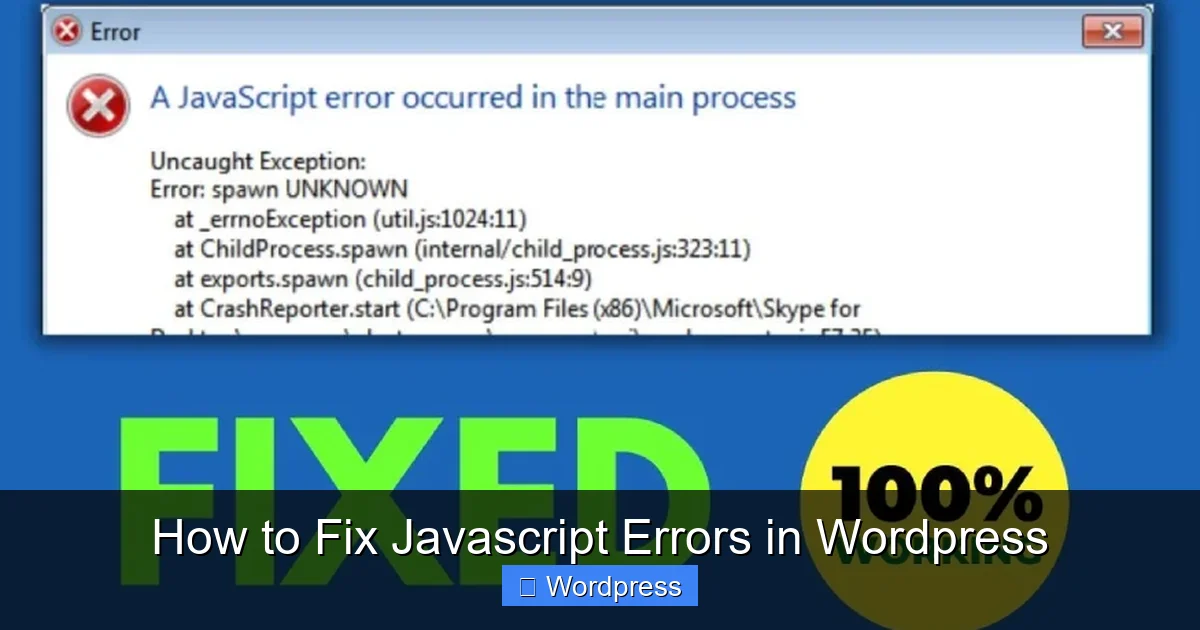
Visual guide about How to Fix Javascript Errors in WordPress
Image source: sadesign.ai
Before fixing anything, you need to know exactly what’s broken. Modern browsers include powerful developer tools that show JavaScript errors in real time.
Open Browser Developer Tools
On your affected WordPress site, right-click anywhere on the page and select “Inspect” or press Ctrl+Shift+I (Windows) or Cmd+Option+I (Mac). This opens the developer console.
Check the Console Tab
Click the “Console” tab. Look for red error messages labeled “JavaScript” or “Uncaught TypeError.” These messages often include:
– The file where the error occurred (e.g., `script.js:45`)
– A description like “Cannot read property ‘value’ of null”
– The line number causing the issue
Tip: Reload the page while the console is open to see errors as they happen.
Note the Error Details
Write down or screenshot the error message, file name, and line number. This info will help you trace whether the issue comes from a plugin, theme, or custom code.
Step 2: Deactivate Plugins to Find Conflicts
Plugins are the most common cause of JavaScript errors in WordPress. A poorly coded or outdated plugin can inject broken scripts that clash with other parts of your site.
Access Your WordPress Dashboard
Log in to your WordPress admin area (`yoursite.com/wp-admin`).
Deactivate All Plugins Temporarily
Go to Plugins > Installed Plugins. Use the bulk selector to deactivate all plugins at once. Then, reload your site and check if the JavaScript error is gone.
Reactivate Plugins One by One
If the error disappears, reactivate plugins one at a time. After each activation, refresh your site and check the browser console. When the error returns, you’ve found the culprit.
Pro Tip: Keep a list of active plugins so you can restore your setup easily. If a plugin is causing issues, check for updates or consider replacing it with a better-maintained alternative.
Step 3: Switch to a Default WordPress Theme
Your active theme might be loading incompatible or broken JavaScript files—especially if it’s heavily customized or outdated.
Temporarily Change Your Theme
Go to Appearance > Themes. Activate a default WordPress theme like Twenty Twenty-Four or Twenty Twenty-Three. These themes are well-coded and updated regularly.
Test Your Site
Visit your site frontend and check the browser console again. If the JavaScript error is gone, the problem lies in your original theme.
What to Do Next
– If you’re using a premium theme, check for updates under Appearance > Themes or the theme provider’s dashboard.
– Avoid editing theme files directly—use a child theme to safely add custom JavaScript.
– Consider reinstalling the theme if updates don’t help. You can learn how to do this safely in our guide on how to update a WordPress theme.
Step 4: Clear All Caches
Cached versions of your site might still contain the broken JavaScript, even after you’ve fixed the source.
Clear Browser Cache
Press Ctrl+F5 (Windows) or Cmd+Shift+R (Mac) to hard-refresh your page and bypass cached files.
Clear Plugin and Server Caches
If you use caching plugins like WP Super Cache, W3 Total Cache, or LiteSpeed Cache, go to their settings and click “Clear Cache.” Also, check with your hosting provider—many offer server-level caching that needs clearing too.
Note: Some hosts (like SiteGround or Bluehost) have one-click cache purge options in their control panels.
Step 5: Update Everything
Outdated software is a breeding ground for JavaScript conflicts.
Update WordPress Core
Go to Dashboard > Updates. If a new version of WordPress is available, click “Update Now.” Always backup your site first.
Update Themes and Plugins
Under the same Updates screen, update all installed themes and plugins. Pay special attention to anything you recently installed or haven’t updated in months.
Check for PHP Compatibility
Some JavaScript errors stem from PHP version mismatches. Ensure your hosting runs a supported PHP version (7.4 or higher recommended). You can usually change this in your hosting control panel.
Step 6: Check for Custom JavaScript Errors
If you’ve added custom JavaScript via theme files, plugins, or the WordPress Customizer, it might contain syntax errors.
Review Custom Code
Go to Appearance > Customize > Additional CSS/JS (if your theme supports it) or check your child theme’s `functions.php` or custom JS files.
Validate Your Code
Use free online tools like JSHint or ESLint to check for syntax errors. Even a missing semicolon or bracket can break your entire script.
Disable Custom Scripts Temporarily
Comment out or remove custom JavaScript snippets one by one to isolate the problematic code.
Troubleshooting Common Scenarios
Error Persists After All Steps?
If you’ve tried everything and the error remains:
– Restore your site from a backup taken before the issue started.
– Contact your theme or plugin developer with the exact error message.
– Consider hiring a WordPress developer for complex cases.
White Screen or Admin Login Issues?
If JavaScript errors prevent you from accessing the WordPress dashboard:
– Use FTP or your hosting file manager to rename the `plugins` folder to `plugins-old`. This deactivates all plugins.
– Rename your active theme folder to force WordPress to fall back to a default theme.
Mobile-Specific JavaScript Errors?
Some scripts only fail on mobile devices. Test using Chrome’s device toolbar (in Developer Tools) or visit your site from a real mobile device.
Conclusion: Prevent Future JavaScript Errors
JavaScript errors in WordPress are frustrating but rarely permanent. By following this guide—starting with error identification, then isolating plugins and themes, clearing caches, and updating software—you’ll resolve most issues quickly and safely.
To minimize future problems:
– Only install trusted, well-reviewed plugins and themes.
– Always use a child theme for customizations.
– Keep regular backups.
– Test changes on a staging site first.
With these practices, your WordPress site will stay fast, functional, and error-free.