PHP errors in WordPress can break your site, but they’re fixable with the right steps. This guide walks you through identifying, diagnosing, and resolving common PHP errors like syntax issues, memory limits, and plugin conflicts—without needing to be a developer.
Key Takeaways
- Enable debugging mode: Turn on WP_DEBUG in wp-config.php to see detailed error messages instead of a blank screen.
- Check for plugin or theme conflicts: Deactivate all plugins and switch to a default theme like Twenty Twenty-Four to isolate the issue.
- Increase PHP memory limit: Many errors occur due to insufficient memory—edit wp-config.php to raise the limit.
- Review recent changes: Errors often follow updates or new installations—revert recent plugins, themes, or code edits.
- Restore from backup: If all else fails, use a recent backup to restore your site to a working state.
- Keep WordPress updated: Outdated core files, themes, or plugins are a leading cause of PHP compatibility errors.
- Use safe file editing practices: Always use FTP or your host’s file manager—never edit core files directly from the WordPress dashboard.
How to Fix PHP Errors in WordPress
If your WordPress site suddenly shows a white screen, an error message, or stops loading, you’re likely dealing with a PHP error. Don’t panic—these issues are common and usually fixable with a few targeted steps. Whether you’re a beginner or a seasoned site owner, this guide will help you diagnose and resolve PHP errors safely and efficiently.
In this guide, you’ll learn how to identify the type of PHP error, enable debugging, troubleshoot plugins and themes, adjust server settings, and restore your site if needed. We’ll keep things simple, practical, and jargon-free so you can get your site back online fast.
Step 1: Enable WordPress Debugging Mode
Visual guide about How to Fix Php Errors WordPress
Image source: d1n6ada7dv8xub.cloudfront.net
The first step in fixing any PHP error is seeing what’s actually going wrong. By default, WordPress hides error details to protect users—but that makes troubleshooting harder. Enabling debug mode reveals the exact error message, file path, and line number causing the issue.
How to Turn On Debug Mode
1. Access your website files using FTP, SFTP, or your hosting control panel’s file manager (like cPanel).
2. Locate the wp-config.php file in your WordPress root directory.
3. Open it in a text editor (like Notepad++ or VS Code).
4. Find the line that says:
define('WP_DEBUG', false);
5. Change it to:
define('WP_DEBUG', true);
6. Save the file and re-upload it if using FTP.
Now, reload your website. Instead of a blank screen, you should see a detailed error message like:
“Parse error: syntax error, unexpected ‘}’ in /home/yoursite/wp-content/plugins/example-plugin/file.php on line 45”
This tells you exactly where the problem is. Once you’ve fixed the issue, remember to set WP_DEBUG back to false for security.
Step 2: Identify the Type of PHP Error
Visual guide about How to Fix Php Errors WordPress
Image source: fiverr-res.cloudinary.com
Not all PHP errors are the same. Understanding the type helps you choose the right fix.
Common PHP Error Types
- Parse/Syntax Errors: Caused by missing semicolons, brackets, or typos in code. Usually found in custom code or poorly coded plugins.
- Fatal Errors: Occur when WordPress can’t load a required file or function. Often due to incompatible plugins or themes.
- Memory Exhausted Errors: Happen when a script uses more memory than allowed. Common with image-heavy sites or poorly optimized plugins.
- Deprecated Function Warnings: Appear when old PHP functions are used. Usually harmless but indicate outdated code.
For example, a “Allowed memory size exhausted” error means you need to increase your PHP memory limit—not fix a syntax issue.
Step 3: Deactivate Plugins and Themes
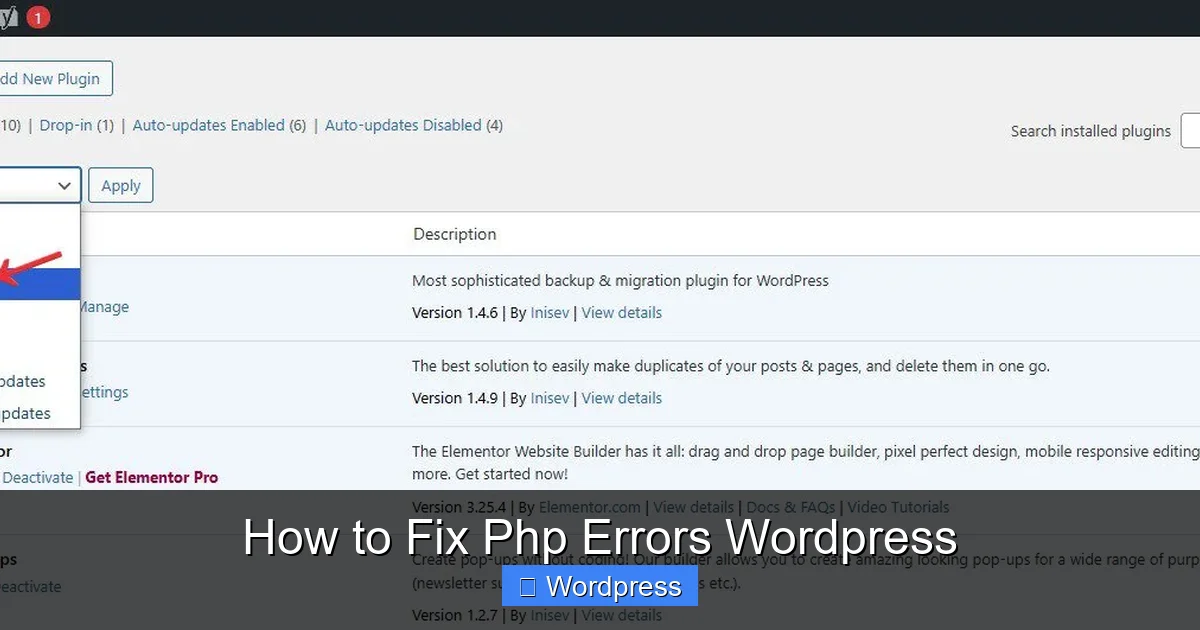
Most PHP errors are caused by plugins or themes. A recent update, new installation, or compatibility issue can break your site.
How to Deactivate Plugins via FTP
If your site is down and you can’t access the WordPress dashboard:
1. Use FTP to navigate to /wp-content/plugins/.
2. Rename the plugin folder (e.g., change “woocommerce” to “woocommerce-old”).
3. Reload your site. If it works, the plugin was the culprit.
4. Reactivate plugins one by one to find the problematic one.
Switch to a Default Theme
If plugins aren’t the issue, your theme might be. To test:
1. Go to /wp-content/themes/.
2. Rename your current theme folder (e.g., “mytheme” to “mytheme-backup”).
3. WordPress will automatically fall back to a default theme like Twenty Twenty-Four.
If your site loads, the theme is causing the error. You can then deactivate the problematic theme and switch to a stable alternative.
Step 4: Increase PHP Memory Limit
WordPress recommends at least 64MB of PHP memory, but complex sites often need 128MB or more.
How to Raise the Memory Limit
Add this line to your wp-config.php file, just above the “That’s all, stop editing!” comment:
define('WP_MEMORY_LIMIT', '256M');
This sets the memory limit to 256MB. If the error persists, your hosting provider may have a lower server limit. Contact them to increase it, or check your hosting control panel (like cPanel) for PHP settings.
Step 5: Check for Recent Changes
PHP errors often appear after you’ve made changes. Think back:
– Did you install a new plugin or theme?
– Did you update WordPress, a plugin, or your theme?
– Did you edit any code (like functions.php)?
If you recently updated a theme, learn how to safely update themes without breaking your site. Rolling back to a previous version of the plugin or theme may fix the issue.
How to Restore a Previous Version
1. Download the older version from the plugin/theme developer’s site.
2. Delete the current version via FTP.
3. Upload and activate the older version.
Always backup before making changes.
Step 6: Restore from a Backup
If you’re stuck and can’t identify the cause, restoring from a backup is the safest option.
Steps to Restore Your Site
1. Use your hosting provider’s backup tool (many offer one-click restores).
2. Or, use a backup plugin like UpdraftPlus if you have access.
3. Restore both files and the database to a point before the error occurred.
After restoring, avoid making the same changes until you’ve tested them on a staging site.
Step 7: Prevent Future PHP Errors
Once your site is fixed, take steps to avoid repeat issues.
Best Practices
- Keep everything updated: Regularly update WordPress, plugins, and themes. Outdated code is a major cause of PHP errors.
- Use trusted plugins and themes: Only install software from reputable sources like WordPress.org or well-reviewed developers.
- Test changes on a staging site: Never update or modify your live site without testing first.
- Limit the number of plugins: Too many plugins increase the risk of conflicts. Learn how many plugins are safe to use.
- Monitor error logs: Use plugins like Query Monitor or enable server error logging to catch issues early.
Troubleshooting Tips
– If you see a “White Screen of Death,” it’s often a memory or fatal error. Enable debugging first.
– If your site loads but shows warnings, they may not break functionality—but should still be fixed.
– Never edit core WordPress files. Use child themes for customizations.
– If you’re unsure, contact your hosting support—they can check server logs and PHP versions.
Conclusion
PHP errors in WordPress can be frustrating, but they’re rarely permanent. By enabling debugging, isolating plugins and themes, adjusting memory limits, and restoring from backups, you can resolve most issues quickly. The key is to stay calm, work methodically, and always backup before making changes.
Remember: prevention is better than cure. Keep your site updated, use reliable tools, and test changes safely. With these steps, you’ll be able to fix PHP errors like a pro—and keep your WordPress site running smoothly.