
This guide walks you through how to install a WordPress theme in cPanel using the File Manager. You’ll learn to upload, extract, and activate themes safely—even if you’re not tech-savvy. Perfect for beginners who want full control over their site’s design.
Key Takeaways
- Use cPanel File Manager: No FTP needed—install themes directly from your hosting dashboard.
- Upload .zip files only: WordPress requires theme files in compressed format for manual uploads.
- Extract files correctly: Always unzip themes into the /wp-content/themes/ folder to avoid errors.
- Activate after upload: Themes won’t appear in WordPress until you activate them via the dashboard.
- Backup first: Always backup your site before installing new themes to prevent data loss.
- Check compatibility: Ensure your theme supports your WordPress version to avoid conflicts.
- Troubleshoot common issues: Missing styles? White screen? We’ve got fixes for frequent problems.
Introduction: Why Install a WordPress Theme via cPanel?
So you’ve got a fresh WordPress site—or maybe you’re ready for a redesign—and you’ve found the perfect theme. But instead of using the built-in WordPress theme installer, you want (or need) to upload it manually through cPanel. Maybe your host restricts plugin installations, or the theme isn’t available in the official directory. Whatever the reason, installing a WordPress theme in cPanel gives you more control and flexibility.
In this guide, we’ll show you exactly how to install a WordPress theme in cPanel—step by step—using the File Manager tool. No coding, no confusion. Just clear, beginner-friendly instructions that work on nearly every shared hosting plan. By the end, you’ll have your new theme uploaded, extracted, and ready to activate.
Prerequisites: What You’ll Need
Before we start, make sure you have:
- Access to cPanel: Your hosting provider should give you login details (usually at yourdomain.com/cpanel).
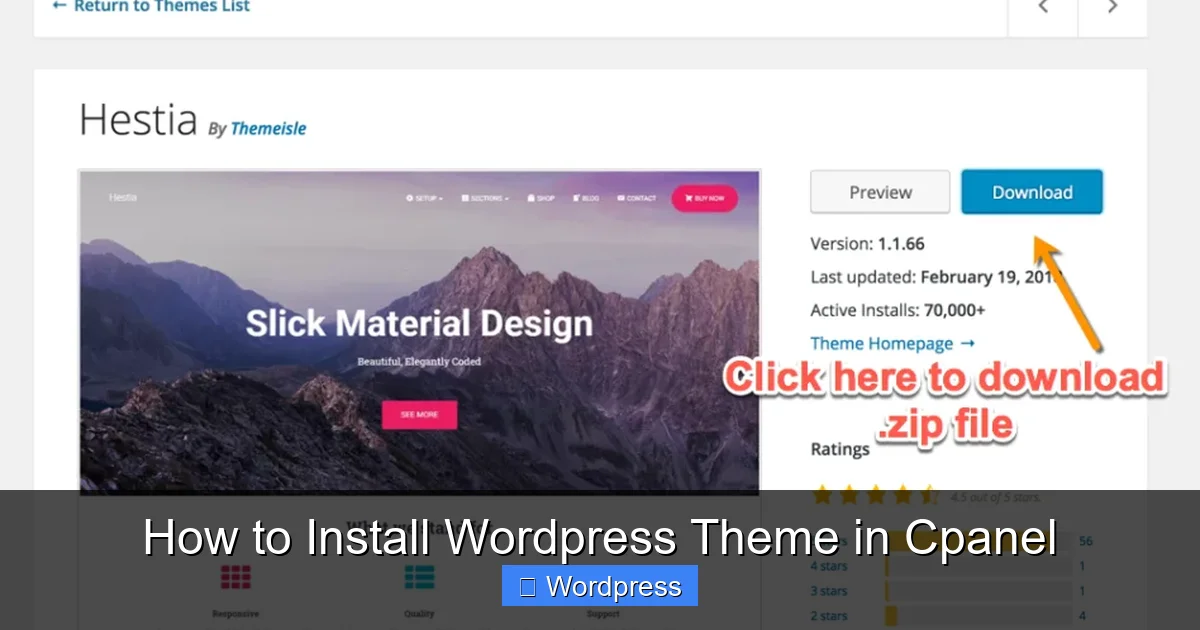
- A WordPress theme .zip file: Download it from a trusted source like ThemeForest, Elegant Themes, or the official WordPress repository.
- Your WordPress admin login: You’ll need this to activate the theme later.
- A backup of your site: Always play it safe! Use a plugin like UpdraftPlus or your host’s backup tool.
> 💡 Pro Tip: If you’re unsure where to get quality themes, check out our guide on the best WordPress theme for SEO and speed for performance-tested recommendations.
Step 1: Log Into Your cPanel Dashboard

Visual guide about How to Install WordPress Theme in Cpanel
Image source: indowp.id
Open your web browser and go to your cPanel login page—typically `https://yourdomain.com/cpanel` or a custom URL provided by your host (like `cpanel.yourhost.com`). Enter your username and password.
Once logged in, you’ll see a dashboard with icons for email, files, databases, and more. Look for the “File Manager” icon—it’s usually under the “Files” section. Click it.
Important Settings in File Manager
A popup may appear asking which directory to open. Choose “Web Root (public_html/www)” and check the box for “Show Hidden Files (dotfiles)”. This ensures you can see all necessary folders, including WordPress core files.
Click “Go” to enter the File Manager.
Step 2: Navigate to the WordPress Themes Folder
Visual guide about How to Install WordPress Theme in Cpanel
Image source: shoutmeloud.com
Inside File Manager, you’ll see your site’s root directory (usually `public_html`). Double-click to open it, then locate and open the `wp-content` folder.
Inside `wp-content`, find and open the `themes` folder. This is where all your WordPress themes live—including the default ones like Twenty Twenty-Four.
> ⚠️ Warning: Never upload theme files directly into `wp-content` or `public_html`. They must go inside `/wp-content/themes/` or WordPress won’t recognize them.
Step 3: Upload Your Theme .zip File
With the `themes` folder open, click the “Upload” button at the top of the File Manager toolbar.
A new window will appear. Click “Choose File” (or “Browse”) and select your theme’s `.zip` file from your computer. Wait for the upload to complete—this may take a few seconds to minutes, depending on file size.
Once done, you’ll see the `.zip` file listed in the `themes` folder (e.g., `my-awesome-theme.zip`).
Why Not Extract on Your Computer?
Some users extract the `.zip` file locally before uploading. Don’t do this! WordPress expects the theme folder structure to match exactly what’s inside the zip. Uploading the zip and extracting it server-side preserves the correct directory hierarchy.
Step 4: Extract the Theme Files
Now, right-click on your uploaded `.zip` file and select “Extract” from the menu.
A dialog box will ask where to extract the files. Make sure the path ends with `/wp-content/themes/` (it should by default). Click “Extract Files”.
After extraction, you’ll see a new folder with your theme’s name (e.g., `my-awesome-theme`). Inside it should be files like `style.css`, `functions.php`, and folders like `assets` or `templates`.
> ✅ Success Check: Open the extracted folder and confirm it contains a `style.css` file with theme metadata at the top (like “Theme Name:”). If it’s missing, the upload failed or the zip was corrupted.
Step 5: Activate the Theme in WordPress
Now that your theme is in place, it’s time to activate it—but not from cPanel. Head over to your WordPress admin dashboard (`yourdomain.com/wp-admin`).
Go to Appearance > Themes. You should now see your newly uploaded theme in the list. Hover over it and click “Activate”.
Your site will instantly switch to the new theme! Visit your homepage to see the changes.
> 🎨 Customize It: Most themes come with customization options. Go to Appearance > Customize to tweak colors, fonts, layouts, and more.
Troubleshooting Common Issues
Even with careful steps, things can go wrong. Here’s how to fix the most common problems:
“The package could not be installed. The theme is missing the style.css stylesheet.”
This means WordPress can’t find the main stylesheet. Usually, it’s because:
– The zip file contained an extra folder layer (e.g., `theme-name/theme-name/files`).
– You extracted the zip incorrectly.
Solution: Delete the extracted folder in cPanel, re-upload the original `.zip`, and extract again. Ensure the top-level folder inside the zip contains `style.css` directly.
White Screen or “Internal Server Error” After Activation
This often happens if the theme has compatibility issues or missing dependencies.
Solution:
1. Go back to cPanel File Manager.
2. Rename the theme folder (e.g., add `_old` to the end).
3. WordPress will revert to the default theme (like Twenty Twenty-Four).
4. Check the theme’s documentation or contact the developer.
> 🔗 Need to remove a problematic theme? See our guide on how to delete a theme in WordPress for safe removal steps.
Theme Appears But Looks Broken
Missing images, broken layouts, or unstyled text? This usually means:
– The theme requires plugins (like Elementor or WooCommerce).
– Permalinks aren’t set correctly.
Solution:
– Install required plugins (check the theme docs).
– Go to Settings > Permalinks in WordPress and click “Save Changes” to refresh rewrite rules.
Best Practices for Theme Installation
To keep your site secure and stable:
- Always backup first: Use a plugin or your host’s tool before making changes.
- Use child themes for customizations: Avoid editing theme files directly. Learn why in our article: What Is a Child Theme in WordPress?
- Update regularly: Outdated themes can cause security risks. See how to update a theme on WordPress safely.
- Test on a staging site: If your host offers staging, try new themes there first.
Conclusion
Installing a WordPress theme in cPanel might seem intimidating at first, but it’s actually straightforward once you know the steps. By using File Manager to upload and extract your theme—then activating it through WordPress—you gain full control over your site’s design without relying on third-party installers.
Remember: always backup, verify file structure, and test thoroughly. And if you ever need to switch back, deactivating or deleting themes is just as easy (check out our guide on how to deactivate a theme in WordPress for quick tips).
Now go ahead—give your site the fresh look it deserves!