This guide walks you through how to install a WordPress theme via FTP safely and efficiently. You’ll learn to connect to your site, upload theme files, and activate your new design—even if it’s a custom or third-party theme.
Key Takeaways
- FTP is essential for custom themes: Not all themes can be installed via the WordPress dashboard—FTP gives you full control.
- Always back up first: Prevent data loss by backing up your site before making changes.
- Use reliable FTP clients: Tools like FileZilla make connecting and uploading files simple and secure.
- Upload to the correct folder: Themes must go in
/wp-content/themes/to be recognized by WordPress. - Activate after upload: Once uploaded, activate your theme from the WordPress admin panel.
- Check for errors: If your site breaks, use FTP to rename or remove the theme folder and restore functionality.
- Keep themes updated: Learn how to upgrade WordPress themes safely to avoid compatibility issues.
Introduction: Why Install a WordPress Theme via FTP?
Installing a WordPress theme via FTP is a powerful method that gives you full control over your website’s design—especially when dealing with custom, premium, or third-party themes not available in the official WordPress theme directory. While the WordPress dashboard offers a convenient “Upload Theme” option, it has file size limits and may fail with larger themes. FTP bypasses these restrictions and is often the only way to install themes downloaded from external sources.
In this guide, you’ll learn how to install a WordPress theme via FTP step by step. Whether you’re a beginner or an experienced user, we’ll cover everything from setting up your FTP client to activating your new theme safely. By the end, you’ll be able to confidently upload and manage themes without relying on the dashboard.
What You’ll Need Before Starting
Visual guide about How to Install WordPress Theme via Ftp
Image source: d33v4339jhl8k0.cloudfront.net
Before diving in, make sure you have the following:
- FTP credentials: Hostname (usually your domain), username, password, and port (typically 21 for FTP or 22 for SFTP).
- An FTP client: We recommend FileZilla (free and user-friendly).
- The theme ZIP file: Downloaded from a trusted source (e.g., ThemeForest, Elegant Themes, or a developer).
- A backup of your site: Use a plugin like UpdraftPlus or your hosting provider’s backup tool.
> 💡 Pro Tip: Always back up your website before installing a new theme. If something goes wrong, you can restore your site quickly.
Step 1: Extract the Theme ZIP File
Visual guide about How to Install WordPress Theme via Ftp
Image source: wpastra.com
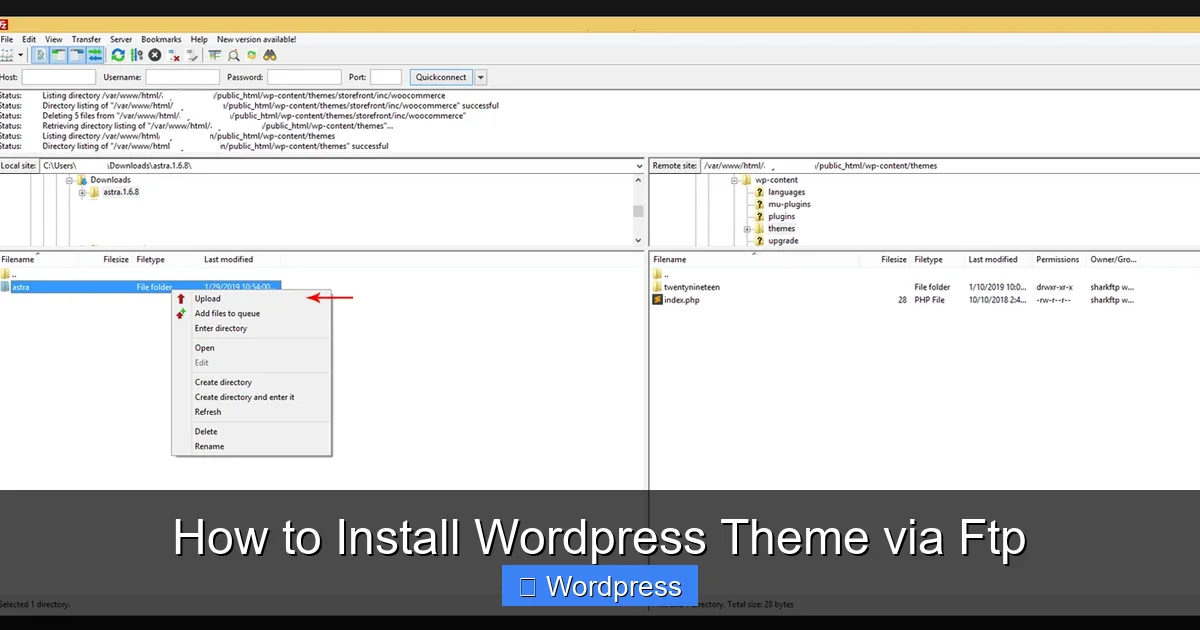
Most WordPress themes come in a compressed ZIP format. You’ll need to extract it before uploading.
How to Extract the Theme
- Locate the downloaded theme ZIP file on your computer (e.g.,
my-theme.zip). - Right-click the file and select “Extract All” (Windows) or double-click (Mac).
- Choose a destination folder and extract the contents.
After extraction, you should see a folder named after the theme (e.g., my-theme). Inside, you’ll find files like style.css, functions.php, and template files.
> ⚠️ Important: Do not upload the ZIP file directly via FTP. WordPress won’t recognize it. Always upload the extracted folder.
Step 2: Connect to Your Website via FTP
Visual guide about How to Install WordPress Theme via Ftp
Image source: wpthinker.com
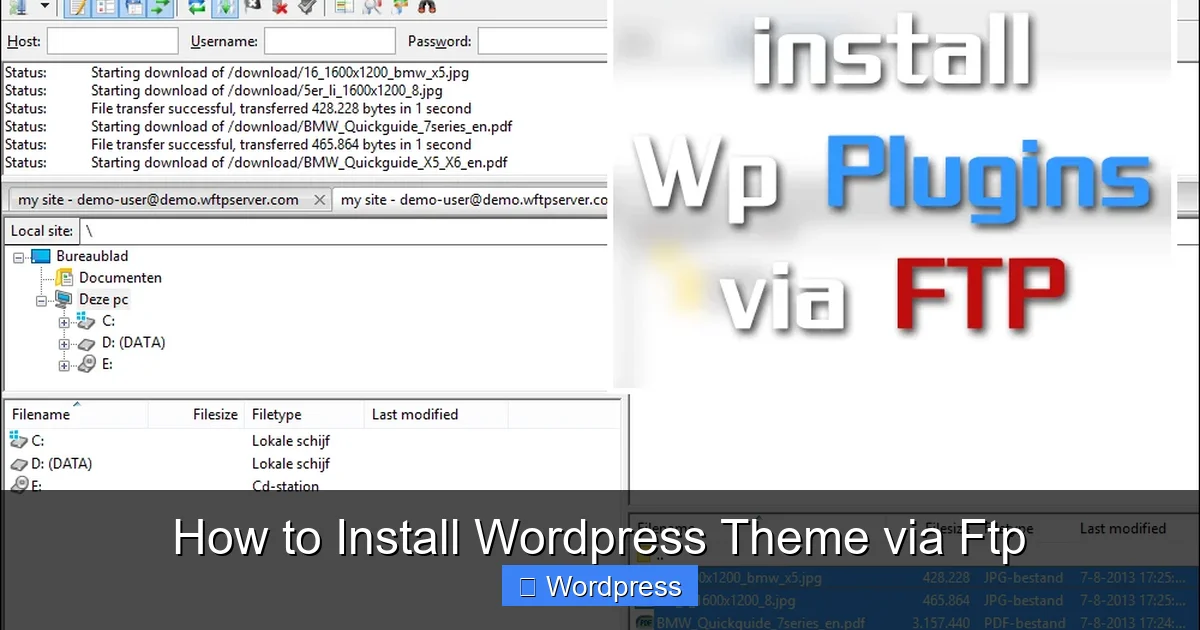
Now it’s time to connect to your website’s server using your FTP client.
Open Your FTP Client
- Launch FileZilla (or your preferred FTP client).
- Go to File > Site Manager (or click the “New Site” button).
- Enter the following details:
- Host: Your domain name (e.g.,
ftp.yoursite.comoryoursite.com). - Protocol: Choose “FTP” or “SFTP” (SFTP is more secure).
- Logon Type: “Normal”.
- User: Your FTP username.
- Password: Your FTP password.
- Host: Your domain name (e.g.,
- Click “Connect”.
Once connected, you’ll see two panels:
- Left panel: Your local computer files.
- Right panel: Your website’s server files.
Navigate to the Themes Folder
In the right panel (server side), go to:
public_html > wp-content > themes
This is where all WordPress themes are stored. You should see folders for your current themes (e.g., twentytwentyfour, astra).
Step 3: Upload the Theme Folder
Now it’s time to upload your new theme.
Upload the Extracted Theme
- In the left panel (your computer), navigate to the folder where you extracted the theme.
- Select the entire theme folder (e.g.,
my-theme). - Drag and drop it into the
themesfolder on the right panel (server side). - Wait for the upload to complete. This may take a few minutes depending on the theme size.
> ✅ Success Check: Once uploaded, you should see the new theme folder in the themes directory on the server.
Step 4: Activate the Theme in WordPress
Uploading the theme makes it available, but you still need to activate it.
Log in to Your WordPress Dashboard
- Go to
yoursite.com/wp-adminand log in. - Navigate to Appearance > Themes.
- You should now see your newly uploaded theme in the list.
- Click “Activate” to apply it to your site.
Your website will now use the new theme. Visit your homepage to see the changes.
> 🎨 Customization Tip: After activation, go to Appearance > Customize to adjust colors, fonts, layouts, and other settings.
Troubleshooting Common Issues
Even with careful steps, issues can arise. Here’s how to fix the most common problems.
White Screen of Death (WSOD)
If your site shows a blank white screen after activating the theme:
- This usually means a PHP error in the theme.
- Use FTP to rename the theme folder (e.g., from
my-themetomy-theme-old). - WordPress will revert to the default theme (e.g., Twenty Twenty-Four).
- Contact the theme developer for support or check the error logs.
Theme Not Appearing in Dashboard
If the theme doesn’t show up in Appearance > Themes:
- Double-check that you uploaded the correct folder to
/wp-content/themes/. - Ensure the folder contains a valid
style.cssfile with proper headers. - Verify file permissions (folders should be 755, files 644).
Missing Styles or Broken Layout
If the theme looks broken:
- Clear your browser cache and WordPress cache (if using a plugin).
- Check if required plugins are installed (some themes need plugins like Elementor or WooCommerce).
- Review the theme documentation for setup instructions.
> 🔧 Need to Remove a Theme? Learn how to delete a theme in WordPress safely via FTP or the dashboard.
Best Practices for Managing WordPress Themes
To keep your site secure and running smoothly, follow these best practices:
- Only use trusted themes: Download from reputable sources to avoid malware.
- Keep themes updated: Regularly check for updates to fix bugs and security issues. Learn how to upgrade WordPress themes safely.
- Use child themes for customization: If you modify a theme, use a child theme to preserve changes during updates. Read what is a child theme in WordPress for details.
- Deactivate unused themes: Remove or deactivate themes you’re not using to reduce security risks. See how to deactivate a theme in WordPress.
- Test on a staging site first: If possible, install and test new themes on a copy of your site before going live.
Conclusion: You’ve Successfully Installed Your Theme!
Congratulations! You’ve just learned how to install a WordPress theme via FTP—a skill that gives you greater flexibility and control over your website’s design. Whether you’re using a premium theme, a custom build, or a third-party download, FTP ensures a reliable installation process.
Remember to always back up your site, use secure connections (SFTP), and keep your themes updated. If you ever run into issues, FTP also gives you the power to fix problems quickly—like renaming or removing faulty themes.
Now that your new theme is active, take time to customize it, optimize for speed and SEO, and enjoy your refreshed website. For more tips, check out our guide on the best WordPress theme for SEO and speed.
Happy theming!