This guide walks you through how to login to your WordPress dashboard using the correct URL, username, and password. You’ll also learn how to fix common login issues and secure your admin area.
Key Takeaways
- Know your login URL: Most WordPress sites use /wp-admin or /wp-login.php after your domain.
- Use correct credentials: Your username and password are case-sensitive—double-check before logging in.
- Bookmark the login page: Save your dashboard URL for quick access in the future.
- Enable two-factor authentication: Add an extra layer of security to protect your account.
- Clear browser cache if needed: Sometimes old data prevents successful login—clearing cache helps.
- Reset password securely: Use the “Lost your password?” link if you forget your login details.
- Check for plugin conflicts: Deactivate plugins if you can’t access the dashboard after updates.
How to Login to Your WordPress Dashboard
Welcome! If you’re new to WordPress or just need a refresher, this guide will show you exactly how to login to your WordPress dashboard—the control center where you manage your website. Whether you’re updating content, installing plugins, or changing themes, accessing your dashboard is the first step. Don’t worry—it’s simple, and we’ll walk you through every part.
In this guide, you’ll learn the standard login process, alternative methods, and how to solve common problems. By the end, you’ll be able to access your WordPress admin area confidently and securely.
Step 1: Find Your WordPress Login URL
Every WordPress website has a default login page. The most common URLs are:
- yourwebsite.com/wp-admin
- yourwebsite.com/wp-login.php
Simply replace “yourwebsite.com” with your actual domain name. For example, if your site is exampleblog.com, your login page would be:
exampleblog.com/wp-admin
or
exampleblog.com/wp-login.php
Most hosting providers and WordPress installations use one of these two paths. Try both if you’re unsure.
Custom Login URLs (Advanced Users)
Some websites use security plugins like Wordfence or iThemes Security to change the default login URL. This helps prevent brute-force attacks. If your site uses a custom login page, the URL might look like:
- yourwebsite.com/login
- yourwebsite.com/admin-access
- yourwebsite.com/secure-login
If you’ve set up a custom login URL, use that instead. If you forgot it, check your security plugin settings or contact your site administrator.
Step 2: Enter Your Username and Password
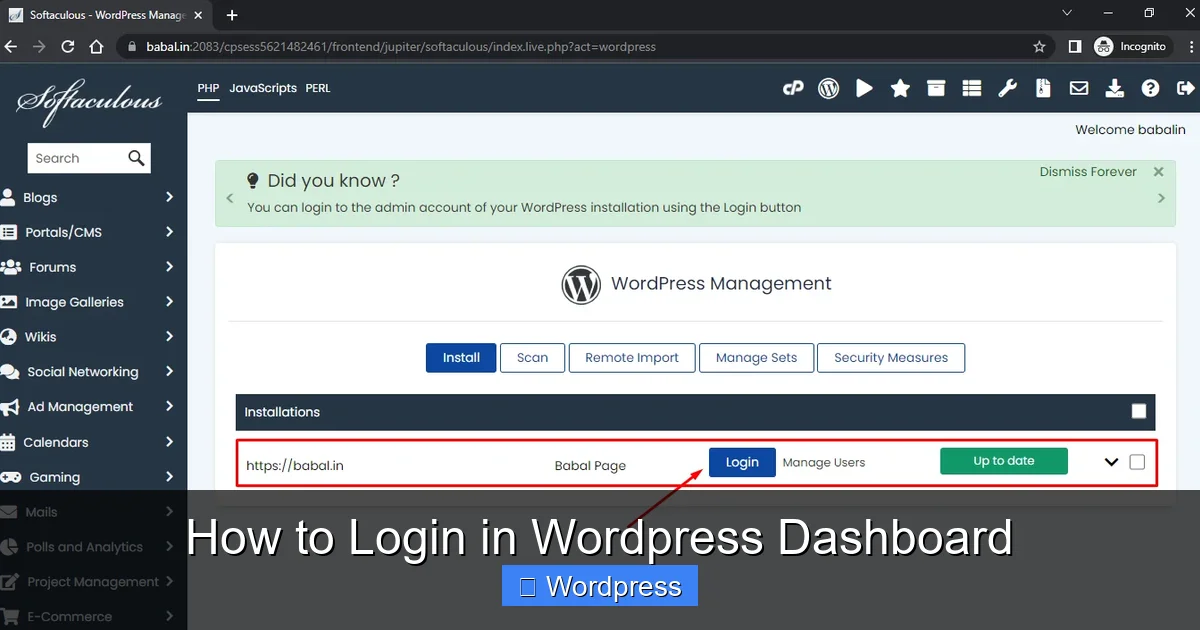
Visual guide about How to Login in WordPress Dashboard
Image source: babal.host
Once you’re on the login page, you’ll see a form with two fields:
- Username or Email
- Password
Enter your credentials exactly as they were created. Remember:
- Usernames and passwords are case-sensitive.
- Spaces or typos will prevent login.
- If you used an email address during setup, you can use that instead of your username.
After filling in the fields, click the “Log In” button.
Example Login Form
Imagine your username is “admin” and your password is “SecurePass123!”. You would type:
- Username: admin
- Password: SecurePass123!
Then click “Log In.” If correct, you’ll be redirected to your WordPress dashboard.
Step 3: Access Your WordPress Dashboard
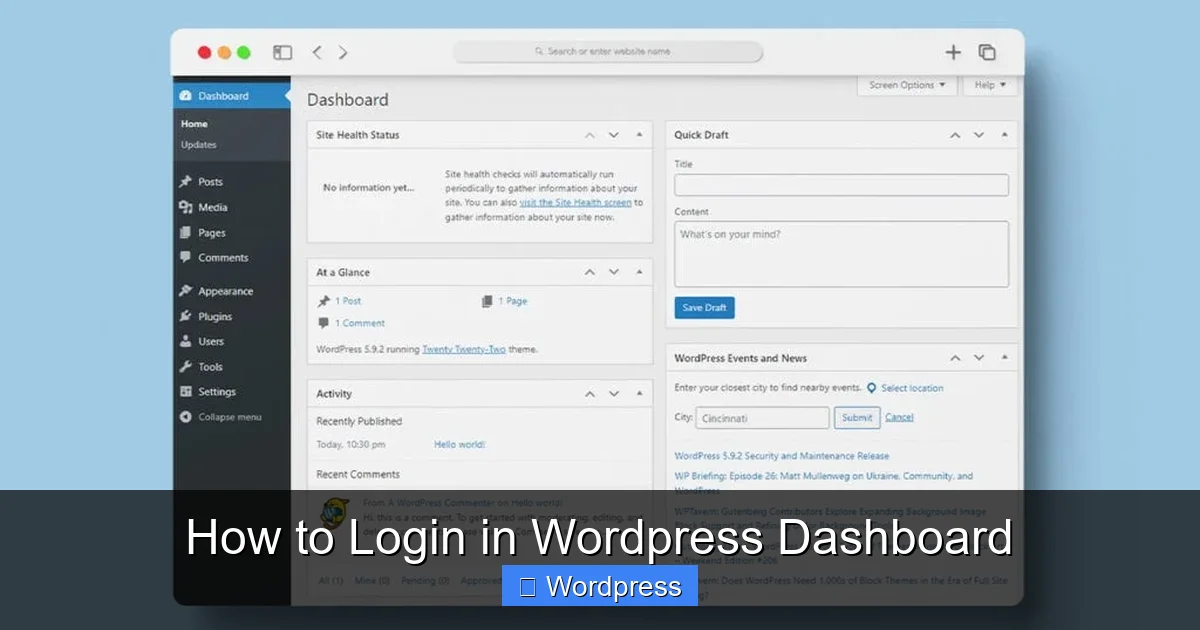
Visual guide about How to Login in WordPress Dashboard
Image source: gloriathemes.com
After a successful login, you’ll land on the WordPress dashboard. This is your website’s control panel. Here, you can:
- Write and publish posts
- Manage pages and media
- Install or update plugins and themes
- Adjust site settings
- View comments and analytics
The dashboard layout may vary slightly depending on your theme or installed plugins, but the core sections remain consistent.
Customizing Your Dashboard (Optional)
You can personalize your dashboard by:
- Hiding unused widgets
- Changing the color scheme under Users > Profile
- Adding custom dashboard widgets via plugins
This helps streamline your workflow, especially if you manage multiple sites.
Step 4: Bookmark Your Login Page
To save time in the future, bookmark your login page in your browser. Here’s how:
- After logging in, go back to the login URL (e.g., yoursite.com/wp-admin)
- Press Ctrl+D (Windows) or Cmd+D (Mac)
- Name it something like “My WordPress Admin” and save it
Now you can access your dashboard with one click—no need to remember the URL each time.
Troubleshooting Common Login Issues
Sometimes, logging in doesn’t go as planned. Here are solutions to the most common problems.
Forgot Your Password?
If you can’t remember your password, click the “Lost your password?” link on the login page. You’ll be asked to enter your username or email address. WordPress will send a password reset link to your registered email.
Follow the instructions in the email to create a new password. Make sure to use a strong, unique password.
“Error Establishing a Database Connection”
This error means WordPress can’t connect to your database. It’s not a login issue per se, but it prevents access to the dashboard. Common causes include:
- Incorrect database credentials in wp-config.php
- Database server is down
- Corrupted database
Contact your hosting provider or check your database settings. If you’re comfortable with code, verify the DB_NAME, DB_USER, DB_PASSWORD, and DB_HOST values in your wp-config.php file.
“Invalid Username or Password”
Double-check your credentials. If you’re sure they’re correct, try:
- Resetting your password
- Logging in from a different browser or device
- Clearing your browser cache and cookies
Sometimes cached data interferes with login forms.
Locked Out Due to Failed Login Attempts
Security plugins may lock your account after multiple failed login attempts. Wait a few minutes and try again. If the lock persists, you may need to:
- Disable the security plugin via FTP
- Contact your hosting support
- Use phpMyAdmin to reset the lock in the database
Only attempt advanced fixes if you’re experienced or have help.
White Screen or 404 Error on Login Page
If you see a blank white screen or a 404 error when trying to access /wp-admin, it could be due to:
- A corrupted .htaccess file
- A plugin or theme conflict
- Incorrect file permissions
Try renaming your plugins folder via FTP to disable all plugins temporarily. If that fixes it, reactivate them one by one to find the culprit. You may also want to check out our guide on 404 errors in WordPress for more detailed troubleshooting.
Securing Your WordPress Login
Your login page is a prime target for hackers. Protect it with these best practices:
Use Strong Passwords
Avoid common passwords like “password123” or “admin”. Use a mix of uppercase, lowercase, numbers, and symbols. Consider using a password manager.
Enable Two-Factor Authentication (2FA)
Add an extra layer of security with 2FA. Plugins like Google Authenticator or Wordfence let you require a code from your phone during login.
Limit Login Attempts
Install a plugin like Limit Login Attempts Reloaded to block IP addresses after several failed logins.
Change the Default Login URL
As mentioned earlier, changing /wp-admin to something unique reduces brute-force attacks. Use a security plugin to do this safely.
Keep WordPress Updated
Always update WordPress core, themes, and plugins. Outdated software can have security vulnerabilities. For help with themes, see our guide on how to update themes on WordPress.
Alternative Ways to Access the Dashboard
If the standard login isn’t working, try these alternatives:
Via Hosting Control Panel
Many hosts like Bluehost, SiteGround, or HostGator offer one-click WordPress login from their control panel. Log in to your hosting account, find your WordPress site, and click “Log in to WordPress.”
Using WP-CLI (Advanced)
If you have SSH access, you can use WP-CLI to reset passwords or manage users. For example:
wp user update admin --user_pass=NewPassword123
This is useful for developers or advanced users.
Through phpMyAdmin
You can reset your password directly in the database using phpMyAdmin. Locate the wp_users table, find your user, and update the user_pass field with a new MD5 hash. However, this method is risky—only use it if other options fail.
Conclusion
Logging into your WordPress dashboard is a fundamental skill for managing your website. Whether you’re publishing content, updating designs, or installing plugins, knowing how to login to your WordPress dashboard ensures you’re always in control.
Remember to use the correct URL, enter accurate credentials, and keep your login secure. Bookmark your admin page, enable two-factor authentication, and don’t hesitate to reset your password if needed.
If you run into issues, most problems have simple fixes—clear your cache, check for plugin conflicts, or contact support. And if you’re managing themes, be sure to follow best practices like using child themes in WordPress to avoid losing customizations during updates.
With this guide, you’re ready to access and manage your WordPress site like a pro. Happy blogging!