Adding a call button to your WordPress site helps visitors contact you instantly—especially on mobile devices. This guide walks you through simple methods using plugins, custom HTML, and popular page builders like Elementor.
Key Takeaways
- Call buttons improve user experience by making it easy for visitors to reach you with one tap.
- You can add a call button without coding using plugins like WP Call Button or Elementor.
- HTML anchor tags with tel: links are the foundation of functional call buttons.
- Mobile responsiveness is crucial—test your button on phones and tablets.
- Place call buttons strategically in headers, footers, or floating positions for maximum visibility.
- Customize styling with CSS to match your site’s design and branding.
- Troubleshoot common issues like broken links or plugin conflicts quickly.
Why Add a Call Button to Your WordPress Site?
Imagine a potential customer browsing your services on their phone. They’re ready to call—but hunting for your number in the menu is frustrating. A call button solves this instantly. It’s a clickable element that opens the device’s phone app when tapped, dialing your number automatically.
Call buttons are especially valuable for local businesses, service providers, and anyone relying on phone inquiries. According to Google, over 60% of mobile users have contacted a business directly from search results. By adding a call button to your WordPress site, you remove friction and boost conversions.
In this guide, you’ll learn three proven methods to add a call button: using a plugin, writing simple HTML, or leveraging Elementor. Each method suits different skill levels—so pick the one that fits you best.
Method 1: Using a WordPress Plugin (Easiest Option)
If you prefer a no-code solution, plugins are your best friend. They handle the technical work and often include extra features like floating buttons, analytics, and scheduling.
Visual guide about How to Make a Call Button on WordPress
Image source: rafflepress.com
Step 1: Install a Call Button Plugin
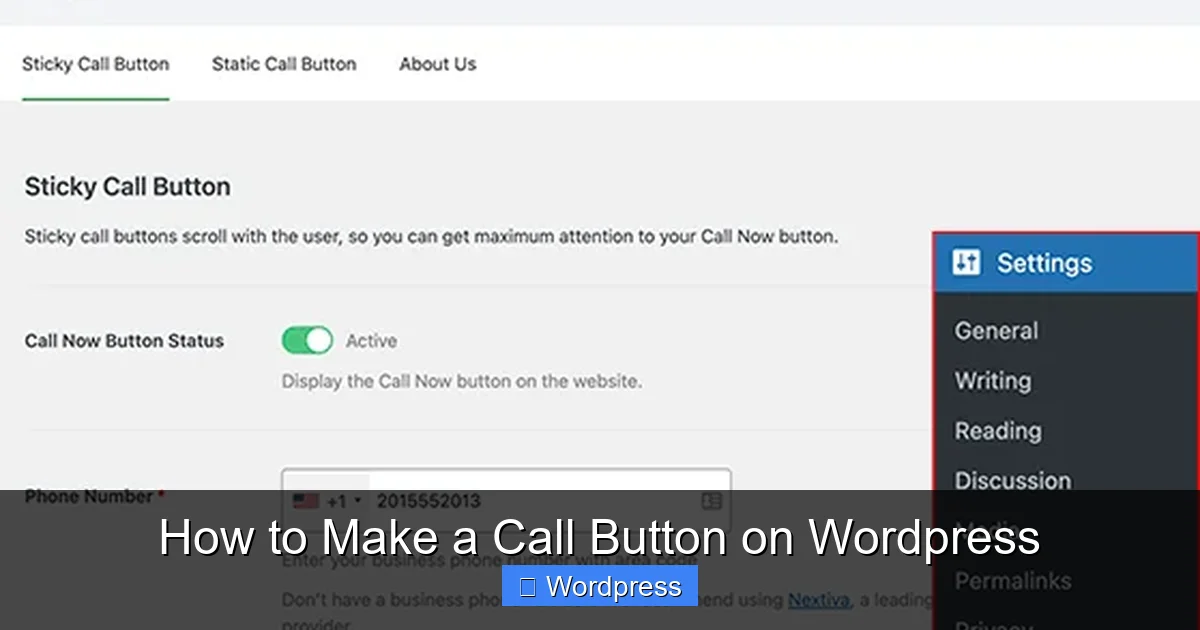
Go to your WordPress dashboard. Navigate to Plugins > Add New. Search for “WP Call Button” or “Click to Call Button.” We recommend WP Call Button—it’s free, lightweight, and highly rated.
Click Install Now, then Activate.
Step 2: Configure the Button Settings
After activation, go to Settings > WP Call Button. Here, you’ll set:
- Phone Number: Enter your full number with country code (e.g., +1234567890).
- Button Text: Use “Call Now” or “Call Us.”
- Position: Choose floating (bottom-right), header, or footer placement.
- Visibility: Show on all pages or select specific ones.
You can also customize colors, size, and animation. Preview changes in real time.
Step 3: Save and Test
Click Save Changes. Visit your site on a mobile device and tap the button. It should open your phone app with the number pre-filled.
Pro Tip: Use a plugin like WP Call Button if you want advanced features like call tracking or time-based display (e.g., hide after business hours).
Method 2: Adding a Call Button with HTML (Manual Method)
No plugin? No problem. You can create a call button using basic HTML. This method gives you full control and avoids plugin bloat.
Visual guide about How to Make a Call Button on WordPress
Image source: wordpressinfo.com
Step 1: Use the Correct HTML Code
The key is the tel: protocol. Here’s a simple example:
<a href="tel:+1234567890" class="call-button">Call Now</a>Replace +1234567890 with your actual number. The class="call-button" lets you style it later.
Step 2: Add the Button to Your Site
You can insert this code in several places:
- In a Page or Post: Use the WordPress block editor. Add a Custom HTML block and paste the code.
- In a Widget: Go to Appearance > Widgets. Add a Text or Custom HTML widget to your header, footer, or sidebar.
- In Your Theme Files: For advanced users, edit
header.phporfooter.phpvia Appearance > Theme File Editor. Always use a child theme to avoid losing changes during updates.
For example, to add it to your header, place the code inside the <header> tag.
Step 3: Style the Button with CSS
A plain link doesn’t look like a button. Add CSS to make it stand out. Go to Appearance > Customize > Additional CSS and paste:
.call-button {
  background-color: #28a745;
  color: white;
  padding: 12px 24px;
  border-radius: 50px;
  text-decoration: none;
  font-weight: bold;
  display: inline-block;
}
.call-button:hover {
  background-color: #218838;
}
This creates a green, rounded button that changes color on hover. Adjust colors to match your brand.
Pro Tip: Use position: fixed; and bottom: 20px; right: 20px; to make it float on mobile screens.
Method 3: Using Elementor (For Page Builders)
If you use Elementor, adding a call button is visual and intuitive. This method is perfect for custom layouts.
Step 1: Edit Your Page with Elementor
Go to the page where you want the button. Click Edit with Elementor.
Step 2: Add a Button Widget
Drag a Button widget from the panel onto your canvas. Click it to open settings.
Step 3: Set the Link to a Phone Number
In the Link field, type tel:+1234567890 (replace with your number). Change the button text to “Call Now.”
Step 4: Style and Position the Button
Use Elementor’s design tools to adjust:
- Colors: Background, text, and hover states.
- Size: Padding, font size, and border radius.
- Position: Use the Advanced tab to set margins or make it sticky.
For a floating effect, go to Advanced > Motion Effects > Sticky and choose “Bottom.”
Pro Tip: Combine this with Elementor’s Theme Builder to add the button site-wide. Learn more about customizing themes in our guide on how to create a WordPress theme with Elementor.
Best Practices for Call Buttons
A call button only works if it’s visible and trustworthy. Follow these tips:
- Use clear text: “Call Now” beats “Contact Us.”
- Make it mobile-friendly: Test on different screen sizes.
- Place it high on the page: Headers, above the fold, or floating corners.
- Match your brand: Use consistent colors and fonts.
- Avoid clutter: Don’t overload the page with multiple call buttons.
Troubleshooting Common Issues
Stuck? Here’s how to fix common problems:
Button Doesn’t Work on Mobile
Ensure your number includes the country code (e.g., +1 for the US). Some devices ignore tel: links without it.
Plugin Conflicts
If the button disappears after installing a plugin, check for conflicts. Temporarily deactivate other plugins. For theme-related issues, see our guide on how to deactivate a theme in WordPress.
Styling Not Applying
Clear your cache (browser and plugin). If using a theme with custom CSS, ensure your rules aren’t overridden. Use !important sparingly.
Button Looks Bad on Desktop
Use CSS media queries to hide or resize the button on large screens:
@media (min-width: 768px) {
  .call-button { display: none; }
}
Conclusion
Adding a call button to your WordPress site is a small change with big impact. Whether you use a plugin, HTML, or Elementor, you can set it up in under 10 minutes. Remember: the best call button is visible, simple, and mobile-ready.
Test your button regularly, especially after theme updates. And if you’re customizing your site’s appearance, consider learning more about the best way to add CSS in WordPress for advanced styling control.
Now go ahead—add that call button and start turning visitors into customers!