Speeding up your WordPress site improves user experience, boosts SEO rankings, and reduces bounce rates. This guide walks you through simple, effective steps to make your site load faster—no coding required.
Key Takeaways
- Use a caching plugin: Caching stores static versions of your pages to reduce server load and speed up delivery.
- Optimize images: Compress and resize images before uploading to reduce file size without losing quality.
- Choose a lightweight theme: Fast, well-coded themes like those in our best WordPress theme for SEO and speed list improve performance.
- Limit plugins: Only use essential plugins—too many can slow down your site; check our guide on how many plugins you should use.
- Enable lazy loading: This delays image loading until users scroll, reducing initial page load time.
- Use a CDN: A content delivery network serves your site from servers closer to visitors, cutting load times.
- Keep WordPress updated: Regular updates improve security and performance, including how to update themes on WordPress safely.
Why Speed Matters for Your WordPress Site
Your website’s speed affects everything—from how long visitors stay to whether Google ranks you higher. A slow site frustrates users and hurts conversions. In fact, 53% of mobile users leave a site if it takes longer than 3 seconds to load. Faster sites rank better in search results and keep visitors engaged longer.
In this guide, you’ll learn how to speed up WordPress site using practical, beginner-friendly steps. Whether you’re running a blog, store, or business site, these tips will help you boost performance fast.
1. Choose a Fast and Lightweight Theme
The theme you use plays a big role in your site’s speed. Heavy themes with lots of animations, widgets, and custom code slow things down.
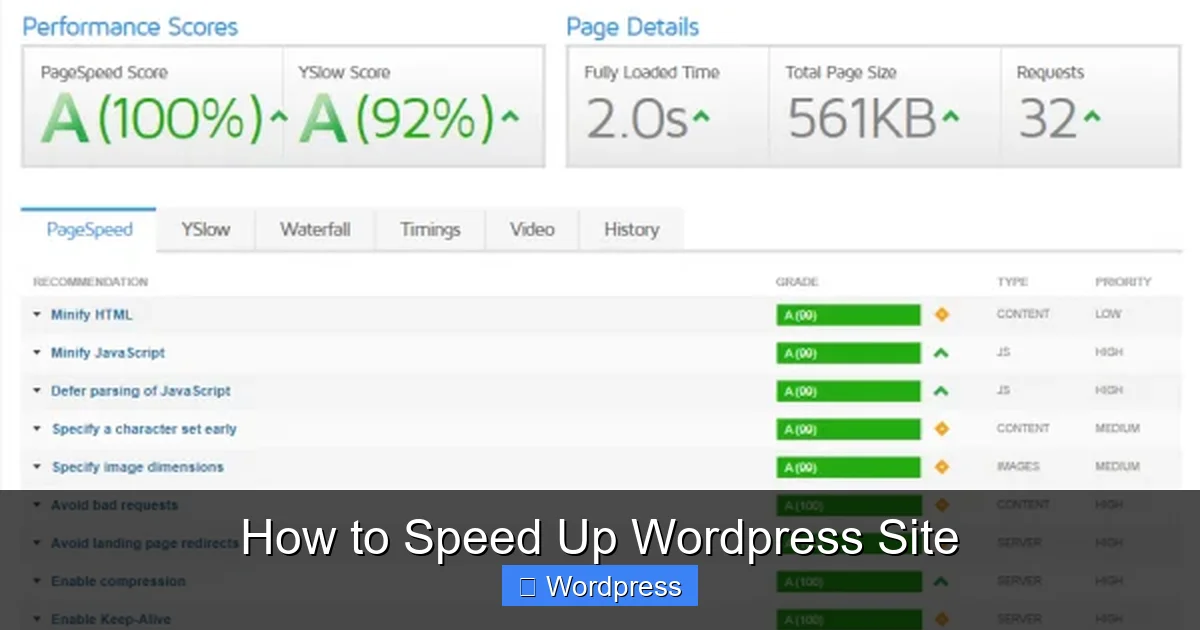
Visual guide about How to Speed Up WordPress Site
Image source: webnus.net
Pick a Performance-Focused Theme
- Look for themes labeled “lightweight,” “fast,” or “optimized for speed.”
- Avoid themes packed with built-in sliders, pop-ups, or page builders unless you need them.
- Check reviews and demo load times before installing.
Recommended Themes
Some top choices include Astra, GeneratePress, and Neve. These are clean, modular, and work well with caching plugins. For more options, see our list of the best WordPress theme for SEO and speed.
Update Your Theme Regularly
Outdated themes can have security flaws and performance bugs. Always keep your theme updated. Learn how to update themes on WordPress safely to avoid breaking your site.
2. Install a Caching Plugin
Caching is one of the easiest ways to speed up WordPress. It creates static HTML files of your pages so the server doesn’t have to generate them every time someone visits.
Visual guide about How to Speed Up WordPress Site
Image source: pagespeed.online
Top Caching Plugins
- WP Super Cache: Free, simple, and great for beginners.
- W3 Total Cache: More advanced, with CDN and minification support.
- LiteSpeed Cache: Best if your host uses LiteSpeed servers (very fast).
How to Set Up Caching
- Go to Plugins > Add New in your WordPress dashboard.
- Search for “WP Super Cache” and install it.
- Activate the plugin and go to Settings > WP Super Cache.
- Turn on caching and select “Simple” mode for best results.
Once enabled, your site will load much faster for returning visitors.
3. Optimize Your Images
Large images are a common cause of slow loading. WordPress automatically creates multiple sizes, but original uploads are often too big.
Compress Images Before Uploading
- Use free tools like TinyPNG or Squoosh to reduce file size.
- Save images in JPEG for photos and PNG for graphics with transparency.
- Aim for files under 100KB when possible.
Use an Image Optimization Plugin
Plugins like Smush or ShortPixel can compress images automatically. They also offer lazy loading, which we’ll cover next.
Enable Lazy Loading
Lazy loading means images only load when they come into view. This reduces initial page weight and speeds up the first screen load.
- WordPress 5.5+ has built-in lazy loading for images.
- For older versions or more control, use a plugin like a3 Lazy Load.
4. Limit and Optimize Plugins
Plugins add features, but each one uses server resources. Too many can seriously slow down your site.
Audit Your Plugins
- Go to Plugins > Installed Plugins.
- Deactivate and delete any you don’t use.
- Check if multiple plugins do the same thing (e.g., two contact forms).
Choose Lightweight Alternatives
Some plugins are heavier than others. For example, use WPForms Lite instead of a full-page builder for simple forms.
For more on managing plugins wisely, read our guide on how many plugins you should use.
5. Use a Content Delivery Network (CDN)
A CDN stores copies of your site on servers around the world. When someone visits, they get content from the nearest server—cutting load time.
Popular CDN Services
- Cloudflare: Free plan available, easy to set up.
- KeyCDN: Pay-as-you-go, great for high-traffic sites.
- BunnyCDN: Fast and affordable with global coverage.
How to Set Up Cloudflare
- Sign up at cloudflare.com and add your site.
- Change your domain’s nameservers to Cloudflare’s (your host will help).
- Enable “Auto Minify” and “Rocket Loader” in the Cloudflare dashboard.
Most CDNs work with caching plugins for even better results.
6. Optimize Your Database
Over time, your WordPress database collects junk—like post revisions, spam comments, and transient options—that slows things down.
Clean Up with a Plugin
- Use WP-Optimize or Advanced Database Cleaner.
- These tools remove unnecessary data and optimize tables.
- Run cleanups monthly to keep your site lean.
Limit Post Revisions
WordPress saves every draft change. To reduce bloat, add this line to your wp-config.php file:
define('WP_POST_REVISIONS', 5);This keeps only the last 5 revisions per post.
7. Enable GZIP Compression
GZIP compresses your site’s files before sending them to browsers. This reduces transfer size and speeds up loading.
How to Enable GZIP
- Most hosts enable GZIP by default.
- If not, use a plugin like WP Super Cache or add code to your
.htaccessfile:
<IfModule mod_deflate.c>
AddOutputFilterByType DEFLATE text/html text/plain text/xml text/css text/javascript application/javascript
</IfModule>
Test if GZIP is working using tools like GTmetrix or Check GZIP Compression.
8. Minify CSS, JavaScript, and HTML
Minification removes extra spaces, comments, and line breaks from code files. This makes them smaller and faster to load.
Use a Minification Plugin
- Autoptimize is user-friendly and works well with most sites.
- Go to Settings > Autoptimize and check boxes for CSS, JS, and HTML minification.
- Test your site after enabling—sometimes minification breaks layouts.
If something looks wrong, disable minification and clear your cache.
Troubleshooting Common Speed Issues
Even after optimization, some sites stay slow. Here’s how to fix common problems:
- Slow hosting: Shared hosts can be overloaded. Upgrade to managed WordPress hosting like SiteGround or Kinsta.
- Render-blocking resources: Use tools like PageSpeed Insights to find CSS/JS files delaying page display.
- Too many HTTP requests: Combine files where possible and reduce external scripts (e.g., social widgets).
- Unoptimized fonts: Use system fonts or limit Google Fonts to 2–3 weights.
Conclusion
Speeding up your WordPress site doesn’t require advanced skills—just smart choices. Start with caching, image optimization, and a fast theme. Then add a CDN, clean your database, and keep plugins minimal. These steps will make your site faster, more secure, and easier to rank.
Remember: a fast site keeps visitors happy and search engines impressed. Test your changes using tools like GTmetrix or Google PageSpeed Insights, and keep optimizing as your site grows.