This guide walks you through how to uninstall Sky Login Redirect from WordPress using both manual and plugin methods. You’ll also learn how to clean up leftover files and fix common issues after removal.
Key Takeaways
- Backup your site first: Always create a full backup before making changes to avoid data loss.
- Deactivate before deleting: Deactivate the plugin in your WordPress dashboard before removing it.
- Check for leftover files: Some plugins leave behind files or database entries—clean them up manually if needed.
- Use FTP for stubborn plugins: If the plugin won’t uninstall normally, use FTP or a file manager to delete its folder.
- Clear cache after removal: Clear your site and browser cache to ensure changes take effect immediately.
- Monitor login behavior: After uninstalling, test your login page to confirm the redirect is gone.
- Prevent future issues: Only install trusted plugins and keep them updated to avoid security risks.
How to Uninstall Sky Login Redirect from WordPress
If you’ve installed the Sky Login Redirect plugin on your WordPress site and no longer need it—or if it’s causing login issues—you’ll want to remove it completely. This guide will show you how to uninstall Sky Login Redirect from WordPress safely and thoroughly, whether you’re using the dashboard, FTP, or dealing with a broken site.
Sky Login Redirect is a lightweight plugin that changes your default WordPress login URL (from /wp-login.php to a custom path). While useful for security, it can cause problems if misconfigured or if you forget the new login URL. Removing it the right way ensures your site stays functional and secure.
In this guide, you’ll learn:
– How to uninstall the plugin via the WordPress admin
– How to remove it manually using FTP or a file manager
– How to clean up leftover settings
– What to do if you’re locked out of your site
– Tips to avoid similar issues in the future
Let’s get started.
Step 1: Backup Your Website
Before making any changes, always back up your WordPress site. This protects you in case something goes wrong during the uninstall process.
You can use a plugin like UpdraftPlus or your hosting provider’s backup tool. Make sure to back up both your files and database.
Pro tip: If you’re unsure how to back up your site, check with your hosting provider—many offer one-click backups in their control panel.
Visual guide about How to Uninstall Sky Login Redirect from WordPress
Image source: ps.w.org
Step 2: Deactivate the Plugin
The first step in uninstalling Sky Login Redirect is to deactivate it.
Log in to Your WordPress Dashboard
Go to yoursite.com/wp-admin and log in using your admin credentials. If Sky Login Redirect changed your login URL and you can’t access the dashboard, skip to the “Locked Out?” section below.
Navigate to Plugins
Once logged in:
- Go to Plugins in the left-hand menu.
- Click Installed Plugins.
- Find Sky Login Redirect in the list.
- Click Deactivate.
Deactivating stops the plugin from running but doesn’t remove it yet.
Delete the Plugin
After deactivating:
- Click Delete under the plugin name.
- Confirm the deletion when prompted.
WordPress will remove the plugin files automatically. In most cases, this is enough. But some plugins leave behind settings or database entries.
Step 3: Check for Leftover Files or Settings
Even after deletion, Sky Login Redirect might leave traces in your database or file system.
Check the wp-content/plugins Folder
To be sure the plugin is gone:
- Use FTP (like FileZilla) or your hosting file manager.
- Navigate to
wp-content/plugins/. - Look for a folder named
sky-login-redirector similar. - If it exists, delete it manually.
Check the Database (Optional)
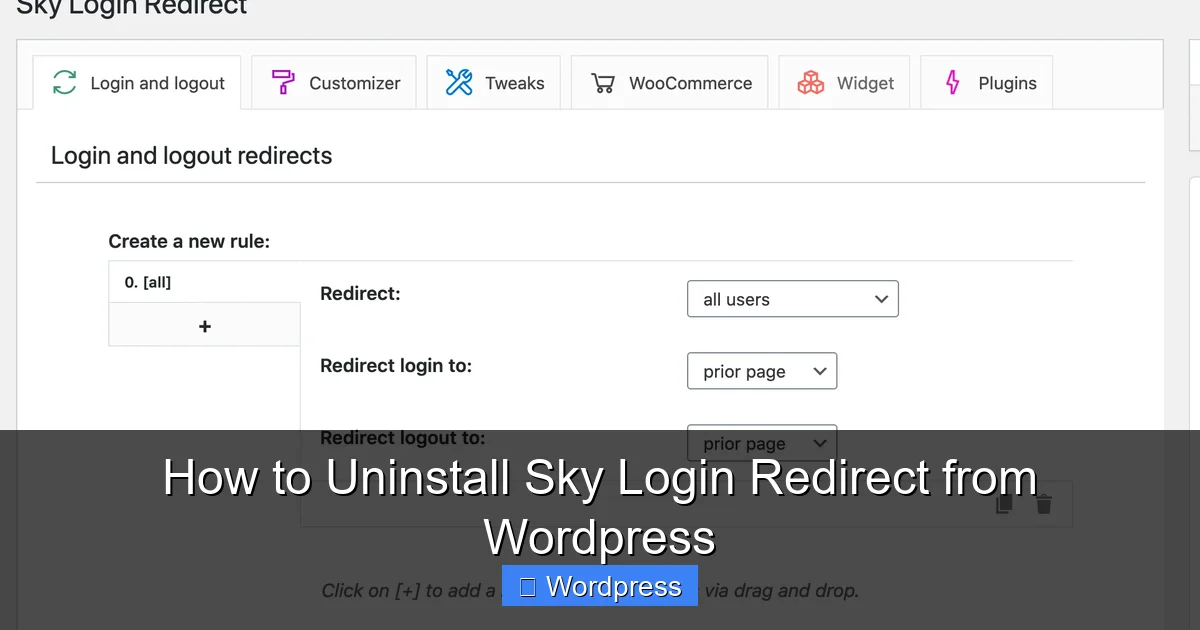
Advanced users can check the wp_options table for leftover settings. Look for entries like:
– sky_login_redirect_slug
– sky_login_redirect_enabled
You can use phpMyAdmin (usually in your hosting control panel) to search and delete these. But be very careful—only delete entries you’re sure belong to the plugin.
Note: If you’re not comfortable editing the database, skip this step or ask a developer for help.
Visual guide about How to Uninstall Sky Login Redirect from WordPress
Image source: ps.w.org
Step 4: Clear Your Cache
After uninstalling, clear all caches to ensure your site reflects the changes.
Clear WordPress Cache
If you use a caching plugin (like WP Super Cache or W3 Total Cache):
- Go to the plugin’s settings.
- Click Clear Cache or Purge All.
Clear Browser Cache
Also clear your browser cache:
– On Chrome: Press Ctrl + Shift + Delete (Windows) or Cmd + Shift + Delete (Mac), then select “Cached images and files.”
– Repeat for other browsers.
This ensures you’re seeing the latest version of your site.
Step 5: Test Your Login Page
Now that the plugin is gone, test your login page:
- Go to
yoursite.com/wp-login.php. - Try logging in with your admin credentials.
If you can log in normally, the redirect has been removed successfully.
If you still see a redirect or get a 404 error, the plugin may not have been fully removed—or another plugin or .htaccess rule is interfering.
What If You’re Locked Out of Your Site?
If Sky Login Redirect changed your login URL and you can’t access the dashboard, don’t panic. Here’s how to regain access.
Method 1: Use FTP to Rename the Plugin Folder
This disables the plugin by making it inaccessible.
- Connect to your site via FTP.
- Go to
wp-content/plugins/. - Find the
sky-login-redirectfolder. - Rename it to something like
sky-login-redirect-old.
WordPress will automatically deactivate the plugin. Now you can log in at yoursite.com/wp-login.php.
Once logged in, follow the steps above to delete the plugin properly.
Method 2: Use phpMyAdmin to Disable the Plugin
If you can’t use FTP, you can disable the plugin via the database.
- Log in to your hosting control panel.
- Open phpMyAdmin.
- Select your WordPress database.
- Find the
wp_optionstable (prefix may vary). - Look for the
active_pluginsrow. - Edit the value and remove the line that references
sky-login-redirect/sky-login-redirect.php. - Save changes.
Now try logging in at the default URL.
Troubleshooting Common Issues
Even after uninstalling, you might run into problems. Here’s how to fix them.
Issue: Login Page Still Redirects
If you’re still being redirected after uninstalling:
- Check if another security plugin (like Wordfence or iThemes Security) has a login redirect feature enabled.
- Look in your
.htaccessfile for redirect rules. Remove any lines related to Sky Login Redirect. - Clear all caches again—including server-level cache if your host uses it.
Issue: 404 Error on wp-login.php
If you get a 404 when trying to access the login page:
- The plugin may have deleted the
wp-login.phpfile (rare, but possible). - Re-upload a fresh copy of
wp-login.phpfrom a clean WordPress download. - Or restore your site from backup.
Issue: Site Breaks After Uninstall
If your site crashes or shows errors:
- Restore from your backup.
- Reinstall the plugin temporarily, then follow the steps more carefully.
- Check for conflicts with other plugins—try disabling all plugins and re-enabling one by one.
Preventing Future Problems
To avoid issues with plugins like Sky Login Redirect:
- Only install plugins from trusted sources (WordPress.org or reputable developers).
- Read reviews and check update frequency before installing.
- Test new plugins on a staging site first.
- Keep plugins updated to avoid security vulnerabilities.
- Limit the number of active plugins—fewer plugins mean fewer conflicts.
For more tips on managing plugins, check out our guide on how many plugins you should use.
Conclusion
Uninstalling Sky Login Redirect from WordPress is straightforward if you follow the right steps. Start by backing up your site, then deactivate and delete the plugin through the dashboard. If you’re locked out, use FTP or the database to disable it manually. Always clear your cache and test your login page afterward.
Remember, some plugins leave behind files or settings—so double-check the plugin folder and database if issues persist. And if something goes wrong, your backup is your safety net.
By keeping your WordPress site clean and secure, you reduce the risk of login issues and improve overall performance. For help managing other parts of your site, explore our guides on how to delete a theme in WordPress or how to update a WordPress theme.
Now you know how to uninstall Sky Login Redirect from WordPress—safely, completely, and without stress.