Updating your WordPress theme is essential for security, performance, and access to new features. This guide walks you through the process safely, including backups, testing, and troubleshooting tips to ensure your site stays functional and up to date.
Key Takeaways
- Always back up your site first: Prevent data loss by creating a full backup before updating your theme.
- Update via the WordPress dashboard: The safest and easiest method for most users is using the built-in theme update feature.
- Use a child theme for customizations: Protect your design changes from being overwritten during updates.
- Test updates on a staging site: Avoid breaking your live site by testing updates in a safe environment first.
- Check plugin compatibility: Ensure your plugins work with the updated theme to prevent errors.
- Monitor your site after updating: Look for layout issues, broken links, or missing content post-update.
- Know how to roll back if needed: Keep the previous theme version handy in case you need to revert quickly.
How to Update WordPress Theme
Keeping your WordPress theme up to date is one of the most important tasks for maintaining a secure, fast, and functional website. Theme developers regularly release updates to fix bugs, patch security vulnerabilities, improve performance, and add new features. However, updating your theme without proper preparation can sometimes lead to unexpected issues—like broken layouts or lost customizations.
In this guide, you’ll learn how to update your WordPress theme safely and confidently. We’ll cover everything from backing up your site to troubleshooting common problems. Whether you’re a beginner or a seasoned WordPress user, these steps will help you keep your site running smoothly.
Why You Should Update Your WordPress Theme
Before diving into the how-to, let’s quickly go over why updating your theme matters.
First, security is a major concern. Outdated themes can contain vulnerabilities that hackers exploit. Regular updates close these security gaps.
Second, performance improvements are often included in theme updates. Developers optimize code, reduce load times, and improve mobile responsiveness.
Third, compatibility with the latest version of WordPress and popular plugins is crucial. An outdated theme might stop working properly after a WordPress core update.
Finally, updates often bring new features and design enhancements—like better customization options, new page templates, or improved accessibility.
Step 1: Back Up Your Website
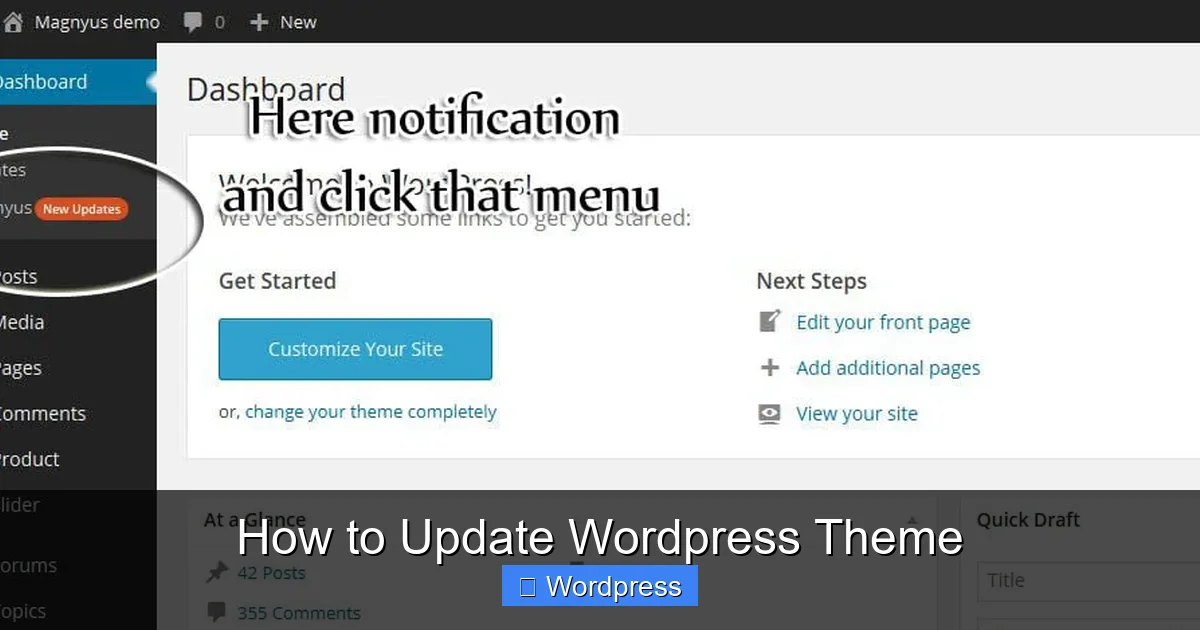
Visual guide about How to Update WordPress Theme
Image source: kentooz.com
Never update your theme without a backup. If something goes wrong, you’ll want to restore your site quickly.
How to Create a Full Backup
A complete backup includes your files, database, themes, plugins, and uploads. Here’s how to do it:
- Use a backup plugin: Plugins like UpdraftPlus, BackupBuddy, or Jetpack Backup make this easy. Install one, configure it to back up everything, and run a manual backup before updating.
- Back up via your hosting provider: Many hosts (like SiteGround, Bluehost, or HostGator) offer one-click backups in their control panel. Check your host’s dashboard for this option.
- Manual backup (advanced): Use FTP to download your entire WordPress directory and export your database via phpMyAdmin.
Once your backup is complete and stored safely (preferably offsite), you’re ready to proceed.
Step 2: Use a Staging Site (Recommended)
A staging site is a clone of your live website where you can test changes safely. It’s the best way to avoid breaking your live site during an update.
How to Set Up a Staging Site
- Check if your host offers staging: Many managed WordPress hosts (like WP Engine or Kinsta) include free staging environments.
- Use a plugin: Plugins like WP Staging or Duplicator can create a staging site on your server.
- Update the theme on staging first: Apply the update and test your site thoroughly—check pages, forms, menus, and mobile views.
If everything looks good on staging, proceed to update your live site. If not, troubleshoot or contact the theme developer.
Step 3: Update Your WordPress Theme
Now it’s time to update your theme. There are two main methods: automatic and manual.
Method 1: Automatic Update via Dashboard
This is the easiest and most common way.
- Log in to your WordPress admin dashboard.
- Go to Appearance > Themes.
- Look for your active theme. If an update is available, you’ll see an “Update Available” link beneath it.
- Click “Update Now”.
- WordPress will download and install the update automatically.
That’s it! The process usually takes just a few seconds.
Method 2: Manual Update via Upload
Use this method if the automatic update fails or if you’re updating a custom or premium theme.
- Download the latest version of your theme from the developer’s website (e.g., ThemeForest, Elegant Themes).
- Go to Appearance > Themes > Add New.
- Click “Upload Theme” and select the .zip file you downloaded.
- Click “Install Now”.
- WordPress will replace the old version with the new one.
Note: If you see a warning about overwriting the current theme, that’s normal. Your settings and content will remain intact.
Step 4: Check Your Site After Updating
After updating, always review your site to ensure everything works correctly.
What to Test
- Homepage and key pages: Make sure layouts, images, and text appear correctly.
- Navigation menus: Check that all links work and menus display properly.
- Forms and plugins: Test contact forms, sliders, or any interactive elements.
- Mobile responsiveness: View your site on a phone or tablet to ensure it looks good.
- Speed and performance: Use tools like Google PageSpeed Insights to check for improvements or regressions.
If you notice issues, don’t panic—there are ways to fix them.
Step 5: Troubleshooting Common Issues
Even with careful preparation, problems can occur. Here’s how to handle the most common ones.
White Screen of Death (WSOD)
If your site goes blank after an update, it’s likely a PHP error.
- Enable debugging: Add
define('WP_DEBUG', true);to your wp-config.php file to see error messages. - Deactivate plugins: Use FTP to rename the plugins folder—this disables all plugins. Reactivate them one by one to find the culprit.
- Switch to a default theme: Rename your current theme folder via FTP. WordPress will revert to a default theme like Twenty Twenty-Four.
Broken Layout or Missing Styles
This often happens if your theme uses a page builder or custom CSS.
- Clear your cache: Clear browser, plugin, and server cache.
- Regenerate CSS: Some themes have a “Regenerate CSS” button in the Customizer.
- Check for missing plugins: Some themes require companion plugins (like Slider Revolution or WPBakery). Make sure they’re updated too.
Customizations Lost
If your design changes disappeared, you probably edited the theme files directly—instead of using a child theme.
- Restore from backup: Revert to your backup and reapply changes using a child theme.
- Learn about child themes: A child theme lets you customize your site without losing changes during updates. Read our guide on what is a child theme in WordPress to get started.
Step 6: Roll Back If Necessary
If the update causes major issues and you can’t fix them quickly, you may need to revert to the previous version.
How to Revert a Theme
- Use your backup: Restore your site from the backup you created before updating.
- Reinstall the old version manually: Download the previous version of your theme and upload it via FTP or the WordPress dashboard.
- Contact support: If you’re using a premium theme, reach out to the developer for help or a rollback option.
Always keep a copy of your previous theme version for emergencies.
Best Practices for Future Updates
To make future updates smoother, follow these tips:
- Always use a child theme: This protects your custom code and design changes.
- Keep plugins updated: Outdated plugins can conflict with new theme versions.
- Subscribe to theme update notifications: Many developers send emails when updates are released.
- Document your customizations: Keep a record of changes so you can reapply them if needed.
- Schedule regular maintenance: Set a monthly reminder to check for updates and backups.
Conclusion
Updating your WordPress theme doesn’t have to be stressful. By following this guide—backing up your site, using a staging environment, updating carefully, and testing thoroughly—you can keep your website secure, fast, and up to date with minimal risk.
Remember, preparation is key. A little caution before updating can save you hours of troubleshooting later. And if you ever run into trouble, don’t hesitate to seek help from your theme’s support team or a WordPress professional.
With these steps, you’re well-equipped to handle theme updates like a pro. Happy updating!