Setting a page as your homepage in Chrome is a quick way to streamline your browsing experience. Whether you’re managing a WordPress site or just want faster access to frequently visited pages, this guide walks you through the process on desktop and mobile. It’s easy, free, and takes less than a minute.
Key Takeaways
- Chrome allows you to set any webpage as your homepage through browser settings, giving you instant access to your most-used sites.
- You can customize the homepage for both desktop and mobile versions of Chrome, ensuring consistency across devices.
- WordPress users benefit greatly by setting their admin dashboard or site homepage as the Chrome start page for faster access.
- The process is reversible—you can change or remove the homepage at any time without affecting your browsing data.
- Using extensions or themes isn’t required—Chrome’s built-in settings are sufficient for setting a homepage.
- Syncing across devices ensures your homepage preference follows you if you’re signed into your Google account.
- Security tip: Only set trusted websites as your homepage to avoid phishing or unwanted redirects.
Quick Answers to Common Questions
Can I set multiple pages as my homepage in Chrome?
Yes, on desktop you can add multiple URLs under the “On startup” section. Chrome will open all of them in separate tabs when you launch the browser.
Will setting a homepage affect my browsing history or bookmarks?
No, setting a homepage only changes what loads when you open Chrome. It doesn’t alter your history, bookmarks, or saved passwords.
Does the homepage work if I use incognito mode?
No, incognito mode ignores homepage settings and always opens a blank New Tab page for privacy.
Can I set a local file (like an HTML page) as my homepage?
Yes, you can use a file:// URL, but it’s not recommended due to security restrictions and sync limitations.
Why doesn’t my homepage show up on mobile?
Make sure the homepage toggle is turned on in Chrome settings. Also, some mobile browsers limit homepage functionality for performance reasons.
📑 Table of Contents
Why Set a Page as Homepage in Chrome?
Imagine opening your browser and instantly landing on your WordPress dashboard, your favorite blog, or your company’s internal portal—no extra clicks, no searching. That’s the power of setting a page as your homepage in Chrome. It’s a small change that can save you time, reduce frustration, and boost productivity, especially if you’re a WordPress site owner, developer, or content creator.
Chrome doesn’t automatically assign a homepage unless you tell it to. By default, it opens to the New Tab page, which shows frequently visited sites and search suggestions. While that’s helpful, it’s not always the most efficient. If you spend hours managing a WordPress site, having your wp-admin page or frontend homepage load every time you open Chrome can be a game-changer. Plus, it’s completely free and takes just a few seconds to set up.
How to Set a Page as Homepage in Chrome on Desktop
Setting your homepage on a desktop or laptop is straightforward. Here’s how to do it step by step:
Step 1: Open Chrome Settings
Click the three vertical dots in the top-right corner of your Chrome browser. From the dropdown menu, select “Settings”. This will open a new tab with all your browser preferences.
Step 2: Navigate to the On Startup Section
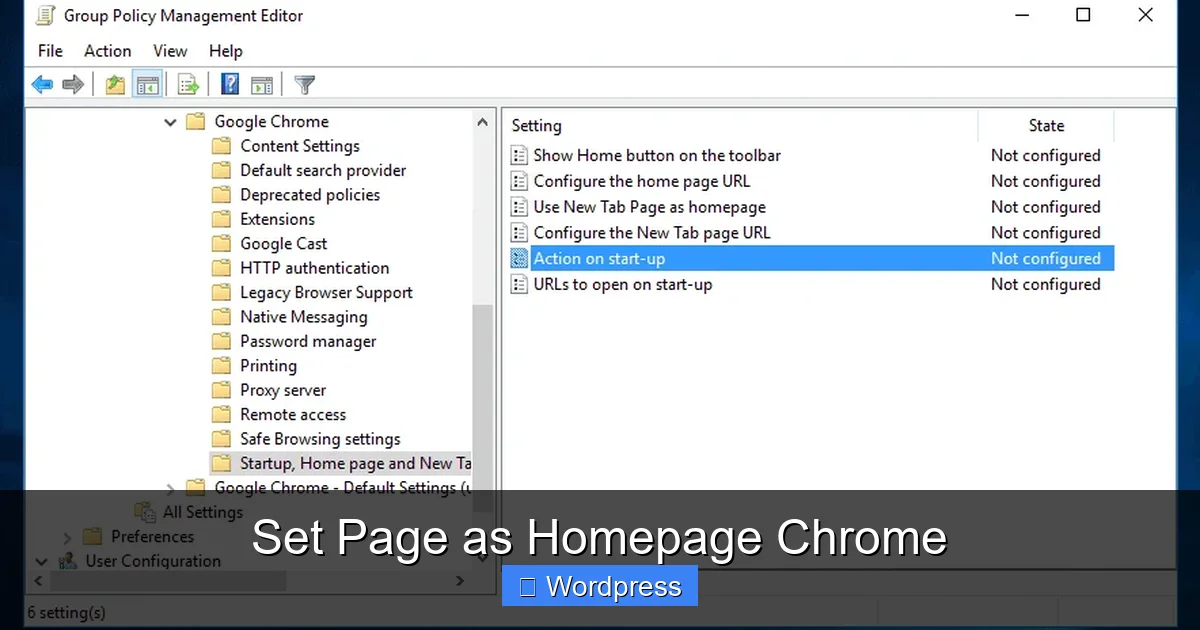
Scroll down until you find the “On startup” section. You’ll see three options: “Open the New Tab page,” “Continue where you left off,” and “Open a specific page or set of pages.” Click the radio button next to the third option.
Step 3: Add Your Desired URL
Click the “Add a new page” link. A small window will appear where you can type the URL of the page you want as your homepage. For example, if you’re a WordPress user, you might enter https://yoursite.com/wp-admin or just https://yoursite.com. Click “Add” to save it.
Step 4: Verify and Test
Close and reopen Chrome to test the change. Your selected page should now load automatically when you launch the browser. If it doesn’t, double-check the URL for typos and ensure you’ve selected the correct startup option.
Setting a Homepage on Chrome for Mobile (Android & iOS)
Many people don’t realize that Chrome on mobile also supports homepage customization. While the process is slightly different from desktop, it’s just as useful—especially if you manage your WordPress site on the go.
Visual guide about Set Page as Homepage Chrome
Image source: techpilipinas.com
For Android Users
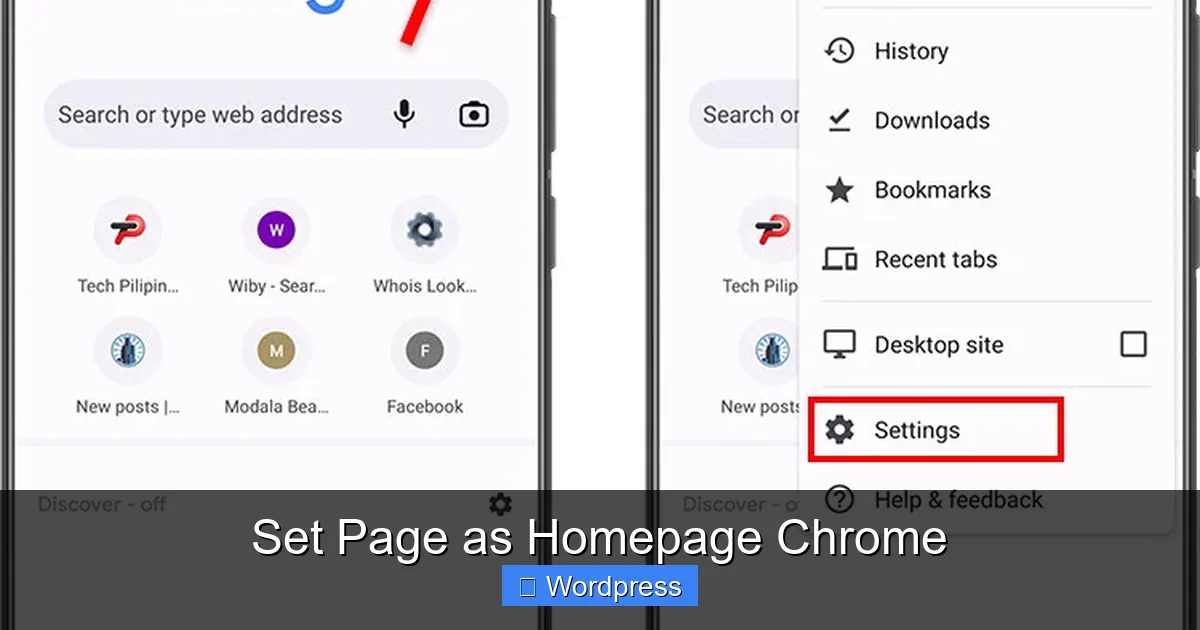
Open the Chrome app and tap the three dots in the top-right corner. Go to “Settings”, then scroll down and tap “Homepage”. Toggle the switch to “On”, then tap “Set homepage”. Enter the URL you want (e.g., your WordPress login page) and tap “Save”. Now, whenever you open Chrome, that page will load first.
For iOS Users
Open Chrome on your iPhone or iPad, tap the three dots, and go to “Settings”. Tap “Homepage” and toggle it on. Then tap “Set homepage” and enter your desired URL. Unlike Android, iOS Chrome doesn’t support multiple startup pages, but the single homepage option is still very handy.
Best Pages to Set as Your Chrome Homepage
Now that you know how to set a homepage, the next question is: What should you set it to? The answer depends on your daily routine and goals. Here are some smart choices, especially for WordPress users:
Visual guide about Set Page as Homepage Chrome
Image source: itechguides.com
Your WordPress Dashboard
If you’re a site admin or content editor, setting https://yoursite.com/wp-admin as your homepage means you’re one click away from publishing a post, checking comments, or updating plugins. No more typing the URL or searching through bookmarks.
Your Live Website
For marketers or designers, having your live site load on startup lets you quickly preview changes, check analytics, or share the link with clients. It’s a great way to stay connected to your brand.
Google Workspace or Project Management Tools
Many professionals use tools like Google Drive, Trello, or Asana. Setting one of these as your homepage keeps your workflow front and center.
A Custom Dashboard or Start Page
Some users create a simple HTML page with links to all their essential tools—WordPress, email, analytics, social media—and set that as their homepage. It’s like a personalized launchpad.
Tips and Best Practices
While setting a homepage is simple, a few tips can help you get the most out of it:
Use HTTPS URLs
Always use secure URLs (starting with https://) to protect your data, especially when accessing admin areas like WordPress. This prevents man-in-the-middle attacks and ensures encrypted connections.
Keep It Simple
Don’t overload your homepage with too many tabs or complex URLs. One or two key pages are enough. If you need more, consider using bookmarks or a start page extension.
Sync Across Devices
If you’re signed into Chrome with your Google account, your homepage settings will sync across all devices. This means your WordPress dashboard can be your homepage on your laptop, phone, and tablet—perfect for multitasking.
Change It When Needed
Your needs may change over time. Maybe you’re launching a new site or switching projects. Don’t hesitate to update your homepage. It’s easy to change and costs nothing.
Avoid Shady Sites
Only set trusted websites as your homepage. Avoid random blogs, ad-heavy pages, or suspicious URLs. A compromised homepage could lead to malware or phishing risks.
Troubleshooting Common Issues
Sometimes, things don’t go as planned. Here’s how to fix the most common problems:
Homepage Doesn’t Load
If your selected page doesn’t open, check the URL for typos. Also, ensure you’ve selected the correct option under “On startup.” If you chose “Continue where you left off,” Chrome will reopen your last session instead of the homepage.
Chrome Keeps Resetting the Homepage
This can happen if you have malware or a rogue extension. Run a scan using Chrome’s built-in cleanup tool (Settings > Reset and clean up > Clean up computer). Also, review your extensions and remove any you don’t recognize.
Mobile Homepage Not Working
On iOS, make sure you’ve tapped “Save” after entering the URL. On Android, ensure the homepage toggle is turned on. If it still doesn’t work, try restarting the app or your device.
Enhancing Your Browsing Experience
Setting a homepage is just one way to optimize Chrome for productivity. Pair it with other tools for even better results. For example, if you spend long hours in front of the screen managing your WordPress site, consider installing the Best Eye Protection Extension For Chrome to reduce eye strain. These extensions adjust screen brightness and filter blue light, making late-night editing sessions more comfortable.
Similarly, if you’re customizing your WordPress site, you might also want to explore how to How To Set A Default Theme In WordPress. While not directly related to Chrome, it’s part of creating a cohesive and efficient workflow. A well-organized browser and a well-designed site go hand in hand.
Another tip: use Chrome’s bookmark bar to store frequently used pages alongside your homepage. This creates a powerful one-click navigation system. Combine that with a clean homepage, and you’ve got a browsing setup that saves time and reduces clutter.
Conclusion
Setting a page as your homepage in Chrome is a small change with big benefits. Whether you’re a WordPress developer, blogger, or just someone who wants quicker access to favorite sites, this simple tweak can make your daily routine smoother and more efficient. It takes less than a minute, requires no technical skills, and works across desktop and mobile.
Remember, your homepage should reflect your priorities. For WordPress users, that often means your dashboard or live site. For others, it might be a project tool or news site. The key is to choose something useful and secure. And if your needs change, don’t hesitate to update it. With Chrome’s flexible settings and sync features, your perfect homepage is always just a few clicks away.
Frequently Asked Questions
How do I remove a homepage in Chrome?
Go to Chrome Settings > On startup, and select “Open the New Tab page” instead of “Open a specific page.” This will disable the homepage.
Can I set different homepages for different devices?
Yes, if you’re not signed into Chrome, each device can have its own homepage. If you are signed in, settings sync across devices unless you disable sync.
Is it safe to set my WordPress login page as my homepage?
Yes, as long as your site uses HTTPS and you have strong login credentials. Avoid doing this on public or shared computers.
Will my homepage load if I have a slow internet connection?
Chrome will attempt to load it, but the page may take longer to appear. Consider using a lightweight page for better performance.
Can I use a Chrome extension to manage my homepage?
Yes, some extensions offer advanced homepage features like custom layouts or multiple start pages, but they’re not necessary for basic use.
Does setting a homepage slow down Chrome?
No, unless the page is very heavy or has lots of scripts. Most simple pages (like a WordPress dashboard) load quickly without affecting performance.