A WordPress sitemap generator helps search engines find and index your content quickly. It improves SEO, enhances site visibility, and ensures your pages get discovered. Whether you use a plugin or built-in features, generating a sitemap is essential for any WordPress site.
If you’ve ever wondered how search engines like Google find all the pages on your WordPress site, the answer often lies in a simple but powerful tool: the sitemap. Think of a sitemap as a roadmap for your website. It lists every important page, post, and category so search engines can navigate your content with ease. Without one, some of your pages might get missed—especially newer or less-linked ones.
That’s where a WordPress sitemap generator comes in. It automatically creates and updates this roadmap, ensuring your site stays visible in search results. Whether you run a blog, an online store, or a business website, having a sitemap is no longer optional—it’s a must-have for good SEO. The good news? You don’t need to be a tech expert to set one up. With the right plugin or built-in feature, generating a sitemap takes just minutes.
Key Takeaways
- Boosts SEO: A sitemap helps search engines crawl and index your site more efficiently, improving rankings.
- Easy to Set Up: Most WordPress sitemap generators are plugins that require just a few clicks to activate.
- Supports All Content Types: Modern generators include posts, pages, categories, tags, and even custom post types.
- Automatic Updates: Sitemaps update automatically when you publish new content, saving time and effort.
- Improves Site Structure: A well-organized sitemap reflects a clean site hierarchy, helping both users and bots.
- Free and Premium Options: You can use free plugins like Yoast SEO or upgrade to premium tools for advanced features.
- Essential for Large Sites: Websites with hundreds of pages benefit most from automated sitemap generation.
Quick Answers to Common Questions
What is a WordPress sitemap generator?
A WordPress sitemap generator is a plugin or tool that automatically creates an XML file listing all your site’s important pages, helping search engines crawl and index your content.
Do I need a sitemap for my WordPress site?
Yes, especially if your site has many pages or complex structure. A sitemap ensures search engines find all your content, improving SEO and visibility.
Can I create a sitemap without a plugin?
Technically yes, but it’s not recommended. Manual sitemaps are time-consuming and error-prone. Plugins automate the process and keep your sitemap updated.
How often should my sitemap update?
It should update automatically whenever you publish or edit content. Most plugins handle this in real time.
Where can I find my WordPress sitemap?
If using Yoast SEO, visit yourdomain.com/sitemap_index.xml. Other plugins may use slightly different URLs, but they’re usually listed in the plugin settings.
📑 Table of Contents
What Is a WordPress Sitemap Generator?
A WordPress sitemap generator is a tool—usually a plugin—that creates an XML sitemap for your website. This file lists all your site’s URLs in a structured format that search engines understand. When you publish a new blog post or update a page, the generator updates the sitemap automatically. This keeps search engines informed about your latest content.
There are two main types of sitemaps: XML and HTML. XML sitemaps are designed for search engines, while HTML sitemaps are meant for human visitors. Most WordPress sitemap generators focus on XML, but some also offer HTML versions. The XML format follows standards set by sitemaps.org, ensuring compatibility with Google, Bing, and other search engines.
Why Do You Need a Sitemap?
Even if your site has great internal linking, a sitemap acts as a safety net. It ensures that every important page gets discovered—even if it’s buried deep in your site structure. This is especially helpful for new websites or pages with few incoming links. A sitemap also helps search engines understand your site’s hierarchy, which can improve how your content is ranked.
For example, if you run a recipe blog and publish a new vegan dessert post, a sitemap tells Google about it right away. Without a sitemap, Google might take days or weeks to find it—or worse, miss it entirely. That’s lost traffic and potential readers.
How Does a WordPress Sitemap Generator Work?
Most WordPress sitemap generators work by scanning your site’s content and creating an XML file that lists all your URLs. This file includes metadata like when each page was last updated and how often it changes. The generator then saves this file in your site’s root directory—usually as sitemap.xml—and notifies search engines when updates occur.
Automatic vs. Manual Updates
One of the biggest advantages of using a plugin is automation. Once installed, the generator monitors your site for changes. When you publish a new post, update a page, or delete content, the sitemap refreshes automatically. This saves you from manually rebuilding it every time.
Some older methods required you to generate the sitemap yourself using external tools or code. But with modern plugins, that’s a thing of the past. You set it once, and it runs in the background—no coding needed.
Integration with SEO Plugins
Many popular SEO plugins, like Yoast SEO and Rank Math, include built-in sitemap generators. These tools not only create sitemaps but also optimize them for search engines. For instance, Yoast lets you exclude certain pages (like privacy policies or login pages) from the sitemap. It also adds priority levels and change frequencies to help search engines understand your content’s importance.
If you’re already using an SEO plugin, check if it offers sitemap functionality before installing a separate tool. This keeps your plugin list clean and reduces potential conflicts.
Top WordPress Sitemap Generator Plugins
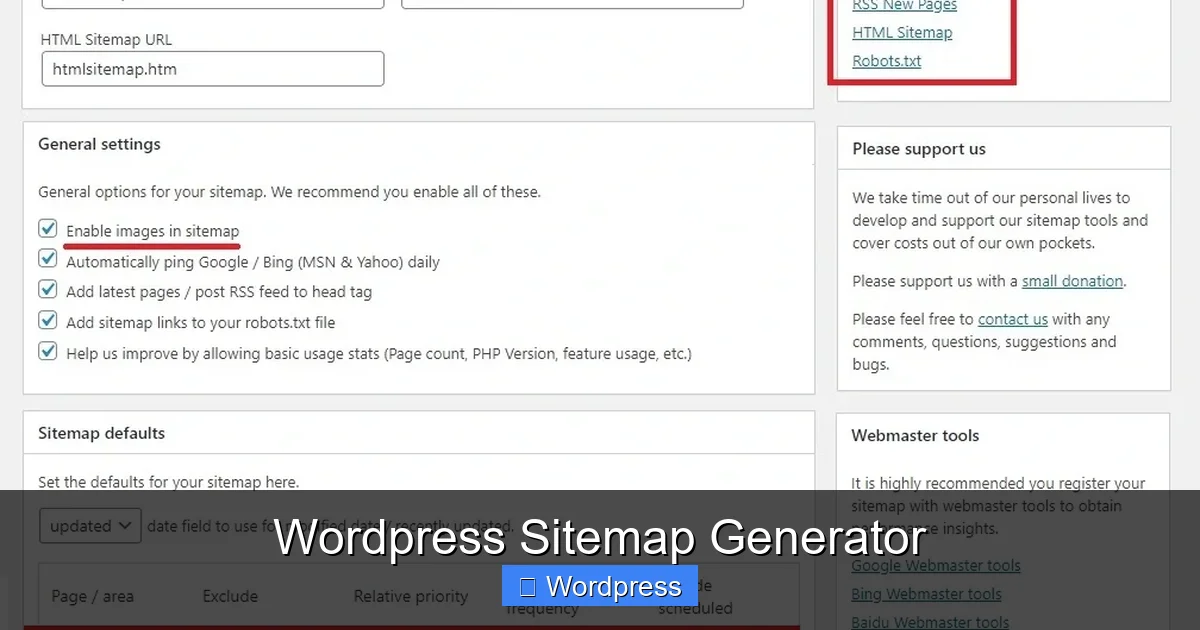
Visual guide about WordPress Sitemap Generator
Image source: xmlsitemapgenerator.org
There are dozens of plugins available, but not all are created equal. Here are some of the best options for generating sitemaps on WordPress.
Yoast SEO
Yoast SEO is one of the most popular SEO plugins, and its sitemap feature is top-notch. Once activated, it automatically generates an XML sitemap that includes posts, pages, categories, and tags. You can access it at yourdomain.com/sitemap_index.xml. Yoast also lets you customize which content types appear and exclude specific URLs.
One standout feature is its integration with Google Search Console. Yoast can ping Google whenever your sitemap updates, speeding up indexing. It’s free to use, though premium users get advanced controls.
Rank Math
Rank Math is a powerful alternative to Yoast, offering a sleek interface and rich features. Its sitemap generator supports multiple formats, including news sitemaps for publishers. You can set custom priorities, exclude posts by category, and even generate image sitemaps to help Google find your photos.
Rank Math also includes a redirection manager and schema markup tools, making it a full SEO suite. Like Yoast, it’s free with optional premium upgrades.
Google XML Sitemaps
This lightweight plugin does one thing and does it well: generates a fast, reliable XML sitemap. It’s ideal if you want simplicity without extra SEO features. The plugin updates your sitemap every time you publish content and notifies major search engines automatically.
It’s completely free and works well on large sites with thousands of pages. However, it lacks customization options compared to Yoast or Rank Math.
How to Set Up a Sitemap on Your WordPress Site
Setting up a sitemap is straightforward. Here’s a step-by-step guide using Yoast SEO as an example.
Step 1: Install Yoast SEO
Go to your WordPress dashboard, click Plugins > Add New, and search for “Yoast SEO.” Install and activate it. During setup, follow the configuration wizard to optimize your site for SEO.
Step 2: Enable the Sitemap
Yoast enables the sitemap by default. To check, go to SEO > General > Features and make sure “XML sitemaps” is turned on. You can view your sitemap by visiting yourdomain.com/sitemap_index.xml.
Step 3: Submit to Search Engines
Next, submit your sitemap to Google Search Console and Bing Webmaster Tools. In Google Search Console, go to Sitemaps, enter “sitemap_index.xml,” and click Submit. This tells Google where to find your sitemap.
Step 4: Monitor and Maintain
Check your sitemap regularly to ensure it’s working. If you see errors—like missing pages or blocked URLs—adjust your settings. Also, avoid installing multiple sitemap plugins, as they can conflict and create duplicate files.
Best Practices for Using a WordPress Sitemap Generator
To get the most out of your sitemap, follow these tips.
Keep It Clean
Only include important pages in your sitemap. Exclude login pages, admin areas, and duplicate content. Most plugins let you set exclusions, so use them wisely.
Update Regularly
While most generators update automatically, check your sitemap after major changes—like deleting old posts or restructuring categories. This ensures accuracy.
Use HTTPS
Make sure your sitemap uses HTTPS URLs if your site is secured with SSL. Mixed content can confuse search engines and hurt your rankings.
Optimize for Speed
Large sitemaps can slow down your site. If you have thousands of pages, consider splitting your sitemap into smaller files. Some plugins do this automatically.
Combine with Other SEO Tools
A sitemap works best when paired with other SEO strategies. Use it alongside quality content, fast hosting (like Bluehost WordPress Hosting), and a mobile-friendly theme. For example, a fast-loading site with a clean structure ranks better—check out this guide to SEO-optimized themes for recommendations.
Common Mistakes to Avoid
Even with a great plugin, it’s easy to make errors. Here are a few to watch out for.
Ignoring Sitemap Errors
If Google Search Console reports sitemap errors, don’t ignore them. Common issues include blocked URLs, invalid tags, or missing images. Fix them promptly to avoid indexing problems.
Using Multiple Sitemap Plugins
Installing more than one sitemap plugin can create conflicts and duplicate files. Stick to one reliable tool.
Forgetting to Submit the Sitemap
Generating a sitemap isn’t enough—you must submit it to search engines. Otherwise, they might not find it.
Not Updating Permalinks
If you change your permalink structure, your sitemap may break. Always regenerate it after major URL changes.
Conclusion
A WordPress sitemap generator is a simple yet powerful tool that can significantly boost your site’s SEO. It helps search engines discover and index your content faster, leading to better visibility and more traffic. Whether you choose Yoast SEO, Rank Math, or a lightweight alternative, the setup is quick and the benefits are long-lasting.
Don’t let your hard work go unnoticed. Take a few minutes today to install a sitemap generator and submit it to Google. Your future self—and your readers—will thank you. And if you’re serious about performance, pair your sitemap with a fast host and a well-structured theme to maximize results.
Frequently Asked Questions
What is the best WordPress sitemap generator?
Yoast SEO and Rank Math are among the best due to their ease of use, reliability, and integration with other SEO features. Both are free and widely trusted.
Can a sitemap improve my Google rankings?
Not directly, but it helps Google discover and index your pages faster. Better indexing can lead to improved rankings over time, especially for new content.
Do I need both XML and HTML sitemaps?
XML sitemaps are essential for search engines. HTML sitemaps are optional but helpful for user navigation, especially on large sites.
Will a sitemap slow down my website?
No, a properly configured sitemap has minimal impact on speed. In fact, it can improve performance by helping search engines crawl your site more efficiently.
Can I exclude certain pages from my sitemap?
Yes, most plugins like Yoast and Rank Math allow you to exclude specific pages, categories, or post types from the sitemap.
Do all WordPress themes support sitemaps?
Sitemap support depends on the plugin, not the theme. However, using a well-coded theme like those in this guide to choosing WordPress themes ensures better compatibility and performance.