Changing your WordPress theme can refresh your site’s look and improve performance—but it must be done carefully. This guide walks you through the entire process, from backup to activation, ensuring a smooth transition without losing content or functionality.
Key Takeaways
- Always back up your site first: Prevent data loss by creating a full backup before making any changes.
- Test the new theme on a staging site: Avoid disrupting live visitors by previewing changes offline.
- Check plugin and widget compatibility: Some features may break if the new theme doesn’t support them.
- Use the Customizer to preview: WordPress lets you see how your content looks before going live.
- Update menus and widgets after activation: These often need manual adjustment post-switch.
- Monitor your site after the change: Look for broken links, missing images, or layout issues.
- Keep your old theme temporarily: Revert quickly if something goes wrong.
How to Change WordPress Theme: A Complete Step-by-Step Guide
Changing your WordPress theme is one of the easiest ways to give your website a fresh new look. Whether you’re switching for better design, improved speed, or enhanced mobile responsiveness, the process is straightforward—if you follow the right steps.
In this guide, you’ll learn how to safely change your WordPress theme without losing content, breaking functionality, or hurting your SEO. We’ll cover everything from backing up your site to troubleshooting common issues. Let’s get started!
Why Change Your WordPress Theme?
There are many reasons to update your theme. Maybe your current design feels outdated, or you need better performance for SEO. Perhaps you’re launching a new brand and want a modern layout. Whatever the reason, switching themes can boost user experience and site speed—especially if you choose a lightweight, well-coded option.
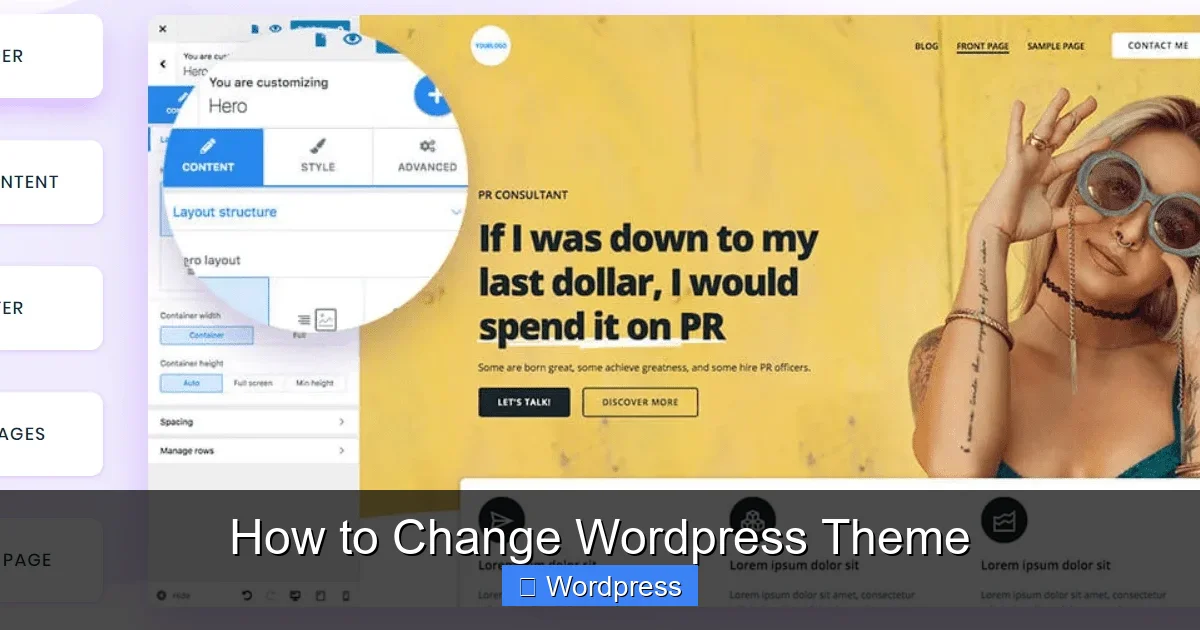
Visual guide about How to Change WordPress Theme
Image source: colibriwp.com
For example, if you’re using an old theme that doesn’t support mobile responsiveness or page builders like Elementor, upgrading can make a huge difference. You might also want to switch to a theme optimized for SEO and speed to improve your search rankings.
Step 1: Back Up Your Website
Before making any major change, always back up your site. This protects your content, settings, and media in case something goes wrong.
How to Back Up Your Site
- Use a plugin like UpdraftPlus, BackupBuddy, or Jetpack.
- Download both your files and database.
- Store the backup in a secure location (cloud storage or external drive).
Even if you’re just switching themes, backups are essential. A new theme might conflict with plugins or reset custom settings. With a backup, you can restore your site in minutes.
Step 2: Choose a New Theme
WordPress offers thousands of free and premium themes. You can browse the official directory or upload a custom one.
Where to Find Themes
- WordPress Theme Directory: Go to Appearance > Themes > Add New. Search by feature, layout, or popularity.
- Premium Themes: Marketplaces like ThemeForest, Elegant Themes, or Astra offer advanced designs.
- Custom Themes: Developers can upload .zip files via the same Add New page.
When choosing, consider speed, mobile support, and compatibility with your plugins. Test a few options using the Live Preview feature to see how they look with your content.
Step 3: Install the New Theme
Once you’ve picked a theme, it’s time to install it.
Install from the WordPress Directory
- Go to Appearance > Themes.
- Click Add New.
- Search for your desired theme (e.g., “Astra” or “Twenty Twenty-Four”).
- Click Install, then Activate.
Upload a Custom or Premium Theme
- Download the .zip file from the provider.
- Go to Appearance > Themes > Add New.
- Click Upload Theme.
- Select the .zip file and click Install Now.
- Once installed, click Activate.
After activation, your site will use the new theme. But don’t panic if things look different—this is normal!
Step 4: Customize the New Theme
Most themes come with customization options. Use the WordPress Customizer to adjust colors, fonts, layouts, and more.
Access the Customizer
- Go to Appearance > Customize.
- Explore sections like Site Identity, Colors, Menus, Widgets, and Homepage Settings.
- Make changes and see them in real time.
- Click Publish when satisfied.
Some themes also include their own settings panel (e.g., Astra, GeneratePress). Check the theme documentation for advanced options.
Step 5: Reconfigure Menus and Widgets
Switching themes often resets menus and widgets. You’ll need to reassign them.
Fix Your Navigation Menu
- Go to Appearance > Menus.
- Select your existing menu or create a new one.
- Assign it to the correct location (e.g., Primary Menu, Footer Menu).
Restore Widgets
- Go to Appearance > Widgets.
- Drag widgets back into sidebars, footers, or other widget areas.
- Some themes use different widget zones—check the theme docs.
If you used a page builder like Elementor, you may need to re-save templates or adjust global styles. For help, see our guide on how to create a WordPress theme with Elementor.
Step 6: Test Your Site Thoroughly
After activating the new theme, test every part of your site.
What to Check
- Homepage: Does it load correctly?
- Blog posts and pages: Are images and formatting intact?
- Mobile view: Use Chrome DevTools or a real device to check responsiveness.
- Forms and plugins: Test contact forms, sliders, and other dynamic elements.
- Links and navigation: Click through all menu items.
If something breaks, don’t worry—most issues are fixable.
Troubleshooting Common Issues
Even with careful planning, problems can arise. Here’s how to fix the most common ones.
Missing Widgets or Sidebars
Some themes don’t support the same widget areas. Go to Appearance > Widgets and reassign them. If a sidebar is missing, check if the theme uses a different name (e.g., “Footer 1” instead of “Sidebar”).
Broken Layout or Styling
This often happens when the new theme uses different CSS classes. Try clearing your cache (browser and plugin). If the issue persists, inspect the element using browser tools and add custom CSS via Appearance > Customize > Additional CSS.
Plugin Conflicts
Deactivate all plugins, then reactivate them one by one to find the culprit. Some plugins rely on specific theme hooks. For help, visit the plugin’s support page.
White Screen or Fatal Error
This is rare but serious. If your site crashes, access it via FTP or your hosting file manager. Rename the new theme folder (e.g., from “astra” to “astra-old”). WordPress will revert to the default theme. Then, investigate the issue or restore from backup.
For more help, see our guide on how to deactivate a theme in WordPress.
Should You Use a Staging Site?
Yes—especially for large or business-critical sites. A staging site is a clone of your live site where you can test changes safely.
How to Create a Staging Site
- Many hosts (like SiteGround, Bluehost, WP Engine) offer one-click staging.
- Use plugins like WP Staging or Duplicator to create a copy.
- Test your new theme there first.
- Once everything works, apply the changes to your live site.
This prevents downtime and protects your visitors’ experience.
Final Tips for a Smooth Transition
- Don’t delete your old theme right away. Keep it installed for a few days in case you need to revert.
- Update permalinks. Go to Settings > Permalinks and click “Save Changes” to refresh rewrite rules.
- Check SEO settings. If you use Yoast or Rank Math, ensure titles and meta descriptions are still working.
- Monitor site speed. Use tools like GTmetrix or PageSpeed Insights to compare performance.
- Inform your team. Let editors and admins know about the change so they can report issues.
Conclusion
Changing your WordPress theme doesn’t have to be scary. With proper preparation—backing up, testing, and customizing—you can refresh your site’s design without losing content or functionality.
Remember: always back up first, test on a staging site if possible, and reconfigure menus and widgets after activation. If something goes wrong, most issues are fixable with a little troubleshooting.
Now that you know how to change your WordPress theme safely, you’re ready to give your site a modern, professional look. Happy designing!