
Setting up SMTP for Contact Form 7 in WordPress ensures your contact form emails actually reach your inbox. Without proper SMTP configuration, emails often get lost, marked as spam, or never sent at all. This guide walks you through the process simply and clearly.
If you’ve ever set up a contact form on your WordPress site using Contact Form 7, only to find that emails aren’t arriving in your inbox, you’re not alone. It’s one of the most common frustrations for WordPress users. The good news? The fix is usually straightforward—once you understand how SMTP works and how to configure it properly.
Contact Form 7 is a powerful, flexible plugin that lets you create custom contact forms with ease. But here’s the catch: by default, it uses WordPress’s built-in `wp_mail()` function to send emails. This method relies on your web host’s mail server, which is often unreliable, poorly configured, or flagged by email providers as suspicious. As a result, your messages might end up in spam—or worse, not get delivered at all.
That’s where SMTP (Simple Mail Transfer Protocol) comes in. SMTP is a more secure and reliable way to send emails because it uses authenticated connections to trusted email servers like Gmail, Outlook, or dedicated transactional email services. By configuring Contact Form 7 to use SMTP, you dramatically increase the chances that your messages will land safely in your inbox.
Key Takeaways
- SMTP improves email deliverability: Using SMTP instead of WordPress’s default mail function drastically reduces the chance of emails being blocked or marked as spam.
- Contact Form 7 doesn’t include built-in SMTP: You’ll need a third-party plugin like WP Mail SMTP to enable secure email sending through an external mail server.
- Popular SMTP services work best: Gmail, Outlook, Sendinblue, and SMTP.com offer reliable, authenticated email delivery when properly configured.
- Authentication is critical: Always use your full email address and app password (not your regular password) when connecting to services like Gmail.
- Test after setup: Always send a test email to confirm your Contact Form 7 SMTP settings are working correctly before going live.
- Check spam folders and server logs: If emails still don’t arrive, troubleshooting involves checking spam folders, error logs, and plugin conflicts.
Quick Answers to Common Questions
Why isn’t Contact Form 7 sending emails?
Most likely, your WordPress site is using the default mail function, which is unreliable. Configuring SMTP via a plugin like WP Mail SMTP fixes this issue by using authenticated email servers.
Can I use Gmail with Contact Form 7?
Yes! You can use Gmail or Google Workspace by connecting via WP Mail SMTP. Just make sure to use an app password and enable 2-factor authentication.
Do I need to code to set up SMTP?
No. Plugins like WP Mail SMTP handle everything through a user-friendly interface—no coding required.
What port should I use for SMTP?
For Gmail and most providers, use port 587 with TLS encryption. Some services may use port 465 with SSL.
How do I know if my SMTP setup is working?
Send a test email from the WP Mail SMTP settings. If you receive it, your configuration is successful.
📑 Table of Contents
Why SMTP Is Essential for Contact Form 7
Many website owners assume that if their contact form appears to submit successfully, the email has been sent. But that’s not always true. The form may show a “Thank you” message, yet the email never reaches its destination. This happens because the default WordPress mail system lacks proper authentication and is often blocked by strict email filters.
SMTP solves this problem by routing your emails through a verified mail server. Think of it like upgrading from sending a letter through a random mailbox to using a certified courier service. With SMTP, your emails include proper headers, encryption (like TLS), and authentication credentials—making them far more trustworthy in the eyes of email providers like Google, Yahoo, and Microsoft.
Another major benefit is better tracking and error reporting. When using SMTP, you’re more likely to receive bounce-back messages or error notifications if something goes wrong. This makes troubleshooting much easier compared to the silent failures common with the default `wp_mail()` function.
How to Configure SMTP for Contact Form 7
The easiest and most effective way to enable SMTP for Contact Form 7 is by using a dedicated plugin. While you *could* manually edit PHP files or use code snippets, a plugin simplifies the process and reduces the risk of errors.
Step 1: Install an SMTP Plugin
We recommend using WP Mail SMTP, one of the most popular and reliable SMTP plugins for WordPress. It’s free, regularly updated, and supports a wide range of email providers.
To install it:
- Go to your WordPress dashboard.
- Navigate to Plugins > Add New.
- Search for “WP Mail SMTP by WPForms.”
- Click Install Now, then Activate.
Once activated, you’ll see a new menu item called WP Mail SMTP in your dashboard.
Step 2: Choose Your Mailer
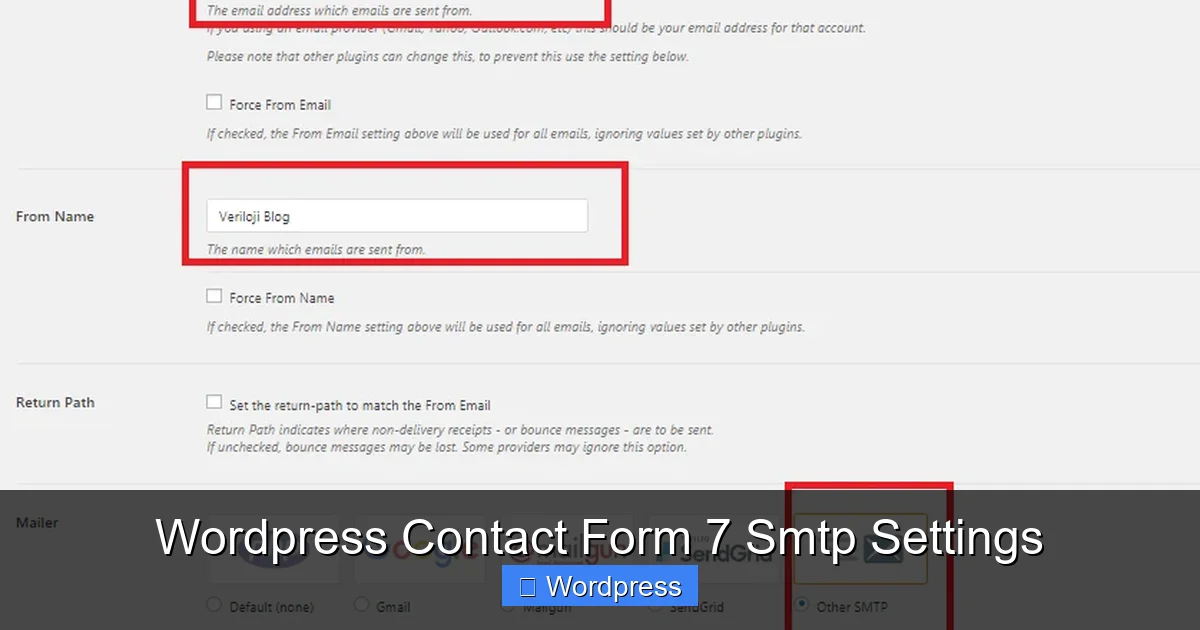
WP Mail SMTP offers several mailer options, including:
- Other SMTP – For custom SMTP servers.
- Gmail / Google – For Gmail or Google Workspace accounts.
- Outlook / Microsoft – For Outlook.com or Microsoft 365.
- Sendinblue, SMTP.com, Mailgun – For transactional email services.
For most users, Gmail or Outlook is the easiest choice. If you’re using a business email (like info@yoursite.com), Google Workspace or Microsoft 365 are ideal.
Step 3: Enter Your SMTP Credentials
Let’s walk through setting up Gmail as an example:
- In the WP Mail SMTP settings, select Gmail / Google as your mailer.
- Click Connect to Google. This will open a popup where you can authorize the plugin to send emails on your behalf.
- Log in with the Gmail account you want to use (e.g., yourbusiness@gmail.com).
- Grant the necessary permissions.
- Once connected, WP Mail SMTP will automatically fill in the SMTP details.
If you prefer manual setup (or are using a different provider), choose Other SMTP and enter:
- SMTP Host: smtp.gmail.com (for Gmail)
- Encryption: TLS
- SMTP Port: 587
- Authentication: Yes
- Username: your full email address
- Password: an app password (not your regular password)
> 💡 Important: If using Gmail, you must enable 2-factor authentication and generate an App Password. Regular passwords won’t work due to Google’s security policies.
Testing Your SMTP Configuration
After saving your settings, it’s crucial to test whether everything is working.
Send a Test Email
In the WP Mail SMTP settings, scroll down to the Email Test section. Enter your email address and click Send Email.
If the test is successful, you’ll see a confirmation message and receive the email within seconds. If it fails, WP Mail SMTP will display an error message that can help you troubleshoot—such as incorrect credentials, blocked ports, or authentication issues.
Check Your Contact Form
Now, go to your website and submit a test message through your Contact Form 7 form. Check your inbox (and spam folder) to confirm the email arrives.
If it works, congratulations! Your Contact Form 7 is now using SMTP for reliable email delivery.
Troubleshooting Common SMTP Issues
Visual guide about WordPress Contact Form 7 Smtp Settings
Image source: blog.pendc.com
Even with correct settings, you might run into problems. Here are some common issues and how to fix them.
Emails Still Going to Spam
Even with SMTP, emails can land in spam if your domain lacks proper DNS records. Make sure you have:
- SPF (Sender Policy Framework) – Authorizes your mail server to send emails for your domain.
- DKIM (DomainKeys Identified Mail) – Adds a digital signature to verify authenticity.
- DMARC (Domain-based Message Authentication) – Tells receivers what to do if SPF or DKIM checks fail.
Most email providers (like Google or Sendinblue) provide guides for setting these up. You can also use tools like this troubleshooting guide to diagnose delivery issues.
“Could Not Connect to SMTP Host” Error
This usually means your hosting provider is blocking outbound SMTP connections. Contact your host and ask if port 587 (or 465 for SSL) is open. Some hosts require you to use their SMTP server instead of third-party services.
Alternatively, consider switching to a transactional email service like Sendinblue or Mailgun, which often bypass these restrictions.
Plugin Conflicts
Sometimes, other plugins can interfere with email sending. To test this:
- Temporarily deactivate all plugins except WP Mail SMTP and Contact Form 7.
- Send a test email.
- If it works, reactivate plugins one by one to identify the culprit.
Best Practices for Reliable Email Delivery
To keep your Contact Form 7 emails flowing smoothly, follow these best practices:
- Use a consistent “From” email: Always send from an address that matches your domain (e.g., contact@yoursite.com). Avoid using generic addresses like @gmail.com unless necessary.
- Keep your plugins updated: Outdated versions of WP Mail SMTP or Contact Form 7 may have compatibility issues.
- Monitor email logs: Some SMTP plugins offer logging features to track sent emails and errors.
- Use a dedicated email service for high volume: If you expect many form submissions, consider Sendinblue or SMTP.com for better scalability and deliverability.
- Set up email notifications: Use Contact Form 7’s built-in mail settings to send confirmations to users and alerts to admins.
For advanced customization, such as conditional logic or HTML formatting, check out Contact Form 7 Conditional Fields or how to add HTML code in Contact Form 7.
Conclusion
Configuring SMTP for Contact Form 7 is one of the smartest things you can do to ensure your website’s contact form actually works. Without it, you risk losing leads, customer inquiries, and important messages—all because emails never made it to your inbox.
By using a plugin like WP Mail SMTP and connecting to a trusted email provider, you gain reliability, security, and peace of mind. The setup takes just a few minutes, but the impact on your site’s functionality is huge.
Don’t let poor email delivery hold your business back. Follow this guide, test your settings, and enjoy the confidence that comes with knowing your Contact Form 7 is truly connected.
Frequently Asked Questions
What is SMTP and why do I need it for Contact Form 7?
SMTP (Simple Mail Transfer Protocol) is a secure method for sending emails through authenticated servers. Contact Form 7 uses WordPress’s default mail function by default, which is often blocked or marked as spam. SMTP ensures your emails are delivered reliably.
Can I use Contact Form 7 without SMTP?
Yes, but emails may not be delivered consistently. Many hosting providers have poor mail configurations, leading to lost or delayed messages. SMTP dramatically improves deliverability.
Which SMTP plugin is best for WordPress?
WP Mail SMTP by WPForms is the most popular and reliable option. It supports Gmail, Outlook, Sendinblue, and custom SMTP servers with an easy setup process.
Why am I getting an “authentication failed” error?
This usually means your username or password is incorrect. For Gmail, ensure you’re using an app password, not your regular password, and that 2-factor authentication is enabled.
Can I use my hosting provider’s SMTP server?
Yes, but it’s not always recommended. Some hosts block external SMTP or have strict limits. Check with your provider or consider using a dedicated email service for better results.
Do I need to configure DNS records for SMTP?
While not always required, setting up SPF, DKIM, and DMARC records improves email deliverability and reduces the chance of your messages being marked as spam.