Editing a WordPress theme doesn’t have to be scary—this guide shows you how to customize your site’s design and functionality without breaking updates. We’ll cover using child themes, the Customizer, and code editors so you can make changes confidently and keep your site secure.
Key Takeaways
- Always use a child theme: This protects your customizations when the parent theme updates.
- Use the WordPress Customizer for simple changes: Adjust colors, fonts, and layouts without touching code.
- Edit theme files via Appearance > Theme File Editor: Only for advanced users—backup first!
- Add custom CSS safely: Use the Customizer’s “Additional CSS” box instead of editing style.css directly.
- Never edit core theme files on a live site: Test changes on a staging site to avoid crashes.
- Know when to use plugins: For complex features, plugins are safer than code tweaks.
- Back up your site regularly: One mistake can break your site—always have a restore point.
How Do I Edit a WordPress Theme?
So you’ve got a WordPress site, and you’re ready to make it truly yours. Maybe you want to change the colors, tweak the layout, or add a custom feature. Great! But before you dive in, it’s important to know how to edit a WordPress theme the right way—without breaking your site or losing your changes after an update.
In this guide, we’ll walk you through the safest and most effective methods to customize your WordPress theme. Whether you’re a beginner or have some experience, you’ll learn how to make meaningful changes while keeping your site stable and secure.
Why Editing Themes the Right Way Matters
Visual guide about How Do I Edit a WordPress Theme
Image source: thethemefoundry.com
WordPress themes control how your site looks and behaves. But here’s the catch: if you edit a theme directly—especially a free or premium one—you risk losing all your changes the next time the theme updates. That’s why smart editing starts with understanding the tools and best practices.
The goal isn’t just to make your site look good—it’s to make changes that last. We’ll show you how to do that using child themes, built-in editors, and safe coding practices.
Method 1: Use a Child Theme (The Safest Approach)
Visual guide about How Do I Edit a WordPress Theme
Image source: mllj2j8xvfl0.i.optimole.com
The best way to edit a WordPress theme is by using a child theme. A child theme inherits all the functionality and styling of its parent theme but lets you override specific files or add new code without touching the original.
What Is a Child Theme?
A child theme is a separate theme that “depends” on a parent theme. You can modify templates, styles, and functions in the child theme, and those changes won’t be overwritten when the parent theme updates.
How to Create and Use a Child Theme
- Install a child theme plugin (optional): Plugins like Child Theme Configurator or One-Click Child Theme can generate a child theme automatically.
- Create it manually (recommended for learning):
- Go to your WordPress installation folder via FTP or your hosting file manager.
- Navigate to
wp-content/themes/. - Create a new folder named
your-theme-child(e.g.,twentytwentyfour-child). - Inside, create a
style.cssfile with this header:/* Theme Name: Twenty Twenty-Four Child Template: twentytwentyfour */
- Create a
functions.phpfile and add:
- Activate the child theme: Go to Appearance > Themes in your WordPress dashboard and activate your new child theme.
Now you can safely edit template files by copying them from the parent theme into your child theme folder and modifying them there.
For more details, check out our guide on what is a child theme in WordPress.
Method 2: Use the WordPress Customizer
For quick visual changes, the WordPress Customizer is your best friend. It lets you tweak colors, fonts, layouts, and widgets in real time—no coding required.
How to Access the Customizer
Go to Appearance > Customize in your WordPress dashboard. You’ll see a live preview of your site on the right and customization options on the left.
Common Customizations You Can Make
- Site Identity: Change your logo, site title, and tagline.
- Colors: Adjust background, text, and link colors.
- Typography: Some themes let you change font families and sizes.
- Menus: Create and edit navigation menus.
- Widgets: Add or remove content blocks in sidebars and footers.
- Homepage Settings: Choose whether to show a static page or latest posts.
Adding Custom CSS
Most themes include an Additional CSS section in the Customizer. This is the safest place to add custom styles without editing theme files.
For example, to change the font size of all headings:
h1, h2, h3 {
    font-size: 24px;
}
This method keeps your CSS separate and update-safe. Learn more in our article on the best way to add CSS in WordPress.
Method 3: Edit Theme Files Directly (Advanced)
If you need to modify PHP templates, functions, or other core files, you can use the built-in Theme File Editor. But proceed with caution!
How to Access the Theme File Editor
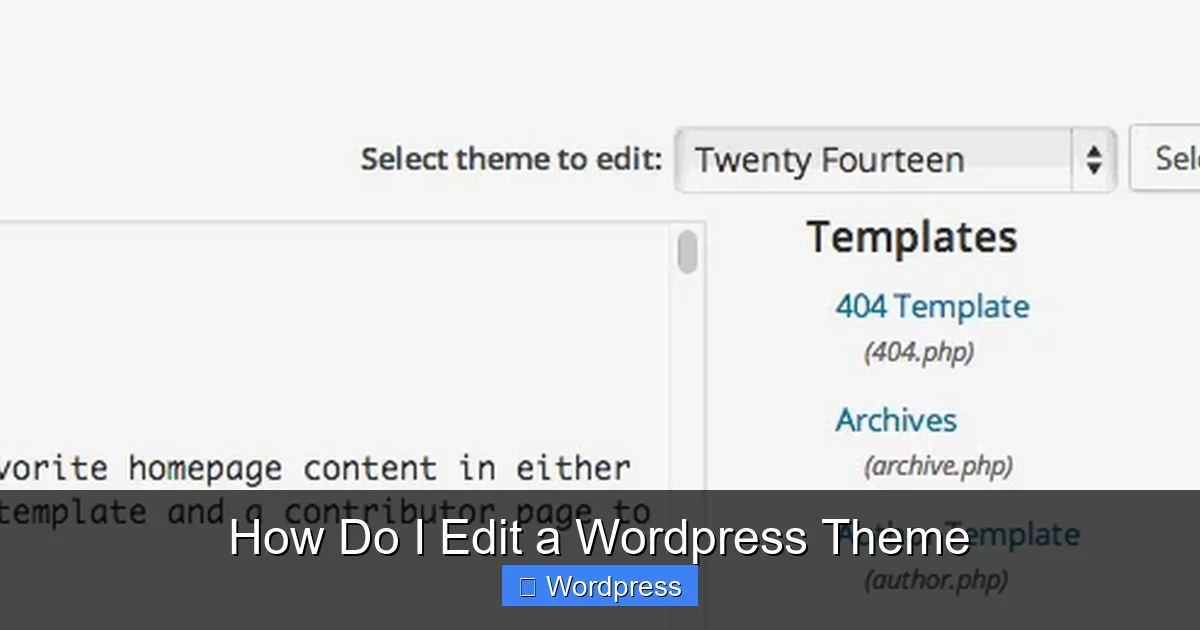
Go to Appearance > Theme File Editor. You’ll see a list of theme files on the right. Click any file to edit it.
Important Warnings
- Never edit files on a live site without a backup. One typo can crash your site.
- Disable the editor in production: Add
define('DISALLOW_FILE_EDIT', true);to yourwp-config.phpfile to prevent accidental edits. - Use a staging site: Test all changes on a copy of your site first.
Common Files You Might Edit
header.php: Modify the site header, logo, or navigation.footer.php: Add copyright text, scripts, or widgets.functions.php: Add custom PHP code (e.g., custom post types, shortcodes).page.phporsingle.php: Change how pages or posts are displayed.
Always copy the original file to your child theme before editing. That way, your changes are preserved during updates.
Method 4: Use a Page Builder (No-Code Option)
If you’re not comfortable with code, consider using a page builder plugin like Elementor, Beaver Builder, or Divi.
These tools let you drag and drop elements to design pages and even entire themes—no coding needed.
How to Create a Theme with Elementor
Elementor Pro includes a Theme Builder that lets you design headers, footers, single posts, and archive pages.
- Install and activate Elementor and Elementor Pro.
- Go to Templates > Theme Builder.
- Create a new template for the header, footer, or other parts.
- Design using drag-and-drop widgets.
- Set display conditions (e.g., show on all pages).
This method gives you full design control without touching theme files. See our guide on how to create a WordPress theme with Elementor for a full walkthrough.
Troubleshooting Common Issues
My Site Looks Broken After Editing
- Clear your cache: Use a plugin like WP Super Cache or clear your browser cache.
- Check for syntax errors: A missing semicolon or bracket in PHP can break your site. Review your code carefully.
- Restore from backup: If you can’t fix it, restore your site from a recent backup.
Changes Aren’t Showing Up
- Make sure you’re editing the correct file (e.g., child theme, not parent).
- Check if your theme uses caching—clear it.
- Ensure you’ve saved and published changes in the Customizer.
Theme Update Overwrote My Changes
This happens when you edit the parent theme directly. Solution: Always use a child theme for customizations. If you’ve already lost changes, restore from backup and switch to a child theme immediately.
Best Practices for Editing WordPress Themes
- Backup before every major change: Use plugins like UpdraftPlus or your host’s backup tool.
- Use a staging site: Test changes safely before going live.
- Document your changes: Keep notes on what you modified and why.
- Keep themes updated: But only after testing on staging. Learn how to update a WordPress theme safely.
- Use plugins for functionality: Instead of coding custom features, use trusted plugins when possible.
Conclusion
Editing a WordPress theme doesn’t have to be intimidating. By using a child theme, the Customizer, and safe coding practices, you can customize your site’s look and feel without risking stability or losing your work.
Start small—change a color, tweak a font, or add a widget. As you gain confidence, you can dive deeper into templates and functions. Just remember: always back up, test on staging, and keep your changes organized.
With the right approach, your WordPress site can be both beautiful and uniquely yours.